

iPhone Won’t Connect to WiFi? Fix ‘Unable to Join’ and Wrong Password
Read the message under the network name first. A wrong password, Unable to join and Weak Security each point to their own fix, long before any reset.
If your iPhone won’t connect to WiFi, read the message under the network name before you reset anything. “Incorrect password”, “Unable to join the network” and a “Weak Security” label each point to a different fix, and the reset that wipes settings comes last.
Menus follow iOS 27, with notes for iOS 18 and 26. If your iPhone won’t connect to WiFi at work or school, ask IT before changing settings.
iPhone Won’t Connect to WiFi? Match the Message on Your Screen
Apple’s order, from its Wi-Fi troubleshooting page: Wi-Fi on, Airplane Mode and Connectivity Assist off, VPN or security apps removed, another network tested, router checked, reset last.
| What you see | Likely cause | Go to |
|---|---|---|
| “Incorrect password” | Old saved password or a typo | Forget and rejoin |
| “Unable to join the network” | Stale saved network, filter or security mode | Forget and rejoin, then private address or router |
| “Weak Security” label | WPA/WPA2 mixed, WEP or TKIP | Security mode |
| Smart plug or camera setup fails | iPhone on 5 GHz, or the device can’t use WPA3 | 2.4 GHz setup |
| “No Internet Connection” | Router, provider, DNS or proxy | Connected but no internet |
| Network not listed | Out of range, hidden, Location off or router settings | Move closer; Wi-Fi > Other if hidden; Location, router |
| Wi-Fi switch grayed out | Wi-Fi isn’t responding | Restart; if still dimmed, contact Apple |
| iPhone won’t connect to WiFi anywhere | An app, a profile or the iPhone itself | VPNs and profiles, then reset |
Five Quick, Reversible Checks to Run First
Test the connection after each one.
Wi-Fi on, Airplane Mode off
In Settings > Wi-Fi, turn Wi-Fi on, tap your network and wait for the blue checkmark.
Connectivity Assist off
Turn it off in Settings > Wi-Fi so cellular data can’t mask weak Wi-Fi. iOS 18 and 26 have Wi-Fi Assist in Settings > Cellular (Mobile Data).
Restart, then unlock
Use Settings > General > Shut Down, then unlock: saved Wi-Fi passwords work only after the first unlock.
Power-cycle the router
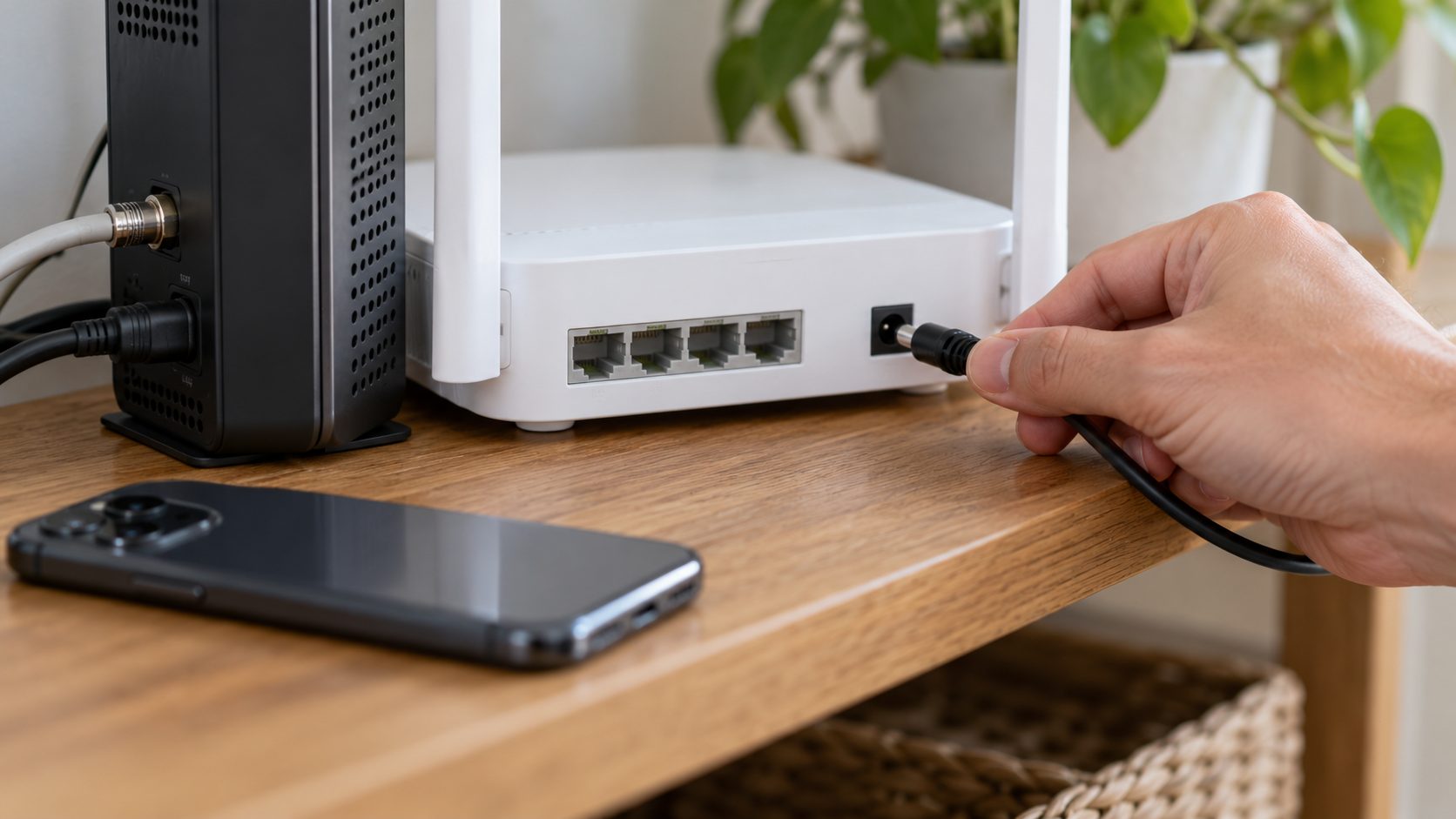
Unplug the router and cable modem, plug them back in and let both start up.
Try another device and network
If a laptop joins but your iPhone won’t connect to WiFi, the network is up. If the iPhone joins other networks, suspect your router.
Then move closer and update iOS and the router’s firmware. No network works? Remove VPN and security apps and profiles (next section) before any reset.
Quiet Blockers: VPNs, Security Apps and Location Services
When an iPhone won’t connect to WiFi on any network, suspect its apps and profiles, not your router: VPNs, firewalls, antivirus, parental controls and content blockers can all block joining.
Uninstall the suspect app, restart and retest; if you need the app, contact its provider. Search Settings for VPN, profile and filter, and remove unwanted profiles in Settings > General > VPN & Device Management. That also removes the accounts and settings they installed; on a work or school iPhone, leave it to IT.
Also keep Location Services and its Networking & Wireless switch on (Settings > Privacy & Security > Location Services > System Services): Apple’s router guide says each country’s rules set the allowed Wi-Fi channels and signal strength.
“Incorrect Password” With the Right Password: Forget, Check, Rejoin
When an iPhone won’t connect to WiFi with a password you know is right, the saved copy may predate a password change or a new router. Forgetting and rejoining is also the first fix for “Unable to join”.
- On iOS 18 or later, check the saved password in Passwords > Wi-Fi > your network against the router’s label or app.
- In Settings > Wi-Fi, tap the More Info button (i) next to the network, then Forget This Network.
- Rejoin and type slowly: passwords and network names are case-sensitive, and 0 and O, or 1 and l, are easy to confuse.
Still refused? Next to a friend’s unlocked, connected iPhone, pick the network so they can tap Share Password. Both phones need Wi-Fi and Bluetooth on, Personal Hotspot off, and each other’s Apple Account email or phone number in Contacts.
No prompt? Restart both and retry, or, on iOS 18 and later, have them open the network in Passwords > Wi-Fi and tap Show Network QR Code for you to scan.
“Unable to Join the Network”: Private Wi-Fi Address and MAC Filtering
Your iPhone joins with a private Wi-Fi address, not its hardware MAC address. If your iPhone won’t connect to WiFi on a router that admits only listed devices or ties parental controls to an address, suspect this setting.
In Settings > Wi-Fi, tap (i) next to the network (tap Edit first if you aren’t connected), then Private Wi-Fi Address. iOS 14 to 17 shows a switch; iOS 18 and later offer three modes:
- Fixed: one address that never rotates; the default on WPA2 or stronger networks.
- Rotating: changes every two weeks; the default on weak or open networks.
- Off: uses the hardware MAC address, which networks can track.
The catch: Reset Network Settings, and usually Forget This Network, give the iPhone a new private address. A router list holding the old one can then block it, one reason an iPhone won’t connect to WiFi right after a reset.
Install updates and retry first, Apple says. Then, for that network only, turn the feature off, or choose Fixed and add the Wi-Fi Address shown there to the router’s list; see Apple’s Private Wi-Fi Address guide.
iPhone Won’t Connect to WiFi but Other Devices Will: Router Settings
Compare the router’s app or admin page (menus vary by brand) with Apple’s recommended router settings: Radio mode set to All (not Wi-Fi 6 only), every band on and MAC filtering off. Back up the settings first, and after a change, forget and rejoin the network on each device.
Security mode and the “Weak Security” label
Choose WPA3 Personal, or WPA2/WPA3 Transitional if older devices, including many smart plugs and cameras, share the network; WPA2 Personal (AES) is the fallback. Apple calls WPA/WPA2 mixed, WPA Personal, WEP and TKIP deprecated: they hurt reliability and trigger the warning.
Don’t make the network open, even briefly, just because your iPhone won’t connect to WiFi: anyone in range could join. Change the mode and keep a strong password.
iPhone won’t join 2.4 GHz Wi-Fi for a smart plug or camera
With one name for all bands, iOS prefers 5 or 6 GHz when joining if the signal is stronger than -65 dBm, per Apple’s deployment guide. Some plug and camera apps, depending on the brand, want the phone on 2.4 GHz during setup, so near the router it looks as if your iPhone won’t connect to WiFi on 2.4 GHz.
- Move, then rejoin: walk away from the router and toggle Wi-Fi so the iPhone picks a band again, or use the router’s temporary 2.4 GHz option.
- Security mode: many 2.4 GHz gadgets need WPA2 (AES) or WPA2/WPA3 Transitional, not WPA3-only.
- Local Network access: allow the vendor’s app in Settings > Privacy & Security > Local Network.
Afterward, keep one shared name: Apple says separate band names can make connections unreliable. Already have separate names? Join the 2.4 GHz one for setup.
Last Resort When Your iPhone Won’t Connect to WiFi: Reset Network Settings
Apple suggests it only after other fixes fail. It deletes every saved Wi-Fi network and password, plus cellular, VPN and APN settings, renames the phone “iPhone”, untrusts manually trusted certificates and may turn off data roaming. VPNs from a profile or device management stay; on a school or work iPhone, ask IT first.
Note your passwords
Write down the Wi-Fi passwords you need; iOS 18 and later list them in Passwords.
Open the reset menu
iOS 15 to 27: Settings > General > Transfer or Reset iPhone > Reset. iOS 14 and earlier: Settings > General > Reset.
Confirm the reset
Tap Reset Network Settings and confirm. Wi-Fi turns off, then back on.
Rejoin and tidy up
Rejoin, turn roaming back on if needed, and rename the phone in Settings > General > About.
If your iPhone won’t connect to WiFi even after the reset, see the closing section.
Frequently Asked Questions
Why does my iPhone say the Wi-Fi password is incorrect when I know it’s right?
When an iPhone won’t connect to WiFi after a router or password change, the saved copy is usually stale. Forget the network and rejoin.
Will Reset Network Settings delete my photos or data?
No. Photos, messages and apps stay; only network settings, the phone’s name and manually trusted certificates change.
Why won’t my iPhone XR connect to Wi-Fi when other phones can?
The XR supports WPA3 (every iPhone 7 or later does), but as a Wi-Fi 5 (802.11ac) phone it can’t see 6 GHz, and a Wi-Fi 6-only radio mode shuts it out. Set Radio mode to All, keep one name for 2.4 and 5 GHz, and use WPA2/WPA3 Transitional, Apple’s pick for older devices. It stops at iOS 18, so Wi-Fi Assist is under Settings > Cellular (Mobile Data).
Still Stuck? Find Out Whether It’s the iPhone or the Network
If every device fails on your Wi-Fi, call your internet provider. If your iPhone won’t connect to WiFi on any network after these steps, or the Wi-Fi switch stays grayed out, contact Apple.
Fixing another device? See our guides for an Android phone that won’t connect to Wi-Fi and Windows 11 Wi-Fi problems, or browse more mobile guides.
Leave a comment