

Wi-Fi Connected but No Internet? 10 Fixes in the Right Order
Find out whether one device or every device is offline, then work through 10 fixes, from the modem and router to DNS, VPNs and a full network reset.

When your Wi-Fi says connected but no internet, the link from your device to the router works. The break is further along: the router, the modem, your provider, or a setting on the device that blocks traffic.
Quick answer: if every device says connected but no internet, check for an outage, then restart the modem and router. If only one device does, rejoin the network, renew its IP address and change its DNS.
One Device or Every Device? Sort the Problem First
Load a website on a second device on the same Wi-Fi, with mobile data off on any phone so nothing loads over cellular. If it works, the first device is at fault (Fixes 5–10). If it also shows connected but no internet, it’s the router, modem or provider (Fixes 1–4).
What Connected but No Internet Means (and “No Internet, Secured”)
Connected but no internet means your device joined the router’s Wi-Fi but can’t reach anything beyond it. There are two links, device to router and router to provider, and full Wi-Fi bars only prove the first.
Windows 11 shows “No internet, secured” (“secured” just means encrypted). Android says “Connected without internet” or “No internet access,” and iPhone says “No Internet Connection.”
Windows decides this with a small test file from msftconnecttest.com. Microsoft’s NCSI FAQ notes that a proxy, VPN or DNS problem can fail that test, so check a real website before trusting the warning.
Public networks, often labeled “open,” show connected but no internet until you finish their sign-in page. No page? Turn off any VPN, set manual or Private DNS back to Automatic (Fix 7) and open neverssl.com.
Every Device Connected but No Internet? Fixes 1–4
Fix 1: Check for an outage first
On mobile data, check your provider’s app, its status page or Downdetector. An unpaid bill or a suspended account looks the same.
Fix 2: Restart the modem, then the router
- Unplug the router, then the modem (remove any backup battery). Wait 2 minutes, as NETGEAR recommends.
- Plug in the modem and wait until its Online light stays solid; NETGEAR allows 5 minutes.
- Plug in the router, wait for its Internet light, then load a website.
On fiber, the ONT where the line enters your home counts as the modem.
Fix 3: Check the cables and lights
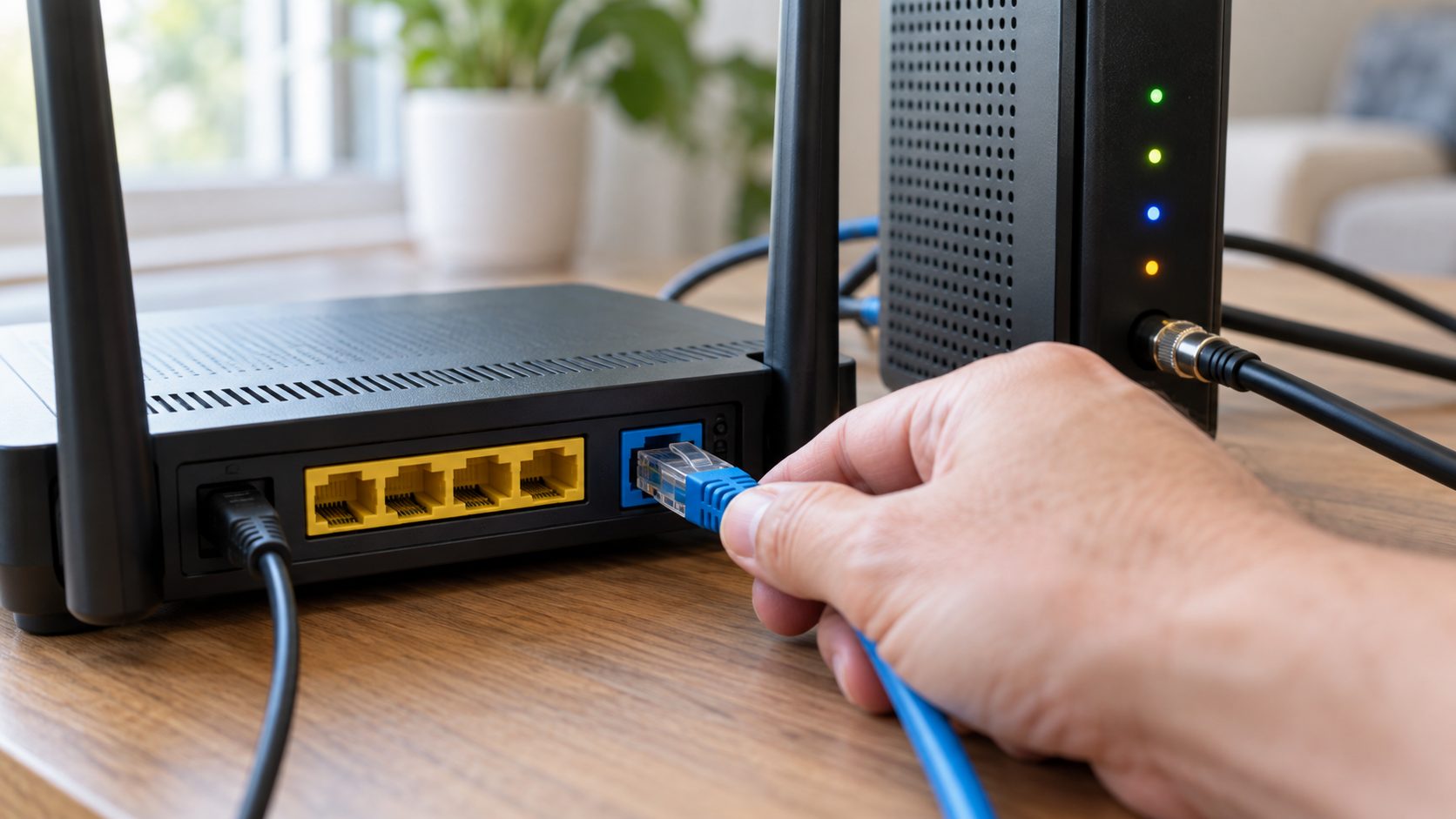
The modem’s cable belongs in the router’s WAN or Internet port, not a LAN port. Reseat it or try a spare, then check the lights (colors vary by model):
- Modem’s Online light blinking after 5 minutes: no signal from your provider. Check the coax or phone line, then call.
- Router’s Internet light amber, red or off: the router isn’t online, so every device shows connected but no internet. Go to Fix 4.
- Red LOS light on a fiber ONT: no fiber signal. Don’t bend the cable; call your provider.
Fix 4: Ping, check the WAN status, then test the modem
Pings show where traffic stops. On a PC, note the Default Gateway from ipconfig in Command Prompt (search Start for cmd), then run these:
ping 192.168.1.1(your gateway). “Reply from … time=” lines mean the Wi-Fi link is fine; “Request timed out” or “unreachable” means restart the router.ping 8.8.8.8. Replies mean the line works.ping google.com. If only this one “could not find host,” it’s DNS.
Only phones showing connected but no internet? Skip the pings. Then open the router’s admin page (the address and password are often on its label) or its app, and find the WAN status:
- WAN IP of 0.0.0.0: the router got no address. Restart the modem, check any PPPoE login, or ask if your ISP locks service to one MAC address (use the router’s MAC Clone setting).
- Valid WAN IP: if only step 3 failed, set the router’s DNS to 8.8.8.8 and 8.8.4.4. If step 2 failed too, it’s likely your provider.
To test the modem alone (not on PPPoE lines, where the router signs in with a username and password), plug a laptop with Wi-Fi off into the modem, then restart the modem, which may only accept the first device it sees.
Online? The router is at fault. Still offline? It’s the modem or provider. Restart the modem again when you reconnect the router.
Still Offline? Call Your ISP Before a Factory Reset
If every device still says connected but no internet, call your provider with the lights, ping and laptop results. Ask them to check your line and refresh the modem remotely. Leave a factory reset for last.
There’s no undo for a factory reset: the router loses your provider’s connection settings, your Wi-Fi name and password, port forwards and parental controls.
First, get any PPPoE username and password (and VLAN ID) from your ISP; some lines won’t reconnect without them. If the admin page opens, back up its settings to a file. Ask before resetting a provider’s box.
With the router on, hold the pinhole Reset button with a paperclip: about 7 seconds on NETGEAR, over 10 on TP-Link, 5 to 10 on ASUS. Then run setup with the label’s defaults, reusing your old Wi-Fi name and password so devices reconnect.
Only One Device Connected but No Internet? Fixes 5–9
Fix 5: Forget the network and rejoin
When one laptop or phone shows connected but no internet, forgetting the network clears settings saved with it, and rejoining fetches fresh ones. Have the password ready.
- Windows 11: Settings > Network & internet > Wi-Fi > Manage known networks, then Forget next to the network.
- iPhone: Settings > Wi-Fi > (i) > Forget This Network (your other Apple devices forget it too).
- Pixel: Settings > Network & internet > Internet > tap the network > Forget.
- Samsung: Settings > Connections > Wi-Fi, press and hold the network > Forget network.
Fix 6: Renew the IP address and flush DNS
On a Windows PC that shows connected but no internet, run ipconfig. An IPv4 Address starting with 169.254 means the router never answered: restart it and check its block list (Fix 8).
An address outside the gateway’s range was probably set by hand; switch IP assignment to Automatic (DHCP) in the Wi-Fi network’s properties (path in Fix 7).
Then search Start for cmd, choose Run as administrator, and enter ipconfig /release, ipconfig /renew and ipconfig /flushdns.
Mac: System Settings > Network > Wi-Fi > Details > TCP/IP > Renew DHCP Lease. iPhone: Settings > Wi-Fi > (i) > Renew Lease. Android has no renew button, so rejoin (Fix 5).

Fix 7: Switch DNS, and check Android’s Private DNS
If the address is valid but the device still shows connected but no internet, or pings pointed to DNS, switch to Google’s DNS (8.8.8.8 and 8.8.4.4). Screenshot the old settings first.
- Windows 11: Settings > Network & internet > Wi-Fi > your network’s properties > DNS server assignment > Edit > Manual. Turn on IPv4, enter both, Save.
- iPhone: Settings > Wi-Fi > (i) > Configure DNS > Manual. Replace the entries, Save.
- Mac: System Settings > Network > Wi-Fi > Details > DNS. Click + to add both.
On Android, a Private DNS hostname the phone can’t reach breaks every network. In Private DNS (Network & internet on a Pixel; Connections > More connection settings on a Samsung), choose Automatic, or pick the provider hostname option and enter dns.google.
Fix 8: Turn off VPNs, proxies and filters, and check router blocks
VPNs, firewalls, antivirus, filter apps and configuration profiles can all block traffic; turn them off one at a time (at work, ask IT first).
- Windows 11: in Settings > Network & internet > Proxy, turn off Use a proxy server and Use setup script unless work set them.
- iPhone: Settings > General > VPN & Device Management; remove anything you don’t recognize.
- Android: touch and hold Power off in the power menu for Safe mode (steps vary), and turn off Airplane mode if it comes on. If the phone stops showing connected but no internet, an app is the cause.
If only one browser fails, suspect an extension; if it also sends searches to Yahoo, see how to remove the Chrome search hijacker.
On the router, check parental controls: a bedtime schedule or paused profile makes a kid’s tablet show connected but no internet. MAC filters can also lock out a phone, since phones use a private, sometimes rotating address per network.
For an allow-list, stop the address changing, then add the Wi-Fi address shown on that screen. iPhone: Settings > Wi-Fi > (i) > Private Wi-Fi Address > Fixed (iOS 18 and later; older versions: switch it off). Pixel: the network’s settings > Privacy > Use device MAC.
Fix 9: Set the date and time automatically
A wrong clock breaks secure sites, whose certificates are valid only between set dates (Chrome says “Your clock is behind”). Turn on automatic date and time under Settings > Time & language on Windows 11, Settings > System (Samsung: General management) on Android, and Settings > General on iPhone.
Fix 10: Reset Network Settings on Windows 11, iPhone or Android
If one device still says connected but no internet, reset its network settings. Files stay; saved Wi-Fi networks, VPNs you added and, on Android, Bluetooth pairings go (a watch may then need its own reset).
Windows 11
Save your work, then open Settings > Network & internet > Advanced network settings > Network reset > Reset now > Yes. Windows restarts about 5 minutes later.
Microsoft’s Wi-Fi guide notes that networks may turn Public; set your home one back to Private if you share files or printers, and reinstall any VPN client.
Network reset isn’t Reset this PC, which reinstalls Windows; if that ever fails, see our “problem resetting your PC” fix.
iPhone or iPad
Settings > General > Transfer or Reset iPhone > Reset > Reset Network Settings. It also clears cellular settings and marks manually trusted certificates as untrusted, which can break work or school Wi-Fi.
Android
- Pixel: Settings > System > Reset options > Reset Bluetooth & Wi-Fi (older: Reset Wi-Fi, mobile & Bluetooth).
- Samsung: Settings > General management > Reset > Reset Wi-Fi and Bluetooth settings (older: Reset network settings).
Frequently Asked Questions
Why does my phone say connected but no internet on every network?
Something on the phone travels with it: a VPN or filter app, an unreachable Private DNS, or a wrong clock (Fixes 7–9).
Why does my Wi-Fi keep dropping to connected but no internet?
If a wired laptop drops too, it’s the line or modem, so log the times for your provider. If only Wi-Fi drops, update the router’s firmware.
If Nothing Here Works
A device that fails on every network needs its maker’s support. If every device still shows connected but no internet, ask your provider for a technician.
For other connection problems, see our internet guides or browse all our English guides.


Leave a comment