

Router Keeps Rebooting, Turning Off or Freezing? Find the Cause
Sort a reboot loop from random restarts, power-offs and freezing, then check schedules, the log, power, heat and firmware before you reset or replace the router.
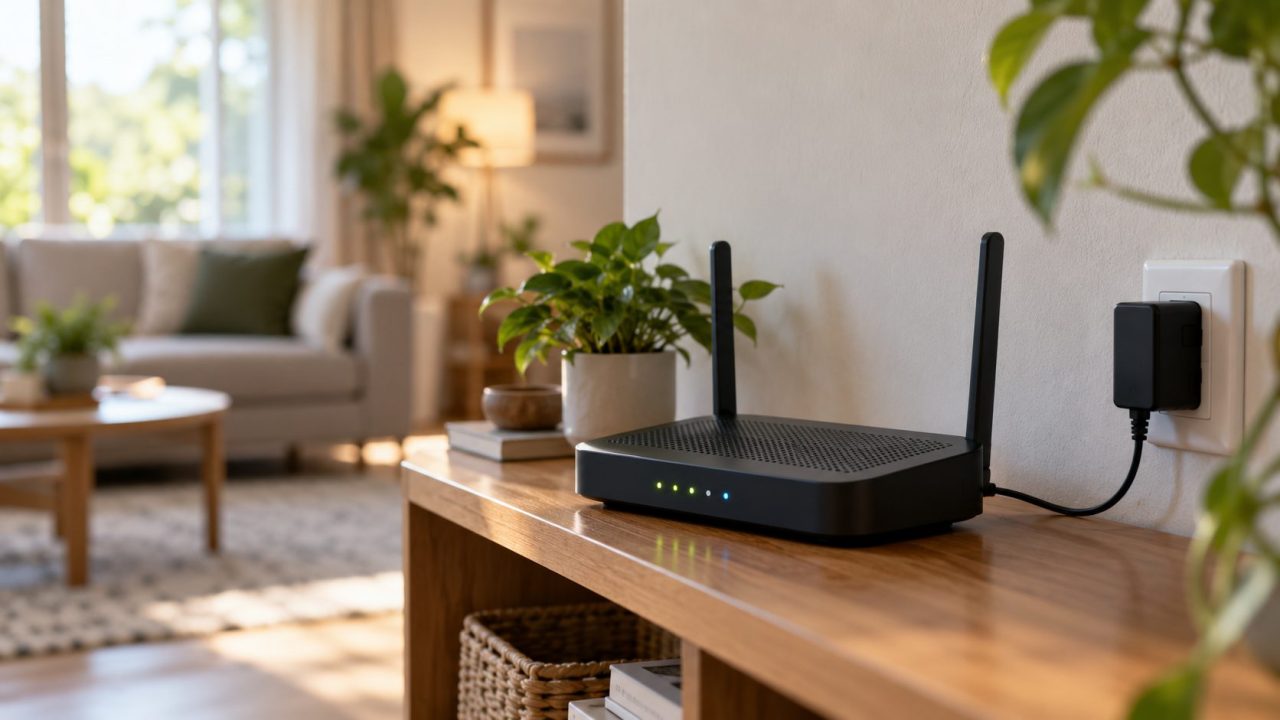
When a router keeps rebooting, the fix depends on the kind of restart: a boot loop, random restarts, a box that goes dark, a freeze, or lost settings. Sort that first, then check schedules, the log, power, heat and firmware before any factory reset.
Router Keeps Rebooting or Just Dropping? Match the Symptom First
If your router keeps rebooting, you’ll see the lights run through startup and your Wi-Fi name vanish for a few minutes. If the Wi-Fi stays listed but pages won’t load, the router hasn’t restarted. Either the internet link has dropped (see Wi-Fi connected but no internet) or the router has frozen (see Freezing below).
| What you see | Likely cause | Go to |
|---|---|---|
| Restarts at the same hour each night | Schedule, update or ISP maintenance | Planned restarts |
| Random restarts, often under heavy use | Power, heat or a firmware crash | Power and heat |
| Goes completely dark | Switched outlet, power strip or adapter | Power and heat |
| Never finishes starting | Power adapter, firmware or hardware | Boot loops |
| Stays on, but nothing loads | Freezing | Freezing |
| Back to factory settings | A firmware update, a stuck reset button or a fault | FAQ |
Keep the terms apart: a restart (reboot) keeps your settings; a reset returns the router to factory defaults and erases them.
Router Keeps Rebooting at the Same Time Every Night?
A restart at a fixed hour is often a schedule or an update, not a fault. TP-Link’s reboot FAQ warns that Auto Reboot is sometimes on by default and can pass for a hardware fault. Menus vary by model:
| Router | Where to look |
|---|---|
| TP-Link | Auto Reboot under System Tools > Reboot (classic interface) or Advanced > System > Reboot (newer interface) |
| ASUS | Administration > System (reboot scheduler) and Administration > Firmware Upgrade (Auto Firmware Upgrade runs at the time you set; ASUS says required fixes can install automatically) |
| eero | Reboots during automatic updates, usually overnight; set Settings > Software updates > Preferred update time |
| ISP gateway | Can restart overnight for maintenance or a firmware update the provider pushes; ask your ISP if it happens at a bad time |
A single overnight restart from a schedule or an update is expected. If your router keeps rebooting several times a day, a schedule isn’t the whole story.
Read the Log and Uptime to Find the Restart Reason
Open the router’s admin page and check the uptime and system log. If the router keeps rebooting, the uptime drops back to near zero each time, and the log may show what came just before.
On many ASUS models it’s System Log > General Log, where Save downloads it. NETGEAR Nighthawk routers use ADVANCED > Administration > Logs, whose Send Log button emails it once email alerts are set up. Entries right after a restart may show a default date until the router syncs its clock.
ASUS says its log survives a reboot or power-off but not a factory reset. OpenWrt keeps its default log in RAM, so it starts empty after each restart. If your router keeps rebooting and the log always starts fresh, send it to a NAS or always-on PC running a syslog server; on ASUS, enter that device’s IP in Remote Log Server (port 514 by default).

- A firmware upgrade entry just before the restart. That’s an automatic update.
- WAN or PPPoE reconnects while the uptime keeps climbing. The line dropped; the router didn’t restart.
- Uptime back to zero with nothing logged first. Something cut it off abruptly. Suspect power, heat, hardware or a firmware crash.
Router Keeps Rebooting at Random? Test Power and Heat
These checks cost nothing. Change one thing at a time so you know what fixed it.
Outlet, power strip and cable
As a test, plug the adapter straight into another wall outlet, not a power strip, and make sure it isn’t on a light switch, timer or smart plug. TP-Link notes that an unstable outlet can cause repeated restarts even when it seems fine.
Don’t daisy-chain power strips or extension cords; the UK charity Electrical Safety First warns that the plug in the wall socket can overheat. A good surge protector is fine once you’ve found the cause.
Also check for a loose plug or a frayed cable. If the router keeps rebooting on the wall outlet too, move on to the adapter.
The power adapter
Adapters wear out, and a failing one is a common cause of random restarts. If the restarts continue on the original, try a known-good adapter that matches the label, ideally from the maker. If the restarts stop, replace the adapter.
Google’s Nest Wifi safety guide is blunt: “Failure to use the included adapter can cause fire, electric shock, injury, or damage to the device and the accessories.”
A replacement needs the same voltage, output type (DC or AC), polarity symbol and plug size, and at least the same current. A Nest Wifi Pro adapter, for example, is rated 10V/2.25A. Never set a universal adapter by guesswork.
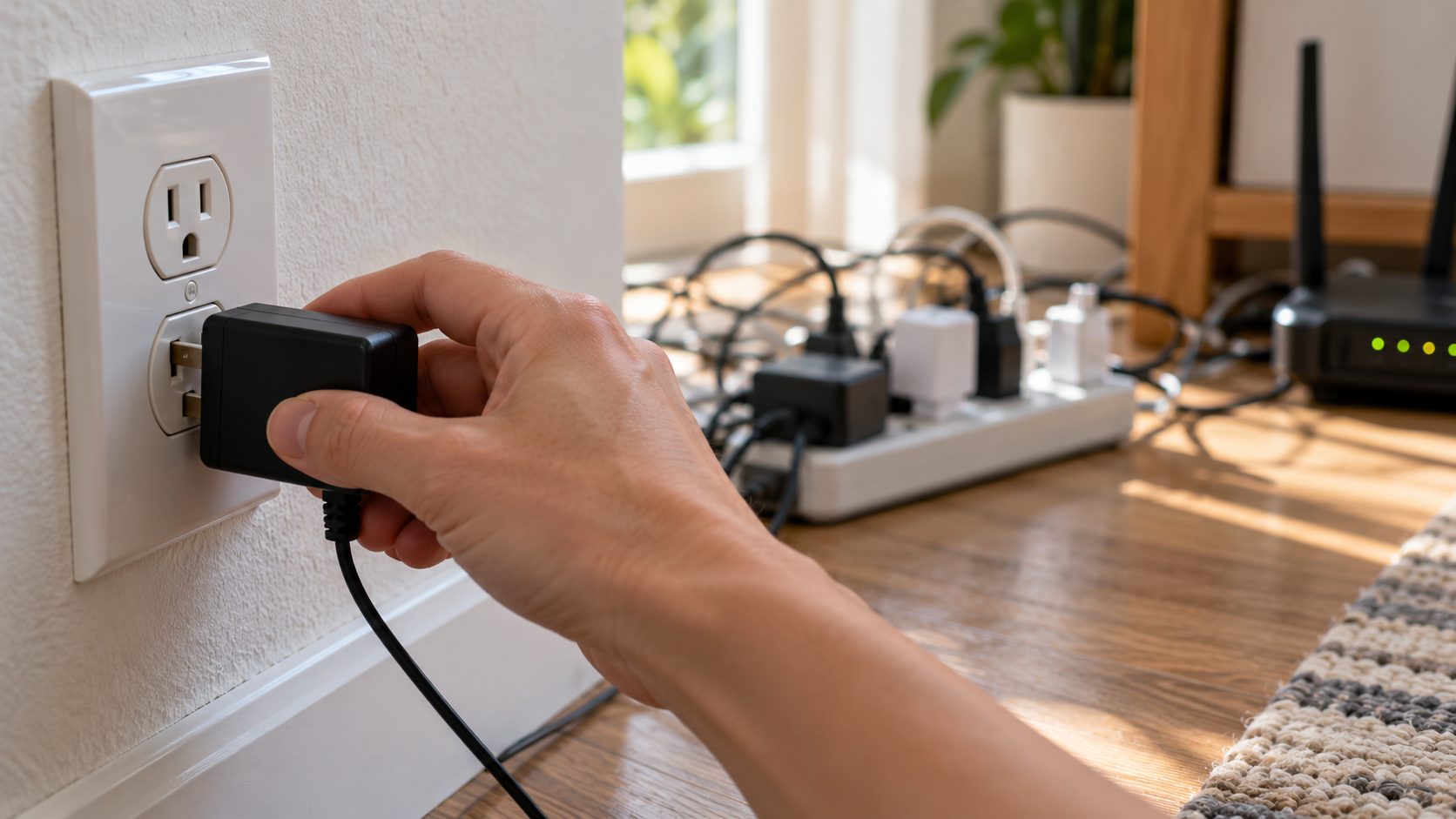
A router or adapter that trips a circuit breaker is an electrical fault, not a network problem. Unplug it, don’t try another outlet, and have the maker or a qualified electrician check it. Burn marks, buzzing and hot sockets are warning signs too.
Heat and ventilation
If the router keeps rebooting in a cabinet or a hot room, suspect heat, which TP-Link names as a common trigger. Give it open air, not on top of other electronics or near heat sources. Google lists 0–35 °C (32–95 °F) for Nest Wifi; check your model’s spec sheet.
Router keeps rebooting when Wi-Fi is busy
Restarts during big downloads or streaming can mean the extra load is exposing a weak adapter or poor cooling. Unplug USB drives, which add to the power draw, and extra Ethernet devices, then repeat the heavy task in open air.
A firmware bug that crashes under heavy traffic or many devices looks the same. If the router keeps rebooting once power and cooling check out, update the firmware, or roll back if it started after an update.
Fix Firmware Bugs and Recover From a Boot Loop
Old firmware can have bugs that cause reboot loops. Update it under Administration > Firmware Upgrade on ASUS or System Tools > Firmware Upgrade on classic TP-Link pages, following TP-Link’s precautions:
- Match the hardware version on the label; the wrong file can damage the router.
- Use your own region’s download site; EU and US firmware differ.
- If the release notes mention a reset, back up your settings first.
- Update over a cable, and never cut the power mid-update.
If the restarts began right after an update, the new firmware is the suspect: look for a newer fix or, where the maker offers it, install the previous version.
If the router keeps rebooting before it finishes starting, unplug everything except power and try a known-good adapter that matches the label, in a wall outlet. Only if it still loops, use the maker’s recovery mode, if it has one.
On ASUS it’s Rescue Mode: connect a Windows PC by cable and set its Ethernet adapter’s Internet Protocol Version 4 (TCP/IPv4) properties to the fixed IP 192.168.1.10, mask 255.255.255.0. Hold Reset while plugging in the power until the power light flashes slowly, then upload the firmware with the ASUS Firmware Restoration utility. Afterward, set the PC back to automatic (DHCP).
Router Keeps Freezing but Stays On? Restart the Right Box
Here, unlike when a router keeps rebooting, the lights and Wi-Fi stay on, but nothing loads until you power-cycle something. If you can still open the router’s admin page, it’s responding, so restart the modem or fiber ONT first. If you can’t, the router has hung or crashed; on a mesh system, restart the node whose nearby devices fail. An all-in-one ISP gateway is one box.
If it constantly needs restarting, suspect firmware bugs, memory running out or too many devices. A reboot clears memory, so it helps for a while but won’t fix a leak; a firmware update might. Compare your client count with the router’s rated limit; Google, for example, rates each Nest Wifi Pro router for up to 100 connected devices.
Only some brands offer a scheduled reboot, such as the ASUS and TP-Link options above (ASUS needs internet access and the correct time). It’s a stopgap, not a cure.
If the Router Keeps Rebooting Anyway: Reset, Support or Replace
A factory reset erases the internet settings, including any PPPoE username and password, plus the Wi-Fi name and password, port forwarding and parental controls. Save these details first, or ask your ISP for them.
Factory reset
Rented ISP gateway? Call the provider first (step 2). Otherwise, unplug for 30 seconds once more, as eero advises, then hold the reset button (5–10 seconds on ASUS) and run setup again in the app or web wizard (any default login is on the label).
Call your ISP or the maker
Report an ISP gateway to your provider and anything else to its maker, with the saved log and what you’ve ruled out.
Replace the router
If the router keeps rebooting on a wall outlet, with the right adapter, in open air, on current firmware and after a reset, suspect the hardware.
Frequently Asked Questions
Why does my router keep resetting itself to factory defaults?
Some firmware upgrades reset settings to defaults, and the release notes usually say so. A stuck reset button can too: on eero, a long hold is a full factory reset, while a shorter one reboots or soft-resets. Keep a settings backup either way.
My router keeps rebooting. Has it been hacked?
A reboot loop alone isn’t evidence of that. Settings you didn’t change are a better sign, such as a new admin password, DNS server or port forwarding rule.
If you find those, this is the one case where a reset comes early. Factory reset it, update the firmware and set new strong admin and Wi-Fi passwords. Confirm DNS and port forwarding are clean, turn off remote (WAN) management and UPnP if unused, and don’t restore a backup made after the change.
Why does my router keep turning off and on by itself?
Watch the lights. If they go fully dark first, it’s losing power: test the outlet, power strip and adapter. If they stay lit and run through startup, the router keeps rebooting on its own, which points to a schedule, heat or firmware.
Recap: Seven Checks, Cheapest First
When your router keeps rebooting, rule out planned restarts and read the log, then test the outlet, the adapter, heat, load and firmware. Only then reset, with your ISP login saved. A router that trips a breaker gets unplugged, not troubleshot.
More home network fixes are in our internet guides and on the Tech Guides home page.


Leave a comment