

Windows Won’t Let Me Extend Volume, Shrink or Format? How to Fix It
Why Extend Volume is grayed out, how to move the recovery partition without breaking Windows Recovery, and what stops Windows from shrinking or formatting a drive.
“Windows won’t let me extend volume” almost always comes down to one rule: Disk Management grows a volume only into unallocated space directly to its right on the same disk, and the recovery partition usually sits in between. Shrink and format fail for other reasons, from unmovable system files to write protection.
Before You Touch a Partition: Back Up and Read the Layout
Whether it’s “Windows won’t let me extend volume”, a shrink that stops early or a failed format, protect your data first.
Partition and format steps can erase data. With BitLocker or device encryption on, find your recovery key first (usually at aka.ms/myrecoverykey), or note the 48-digit recovery password this admin command shows:manage-bde -protectors -get C:
Press Win + X, then K, for Disk Management. Its bottom pane shows partitions in on-disk order, which explains most cases of “Windows won’t let me extend volume”. To see the partition style, right-click the disk’s gray label, then Properties > Volumes.
Why Windows Won’t Let Me Extend Volume: The Directly-to-the-Right Rule
In a typical “Windows won’t let me extend volume” case, the free space is in the wrong place. Extend Volume uses only unallocated space immediately after the volume (directly to its right) on the same disk. For C:, anything else leaves it grayed out. Microsoft’s Extend Volume guide covers Windows 10 and 11 too.
| Disk 0, left to right | Can C: be extended? |
|---|---|
| [EFI] [C:] [Unallocated] | Yes: the space touches C: |
| [EFI] [C:] [Recovery] [Unallocated] | No: Recovery is in the way |
| [EFI] [Unallocated] [C:] | No: the space is on the left |
The second row is the classic “Windows won’t let me extend volume” layout after cloning to a bigger SSD or growing a virtual disk: the new space lands at the end, behind Recovery.
That layout is deliberate, which is why “Windows won’t let me extend volume” is so common: Microsoft places Recovery right after Windows so updates can resize it, and Windows has no tool to move it.
If a new or cloned drive doesn’t appear at all, see SSD not showing up instead.
Recovery Partition in the Way? Move It Without Breaking WinRE
For this version of “Windows won’t let me extend volume”, Microsoft lists three ways out: delete the partition after a backup, move it with a non-Microsoft tool, or make a new volume in the free space (right-click it, New Simple Volume).
Many guides answer “Windows won’t let me extend volume” with a bare delete partition override, leaving Windows Recovery (WinRE) with nowhere to live. These steps adapt Microsoft’s KB5028997 procedure to rebuild it at the end of the disk.
Create a USB recovery drive first (search for Recovery Drive); it erases the stick. With BitLocker on, suspend it as a precaution for these boot changes:manage-bde -protectors -disable C:
It resumes after the next restart, or now with -enable.
Check where WinRE lives
In an admin Command Prompt, run reagentc /info. Note the partition number in Windows RE location. If the status already reads Disabled, do step 2’s Winre.wim check before deleting anything.
Disable WinRE, check the image
Run reagentc /disable, then dir /a C:\Windows\System32\Recovery to find the hidden Winre.wim. If it’s missing, delete nothing: run reagentc /enable and make a New Simple Volume instead.
Delete the recovery partition
In diskpart, run list disk, select disk N (matched by size) and list part. Select the Recovery partition right after C: (select partition N), confirm it’s the number reagentc showed, then run delete partition override. OEM PCs may add vendor partitions: check twice.
Extend C:, leaving about 1 GB
In Disk Management, run Extend Volume on C: but subtract about 1,024 MB, above Microsoft’s recommended 990 MB minimum.
Recreate the recovery partition
In DiskPart, reselect the disk. On GPT:create partition primary id=de94bba4-06d1-4d40-a16a-bfd50179d6acgpt attributes=0x8000000000000001format quick fs=ntfs label="Windows RE tools"
On MBR, use create partition primary id=27, the format line, then set id=27. Run list part: the new partition should be last, about 1 GB.
Turn WinRE back on
Run reagentc /enable (even if step 5 failed), then reagentc /info. If it shows Windows RE status: Enabled, you’ve fixed “Windows won’t let me extend volume” without losing Windows Recovery. Resume BitLocker.
Instead of DiskPart, a partition manager can solve “Windows won’t let me extend volume” by sliding the recovery partition to the end. Image the drive, suspend BitLocker, keep a laptop plugged in and never interrupt a move. On an older drive, check the SSD’s health first.
Other Reasons Windows Won’t Let Me Extend Volume
Space in the right place and still “Windows won’t let me extend volume”? Or is the space somewhere else entirely? Microsoft’s guide covers these blockers:
Not NTFS or ReFS
Only NTFS and ReFS volumes extend. Back up a FAT32 or exFAT volume, reformat it as NTFS and restore.
MBR past 2 TB
MBR handles disks up to 2 TB; space beyond that needs GPT (see below).
No admin rights
Disk Management needs administrator rights.
Space on another disk
Basic volumes can’t span disks, so make a new volume there. If the wizard offers to convert a data disk to dynamic, click No (see the FAQ).
When the 2 TB MBR limit is behind “Windows won’t let me extend volume”, back up a data disk, delete its volumes, then right-click the disk label and choose Convert to GPT Disk.
A system disk can convert in place with MBR2GPT. Check that the firmware supports UEFI first: the change is one-way, and the disk then boots only in UEFI mode. Suspend BitLocker, then in an admin Command Prompt runmbr2gpt /validate /allowFullOS
and, if it passes,mbr2gpt /convert /allowFullOS
Switch the firmware to UEFI, recreate the BitLocker protectors and, if Recovery now blocks C:, use the steps above.
Windows won’t let me partition at all? A new partition needs unallocated space, so shrink a volume first. MBR disks also stop at four primary partitions.
Windows Won’t Let Me Shrink a Volume: Find the Unmovable File
Shrinking isn’t governed by the right-hand rule behind “Windows won’t let me extend volume”. Shrink Volume moves ordinary files but stops at ones it can’t relocate, such as the paging file and restore point shadow copies, so C: can offer far less than its free space. It works only on NTFS or RAW volumes.
Try the shrink, then open Event Viewer (Win + X), go to Windows Logs > Application, choose Filter Current Log and enter event ID 259. The newest entry names the unmovable file. Clear the blockers until the shrink is done:
- Paging file. In
sysdm.cpl, open Advanced > Performance Settings > Advanced > Change. Clear Automatically manage paging file size for all drives, select C:, choose No paging file (or move it to another drive), click Set and restart. - Hibernation.
powercfg.exe /hibernate off(admin) removes hiberfil.sys, by default about 40% of your RAM. Hibernate, hybrid sleep and Fast Startup won’t work until you turn it back on. - Restore points. In Create a restore point, select C:, then Configure > Delete. This erases them all for good.
- File system errors. Run
chkdsk C: /f, answer Y and restart.
Afterward, restore the paging file, run powercfg.exe /hibernate on and create a fresh restore point. Still short? Check event 259 again.
FAT32 Grayed Out Above 32 GB? Use exFAT or the Command Line
File Explorer’s Format dialog and Disk Management still cap FAT32 at 32 GB. KB5083631 (April 30, 2026 preview, included in the May 12 update) is gradually rolling out a 2 TB command-line limit to Windows 11 24H2 and 25H2, not Windows 10. In an admin Command Prompt:format X: /FS:FAT32 /Q
If format still says the volume is too big for FAT32, your PC doesn’t have the change yet: update fully, or make a partition of 32 GB or less.
FAT32 can’t hold a file over 4 GB, so a large video or ISO won’t fit; exFAT can, and suits big USB sticks and SD cards.
“Windows Was Unable to Complete the Format” on a USB Drive or SD Card
Check, cheapest first:
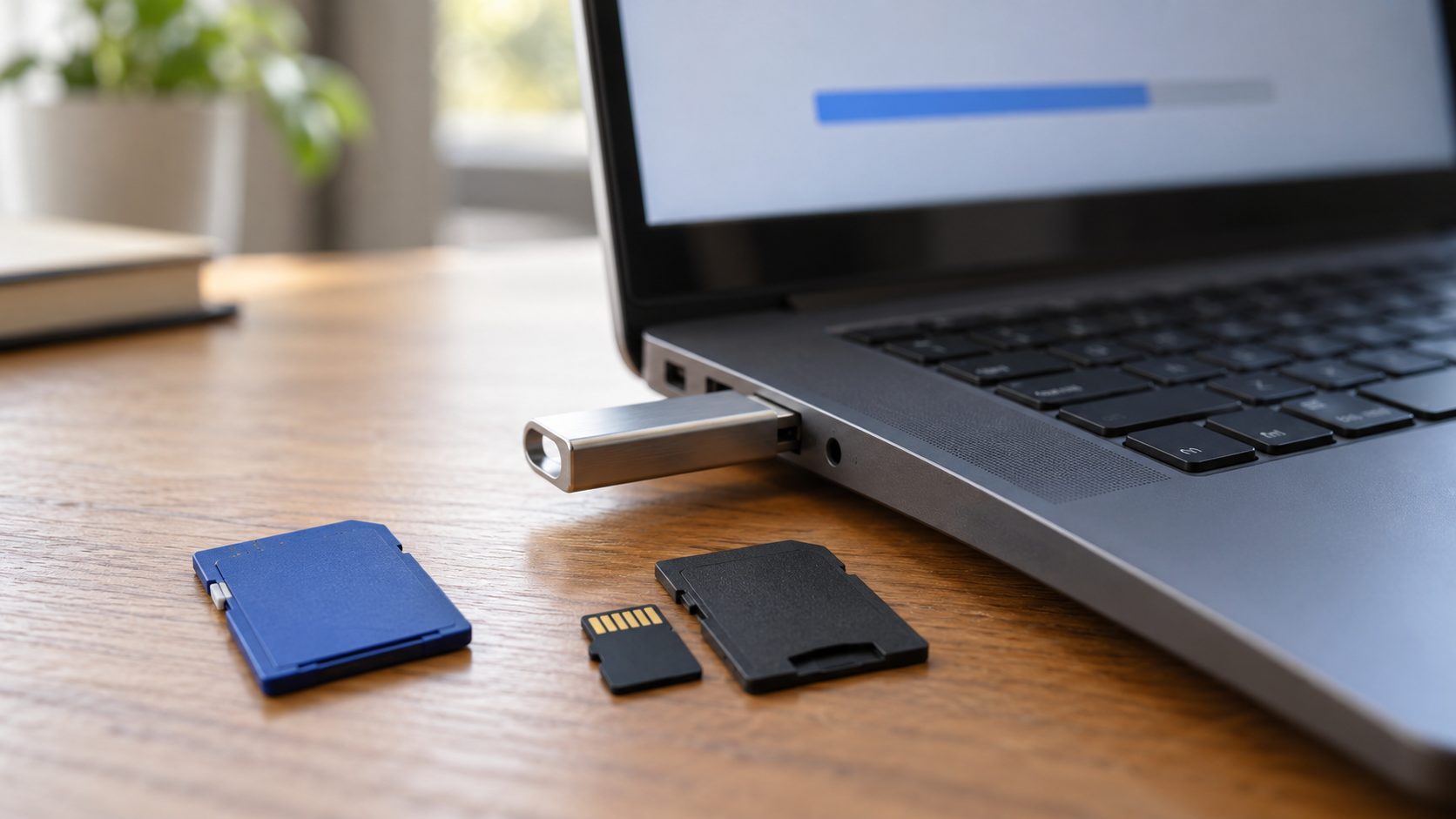
- Lock switch. On an SD card or microSD adapter, slide it toward the contacts and reinsert.
- Open files. Close apps on the drive, or add
/Xto the format command to force a dismount. - Repair, then retry. Run
chkdsk X: /f. If a quick format fails, try a full format or another file system. - Read-only flag. In DiskPart, run
list disk,select disk N,attributes disk, thenattributes disk clear readonly. For one volume:list volume,select volume N,attributes volume clear readonly. - SD cards. The SD Association strongly recommends its SD Memory Card Formatter over OS format tools.
On a work or school PC, an IT policy may block writing to all removable drives; try the stick on another PC before you write it off. A read-only flag that keeps returning often means worn-out flash: copy your files off and replace it.
Last resort: DiskPart clean
Unplug every other external drive, then identify the target in list disk by its size. Pick your system disk by mistake and you wipe Windows.
Formatting an internal drive needs admin rights, and Windows won’t format the volume it’s running from. In DiskPart: list disk, select disk N, clean, create partition primary, format fs=exfat quick (or fs=ntfs for an internal drive), assign.
Frequently Asked Questions
Windows won’t let me extend volume after cloning: is deleting the recovery partition safe?
Yes, with a backup, if you disable WinRE first and recreate the partition afterward. Skipping those steps leaves Windows Recovery broken.
Windows won’t let me extend volume on D: without converting to dynamic. Should I accept?
No. Dynamic disks are deprecated, and converting back to basic means deleting every volume. Make a new volume in that space instead.
Does Windows 11 behave differently from Windows 10?
No: “Windows won’t let me extend volume” has the same causes on both. Only the FAT32 command-line change is Windows 11 only.
Do I need to turn off BitLocker before resizing?
No need to decrypt. Microsoft’s extend and shrink guides don’t require suspending it, but suspend it before recovery or boot changes; MBR2GPT requires it.
Recap: Find the Wall, Then Fix It
For “Windows won’t let me extend volume”, check what sits directly to the right of C: first; it’s usually the recovery partition, which you can rebuild at the end of the disk. For shrink, read event 259. For format, check the lock switch, open apps and the file system before DiskPart clean.
More fixes are in our software and apps guides.




Leave a comment