

SSD Not Showing Up? Fixes for BIOS, Disk Management and Windows Setup
Where your drive goes missing tells you why. A step-by-step order of checks for SSDs missing from the BIOS, Disk Management or Windows 11 Setup, or showing the wrong size.
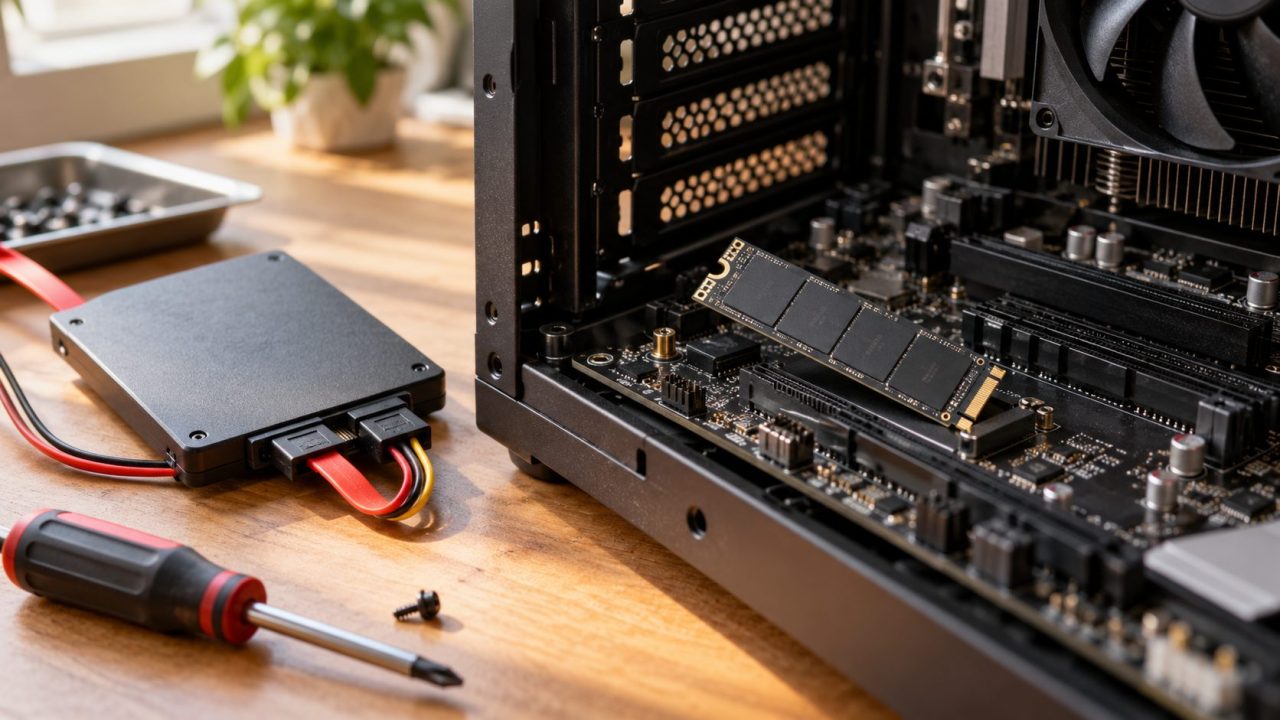
An SSD not showing up can mean a dead drive, but that’s the last thing to conclude. First rule out a loose connector, the wrong slot type, a disk Windows hasn’t set up yet, or a controller that needs a driver. Where the drive goes missing tells you which.
This guide covers an internal SATA or NVMe SSD not showing up in Windows 10 or 11, not USB drives or Macs.
Why Is My SSD Not Showing Up? Start With the Symptom
Check the BIOS first: tap the setup key at startup (usually Del or F2; F10 on HP, F1 on some Lenovo models). Then, in Windows, press Win + X, then K, for Disk Management, and click Cancel if it offers to initialize a disk.
| What you see | Likely cause |
|---|---|
| Not in BIOS/UEFI | Settings, slot type, seating |
| In BIOS, not in File Explorer | Not initialized or no letter |
| Missing only in Windows 11 Setup | Intel VMD or RAID driver |
| Wrong size | Units, cloning, MBR, a fake |
| Vanished after working | Cables, power, sleep, firmware |
| Missing everywhere, or 0 bytes | Failed drive |
SSD Not Showing Up in BIOS or UEFI: Check the Hardware
If the firmware truly can’t detect the drive, Windows won’t either. But check the NVMe and storage menus, not just the main screen: some older ASUS boards list NVMe drives only in Advanced mode (F7).
With BitLocker or Device encryption on, a BIOS update or a Secure Boot, CSM or storage-mode change can trigger a recovery-key prompt. Save the key (aka.ms/myrecoverykey), then suspend protection from an admin Command Prompt:manage-bde -protectors -disable C: -RebootCount 0
Resume it afterwards with manage-bde -protectors -enable C:
Port enabled
The drive’s SATA port or M.2 slot must be Enabled, with any SATA/PCIe mode setting matching the drive.
RAID or VMD mode
The drive may appear only under Intel RST or AMD RAIDXpert2. AHCI is the plain mode; switch only before a fresh install.
CPU-wired slots
On ASUS B560 boards, for example, M.2_1 needs an 11th Gen Intel CPU, and some AMD APUs disable an M.2 slot.
NVMe or SATA? Check what the M.2 slot supports
An M.2 drive is SATA or NVMe, and the slot must accept that type. Many newer boards have PCIe-only M.2 slots, so when the SSD not showing up is a SATA M.2 drive from an old PC (usually two notches, B+M key), suspect the slot.
Slots also share lanes: on some ASUS models, a drive in M.2_1 disables SATA6G_1, so the SSD not showing up may be your SATA drive on that port. The manual’s footnotes list every such case.
Reseat the drive and cables
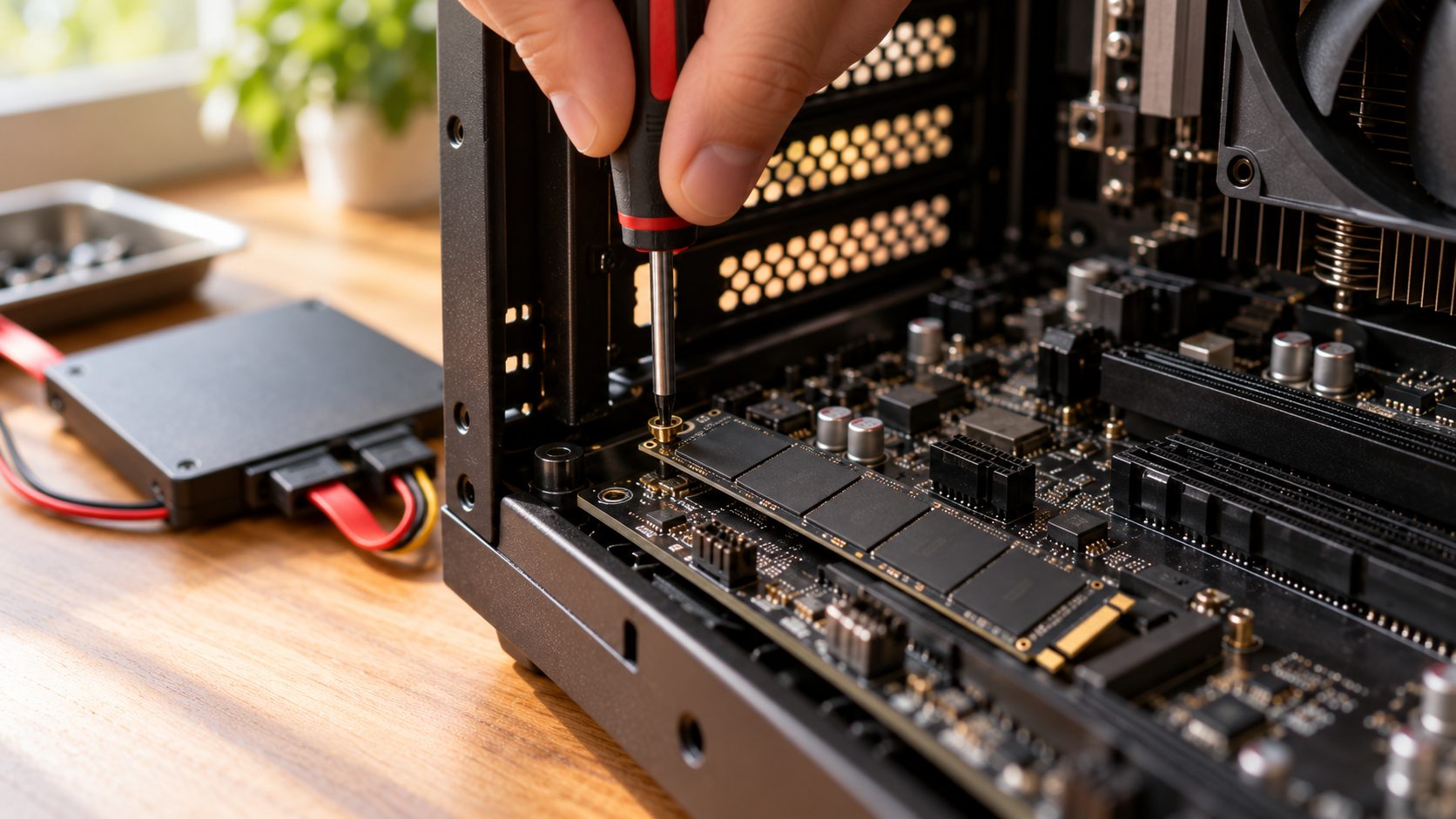
Shut down and unplug the PC (on a laptop, also disconnect the battery if the manual says so). Slide an M.2 drive in at about 30 degrees, press it flat and fasten the screw. Reseat a SATA SSD’s cables and try another port.
Laptop SSD not showing up after you just installed it?
Move any caddy or spacer over from the old drive, check the slot’s length limit (some take only 2230 or 2242) and update the BIOS. If the SSD works in a matching USB enclosure, the fault is in the laptop.
SSD Not Showing Up in File Explorer or Disk Management
A brand-new SSD not showing up in File Explorer is normal: until it’s initialized and has a volume, only disk tools such as Disk Management list it.
Initializing erases the disk, so do it only on a new or empty drive. If a drive that held files now reads Not Initialized, Unknown, Unallocated or RAW, don’t initialize, format or create a volume on it: each overwrites what recovery software needs.
| Disk Management shows | Next step |
|---|---|
| Not Initialized or Unallocated, new drive | Steps below |
| The same, on a drive that held data | Recover files first |
| Healthy, but no drive letter | Change Drive Letter and Paths > Add |
For a new, empty SSD, these steps follow Microsoft’s guide to initializing new disks:
- Find the new disk by its size, not its number.
- If the gray box on the left reads Offline, right-click it and choose Online, unless it’s a clone you’ll boot from (see the FAQ).
- Right-click the box, choose Initialize Disk, leave only the new disk checked and keep GPT.
- Right-click the Unallocated bar, choose New Simple Volume, pick a letter and format as NTFS.
SSD not showing up in Disk Management at all?
Try Action > Rescan Disks. In Device Manager, uninstall any disk or storage controller showing a yellow warning, then choose Action > Scan for hardware changes. Disks pooled in Storage Spaces don’t show in Disk Management either.
SSD Not Showing Up When Installing Windows 11
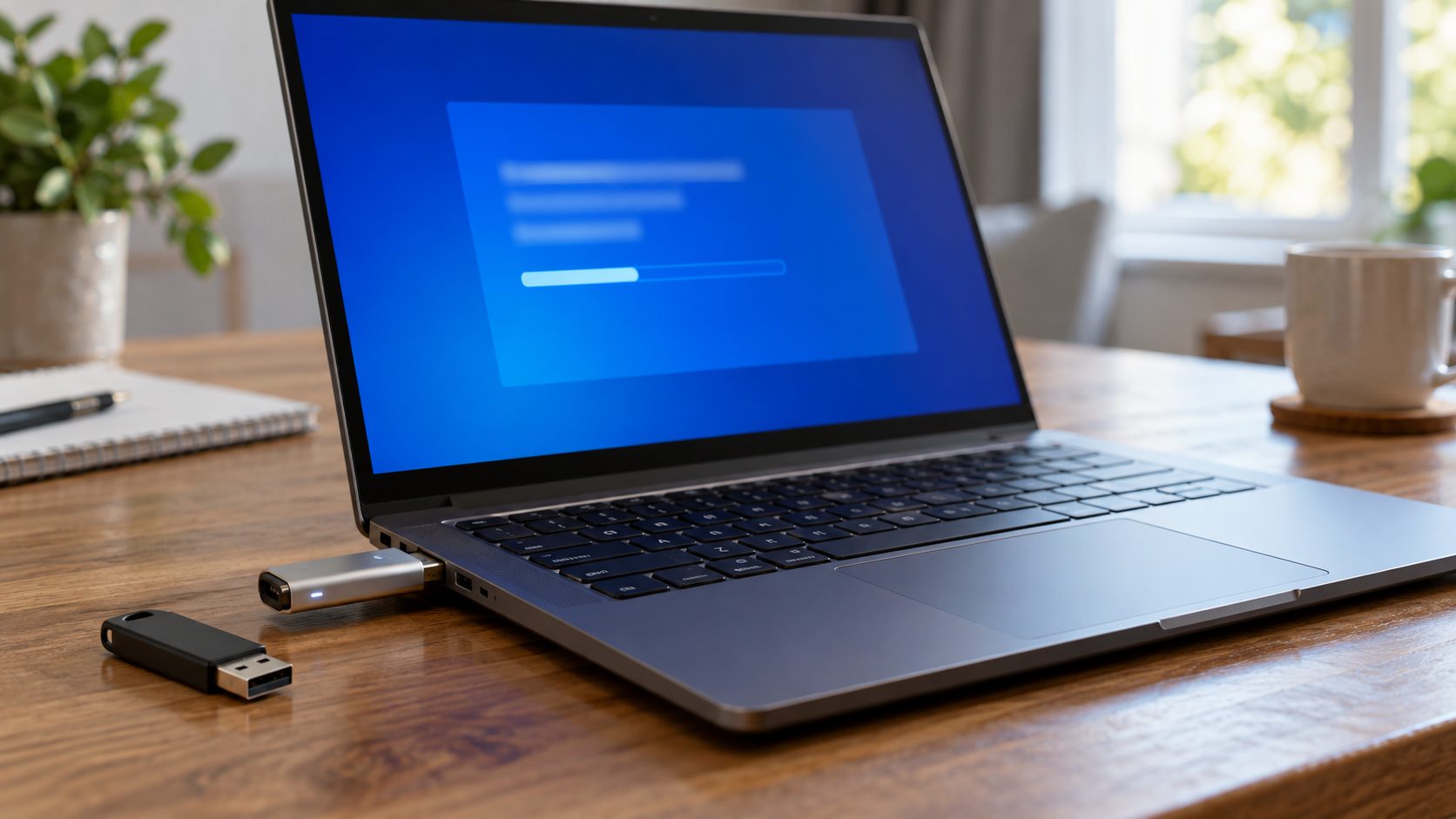
The telltale pattern: the BIOS lists the drive, but Setup says “We couldn’t find any drives.” Setup has its own NVMe driver, so an SSD not showing up only here points to the controller mode.
On Lunar Lake laptops and newer Intel platforms, rebuild the installer with Windows 11 24H2 or later; it needs no extra driver. On many Intel PCs from Tiger Lake (11th Gen) through Arrow Lake, load the Intel VMD driver:
- Download the Intel RST driver from your PC or board maker’s support page.
- On a working PC, extract it instead of installing it (Intel’s package:
SetupRST.exe -extractdrivers RST) and copy the folder to a USB stick. - In Setup, choose Load driver > Browse, pick the folder, select Intel RST VMD Controller and click Next.
ASUS’s walkthrough shows each screen.
On ASUS: Advanced > VMD setup menu > Enable VMD controller: Disabled; elsewhere, look under Storage (some laptops lack it). Only do this before a fresh install: any Windows that boots through VMD, on any drive, can then fail with INACCESSIBLE_BOOT_DEVICE.
SSD Not Showing Full Capacity or the Wrong Size
Some shortfall is normal: drive makers count 1 GB as a billion bytes, while Windows divides by 1,024 at each step (three times for GB, four for TB). Typical Windows readings:
Unused space after cloning
After cloning to a bigger SSD, the extra space shows as Unallocated. If it sits right after C:, right-click C: and choose Extend Volume; if a recovery partition is in the way, turn the space into a second drive with New Simple Volume.
Drives over 2 TB set up as MBR
MBR tops out at about 2.2 TB, leaving the rest of a bigger disk as a second Unallocated block. To convert a data disk, copy the files off, delete its volumes, choose Convert to GPT Disk, then recreate the volume and copy them back. A Windows system disk converts in place with Microsoft’s MBR2GPT tool if the PC supports UEFI: follow its BitLocker steps, then switch the firmware to UEFI.
Full size shown, but files come back corrupted
That points to a counterfeit reporting more capacity than it has; data written past the real limit is lost. Test it while empty with H2testw (Windows) or f3 (Linux, macOS).
SSD Suddenly Not Detected After Working Fine
An SSD not showing up after months of normal use is a data problem first: if it reappears even briefly, copy your files off. Then check:
- Cables and power. Reseat the SATA power lead, try spare cables and check airflow; a struggling power supply can drop drives.
- Sleep. An NVMe SSD not showing up after sleep can point to PCIe power saving: in
powercfg.cpl, under Change advanced power settings, turn off PCI Express > Link State Power Management. - Sudden power loss. Crucial suggests a power cycle: leave the drive powered for at least five minutes, ideally in a USB enclosure, otherwise with the PC in the BIOS, then reboot.
- Firmware. Once the data is safe, update it with the maker’s tool: Samsung Magician, Crucial Storage Executive or SanDisk Dashboard (formerly WD Dashboard). More utilities are in our software and apps section.
Signs the SSD Itself Has Failed
The clearest sign is an SSD not showing up anywhere, even in a second PC or a matching USB enclosure. A nonsense model name such as SATAFIRM S11, or a 0-byte size, means the controller or its firmware has failed. Don’t initialize or reflash it: use a recovery service if the files matter, or claim the warranty.
Frequently Asked Questions
Why did my SSD disappear after cloning?
Windows keeps a clone Offline while the original is connected, because both share a disk signature, so a cloned SSD not showing up in File Explorer is expected. To boot from it, disconnect the original instead.
Is an NVMe SSD not showing up a driver problem?
Only when the controller runs in Intel VMD or RAID mode, which needs the Intel RST or AMD RAID driver. Otherwise, no: Windows 10 and 11, Setup included, have an NVMe driver built in.
Recap: Check in This Order
Start where the drive first goes missing: hardware if the BIOS can’t see it, Disk Management if only File Explorer can’t, a storage driver if only Setup can’t. Missing everywhere? Save the data first.
More fixes are in our computer guides and on the English home page.



Leave a comment