

Windows 11 Won’t Wake From Sleep? Fix Black Screens and Dead Keyboards
Black screen or dead keyboard after sleep? One Caps Lock test shows which, then fix wake permission, USB power, the graphics driver, the monitor or a Modern Standby rule.
When Windows 11 won’t wake from sleep, the PC may be awake behind a black screen, truly stuck asleep, or just ignoring the keyboard. One quick test tells you which, and the safest fixes come first.
Windows 11 won’t wake from sleep for different reasons on classic (S3) sleep and on Modern Standby, which most recent laptops and some desktops use. Won’t go to sleep at all? See Windows 11 won’t sleep.
Is It Asleep, Frozen or Awake With a Black Screen?
The quickest check when Windows 11 won’t wake from sleep: press Caps Lock a few times. No light change means it’s still asleep or hung; a toggle means Windows is running and only the picture is missing. No Caps Lock light? Try Num Lock.
| What you see | Likely cause |
|---|---|
| Caps Lock toggles, screen stays black | Graphics driver or monitor |
| No toggle, but lights or fans on | Asleep or hung: wake it safely |
| Power button works, keyboard doesn’t | Wake permission, USB or firmware |
| Closed laptop on a dock ignores keys | A Modern Standby rule |
| Pressing power shows the maker’s logo | It hibernated or lost power: see hybrid sleep |
Windows 11 Won’t Wake From Sleep? Wake It Without Losing Work
Try these in order. Steps 2 and 4 follow Microsoft’s Modern Standby wake sources.
Press once, then wait
S3 desktops wake more slowly because the BIOS takes part in every resume. Press one key, then wait a few seconds.
Click and type, don’t wiggle
A USB keyboard may need several presses; a mouse should wake on a button press. Movement wake is optional on Bluetooth mice.
Reset the graphics driver
Lights on, screen black? Press Win + Ctrl + Shift + B, Microsoft’s shortcut for waking a blank or black screen.
Tap power or open the lid
Microsoft requires a short press or opening the lid to wake any Modern Standby PC. If Caps Lock toggles, skip this: an awake PC runs its power-button action, possibly Shut down.
If Windows 11 won’t wake from sleep after all four steps, hold the power button for four seconds or more to force the PC off. That dirty shutdown loses unsaved work and can corrupt data. It’s logged as Kernel-Power Event 41 with a nonzero PowerButtonTimestamp, explained in our guide to a PC randomly restarting.
Once it’s awake, run powercfg /a in Terminal. “Standby (S0 Low Power Idle)” means Modern Standby; “Standby (S3)” means classic sleep.
Windows 11 Won’t Wake From Sleep With the Keyboard or Mouse
If the power button works but Windows 11 won’t wake from sleep with keys or clicks, check wake permission, USB power and firmware.
Allow the device to wake the computer
- Press Win + X and choose Device Manager.
- Expand Keyboards, double-click your keyboard, open Power Management and tick Allow this device to wake the computer. Do the same under Mice and other pointing devices. Bluetooth keyboards often lack this tab; check the Bluetooth adapter instead.
- Under Universal Serial Bus controllers, open each USB Root Hub. Its tab usually offers only Allow the computer to turn off this device to save power; clear it to test.
Confirm it with powercfg
In Terminal (Admin), list the devices allowed to wake the PC:powercfg /devicequery wake_armed
Keyboard missing? Swap in wake_programmable to list devices that can be allowed, then enable yours by the exact name it prints:powercfg /deviceenablewake "HID Keyboard Device"
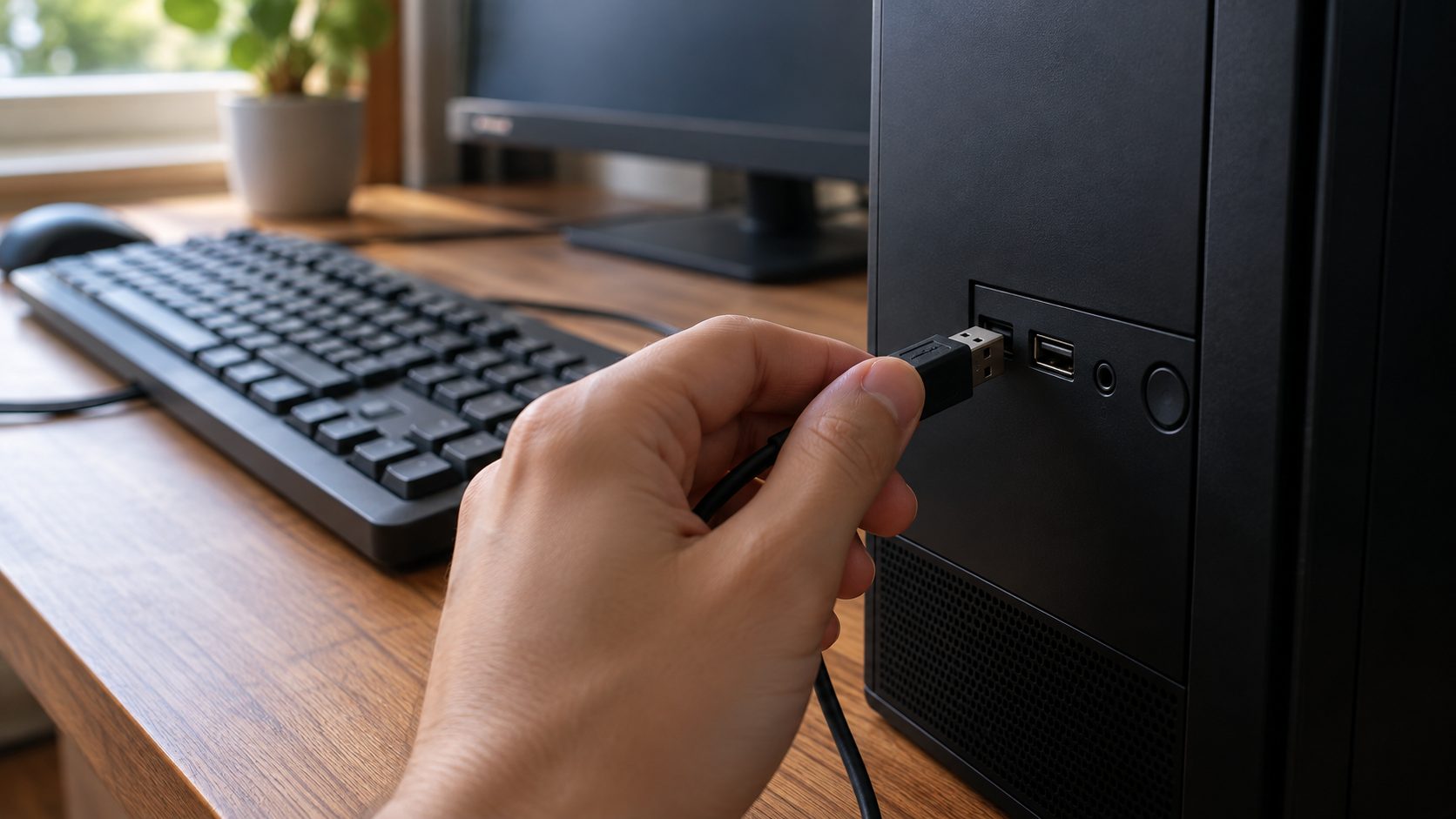
Plug the keyboard straight into the PC
Monitor hubs and docks can go dead when the monitor or dock is switched off, so test with the keyboard plugged into the PC. Bluetooth is a weaker test: on battery the radio may disconnect, and Modern Standby may disable keyboard and mouse wake to save battery.
Turn on USB wake in the BIOS or UEFI
If Windows 11 won’t wake from sleep with any keyboard, check the firmware. Dell calls the setting USB Wake Support (off by default in the OptiPlex 7090 manual); other boards say Resume By USB Device or Power On By Keyboard.
ErP or deep-sleep options mainly affect a PC that’s off or hibernated, but turn them off to test. Before a BIOS update, plug a laptop in and keep your BitLocker recovery key handy: losing power mid-update can leave the PC unable to boot. Then install the newest BIOS and chipset driver from the maker’s site.
Black Screen After Sleep: Reset or Reinstall the Graphics Driver
If Caps Lock toggles but the screen stays dark, only the display failed to resume. Microsoft’s external monitor troubleshooting page orders the driver steps like this:
- Press Win + Ctrl + Shift + B; if that fails, restart.
- In Device Manager, expand Display adapters, open your graphics card’s properties and choose Driver > Roll Back Driver if available.
- Still black? Uninstall the device, restart and install the newest driver; on a laptop, also try the maker’s version.
After a driver change, choose Restart: it loads the driver fresh, while Shut down with Fast Startup may not. If Restart hangs, see Windows 11 won’t restart.
Monitor Not Detected After Sleep: Input, Detect and Cable
When a monitor isn’t detecting the PC after sleep, it shows No signal or drops out of Display settings, and it looks as if Windows 11 won’t wake from sleep.
- Pick the input yourself. A monitor may wake on the wrong input and report no signal; choose it in the menu or toggle Auto Select.
- Test without power saving. If it drops out after every sleep, turn off the monitor’s deep-sleep or power-saving option; names vary by brand.
- Press Detect. In Settings > System > Display > Multiple displays, select Detect, then press Win + P and confirm your display mode, such as Extend.
- Reseat, swap, bypass. Reconnect the cable, try another cable or port, and skip the dock.
Laptop Only Wakes With the Power Button? Modern Standby Rules
On a Modern Standby laptop, Windows 11 won’t wake from sleep on a keypress in two cases, and both are by design.
Input suppression. With the lid closed and no external display, Windows ignores input so the laptop doesn’t wake in a bag. Up to 23H2 that’s battery only; from 24H2 it can apply on AC too, and the power button won’t turn the screen on.
When docked, keep the external display connected, or under Control Panel > Power Options > Choose what closing the lid does set Plugged in to Do nothing, as Microsoft’s input suppression page suggests for AC. Leave On battery at Sleep so a closed laptop doesn’t heat up in a bag.
Battery-drain protection. From 24H2, if Modern Standby detects excessive battery drain, it disables most wake sources, leaving only the power button or lid.
SleepStudy (Modern Standby PCs only) shows what woke each session, handy when Windows 11 won’t wake from sleep with the keyboard but will with the lid. In Terminal (Admin), run:powercfg /sleepstudy /output C:\sleepstudy.html
Open that file. It covers the last three days and lists exit reasons such as Lid or Input Keyboard.
Desktop Stuck Asleep: Hybrid Sleep, Timers and Fast Startup
On a desktop with S3 sleep, a power plan setting can be the reason Windows 11 won’t wake from sleep. Such desktops usually use hybrid sleep, so after a power cut they resume from hibernation: slower, but your session survives.
| Setting | Where | Test with |
|---|---|---|
| Allow hybrid sleep | Control Panel > Power Options > Change plan settings > Change advanced power settings > Sleep, if listed (S3 PCs with hibernation on) | Off (a power cut then loses unsaved work) |
| USB selective suspend | Same window > USB settings, if listed | Disabled |
| Restore plan defaults | Same window | Undo old tweaks |
| Sleep and hibernate timers | Settings > System > Power (Power & battery on laptops) > Screen, sleep & hibernate timeouts | Times you expect |
Fast Startup controls shutdown, not sleep (see Windows 11 won’t shut down), so it’s an unlikely reason Windows 11 won’t wake from sleep. Microsoft doesn’t recommend disabling it; if you turn it off to test, turn it back on afterward.
Skip the old Power troubleshooter many guides suggest; Microsoft deprecated the MSDT tool it ran on.
Frequently Asked Questions
Why is the screen black after waking when the lights and fans are on?
Press Caps Lock. If it toggles, Windows woke but the display didn’t: press Win + Ctrl + Shift + B, check the monitor’s input, and roll back the graphics driver if it recurs. If not, the PC is still asleep or hung; follow the wake steps.
Is it safe to hold the power button when Windows 11 won’t wake from sleep?
Only as a last resort. It forces a dirty shutdown, which loses unsaved work and can corrupt data.
Can I turn off Modern Standby?
Not on most laptops. Microsoft says no BIOS setting switches the power model and supports changing it only with a full Windows reinstall. When Windows 11 won’t wake from sleep on a laptop, fix the wake source instead.
Recap: Test First, Then Fix One Path
Press Caps Lock first: a toggling light points to the driver or monitor, no response to wake settings, USB power, firmware or a Modern Standby rule. When Windows 11 won’t wake from sleep again, change one thing at a time.
More fixes are in our computer guides.



Leave a comment