

Windows 11 Won’t Restart? When to Wait, When to Force It, What to Fix
Spinning dots, a stuck update or no Restart option? How to tell a busy PC from a hung one, when holding the power button is OK, and the fixes in a safe order.
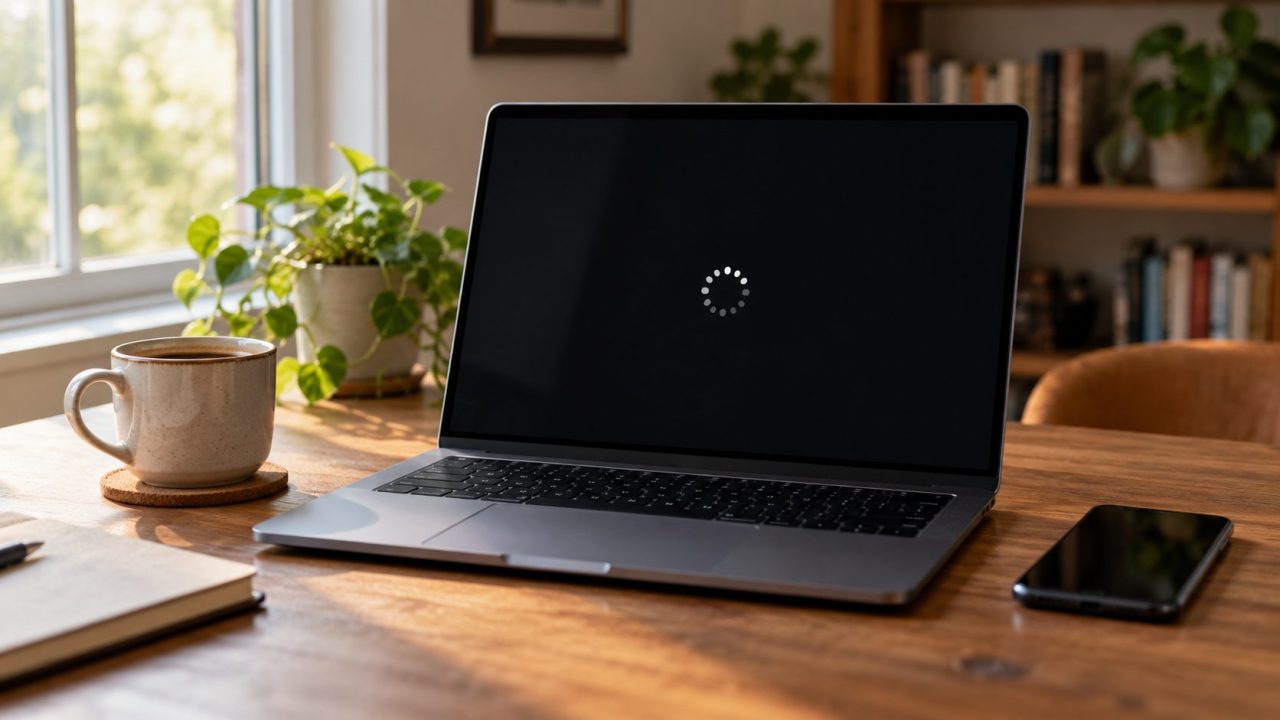
When Windows 11 won’t restart, the screen usually tells you which problem you have: dots spinning on a plain Restarting screen, an update percentage that won’t move, or a power menu offering only Update and restart (or no Restart at all). Decide whether to wait or force it off, then work up from the cheapest fixes.
Windows 11 Won’t Restart or Just Spins? Check the Screen First
If Windows 11 won’t restart past a Working on updates screen but the percentage is still moving, keep it plugged in and wait. Microsoft gives no time limit; how long it takes depends on the size of the update and the speed of your PC. A plain Restarting screen normally clears in minutes. Our rule of thumb, not Microsoft’s: 15 minutes with nothing changing means it’s hung.
When Windows 11 won’t restart and the screen hasn’t changed, press Caps Lock. If its light won’t toggle, the PC has frozen completely. No such light? Go by the screen, and never cut power while it says Working on updates.
Why is my PC taking so long to restart?
Fast Startup, on by default, speeds up starting after Shut down, but Microsoft’s documentation confirms it doesn’t apply to Restart, so every restart is a full boot cycle. That’s why Windows 11 won’t restart as quickly as it starts up after Shut down. A restart much slower than it used to be is the real warning sign.
When It’s OK to Hold the Power Button
If Windows 11 won’t restart past a plain Restarting screen and nothing has changed for 15 minutes, hold the power button for about 10 seconds, until the PC turns off. Unsaved work in open apps is lost.
Working on updates is different: cutting power mid-install can leave the update half-applied and send the next start into recovery. Keep a laptop on its charger, as Microsoft advises, and force it off only after the percentage has been stuck for a couple of hours (also our rule of thumb).
After two failed starts in a row, Windows opens its recovery tools. On an encrypted PC, several ask for the BitLocker recovery key, including Windows 11 Home with Device encryption. Look it up on another device: Microsoft explains where to find your recovery key.
First Fixes When Windows 11 Won’t Restart: Unplug Devices, Close Apps
None of these changes a setting; only unsaved work is at risk.
- Unplug extras. Remove USB drives, hubs, docks and card readers, keeping the keyboard, mouse and monitor, as Microsoft’s troubleshooting guides advise.
- End frozen apps. Press Ctrl + Shift + Esc, select a frozen app, choose End task, then restart.
- Read the blocking-apps screen. If Windows lists apps preventing the restart, choose Cancel and save your work. Restart anyway closes them without saving.
- Restart another way. If Windows 11 won’t restart from Start, use the power icon on the Ctrl + Alt + Del screen. In Terminal, this restarts at once:
shutdown /r /t 0
An app can still block it. Adding/f, or any delay above 0 (even the default 30 seconds), force-closes apps, so save your work first. - Let a waiting update finish. If the menu offers Update and restart, choose it. Never end update processes or delete update files.
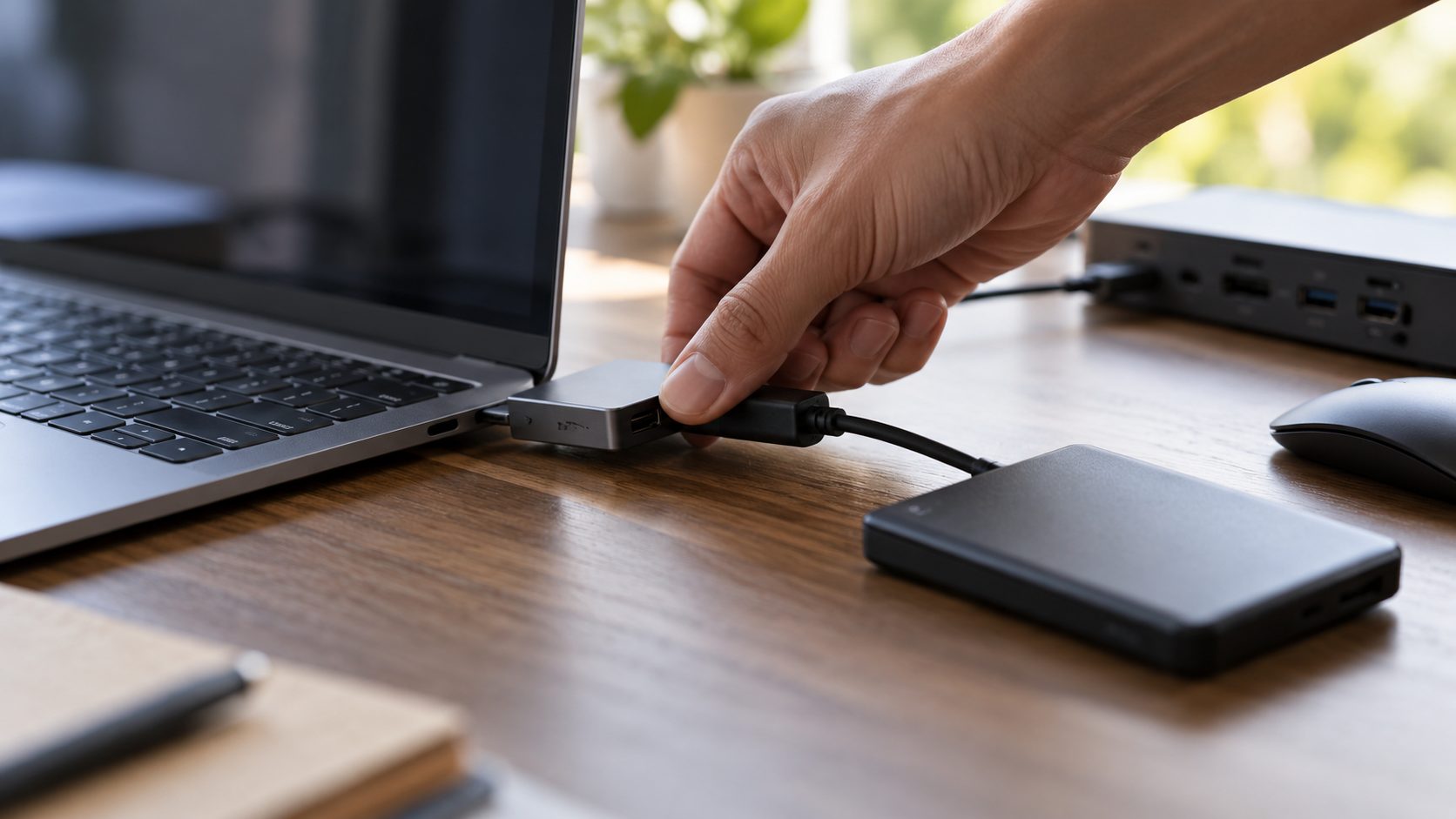
If the PC won’t shut down either, see our guide to Windows 11 not shutting down.
Find What Slows the Restart in Event Viewer
If Windows 11 won’t restart quickly but does get there in the end, the System log shows what started the restart and how long it took. No admin rights needed.
Press Win + X, choose Event Viewer and open Windows Logs > System. In the right pane, click Filter Current Log, type 1074,13,12,41,6008 under Event IDs and compare the times around your last restart.
| Event ID | Source | Meaning |
|---|---|---|
| 1074 | User32 | The process that started the restart |
| 13 | Kernel-General | The last stage of shutdown, after apps and services have closed |
| 12 | Kernel-General | Windows started; 1074 to 12 is roughly the whole restart |
| 41, 6008 | Kernel-Power, EventLog | An unexpected shutdown, such as a forced power-off |
A long gap between 1074 and 13 points to an app or service holding up shutdown. Other sources also log an event 12, so check the source.
For names, open Event Viewer as administrator: Applications and Services Logs > Microsoft > Windows > Diagnostics-Performance > Operational. Event 200 gives the shutdown time; 201, 202 and 203 name the app, device or service that delayed it.
Clean Boot and Display Driver Checks
A clean boot shows whether a third-party service or startup app is why Windows 11 won’t restart cleanly. Sign in as an administrator; some features may stop working until you undo it.
- Press Win + R, type
msconfigand press Enter. - On Services, check Hide all Microsoft services and click Disable all.
- On Startup, click Open Task Manager and disable each startup app.
- Restart. If it’s quick now, re-enable items in batches to find the culprit.
To undo it: General tab > Normal startup, Services tab > Enable all, then turn startup apps back on.
Black screen after restart
If Windows 11 won’t restart past a black screen with the fans running, check the charger and any external monitor. Then press Win + Ctrl + Shift + B, one of Microsoft’s basic blank-screen steps, to reset the graphics driver.
If it began after a driver update, right-click Start > Device Manager, expand Display adapters and open your graphics card’s Properties > Driver > Roll Back Driver. If that’s grayed out, choose Uninstall device and restart; Windows tries to reinstall the driver. With no picture, do this from Safe Mode (Startup Settings, option 4 or 5, in the recovery options).
Windows Won’t Let Me Restart Without Updating
Sometimes Windows 11 won’t restart without updating: the menu shows only Update and restart and Update and shut down, because an update needs a restart to finish. A change Microsoft has tested with Insiders since April 2026, due to roll out widely from this fall, keeps plain Restart and Shut down next to them. If you see those, they skip the pending update for now.
Otherwise, choose when the restart happens:
- Schedule the restart under Settings > Windows Update.
- Set active hours under Settings > Windows Update > Advanced options (default 8 AM to 5 PM, up to 18 hours); automatic update restarts wait until outside them.
- Pause updates for up to 35 days at a time (newer builds let you pick an end date and extend it), and Windows won’t restart on its own to install them.
Restart hangs after an update
If Windows 11 won’t restart properly after a recent update but you can still reach the desktop, remove that update under Settings > Windows Update > Update history > Uninstall updates. Microsoft doesn’t recommend this, and some updates can’t be removed.
No Restart option at all
If Restart is missing from both Start and the Ctrl + Alt + Del screen, the policy Remove and prevent access to the Shut Down, Restart, Sleep, and Hibernate commands may be hiding it. Ask IT on a work or school PC, or undo the tweak tool that set it at home. Programs still work, so shutdown /r /t 0 should too.
Windows 11 Won’t Restart at All? Use the Recovery Options
If Windows starts, choose Settings > System > Recovery > Advanced startup > Restart now, or hold Shift while selecting Power > Restart. If it doesn’t, turn the PC on and hold the power button for about 10 seconds to force it off before Windows finishes loading. Do that twice; the third start should open Automatic Repair, as Microsoft’s recovery environment guide explains.
Don’t do this while it says Working on updates or Undoing changes; wait that out. In recovery, choose Troubleshoot; most tools sit under Advanced options:
Startup Repair
Tries to fix damaged system files, boot configuration data, incompatible drivers and registry errors.
Uninstall Updates
Removes the latest quality or feature update.
Startup Settings
Start in Safe Mode, or turn on boot logging to write ntbtlog.txt, a list of loaded drivers in C:\Windows that can point to the one that hangs.
System Restore
Rolls back system files and settings, not personal files, if restore points exist. Point-in-time restore, where offered under Troubleshoot, covers only the last 72 hours and rolls back your files too.
Reset this PC
The last resort. It reinstalls Windows, and even Keep my files removes your installed apps and settings. Back up first if you can.
Frequently Asked Questions
Why is my laptop just spinning on restart?
When Windows 11 won’t restart past the dots, an app, service or driver may have stopped responding while Windows closes or starts it. Unplug extras, then check the Diagnostics-Performance log.
How do I fix a laptop restarting forever?
If it never reaches the desktop, recovery should open after two failed starts: try Startup Repair, then Uninstall Updates. If it reboots on its own from the desktop, look for events 41 and 6008.
Can I restart without installing the pending update?
Yes, if your Power menu shows plain Restart next to Update and restart. If not, schedule the restart: Microsoft doesn’t say pausing cancels an update that’s already waiting.
Recap: When Windows 11 Won’t Restart, Go in This Order
Read the screen, wait out an update that’s still moving, and force a frozen Restarting screen off only with your BitLocker key at hand. If Windows 11 won’t restart after that, unplug extras, close blocking apps, check Event Viewer, try a clean boot and a driver rollback, and save the recovery tools for last.
If sleep is the real trouble, see why Windows 11 won’t sleep. More fixes are in our computer guides.


Leave a comment