

How to Fix Laptop Water Damage: What to Do in the First 72 Hours
The first minute and first hour after a spill, why soda needs a same-day repair while plain water may dry out, and how to protect your files before a repair.
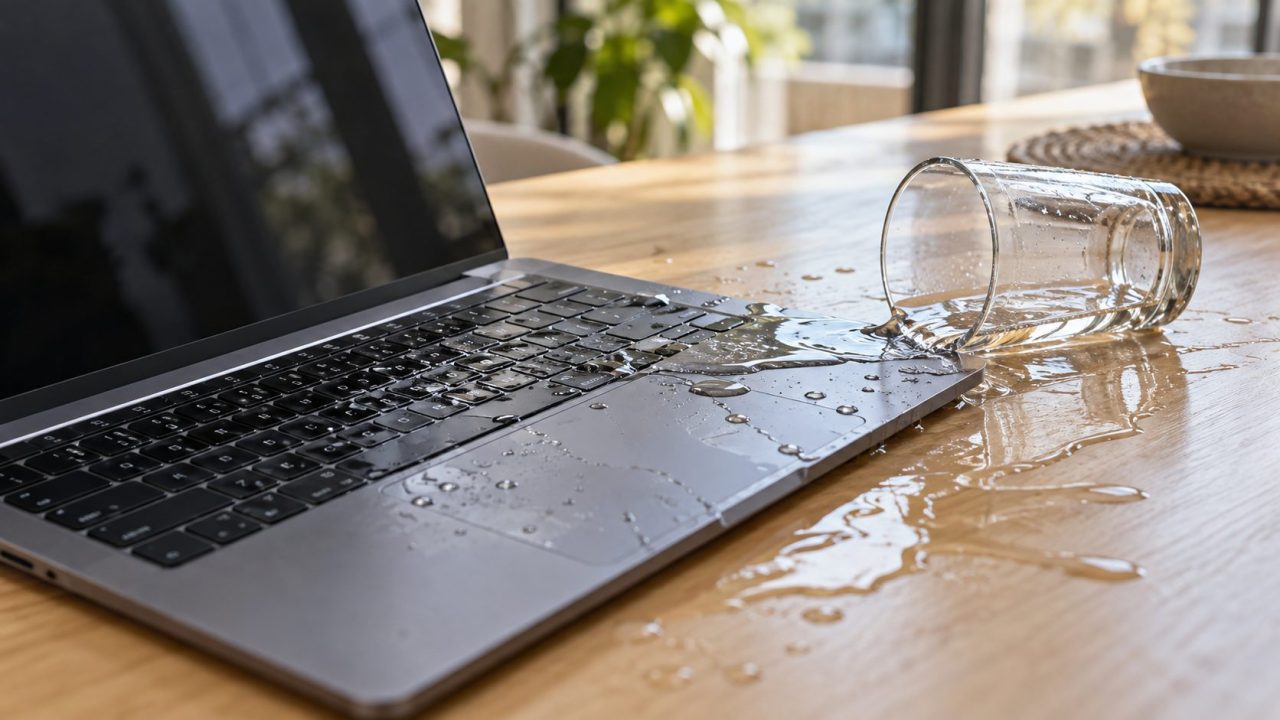
If you need to know how to fix laptop water damage while the keyboard is still wet, the next minute matters most. Cut the power, drain it the way your model allows and keep heat away. Then the liquid decides: plain water sometimes dries out; soda and coffee need a technician the same day.
Here’s how to fix laptop water damage in the order things happen, on Windows laptops and MacBooks. No home method can promise a recovery, so treat every step as damage control.
The First 60 Seconds: Power Off and Keep Your Hands Off the Keys
Liquid plus electricity is what kills a logic board, so any plan for how to fix laptop water damage starts with the power. Unplug the charger at the laptop end, and leave a wet outlet or power brick alone until its breaker is off. Then hold the power button until every light goes dark.
If it was already off, leave it off. Don’t just close the lid, since sleep keeps parts of the board powered, and don’t press keys to “see if it works”: each press pushes liquid deeper.
MacBook owners: Apple says Mac laptops with Apple silicon start up by themselves when you open the lid or connect power. So don’t plug it in or close and reopen it, and if it was closed and off when it got wet, take it to a technician as it is. That’s a sensible rule for any closed laptop.
Never power it on while it may be wet, even for a quick test. Never use heat: no hair dryer, heater or direct sun. Never pry out a built-in battery: every current MacBook and most ultrabooks have one, and a punctured lithium-ion cell can catch fire.
The First Hour: How to Fix Laptop Water Damage Before It Spreads
- Unplug everything. USB drives, mouse, cables, dock, SD card.
- Remove the battery only if it’s user-removable, meaning an outside latch or a pack you can release without tools. Otherwise, leave it in.
- Drain it the way your model allows. Lenovo’s user guides say not to turn the laptop over: models with keyboard drain holes underneath (many ThinkPads) drain through those, so leave it flat on a towel. On other brands without drain holes, the usual advice is an upside-down tent on a towel, keyboard down, if the lid is already open.
- Blot, don’t wipe. Press a soft, absorbent or microfiber cloth onto the keys and case. Rubbing pushes liquid into the gaps.
- Anything but plain water? Book a repair today. Don’t wait out the drying period below; sugar, acid and salt keep corroding.
Don’t push cotton swabs or paper towels into ports, and don’t pour alcohol inside.
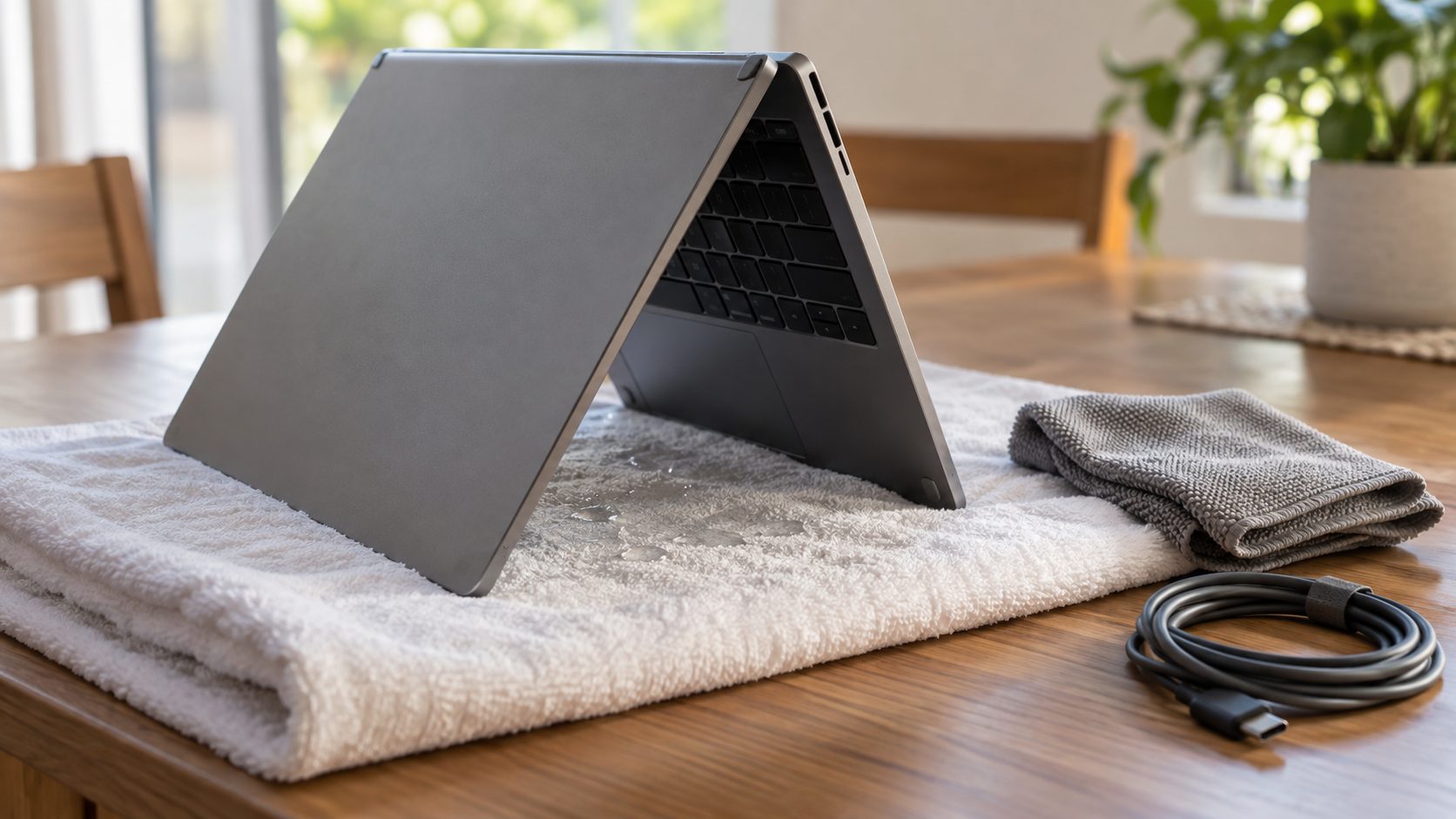
The Next 48-72 Hours After Plain Water: Airflow, Not Heat or Rice
Skip the bag of rice, even though it’s the first tip many people hear when they ask how to fix laptop water damage. Rice can’t reach liquid trapped under a keyboard, and Apple’s liquid guidance, written for iPhone, warns that small rice particles can damage a device. The same page rules out heat and compressed air.
Day one: dry, moving air
Keep it in its draining position in a dry room with a fan. Don’t plug it in, turn it on or close it.
Days two and three: keep waiting
Nobody who explains how to fix laptop water damage can give you an exact drying time. Treat 48-72 hours as a minimum for clean water, not a guarantee.
Then: inspection or one careful test
An inspection is safest. A home test is only for plain-water spills that pass the safety check below.
Water, Soda, Coffee or Beer: Why the Liquid Changes the Plan
If you’re working out how to fix laptop water damage and the liquid was plain water, you have the easiest case. Soda, juice, sweet coffee, milk, beer and salty liquids leave a sticky, conductive residue that keeps corroding contacts long after it dries.
Still, a laptop that boots after a spill isn’t necessarily fine. Even tap water leaves minerals behind, and a built-in battery keeps some circuits powered, so corrosion can surface weeks later as a dead key or port. If you can’t afford to lose the laptop, get it inspected.
After anything but plain water, how to fix laptop water damage stops being a DIY question: the board needs professional cleaning. Apple’s advice for a Mac with liquid inside is to get help from an Apple Store or Apple Authorized Service Provider as soon as possible.
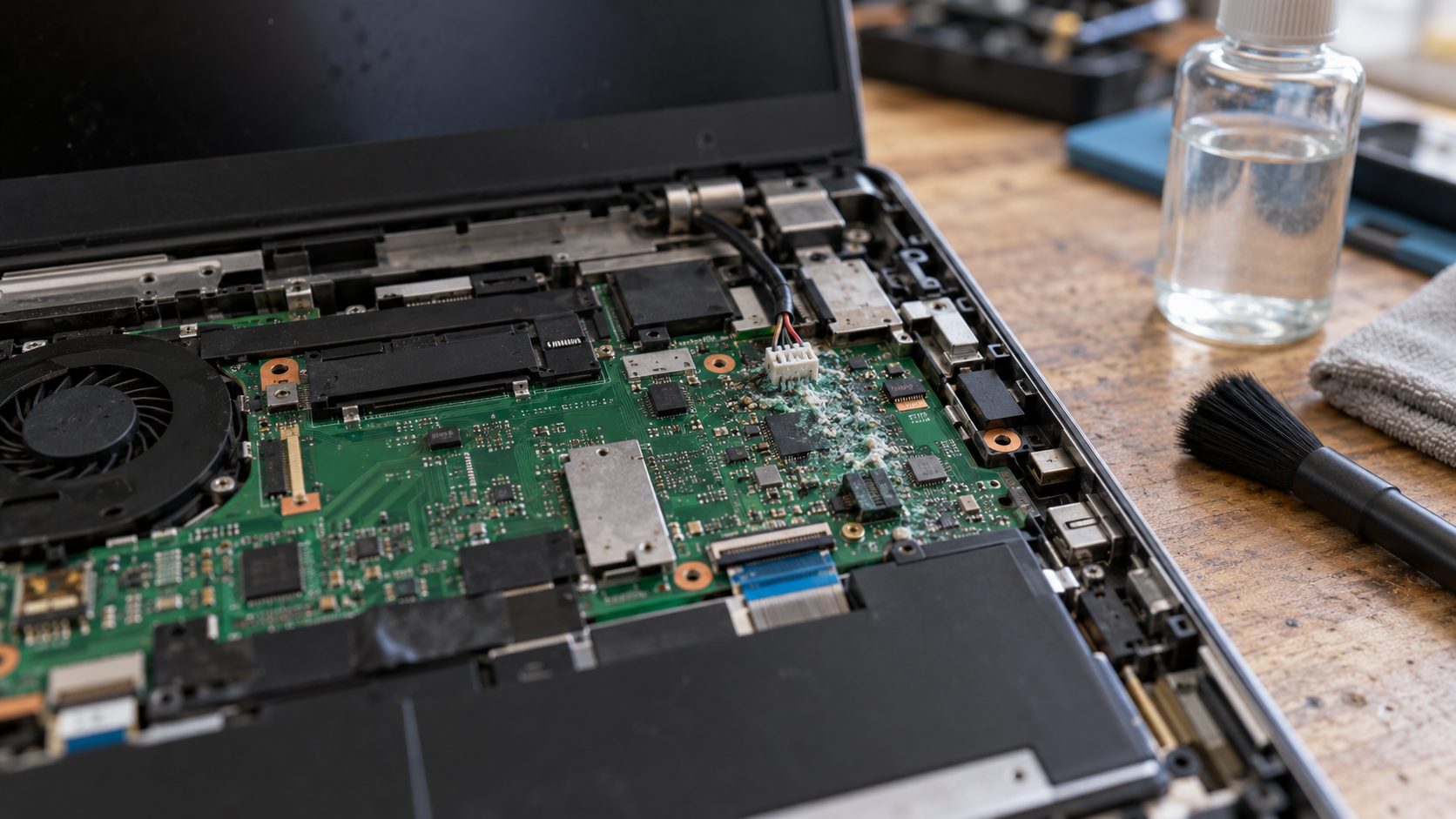
A technician opens the case, disconnects the battery and cleans the logic board, typically with high-concentration isopropyl alcohol or in an ultrasonic cleaner. A keyboard that took the spill often gets replaced.
Before You Power It Back On: A Five-Point Safety Check
Run this check before anyone presses the power button, because knowing how to fix laptop water damage includes knowing when not to try. Any of these signs means stop: don’t charge or start it, and keep it on a hard surface away from anything flammable.
- Swelling. A lifting trackpad or a case that no longer sits flat can mean a swollen battery.
- Heat while off. Warmth after hours switched off points to the battery or a short.
- Hissing or popping from a powered-off laptop.
- A sweet or chemical smell, or smoke. Keep your distance; if it catches fire, call your local emergency number.
- Visible residue, such as sticky keys or a white or green crust in the ports.
If none of these apply, the spill was plain water and the laptop has dried for at least 48-72 hours, one power-on test is reasonable. If nothing happens, or it starts and shuts off, stop: each attempt pushes current through whatever is still wet.
Keyboard Not Working After Spilling Water? Dead, Sticky or Phantom Keys
If the keyboard is why you’re looking up how to fix laptop water damage, the symptom tells you what’s underneath. Dead keys usually mean liquid or residue between the keyboard’s layers; after clean water they sometimes return once dry. Sticky keys are residue, so more drying won’t help.
Phantom keypresses point to a short. A stuck Ctrl key zooms the page whenever you scroll; our laptop zoomed in guide shows how to tell that from a settings change. Once it has dried and passed the safety check, press every key in Notepad (TextEdit on a Mac): a key that types nothing is dead; one that repeats or types by itself is likely shorting.
Before You Hand It to a Shop: Save Your Data and Check Your Coverage
Do this before you settle on how to fix laptop water damage at a shop: a repair can fix the hardware and still lock you out of your files.
Find your BitLocker recovery key first
Microsoft lists a new motherboard with a new TPM, or moving the drive to another computer, among the events that ask for the 48-digit BitLocker recovery key. Microsoft Support can’t recreate a lost key, so save it now from aka.ms/myrecoverykey on another device (work or school: aka.ms/aadrecoverykey). Our BitLocker recovery key guide lists other places to look.
Soldered storage and backups
On recent MacBooks and many thin ultrabooks the SSD is soldered to the board, so a backup is often the only way back. Never power a wet laptop on to copy files; tell the shop your data matters.
Once you have a working computer again, set up backups so the next time you need to know how to fix laptop water damage, only the hardware is at stake. On a Mac, add a backup disk in System Settings > General > Time Machine. On Windows 11, turn on OneDrive folder syncing in Settings > Accounts > Windows backup (a free account includes 5 GB).
Warranty, AppleCare+ and insurance
Your coverage may decide how to fix laptop water damage for you, since a claim can cost less than a repair bill. Apple says liquid damage isn’t covered by its warranty or the older AppleCare Protection Plans, and its US warranty also excludes damage from unauthorized service. AppleCare+ does cover spills, for a $149 to $299 fee in the US depending on the model.
Consumer law covers faults, not accidents, so a spill usually needs a plan or insurance. Microsoft sells accidental-damage plans for Surface, and benefits vary by market. Also check your maker’s or store’s plan, home or renters insurance and credit card purchase protection.
How to Fix Laptop Water Damage: Common Questions
Can a laptop be fixed after water damage?
Many can, but no one can promise it. How to fix laptop water damage depends on the liquid and how fast the power went off; a small plain-water spill has the best odds.
How long should I wait before turning my laptop back on?
After plain water, at least 48-72 hours, and no wait proves it’s dry. After sugary or salty drinks, don’t wait: book a cleaning today.
Does putting a wet laptop in rice actually work?
No. Rice can’t reach liquid inside the case, and Apple’s iPhone guidance warns that rice particles can cause damage.
Should I pay a shop or learn how to fix laptop water damage myself?
After a small plain-water spill on a laptop you can afford to risk, drying it and one careful test is reasonable. Otherwise, pay for professional cleaning.
Recap: Power Off, Drain, Then Let the Liquid Decide
The short version of how to fix laptop water damage: power it off (or leave it off), then drain and blot it the way your model allows. Anything but plain water gets a same-day cleaning; plain water gets at least 48-72 hours of airflow without heat or rice, and even that is no promise.
Save your BitLocker key before you hand it over. More fixes are in our computer guides.




Leave a comment