

Why Is My PC Randomly Restarting or Shutting Off? Read the Log First
Random restarts and shut-offs leave clues in Windows. Read Event 41 and 1074 to tell a hidden crash from power loss, heat or updates, then fix the right cause.
Why is my PC randomly restarting? Windows usually logs the answer. A hidden crash, a power cut, a heat shutdown and an update restart each leave a different mark, so read the log before swapping parts.
Why Is My PC Randomly Restarting, or Just Shutting Off?
Most answers to “why is my PC randomly restarting?” fall into two groups. A restart (the logo returns) usually means a hidden crash or an update. A shut-off (it stays dark) usually means lost power or a processor protecting itself from heat. Still, a weak power supply or a power dip can restart a PC instantly, so trust the log.
Check Event Viewer Before Anything Else
Event Viewer answers “why is my PC randomly restarting?” faster than any checklist. Note when it happened, then:
- Right-click Start and choose Event Viewer.
- Open Windows Logs > System.
- Click Filter Current Log, enter 41,1001,1074,6006,6008 as event IDs and click OK.
Event 1074 marks a requested restart, 6008 an unexpected shutdown and 6006 a clean one. Microsoft’s Event ID 41 guide says Kernel-Power 41 only records an unclean shutdown, not its cause. Open it and check the Details tab:
- BugcheckCode is not 0. A Stop error, then an automatic reboot. See the hidden crash.
- BugcheckCode is 0, PowerButtonTimestamp is not. You held the power button, probably on a frozen PC. Chase what froze it.
- Both are 0, or there’s no Event 41. Usually power or heat, unless you forced off a frozen PC. See power, heat and Event 46.
Why Is My PC Randomly Restarting Overnight? Check Event 1074
If Event 1074 matches the time, an app or person requested the restart; the entry names the process, user and reason.
For Windows Update, match the time in Update history. Windows restarts for updates outside active hours by design, so night-time restarts are normal; if the PC works overnight, set active hours to cover the night (18 hours max):
- Windows 11: Settings > Windows Update > Advanced options > Active hours.
- Windows 10: Settings > Update & Security > Windows Update > Change active hours.
The Windows Update page can also schedule a pending restart or pause updates. If another program is named, check its settings for an auto-restart option.
Event 41 With a Bug Check Code: A Crash You Never Saw
A non-zero BugcheckCode means a Stop error (a blue screen, black in Windows 11 24H2 and later) and an instant reboot, often the real answer to “why is my PC randomly restarting with no warning?” To keep the error on screen:
- Search the taskbar for Advanced system settings (admin account needed).
- On the Advanced tab, click Settings under Startup and Recovery.
- Clear Automatically restart and click OK.
With it off, the stop screen often names the failing driver file (a .sys file under “What failed”), which Event 41 doesn’t record.
Read the code in hex
Event 1001 (source BugCheck) shows the code in hex. Event 41 uses decimal: convert it in Calculator’s Programmer mode (DEC to HEX; 159 is 0x0000009F), then look it up in Microsoft’s bug check code reference.
| Decimal | Hex | Stop code |
|---|---|---|
| 10 | 0xA | IRQL_NOT_LESS_OR_EQUAL |
| 26 | 0x1A | MEMORY_MANAGEMENT |
| 159 | 0x9F | DRIVER_POWER_STATE_FAILURE |
| 278 | 0x116 | VIDEO_TDR_FAILURE |
| 292 | 0x124 | WHEA_UNCORRECTABLE_ERROR |
| 307 | 0x133 | DPC_WATCHDOG_VIOLATION |
For most codes, start with drivers: Microsoft’s stop error troubleshooting guide traces 70% of crashes to third-party driver code and 10% to hardware.
- Drivers. Update devices flagged yellow in Device Manager, or use Roll Back Driver if restarts began after a driver update.
- 0x1A or 0x124. Test the RAM (step 3). Microsoft calls 0x124 a fatal hardware error that can be heat related, so check fans and overclocks too.
- 0x9F. A driver stuck in a power state, often around sleep or wake. Update drivers first, then the BIOS (see the warning below), and see Windows 11 won’t sleep.
Event 41 With All Zeros: Lost Power or a Heat Trip
With all zeros, “why is my PC randomly restarting?” becomes “why did it lose power?” Microsoft points to an outage or pulled plug, a drained laptop battery, or an underpowered or faulty power supply. A heat shutdown can leave the same entry; the temperature check below tells them apart.
- Outlet and cables. Try a known-good wall outlet without a power strip, and reseat or replace the cable. A UPS (battery backup) rides out brief outages.
- Power supply. Its wattage must cover added parts such as RAM, a CPU or drives. Test with a known-good unit or have a shop do it. Never open one: its capacitors can hold a dangerous charge even unplugged.
Why is my PC randomly restarting or shutting off while gaming?
Gaming loads the power supply, cooling and graphics driver hardest (0x116 is a display driver timeout).
Many desktop BIOS/UEFI screens show CPU temperature and fan speeds; under load, Task Manager > Performance > GPU shows most dedicated cards’ temperature, and PC makers’ apps often show the CPU. A steep climb right before it dies points to heat; normal readings, to power.
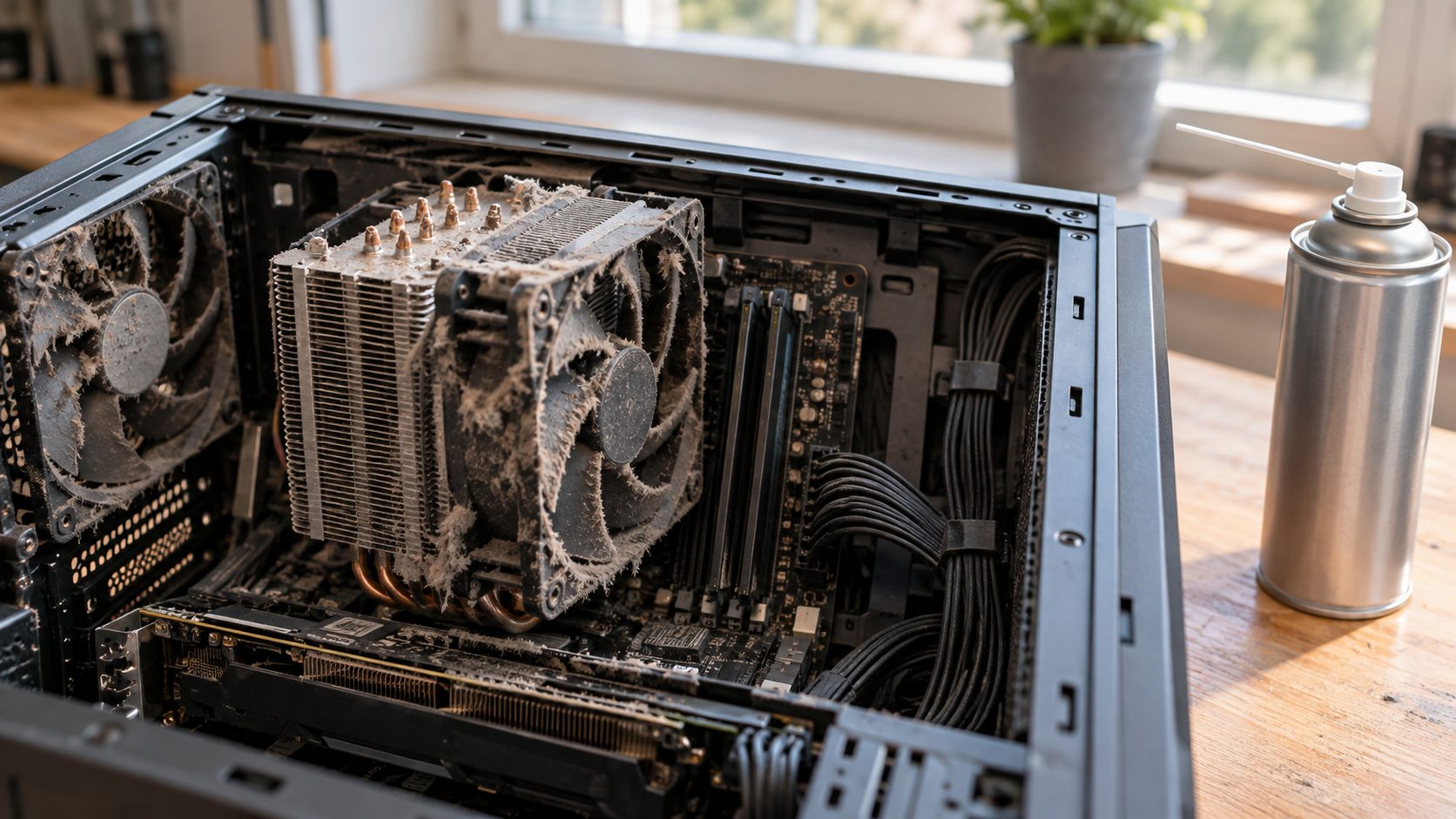
For heat, unplug the PC, blow dust out of the vents and fans while holding each fan still, and check that every fan spins.
Power and heat check out? Look for Event 46
Why is my PC randomly restarting even though the power checks out? Look for Event 46 from volmgr (“Crash dump initialization failed!”). Microsoft says Windows may have started without a working dump file (it uses the page file), so a crash may have gone unrecorded.
In Advanced system settings, open Performance Settings > Advanced > Virtual memory > Change and tick Automatically manage paging file size (the page file must be on the Windows drive). Then set Startup and Recovery > Write debugging information to Automatic memory dump and restart.
Laptop Randomly Shutting Down or Restarting on Its Own
Why is my PC randomly restarting or dying on battery? Run powercfg /batteryreport in Command Prompt, open the HTML file at the path it prints, and compare Design Capacity with Full Charge Capacity and the cycle count.
A badly worn battery can explain a laptop that dies at 20% or 30%, or when unplugged. If Full Charge Capacity is far below Design Capacity, have the maker or a repair shop replace it.
If the touchpad lifts, the case bulges or the laptop rocks on a flat desk, the battery may be swollen. Stop using and charging it, have it replaced, and don’t press on or puncture it.
Dying at exactly 10% or 5% may be a setting: check Critical battery level and Critical battery action under Control Panel > Power Options > Change plan settings > Change advanced power settings > Battery. Per Microsoft, the firmware’s threshold wins if higher (10% beats a 5% setting).
If the action is Hibernate, the laptop only looks off; your apps return at power-on. Also try the original charger, and keep it off beds and cushions that block its vents.
Logs Don’t Settle It? Test in This Order
Still asking “why is my PC randomly restarting?” Back up important files, then work through these checks in order:
Undo the last change
Remove new hardware, reset overclocks (XMP or EXPO memory profiles too), roll back a recent driver or use a restore point (it keeps your files), from Safe mode if needed.
Update Windows and drivers
Install Windows updates and drivers from your PC or board maker; keep 10-15% of the drive free. BIOS last (see below).
Test the memory
Save your work, run mdsched from Start and choose Restart now. Press F1, pick Extended with the arrow keys, then F10 (it can take hours). No result after sign-in? Check the System log for MemoryDiagnostics-Results.
Swap parts or get it checked
Run a full malware scan and your PC maker’s diagnostics, then swap in known-good parts (power supply, RAM) one at a time, or have a shop test them.
Don’t flash the BIOS while the PC still shuts off by itself, unless the log shows a crash, not power loss: a cut-out mid-flash can leave the board unable to start. Keep a laptop on its charger with the battery above the maker’s minimum, and a desktop on a UPS if you have one. Use only the maker’s tool and file for your exact model.
Why is my PC randomly restarting instead of shutting down? If it happens every time, see Windows 11 won’t shut down. For a restart stuck on the spinning dots, see Windows 11 won’t restart.
Frequently Asked Questions
Why is my PC randomly restarting with no blue screen?
“Automatically restart” reboots it before you can read the error. A non-zero BugcheckCode in Event 41 confirms a crash.
Why is my PC randomly restarting after a Windows update?
If Event 1074 names Windows Update, it was a planned restart. If Event 41 shows a bug check code, roll back the newest driver or uninstall the update from Update history.
Why is my PC randomly restarting after a graphics card upgrade?
Suspect power: the power supply must cover the new card. Seat every GPU power connector fully, using as many separate PCIe cables as the card maker recommends, not one split cable. A bug check code points to the graphics driver instead.
Why is my PC randomly restarting when it’s idle?
Idle time often falls outside active hours, when Windows Update may restart, so check Event 1074 first. If Event 41 shows 159 (0x9F), a driver likely failed around sleep.
Recap: Read the Log, Then Fix One Thing
Event Viewer can usually answer “why is my PC randomly restarting?” Event 1074 means a planned restart, Event 41 with a bug check code a hidden crash, and all zeros usually power or heat.
Change one thing at a time and give it a few days. More fixes are in our computer guides.



Leave a comment