

How to Fix a Laptop Microphone: Not Working, Too Quiet or Echoing
Mic silent, too quiet or echoing on calls? Work through the mute key, Windows privacy switches, the input test, app settings and drivers in an order that saves time.
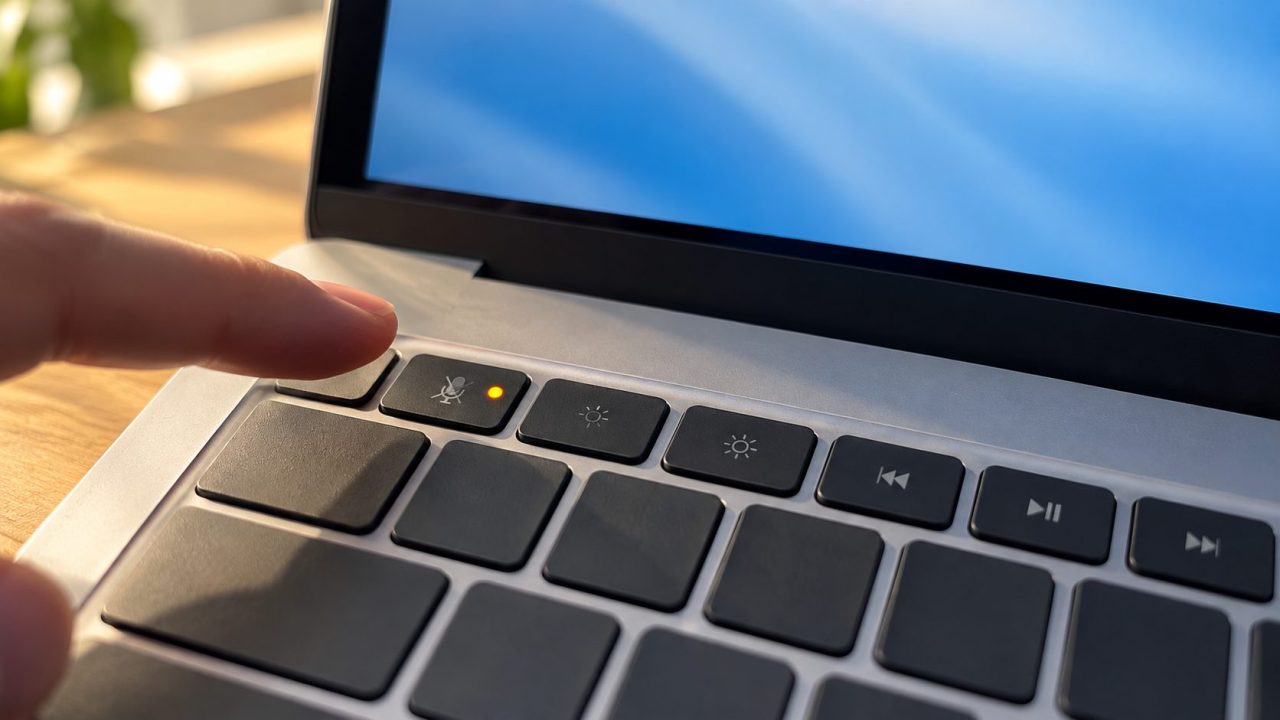
It’s tempting to start with drivers when working out how to fix laptop microphone problems, but the cause is usually simpler: a mute key, a privacy switch or the wrong input device. Where the silence shows up tells you which.
Below is how to fix laptop microphone faults on Windows 11, with Windows 10 paths where they differ and MacBook notes. Menu labels vary by maker and driver. For a phone, see how to fix a phone microphone.
The table below shows how to fix laptop microphone problems by symptom; each row jumps to its section:
| Symptom | Check first |
|---|---|
| Nothing picked up in any app | Mute key, Windows mic access |
| Works in one app, not Zoom or Teams | Desktop apps switch or Teams toggle, the app’s mic choice |
| Others say you’re too quiet | Input volume, Boost, distance |
| Choppy, robotic or muffled | Connection/CPU, then stacked noise suppression |
| Echo on calls | Speakers feeding a mic |
| Mic missing from Windows | Disabled device, driver or BIOS setting |
How to Fix Laptop Microphone Problems: Check the Mute Key First
Look for a key with a crossed-out mic icon on the function row. On Lenovo’s ThinkPad X1 Carbon Gen 12 it’s F4, but placement varies by brand and model. If it does nothing, hold Fn and press it again; on that ThinkPad, Fn+Esc (FnLock) flips the top row between icon functions and F1-F12.
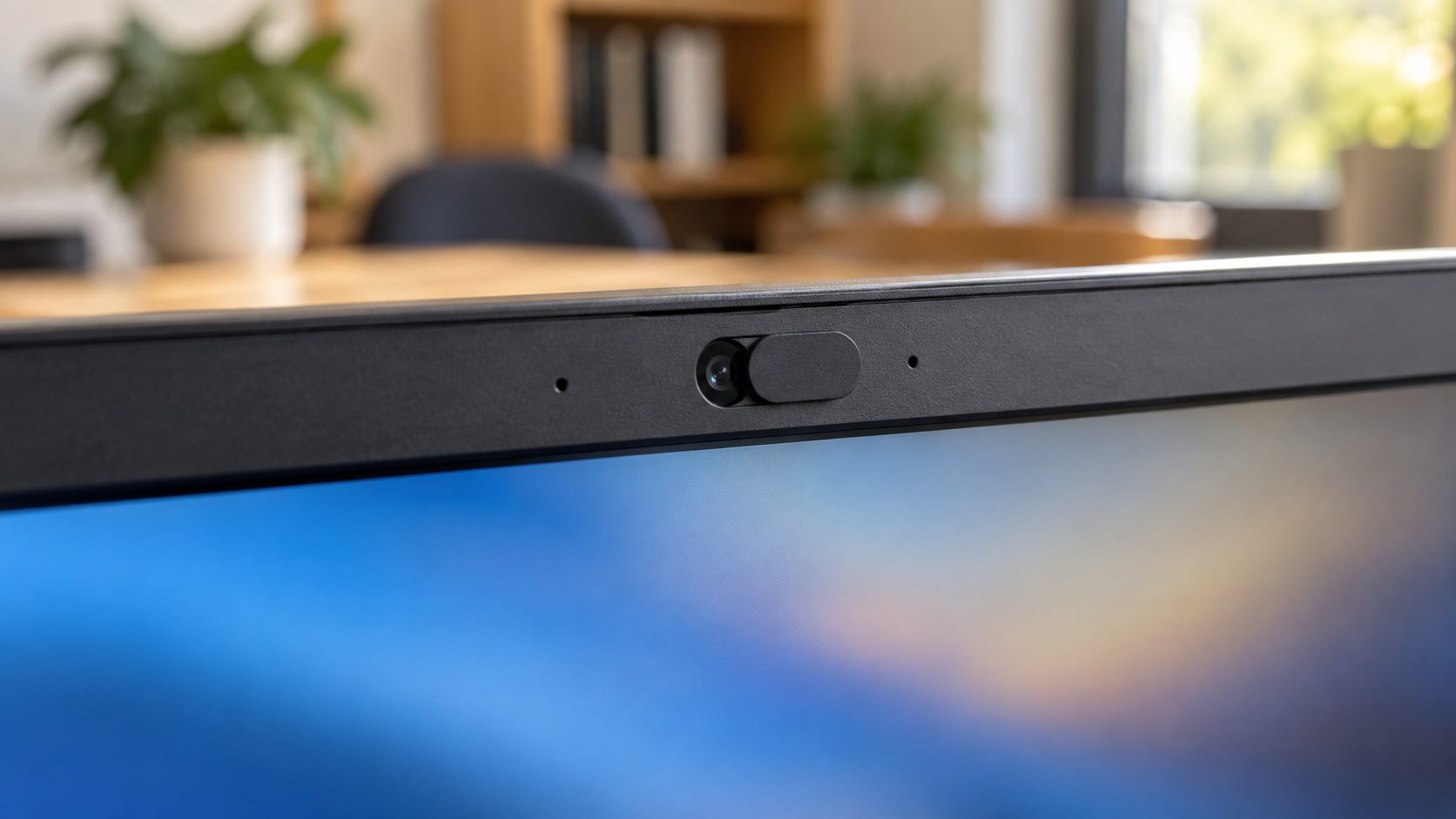
Next, check the mic openings. On many laptops, the X1 Carbon included, they sit in the top bezel beside the camera (MacBooks put them elsewhere; check your model’s guide). Make sure no webcam cover or sticker blocks them and no hardware privacy switch has cut the mic.
Laptop Mic Not Working? Allow Access and Pick the Right Input
In Windows 11, open Start > Settings > Privacy & security > Microphone and turn on Microphone access, Let apps access your microphone and Let desktop apps access your microphone.
If you’re trying to figure out how to fix laptop microphone problems in Zoom or Discord, check that last switch: it covers every classic desktop program, and none of them appear in the per-app list. Turn on Teams’ own toggle in that list too. If the mic is built into a webcam, Microsoft says apps may also need Camera access.
On Windows 10, here’s how to fix laptop microphone access: open Settings > Privacy > Microphone > Change, then turn on Allow apps to access your microphone and Allow desktop apps to access your microphone. Microsoft’s microphone guide covers both versions.
Choose the input and run the mic test
This is how to fix laptop microphone silence when Windows is listening to a webcam or an old headset instead:
Pick the device
Settings > System > Sound > Input, under Choose a device for speaking or recording.
Record
Select the arrow (>) next to it, then Start test. Speak, then Stop test.
Play it back
Choose Play. Windows 10 shows a Test your microphone bar instead.
Swap mics
Repeat with a headset or USB mic. If only it works, suspect the built-in mic or its driver.
Built-in mic missing? In More sound settings > Recording, right-click an empty spot, select Show Disabled Devices, then right-click the mic and choose Enable. Or run Sound > Advanced > Troubleshoot common sound problems > Input devices.
Windows 10 uses Choose your input device, Device properties and a Sound Control Panel link instead; its troubleshooter is Update & Security > Troubleshoot > Additional troubleshooters > Recording Audio.
On a MacBook, how to fix laptop microphone input comes down to two places: System Settings > Sound > Input, and Privacy & Security > Microphone for apps.
Why Is My Laptop Microphone So Quiet? Input Volume, Boost and Distance
Raise Input volume beside the mic test first. Still quiet? In More sound settings > Recording, open the mic’s Properties > Levels and raise Microphone Boost if your driver offers it; not every driver does. Boost lifts room noise too, so go a step at a time.
Here’s how to fix laptop microphone volume for free: face the screen, sit within arm’s reach and keep the mic openings clear. Zoom’s Automatically adjust microphone volume and strong noise suppression can also turn you down. A desktop PC’s mic uses the same settings. Can’t hear others instead? See our laptop too quiet guide.
How to Fix Laptop Microphone for Zoom and Teams
Knowing how to fix laptop microphone settings in Windows isn’t enough for calls: Zoom, Teams and Discord pick their mic separately, so a call can stay silent after the Windows test passes.
Zoom: click your profile picture, then Settings > Audio. Choose the mic, run the mic test and speak; the input level meter should move. In a meeting, the arrow next to Mute switches mics.
Teams: open Settings and more > Settings > Devices > Audio settings, choose the mic, then Make a test call (English only, not on the web). Microsoft’s Teams checklist adds browser steps for the web version.
Silent in one app only? Close other apps using the mic. If one still grabs it, clear Allow applications to take exclusive control of this device in the mic’s Properties > Advanced.
How to Fix Laptop Mic Quality: Noise Suppression and Maker Apps
Choppy or robotic call audio is often the connection or a busy CPU, so try a wired or closer Wi-Fi connection and close heavy apps. If the Windows mic test sounds clean but calls still sound muffled, the driver, the call app and a maker’s audio app may all be adding noise suppression. The rule for how to fix laptop microphone quality is simple: keep one layer and turn the rest down.
- Zoom. Under Settings > Audio > Microphone modes, select Noise removal, then set Background noise suppression to Auto, Low, Medium or High. If you sound choppy on High, drop to Auto or Low.
- Teams. Microsoft suggests turning Noise suppression (Settings > Devices) off for a good mic in a quiet room.
- Windows. Some Windows 11 PCs offer Voice clarity in the mic’s Audio enhancements menu, depending on the driver. Studio Effects’ Voice focus needs an NPU, as on Copilot+ PCs.
- Maker apps. On the X1 Carbon Gen 12, the TrackPoint Quick Menu’s Microphone item offers Center mode (your voice only, best for solo calls) and Spatial mode (voice plus room). Elsewhere, turn off duplicate noise cancellation in apps like Realtek Audio Console or Dolby.
A steady hum? If it stops when you unplug the charger, it’s electrical noise; try another outlet or a grounded charger. If not, our laptop vibrating guide covers fan and buzz sources.
Why Is My Laptop Echoing My Voice? Find Out Who Hears It
How to fix laptop microphone echo depends on one question: who hears it? The answer tells you whose device to fix.
Others hear themselves: your speakers are the source
Their voice leaves your speakers and your mic sends it back, so wear headphones or lower the volume. With Zoom’s Original sound for musicians, keep its Echo cancellation option on unless you wear headphones.
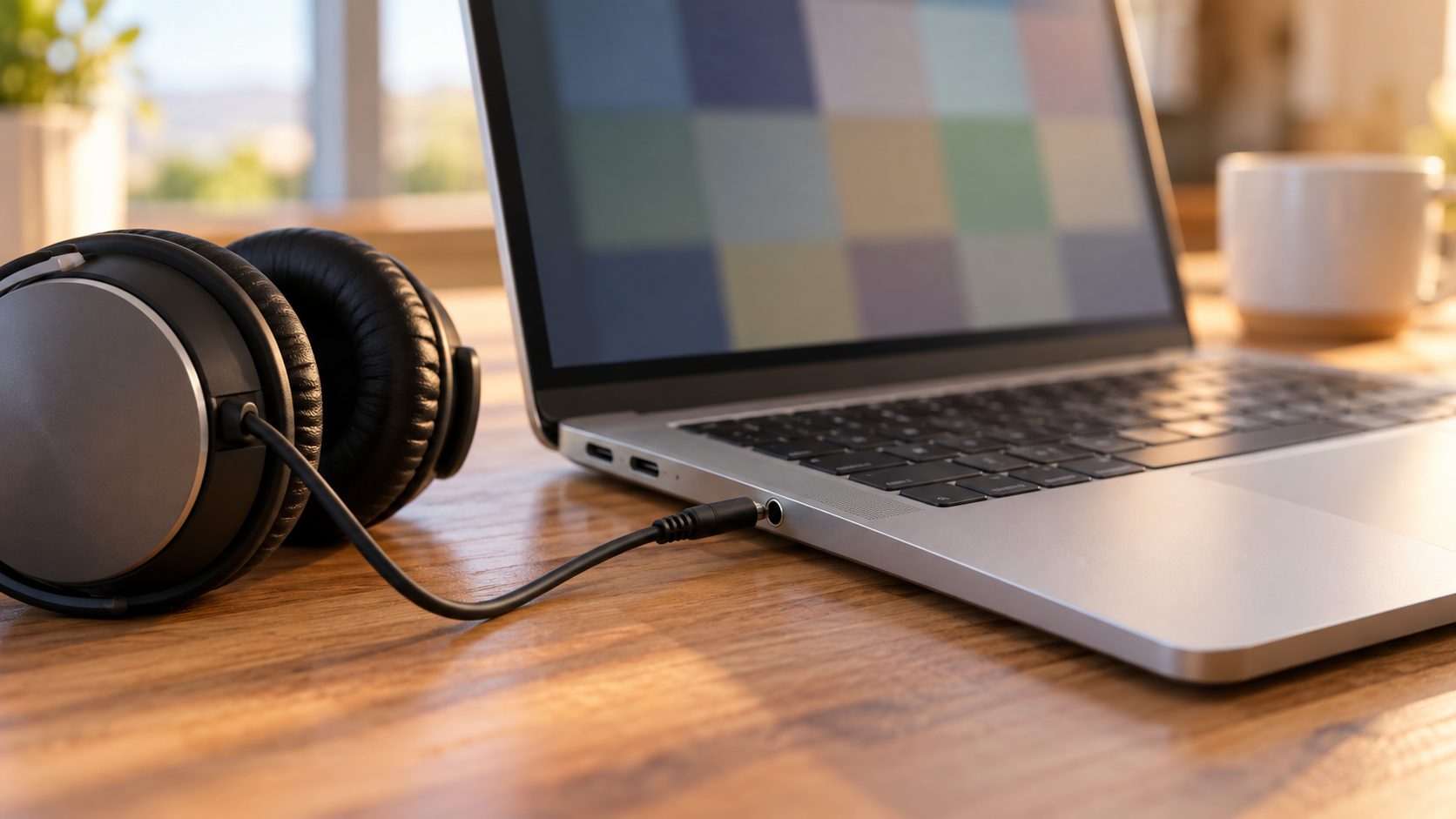
You hear yourself: turn off Listen to this device
Hear your voice through your own speakers even off calls? Open the mic’s Properties under More sound settings > Recording and clear the Listen to this device check box on the Listen tab. Only on calls? The other person’s speakers are feeding their mic.
Zoom’s main echo causes: computer and phone audio on at once, speakers too close together, and several computers with audio in one room. Muting isn’t enough, since the speaker stays on; disconnect audio on extra devices. Zoom’s echo guide has more.
Mic Still Not Detected? Drivers From the Laptop Maker, Then Hardware
Leave drivers for last when you’re deciding how to fix laptop microphone faults. Restart the app, then the laptop, and install pending Windows updates first.
Then open Device Manager (right-click Start) and expand Sound, video and game controllers. Enable the audio device if it’s disabled, or use Properties > Driver > Roll Back Driver if trouble began after an update. Otherwise, download your model’s audio driver from the maker, then:
- Right-click the audio device, choose Uninstall device and select Attempt to remove the driver for this device.
- Restart and let Windows reinstall it.
- If it doesn’t return, choose Action > Scan for hardware changes.
- Still no working mic? Run the maker’s driver installer you downloaded and restart.
Skip driver updater tools. Many business laptops can also switch the internal mic off in BIOS/UEFI setup, often under Security or Integrated Devices (names vary). Enable it there and change nothing else; install the maker’s BIOS updates with the charger connected, and never interrupt one.
Still silent while a headset mic works? Ask the maker’s service center or a repair shop how to fix laptop microphone hardware on your model.
Frequently Asked Questions
Why does my laptop mic work in one app but not in Zoom or Teams?
For Zoom or Discord it’s usually the desktop apps switch; for Teams, its own toggle in the app list. Then check the mic chosen inside the app.
Why did my laptop mic stop working after a Windows update?
Microsoft notes that apps may need microphone permission again after an update, so recheck the privacy switches first. Then roll back the audio driver or install your model’s driver from the maker.
Does closing the laptop lid turn off the built-in microphone?
Yes on all Apple silicon MacBooks, T2 MacBooks from 2019 on and every T2 13-inch MacBook Pro or Air: the mic is cut in hardware, so closed-lid setups need an external mic. Windows laptops vary by model.
How can I tell if my laptop microphone is broken?
If a headset mic works but the built-in mic stays silent after a driver reinstall and a BIOS check, the hardware is likely faulty.
Recap: How to Fix Laptop Microphone Problems in Order
Mute key, mic access (desktop apps included), input device, level, the app’s own mic, processing, echo, then the maker’s driver and BIOS. That’s how to fix laptop microphone problems with the free checks first. More help is in our computer guides.
Leave a comment