

How to Fix Phone Microphone Problems on iPhone, Pixel and Galaxy
Phones have several mics. Three quick tests show which one is failing, then the fixes run from permissions and Bluetooth to safe cleaning, safe mode and repair.
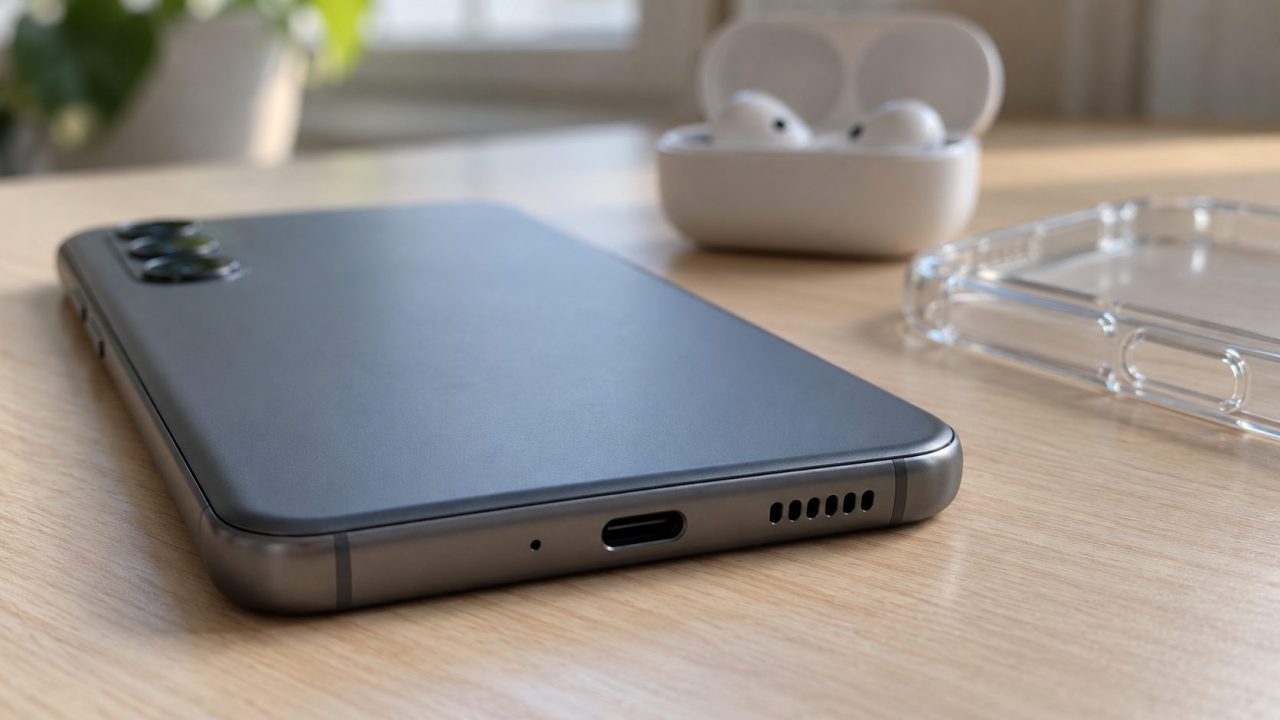
Most phones have several microphones, so working out how to fix phone microphone problems starts with finding which one is failing. A one-minute recording test shows whether it’s the hardware. If the mic records clearly, the culprit is usually a permission, a Bluetooth device or a case over the mic hole.
The steps below show how to fix phone microphone faults in order of cost: free checks first, a repair last. Menu labels vary by model and software version.
How to Fix Phone Microphone Problems: Find Which Mic Is Failing
Apple’s, Google’s and Samsung’s guides on how to fix phone microphone problems all start the same way: take off the case and any screen protector or film. Then run three tests; the first two come from Apple’s microphone guide and Google’s Pixel checklist:
- Voice recording. Record a clip in Voice Memos (iPhone), Recorder (Pixel) or Voice Recorder (Galaxy) while speaking at the bottom of the phone, then play it back. This checks the bottom mic used on calls.
- Video. Record a Camera clip while speaking at the top, then switch cameras and record another; Apple calls this its speakerphone test.
- Speakerphone call. Call a friend at your ear, then on speaker, and ask which sounds worse.
Your result narrows down how to fix phone microphone faults; each row links to its section:
| What you found | What it points to |
|---|---|
| Clip clear, callers can’t hear you | Mute, network or Bluetooth |
| Fine except in one app | App permission or setting |
| Voice clip muffled or silent | Bottom (call) mic blocked or faulty |
| One camera’s video muffled | Top or rear mic |
| Silent everywhere after cleaning | Restart, update and safe mode first; then hardware |
Rule out mute and the network
Check the obvious before you look up how to fix phone microphone hardware: if the call screen’s mute button is highlighted, tap it, as Google advises.
If only some calls fail, Samsung suggests retrying elsewhere, restarting both phones and calling another contact. Callers hear an echo instead? See our phone echoing on calls guide.

Mic Works in Calls but Not in One App? Check Permissions
Clear recording, but WhatsApp or Zoom stays silent? It’s usually a permission you denied months ago. Here’s how to fix phone microphone access on each system:
iPhone
In Settings > Privacy & Security > Microphone, turn the app on. Already on or not listed? Apple says to contact the developer. An orange dot means an app is using the mic.
Android and Pixel
Open Settings > Apps > [app] > Permissions > Microphone and allow it. Pause app activity if unused can strip permissions from apps you rarely open.
Samsung Galaxy
A green dot top right (Android 12 and later) means an app is using the camera or mic. The full list is in Permission manager > Microphone, under Settings > Apps > More options or, on recent One UI, Security and privacy; searching Settings finds it.
The Android switch that mutes every app
On many phones with Android 12 and later, a Microphone access toggle in Quick Settings blocks the mic for all apps (it’s also on the Privacy screen in Settings). When it’s off, apps get silent audio, though emergency calls still get the mic.
Is a Bluetooth Headset or Your Car Taking the Call?
Earbuds in a pocket or a car in the driveway can take the call audio, mic included. Turn Bluetooth off and call again; if callers hear you now, a paired device was to blame.
A wired or USB-C headset with an inline mic takes over calls while plugged in. Unplug it before testing; Google’s checklist says to try other audio accessories too.
On iPhone, check that Settings > Accessibility > Touch > Call Audio Routing isn’t forcing calls to a headset or the speaker, or tap Audio mid-call to switch. On Android, tap the gear next to the device in Bluetooth settings and turn off its Phone calls or Phone audio toggle (Calls on Galaxy). A paired device can take the ringtone too: see Android phone won’t ring.
Remove the Case and Clean the Mic Holes Safely
Samsung warns that a case, cover or even the film fitted before purchase can block a mic hole. Cleaning is where advice on how to fix phone microphone problems often goes wrong, so keep it gentle:
- Wipe, don’t dig. Use a soft, lint-free cloth, as Google suggests, or a clean, dry, soft brush.
- Push nothing in. Pins, needles and toothpicks can pack lint deeper or puncture the mesh.
- Skip compressed air. Samsung’s water-resistance guide warns against it (some regional pages differ), and Apple rules it out for drying ports.

How to fix phone microphone problems after water damage
Samsung says call and audio quality may suffer until the mic is completely dry. Apple’s advice for a wet charging port suits the mic openings too: tap the phone gently against your hand with the connector facing down, then leave it somewhere dry with airflow. Drying can take up to 24 hours.
Skip heat, compressed air and rice, and expect no guaranteed fix. Apple’s warranty excludes liquid damage, but AppleCare+, other accidental-damage plans or consumer law may help. Still muffled once dry? Book a repair.
How to Fix Phone Microphone Quality When You Sound Quiet or Muffled
The simplest answer to how to fix phone microphone quality is where you hold the phone: keep the bottom mic near your mouth and your fingers off it, as Google and Samsung advise. On iPhone, also try its noise filter:
iPhone: Voice Isolation
During a call, open Control Center, tap Phone Controls (or the app’s controls) and pick Voice Isolation to cut background noise. It works on phone calls from iOS 16.4 and FaceTime from iOS 15; Wide Spectrum doesn’t work on phone calls.
Is the other caller faint to you? That’s your speaker, not your mic: see why is my phone quiet. On a Pixel 7 or later, Clear Calling (Settings > Sound & vibration > Clear Calling) reduces the other caller’s background noise so you hear them better, depending on call bandwidth. It won’t change how you sound to them.
Restart, Update and Test in Safe Mode
Bad clip with clean holes? These steps show how to fix phone microphone faults caused by software:
Restart
Close all apps and restart the phone.
Update
Install any iOS or Android update, then update your calling apps.
Safe mode on Galaxy
In the quick panel, tap Power, then touch and hold Power off until Safe mode appears and tap it. If the mic works there, Samsung’s microphone guide says to uninstall recent apps. Restart to exit.
Safe mode on Pixel
Pixel 6 and later: hold Power + Volume up, touch and hold Restart, tap OK. Safe mode turns on Airplane mode, so switch it off before a test call; restart to exit.
Galaxy diagnostics
Run Settings > Device care > Diagnostics > Phone diagnostics > Test all, or use Samsung Members, which needs a verified Samsung account.
Last Steps: Reset Settings or Book a Repair
The last software step in how to fix phone microphone faults on iPhone is Reset All Settings (Settings > General > Transfer or Reset iPhone > Reset). It returns settings, privacy included, to their defaults. Apple says no data or media are deleted, though network settings are reset and Apple Pay cards removed.
Erase All Content and Settings on iPhone, or a factory reset on Android, wipes the phone. Back up first, and skip it if your tests point to hardware.
Hardware signs: the recorder stays silent after cleaning, in safe mode and after an update, or the fault began after a drop or a soaking. At that point, no guide on how to fix phone microphone settings will help: book service with Apple, Google or a Samsung service center.
Frequently Asked Questions
Why can people hear me on speakerphone but not at my ear?
They’re different mics. Normal calls use the bottom mic; speakerphone and video use the top or rear ones, so focus on the bottom one.
Is my phone microphone broken, or is it software?
If the recorder clip and both camera clips sound clear, the hardware works and the fault is a permission, a Bluetooth device or the app. Silence in safe mode and after an update points to hardware.
Why won’t my phone microphone work in WhatsApp or Zoom?
Usually the app’s mic permission is off, perhaps removed by Android’s Pause app activity if unused, or its own mute or input setting is wrong. Update it, then reinstall it, as Google suggests.
Test First, Repair Last
The short version of how to fix phone microphone problems: record a test clip, then check mute, permissions, Bluetooth, the mic holes, updates and safe mode, and book a repair only if the recorder still fails.
More call and sound fixes are in our mobile guides.



Leave a comment