

Controller Won’t Stop Vibrating? Fixes for Stuck or Missing Rumble
Stuck rumble usually means a game never told the motors to stop. Reconnect first, then check Steam, the vibration switch, a reset and firmware. No-rumble fixes too.
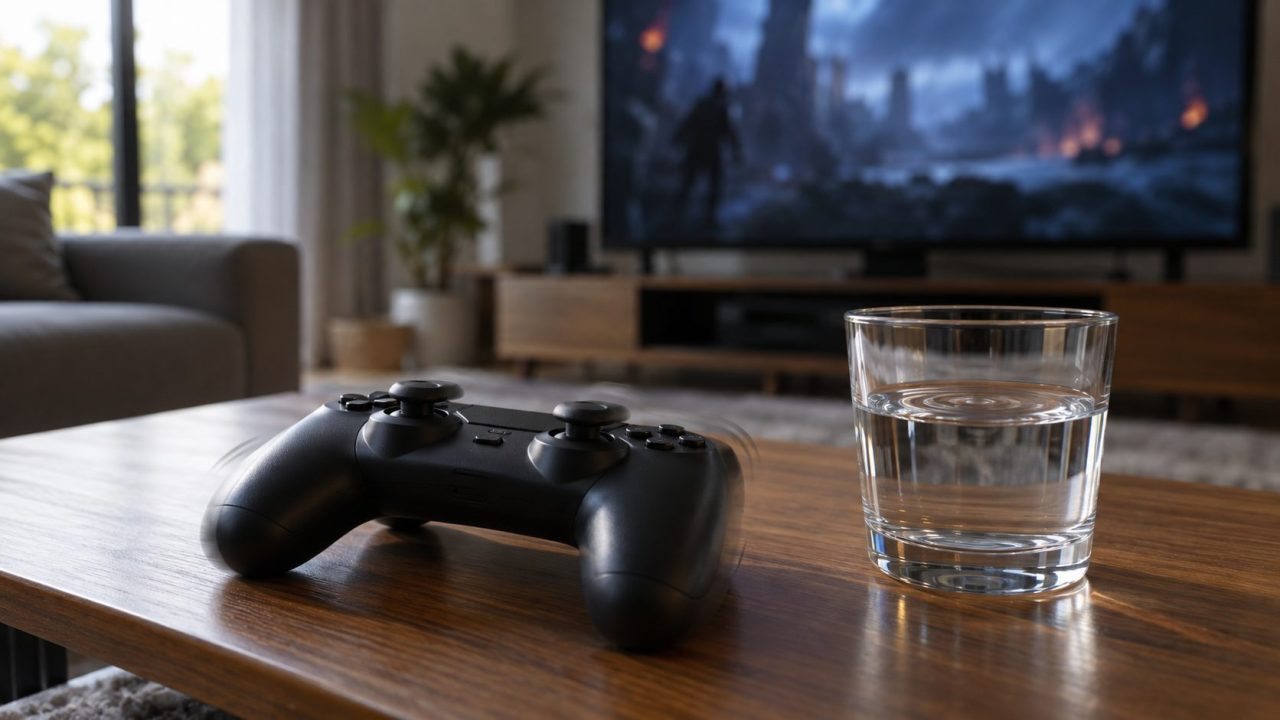
When a controller won’t stop vibrating, the usual cause is a game that started the rumble motors and then crashed, froze or hung before telling them to stop. Disconnecting the pad clears that command on any console or PC. If the buzz returns, check the game, a PC helper app or a setting before blaming the controller.
If your pad never vibrates, jump to the no-rumble fixes. For pairing trouble, see our guides to a controller that won’t connect to Xbox or a Quest 3 controller that won’t connect.
Controller Won’t Stop Vibrating? Disconnect It First
Each of these ends the last rumble command the game sent:
- Wired pads. Unplug the USB cable for a few seconds, then plug it back in.
- PlayStation. Hold the PS button until the lights go out, which takes several seconds, or on PS5 press it once and pick Accessories > your controller > Turn Off in the control center.
- Xbox. Hold the Xbox button for several seconds until it switches off, or pull the AA batteries.
- Switch. Press the controller’s SYNC button once; detach attached Joy-Con first, or put the console to sleep.
- Then the game. Close it fully (PS5: Options > Close Game; Xbox: Menu > Quit; Switch: X > Close) and relaunch it.
Toggling the game’s vibration setting, or alt-tabbing out of an XInput game on PC, often stops it too. That’s a pause, not a fix.
Why Rumble Gets Stuck On
In XInput, the API most PC games use for Xbox-style pads, rumble is a held state, not a timed pulse. A game sets each of two motors to a speed from 0 (off) to 65,535 (full), and the motor holds it until the game sends a new value.
If a game hangs right after starting a rumble, nothing sends the zero, and the controller won’t stop vibrating until you disconnect it. A buzz that outlasts a crash usually means a translator app such as Steam Input or DS4Windows is holding the last state.
Windows 10 and later also switch input off for XInput games when their window loses focus, and Microsoft’s XInputEnable documentation says turning input off stops any vibration playing. Switching back resends the last rumble request, so alt-tabbing only pauses the buzz.
Is It the Game or the Controller? A Quick Test
If the controller won’t stop vibrating again after a reconnect, sit on the home screen or the Windows desktop with no game running and see if the buzz comes back. A second console or PC narrows it further.
| What you notice | Likely cause | Go to |
|---|---|---|
| Buzzes in one game only | A game bug or setting | One game |
| Buzzes on PC, fine on a console | Steam Input or a mapping tool | PC |
| Buzzes on the home screen | Controller state or firmware | Reset |
| Buzzes with everything off and disconnected | Likely a hardware fault | Repair |
| Never vibrates | A setting, game support or connection | No rumble |
Stuck Rumble in One Game: FC 26, Cyberpunk 2077, Hogwarts Legacy, Fortnite
If your controller won’t stop vibrating in one title and behaves everywhere else, the game is the suspect:
- Turn vibration off in the game’s controller or accessibility settings for now.
- Quit and relaunch; if the buzz starts again at once, restart the console or PC.
- Install the latest game update. On PC, verify the files (Steam: Properties > Installed Files > Verify integrity of game files).
Rumble bugs get patched, so last season’s forum fix may be obsolete. If the game’s official patch notes list a controller or vibration fix, install the update and turn rumble back on.
Controller Won’t Stop Vibrating on PC: Steam Input and Helper Apps
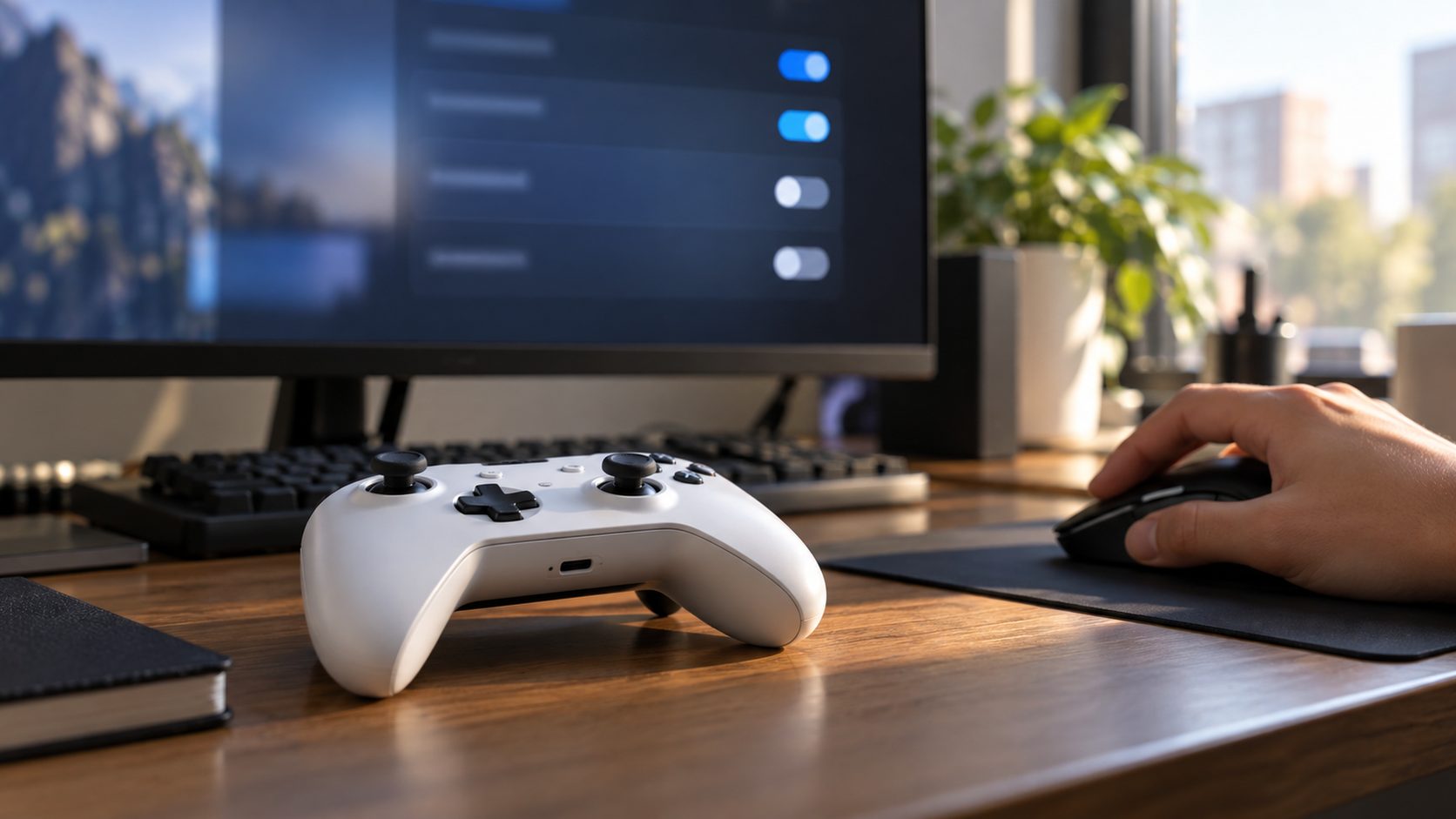
Steam Input, remappers and vendor apps can sit between the pad and the game. When a controller won’t stop vibrating only on PC, make sure just one of them translates input:
Turn rumble off in Steam
Steam Community users report fixing stuck rumble by turning off rumble or haptics under Steam > Settings > Controller. It only applies while Steam Input is active for the game, and Valve reworked these menus in spring 2026, so labels may differ.
Close extra translators
Quit remappers such as DS4Windows and any peripheral software, then reconnect. With a DualSense, Sony also suggests closing its PlayStation Accessories app and reconnecting.
Test Steam Input for that game
In the game’s Properties > Controller, set the override to Disable Steam Input, or the reverse; our guide to a controller not working in game has the details.
Third-party pads
If an EasySMX or GameSir controller won’t stop vibrating, check its manual for a companion app, firmware tool or button combination that changes rumble.
Use the Console’s Vibration Switch, Then Reset the Controller
A system-wide vibration switch keeps a buzzing pad usable while you look for the cause. If it still buzzes at the home screen, reset the controller too.
PS5 and DualSense
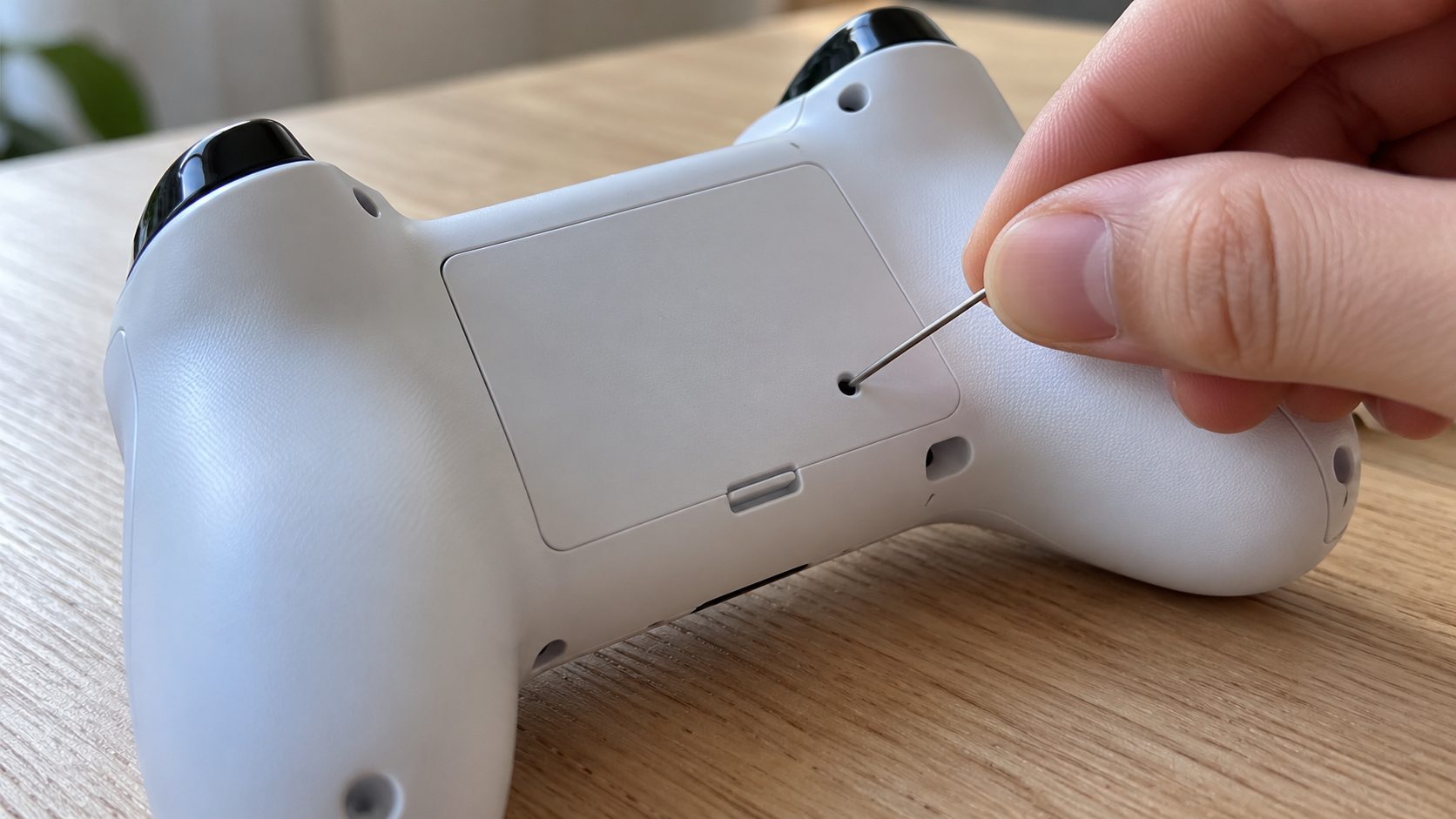
Settings > Accessories > Controller (General) > Vibration Intensity: lower it or set it to Off (Trigger Effect Intensity is separate). To reset, follow Sony’s DualSense steps: turn off the PS5, unplug the pad, and use a pin to hold the button in the hole by the Sony logo for at least 5 seconds. Reconnect by USB and press the PS button.
PS4 and DualShock 4
Settings > Devices > Controllers: clear Enable Vibration; Sony says that stops vibration even when a game turns it on. Use the pinhole reset on the back when a PS4 controller won’t stop vibrating: turn off and unplug the PS4, hold the button for at least 5 seconds, then reconnect by USB.
Xbox One and Series X|S
In the Xbox Accessories app (console: Profile & system > Settings > Devices & connections > Accessories), select the pad, then Configure. Create or edit a profile, turn vibration off and press B to apply; Elite Series 2 profiles also set vibration strength. Xbox controller won’t stop vibrating outside games? Choose its profile, then Edit > Restore to default, and power-cycle the pad.
Switch and Switch 2
System Settings > Controllers and Sensors > Controller Vibration (Controllers & Accessories on Switch 2) covers every paired pad. Press SYNC once when a Pro Controller won’t stop vibrating; that resets it, as it does Joy-Con. Switch Lite has no built-in rumble.
Update the firmware and system software
If the controller won’t stop vibrating after a reset, update the console, then the pad. On PS5, that’s DualSense Wireless Controller Device Software in the same menu; on Windows, Sony’s PlayStation Accessories app updates a DualSense over USB or Bluetooth.
On Xbox, go to Profile & system > Settings > Devices & connections > Controllers & headsets (Accessories on some dashboards), select the pad, then … > Firmware version. On Windows, the Xbox Accessories app updates it over USB or the Xbox Wireless Adapter, not Bluetooth. On Switch, use System Settings > Controllers and Sensors > Update Controllers.
Controller Won’t Vibrate at All? The Opposite Fixes
- The system switch. The settings above must be on. On Xbox, Restore to default clears a profile with vibration off.
- The game. Its vibration option must be on, and it must support your pad. Steam store pages list Controller Support, and Nintendo says rumble strength varying between games is normal.
- DualSense on PC. Over Bluetooth you lose the fine haptic effects, which Sony says need USB on PC, but basic rumble usually still works. No vibration at all? Try a USB cable or turn Steam Input on for that game.
- Xbox triggers on PC. XInput drives only the two body motors; trigger rumble needs games using Windows.Gaming.Input or Microsoft’s newer GameInput API, so silent triggers aren’t a fault.
- Switch quirks. Switch 2 may pause rumble after long use to protect the controller and restore it by itself. Bluetooth audio can weaken HD Rumble; disconnect headphones to test.
- The battery. Charge the pad before deciding the motors have failed.
Stuck and Missing Rumble: Your Questions
Why does my controller keep vibrating after the game crashes?
The game hung or quit before sending the stop value, or a helper app kept the last rumble state; that’s the usual reason a controller won’t stop vibrating. Reconnect, and check for an update if one game keeps doing it.
Why won’t PS5 controller vibration turn off?
Turn it off in two places: the game’s options and Vibration Intensity (above). A DualSense Edge follows its active profile instead. If a PS5 controller won’t stop vibrating with both at Off, reset it.
My controller won’t stop vibrating even with the console off. Is it broken?
Not always. Make sure the console is fully off (not in sleep or rest mode) and the pad isn’t connected to a PC or phone. A brief pulse as a Switch goes to sleep is a known software issue that Nintendo fixes with a restart and a system update.
If it still buzzes after a reset with everything off and disconnected, the fault is likely inside the pad. Don’t open it, which can void the warranty; use PlayStation Repairs, Microsoft’s device support or Nintendo’s service center. Nintendo’s Switch 2 page says it services controllers at no charge within the warranty period.
Recap: Reconnect First, Repair Last
Disconnect the pad and quit the game; that ends a stuck command anywhere. Then check PC helper apps, the vibration switch, a reset and firmware. If your controller won’t stop vibrating with everything off and disconnected, book a warranty repair.
More fixes are in our gaming guides.
Leave a comment