

GameSir Controller Won’t Connect? Choose the Right Mode First
Most GameSir pairing failures are mode problems. Decode the Home light, use your model's combo, re-pair the dongle and fix PC, Switch and Xbox connections.
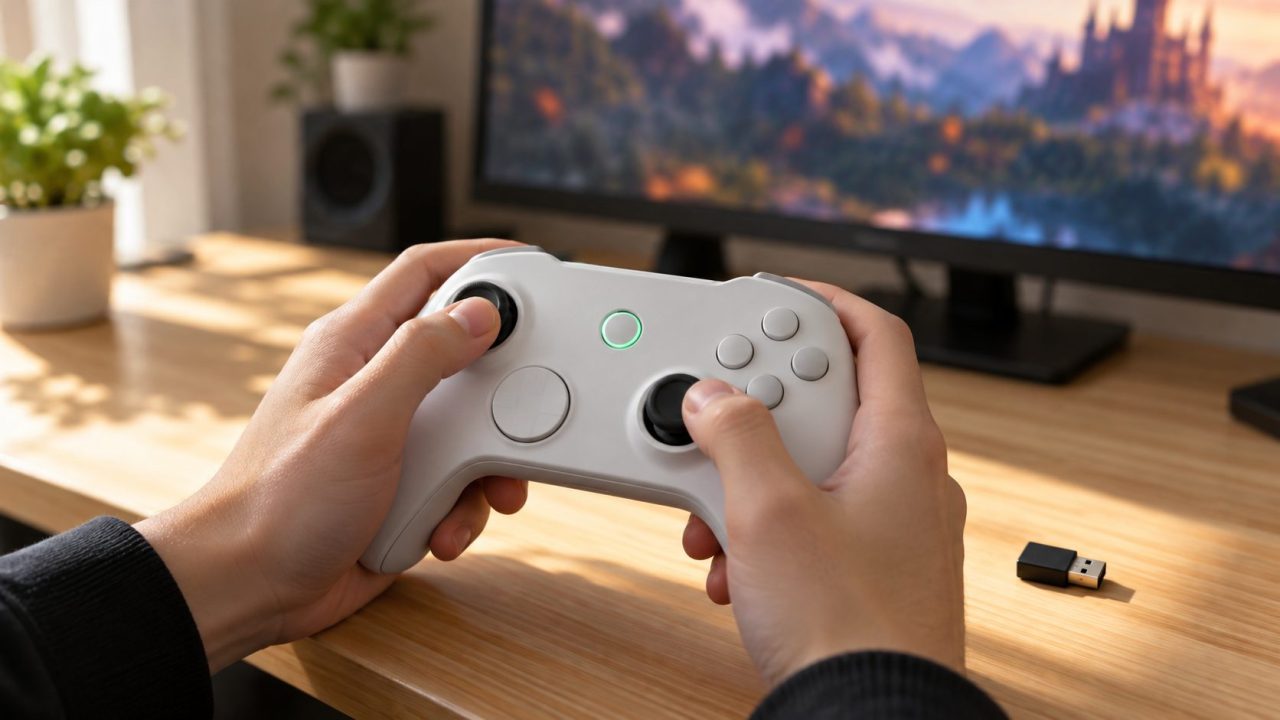
When a GameSir controller won’t connect, the pad is rarely dead. It’s usually in the wrong mode: on most GameSir PC and Switch pads, Home-plus-button combos set the link (dongle, Bluetooth or cable) and the platform, while Xbox-licensed pads use a mode switch or are wired only. Read the light color, redo the combo, re-pair the dongle, then update the firmware.
Combos differ by model, so each step names its model. If your GameSir controller won’t connect and isn’t covered here, look up its combos on GameSir’s manuals page.
Start With the Home Light: It Shows the Mode
On the Nova Lite and Nova 2 Lite, the Home (logo) light changes color with the platform mode. If the color doesn’t match the device you’re connecting to, the GameSir controller won’t connect, so fix that first. No light at all? Charge it first.
Green
XInput, the Xbox-style mode PC games expect. On both Nova Lite pads, X + Home (green) is also dongle mode.
Red
Switch mode (Y + Home). Right for a Switch, wrong for XInput games. One Nova Lite manual page shows blue.
Yellow
Android Bluetooth mode (A + Home), for Android phones and tablets.
Blue
DS4 mode (B + Home), the Bluetooth mode for Windows and iOS.
A fast blink means pairing, a slow blink means reconnecting to the last device, and solid means connected. The T4 Pro uses a blue mode light with the same blink pattern; its separate charging light flashes red quickly below 15% battery.
Use the Right Combo for Your Model
Press the combo with the controller off, for the device you’re connecting to now.
| Model | Press with Home | Watch out for |
|---|---|---|
| T4 Pro, T4 Pro SE | X dongle, Y Switch, A Android, B iOS | Wired PC: plug in while it’s off |
| Nova Lite | X dongle, Y Switch, A Android, B DS4 | Menu + View switches platform only on dongle or cable |
| Nova 2 Lite | The same, plus RB for G-Touch (cyan) | Cable needs no combo |
| Original Nova | B Android; X iOS, Switch and PC Bluetooth | No dongle in the box; X and B do different jobs than on the Lite pads |
Force pairing mode, then beat the timer
On the Nova family, hold Home + Screenshot for about 2 to 3 seconds until it blinks fast; on a Cyclone 2, hold Home + Share for about 2 seconds (with a dongle, also press its pairing button).
If your GameSir controller won’t connect and then goes dark, it timed out: a Nova Lite powers off after 1 minute in pairing mode or 3 minutes in reconnect mode. Open the pairing screen on the other device first.
Delete the old pairing, then restart both devices
If a GameSir controller won’t connect to a phone or PC it used before, delete its old entry from the Bluetooth list, restart both and pair again. The mode sets its name: look for Wireless Controller, DUALSHOCK4 Wireless Controller, Xbox Wireless Controller, Pro Controller or, on Android, a GameSir name such as Gamesir-T4pro.
GameSir Controller Won’t Connect to the Dongle
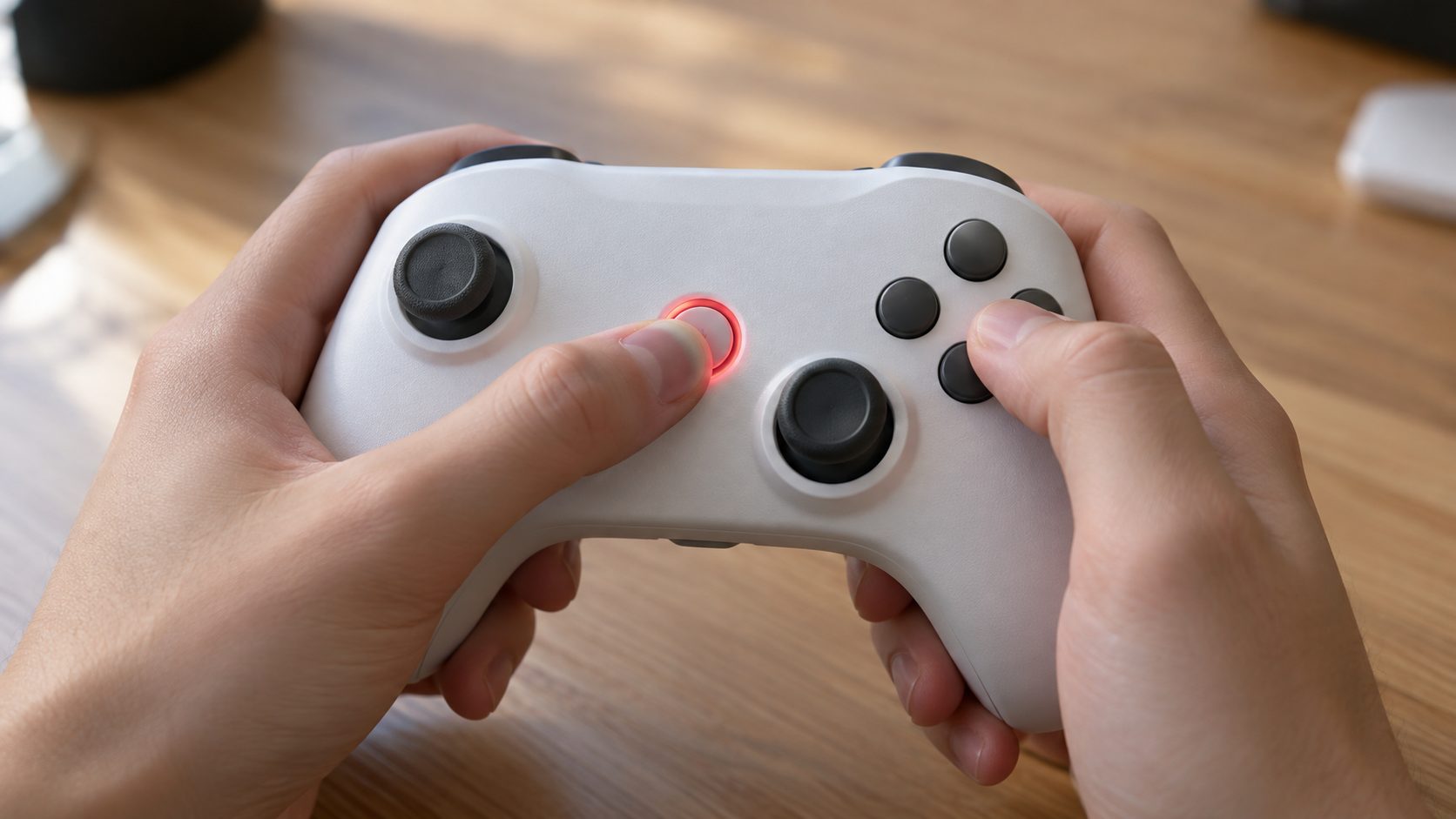
Tri-mode pads such as the Nova Lite, Nova 2 Lite, Super Nova, Cyclone 2 and Tarantula Pro ship paired to their own dongle and work only with it. If your GameSir controller won’t connect to that dongle, re-pair them; the Nova Lite’s steps:
Put the dongle in pairing mode
With the dongle plugged in, press its pairing button until its light flashes fast. A slow flash means it’s waiting for the last pad it knew. No light means it’s asleep; the same button wakes it.
Put the pad in dongle mode
With the pad off, briefly press X + Home until the green light flashes fast. Other tri-mode pads use the same combo.
Wait for solid lights
Both lights stay solid once paired; a T4 Pro shows blue on the pad and red on the receiver.
Keeps dropping out? GameSir’s Cyclone 2 FAQ blames mismatched dongle and controller firmware, interference from other strong wireless signals, and thick objects in the way. Update both and move the dongle closer on a USB extension cable.
GameSir Controller Won’t Connect to PC
GameSir’s FAQ says Microsoft’s restrictions block XInput over Bluetooth on most GameSir controllers, so a pad can pair fine while games that want an Xbox-style controller ignore it.
- Use the dongle or a cable for XInput. On Nova pads, you want a green light. Red or blue? Hold View + Menu (about 2 seconds on a Nova 2 Lite) to cycle modes.
- Staying on Bluetooth? Set DS4 mode (B + Home), pair it in Windows 11 under Settings > Bluetooth & devices > Add device > Bluetooth, then launch your games through Steam, which GameSir recommends for Bluetooth play.
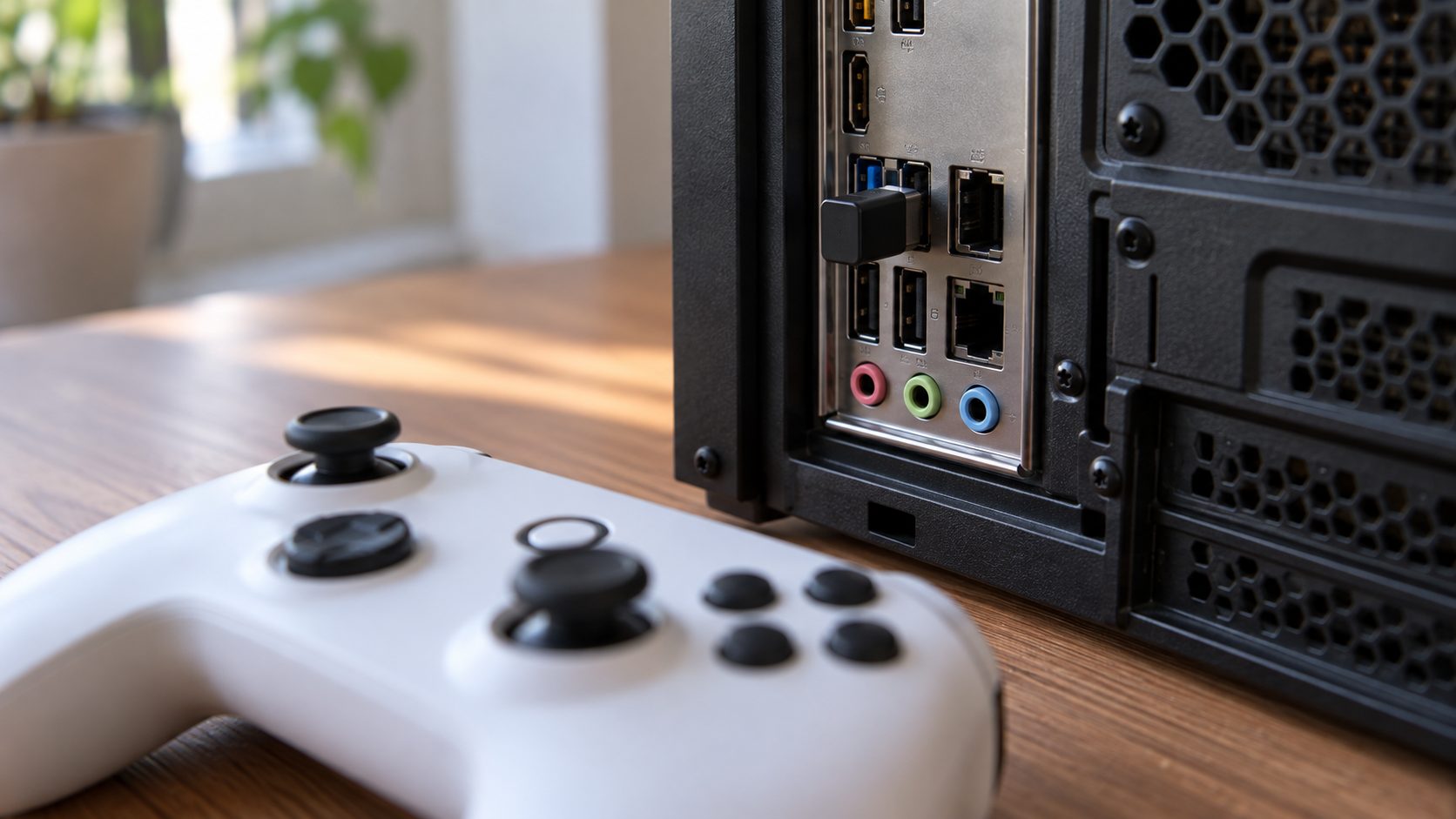
- Not detected at all? If the GameSir controller won’t connect by cable or dongle either, push a known data cable fully in without holding any buttons, and use a rear motherboard USB port, not a front-panel port or hub.
- Clean up Device Manager. Right-click Start, open Device Manager and uninstall any entry with a yellow warning under Universal Serial Bus controllers or Xbox Peripherals (don’t delete the driver files if asked). Then choose Action > Scan for hardware changes.
- Moves the mouse instead? That’s Steam’s desktop layout. Go to Steam > Settings > Controller, select Desktop Layout, click Edit and choose Disable Steam Input.
GameSir Controller Won’t Connect to Switch
Open Controllers > Change Grip/Order on the console first, then press the Switch combo: Y + Home on the Nova Lite, Nova 2 Lite and T4 Pro (a red light on Nova pads), or X + Home on the original Nova. For the dongle or a cable, turn on Pro Controller Wired Communication under System Settings > Controllers and Sensors (on Switch 2, Controllers & Accessories).
If a GameSir controller won’t connect as a third controller, disconnect Bluetooth headphones: Nintendo allows up to eight wireless controllers, but only two with a Bluetooth audio device connected. GameSir’s FAQ doesn’t mention Switch 2, so confirm your model supports it first. Console-side fixes are in our controller won’t connect to Switch guide.
GameSir Controller Won’t Connect to Xbox
Check the model first: if your GameSir controller won’t connect to an Xbox at all, it may not be an Xbox controller. GameSir lists Xbox consoles only for its Xbox-licensed pads, and none pairs through the console’s built-in wireless or Bluetooth.
Wired only on Xbox: the G7 SE (solid white means connected), G7 HE, T7, Kaleid, Kaleid Flux, the tri-mode G7 Pro and the T7 Pro Tri-Mode (such as Retro Green), whose wireless modes are for PCs and phones.
Xbox wireless editions: the G7 Pro Wireless and T7 Pro Wireless ship with a 2.4G receiver for the console. Plug it in, set the mode switch to 2.4G and briefly press the Xbox button until the light stays solid. If that fails, use the cable.
Not Xbox pads: the Nova Lite, Nova 2 Lite, Super Nova, T4 Pro and Cyclone 2.
If a licensed GameSir controller won’t connect, GameSir’s FAQ for the Kaleid, G7 SE, G7 HE and T7 suggests:
- Push the USB-C plug in firmly, without holding any buttons. A cable guard can make it feel seated when it’s only halfway in. Then try a known data cable.
- With the pad in the console’s rear USB port, hold the console’s power button for over 10 seconds until it shuts off. Unplug its power cord for about 30 seconds, press the power button 10 times, then restart.
- Xbox + M for 3 seconds, then a replug, to restore the original product ID.
- Xbox + Share for 3 seconds to switch between XInput and GIP modes.
It also names G7 SE and G7 HE firmware 6.33, 6.38 and 6.5.6 as problem builds, so check yours and update through GameSir Nexus. Console-side checks are in our controller won’t connect to Xbox guide.
Won’t Turn On or Still Won’t Pair? Charge, Reset, Update
Charge it. A GameSir controller won’t connect on a flat battery. Use a known-good cable and any standard USB charger or port; a Nova 2 Lite draws at most 5 W, so a bigger phone charger is fine. Below 10%, a Nova Lite’s Home light flashes orange twice a second.
Reset it. Stuck on or off? On a Nova Lite, Nova 2 Lite or Cyclone 2, press a paperclip into the reset hole on the back to force it off. On a G7 Pro, Kaleid, Kaleid Flux or T7 Pro, hold View + Menu + M to reset it.
Powers on, but the GameSir controller won’t connect? On a Cyclone 2, Nova Lite, Nova 2 Lite or Super Nova, hold Home + Menu for 5 seconds until the logo flashes green twice, then pair again. This function reset clears custom settings.
Use only the app or tool GameSir lists for your exact model. GameSir warns that Kaleid firmware bricks a T4 Kaleid for good, and that the older G7 calibration steps leave a G7 Pro stuck in firmware-update mode.
Update with the right app from GameSir’s downloads page: Nexus (Windows or Xbox) for Xbox-licensed pads such as the G7 Pro, G7 SE and Kaleid; Connect (Windows) for the Super Nova, Nova 2 Lite and Cyclone 2; the GameSir App (iOS, Android) for the Nova Lite and mobile pads, except the G8 and X5 Lite on iOS. Connect sees the pad only by cable or dongle in XInput mode.
Update failed? With Connect open, hold Home + Menu while plugging the pad in by cable to force it. For the dongle, turn the pad off and hold the dongle’s sync button while plugging it back in; its light stays off while Connect installs the firmware.
Frequently Asked Questions
Why is my GameSir controller not working after it connects?
On PC, recheck the light color and Steam Input. On mobile pads such as the G8 and X-series, GameSir says to turn off AssistiveTouch on an iPhone (Settings > Accessibility > Touch > AssistiveTouch); on Android, seat the connector fully, remove the case and enable OTG.
Can I use another GameSir dongle?
Not one from another pad: each pad pairs with its own bundled dongle, so a GameSir controller won’t connect to a borrowed receiver. GameSir’s separately sold dongle lists the original Nova and Super Nova, but not the Nova Lite, Nova 2 Lite, Cyclone 2 or T4 Pro.
My GameSir controller won’t connect after I switched devices. Why?
It’s reconnecting to the old one (the slow blink). Use the new device’s combo, or force pairing with Home + Screenshot on a Nova-family pad.
Recap: Mode, Pairing, Then Firmware
When a GameSir controller won’t connect, read the light, redo the combo for the device in front of you, clear the old pairing or re-pair the dongle, then update through GameSir’s own app. Only then start suspecting the hardware.
Also fighting a DualSense or another first-party pad? See our guide for a controller that won’t connect to PS5, or browse more gaming guides.
Leave a comment