

Controller Won’t Connect to Xbox? Fixes for Series X|S and Xbox One
The Xbox button's flash tells you which fix to try: re-pair, a USB data cable, a free slot, fresh batteries or a firmware update. Series X|S and Xbox One.
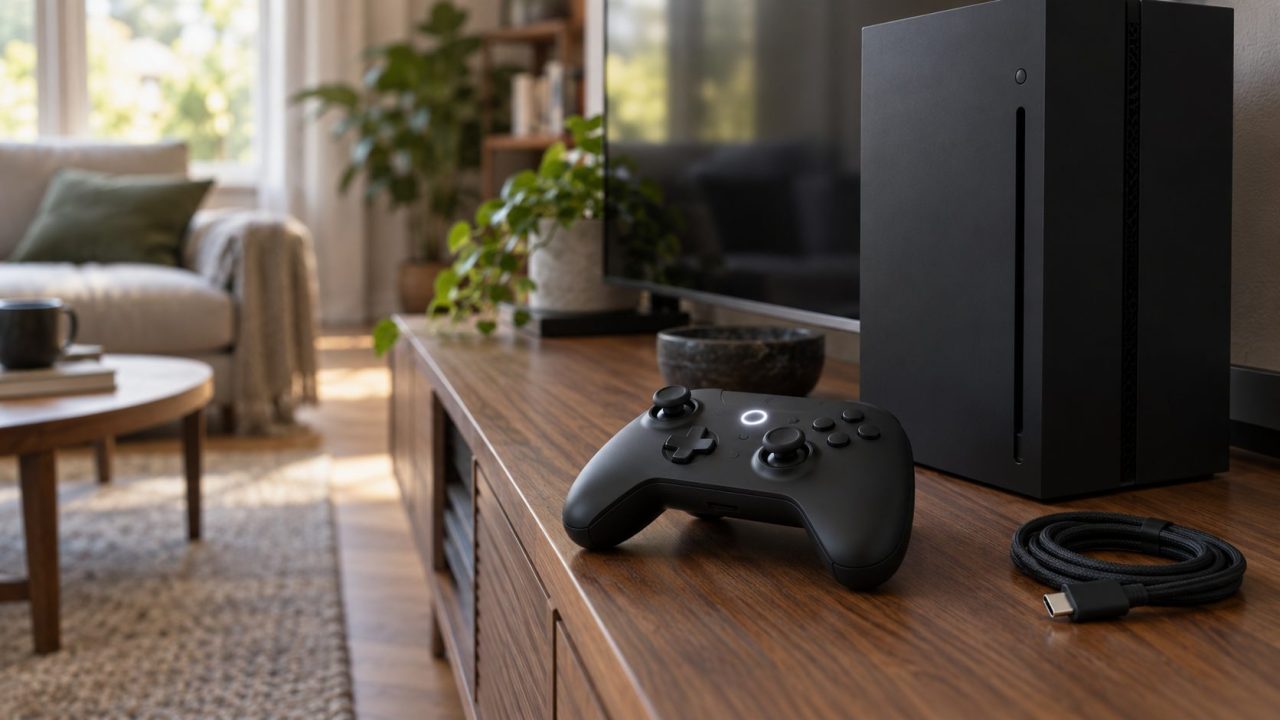
When a controller won’t connect to Xbox, the Xbox button on the controller already tells you most of what’s wrong. A flash that never stops, a fast flash that never settles and a light that comes on and then dies each point to a different fix. Read the light, then work from the cheapest fix up.
These steps cover Xbox Wireless Controllers, Elite and Adaptive included, on Series X|S and Xbox One. Pairing and syncing are the same thing.
Controller Won’t Connect to Xbox? Read the Xbox Button Light First
Xbox’s guides describe three states: flashing after power-on, flashing faster while searching, and solid once connected.
| What the Xbox button does | What it usually means | Go to |
|---|---|---|
| No light, even on a cable | Power, not pairing | Power fixes |
| Slow flash that never goes solid | Not paired with this console | Re-pair |
| Fast flash, never goes solid | Searching, but not accepted | Retry within 20 seconds, USB cable, slot limit |
| No fast flash when you hold Pair | Not entering pairing mode | USB cable |
| Flashing after use on a PC or phone | Still paired to that device | Bring it back |
| Lights up, then goes dark | Weak batteries or signal | Power cycle |
| Solid, but the console ignores it | Connected to another device | Bring it back |
| Works only on the cable | Pairing or firmware | Firmware |
When the button stays dark even on a cable, the controller won’t connect to Xbox for a simpler reason: it has no power. Our guide to a controller not turning on covers that; come back once it lights up.
Slow Flash: Re-Pair It With Both Pair Buttons
A slow flash that never goes solid usually means the controller is no longer paired with this console, so pair it again. The console’s Pair button sits in a different spot on each model, per the Xbox pairing guide:
| Console | Where the Pair button is |
|---|---|
| Xbox Series X | Front right, above the USB port |
| Xbox Series S | Front left, to the right of the USB port |
| Xbox One X and One S | Front right, below the power button |
| Original Xbox One | Round button on the side, around the corner from the disc tray |
If a controller won’t connect to Xbox One, check your model: the original hides its button on the side.
- Turn the controller on.
- Press and release the console’s Pair button.
- Within 20 seconds, hold the controller’s Pair button until the Xbox button flashes faster. It’s now searching.
- When the light stays solid, it’s connected.
On Series X|S and Elite Series 2 controllers, Pair is the small raised button beside the USB-C port on the top edge. On Xbox One controllers it sits beside the micro-USB port; on the Adaptive Controller, it’s on the back.
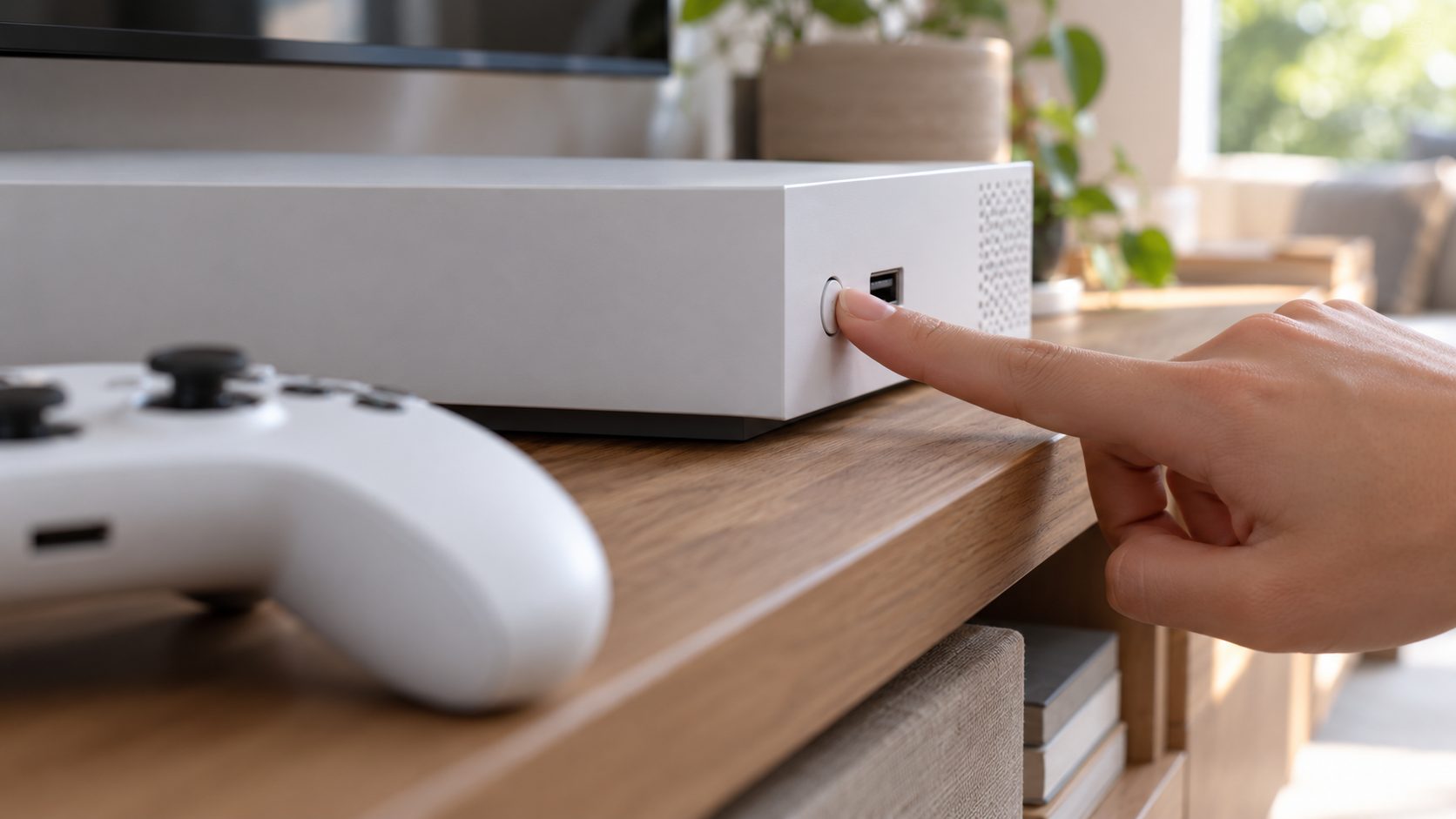
Console Pair button broken or hard to reach?
On Series X|S, a menu can stand in for the console’s button. With a working controller, go to Profile & system > Settings > Devices & connections > Controllers & headsets > Connect a device, then hold the new controller’s Pair button when prompted.
This menu doesn’t replace the controller’s own Pair button. If that one is broken, pair with a USB data cable.
If a third-party controller won’t connect to Xbox, follow its maker’s pairing steps; some are wired-only or use their own dongle.
Fast Flash or Won’t Enter Pairing Mode? Pair With a USB Data Cable
Fast flash that never settles, or no fast flash when you hold Pair? Use a cable. Plugged into the console, the controller “should light up and work right away,” Xbox says.
Series X|S, Elite Series 2 and Adaptive controllers take USB-C; Xbox One controllers take micro-USB. The consoles have only USB-A ports, so you need a USB-A to USB-C (or micro-USB) cable that, as Xbox stresses, supports data transfer. A charge-only cable has no data wires, so the console never sees the controller.
To test a cable, connect an unlocked phone to a computer with it. If the computer detects the phone, or the phone asks to trust or allow the computer, it carries data. On Android, pick File transfer first.

Once the light goes solid, unplug and play wirelessly. Still nothing on a known data cable and a second USB port? If the controller won’t connect to Xbox even by wire, Xbox’s guide says it needs replacing.
Controller Won’t Connect to Xbox After Using It on a PC or Phone
Xbox puts it plainly: the controller “can only connect to one device at a time.” Pair it with a PC, phone or another console and it stays there until you re-pair it. That’s why a controller won’t connect to Xbox after a session on your laptop.
- Series X|S controllers: double-press Pair to jump from a Bluetooth device back to the last Xbox Wireless connection. Xbox says Bluetooth pairing doesn’t remove the console pairing.
- Xbox One controllers: Xbox documents that switch only for Series X|S models, so re-pair with both Pair buttons or a cable.
Eight Controllers Max, Fewer With Headsets: Free Up a Slot
Xbox says you can connect eight wireless controllers to a console, but headsets lower that: four with Xbox Chat Headsets, two with Xbox Stereo Headsets. If a new controller won’t connect to Xbox while the others are on, switch one off (hold its Xbox button about 6 seconds) or unplug a headset.
The headset figures are from Xbox’s stereo headset guide, which counts controllers connected at the same time.
Lights Up, Then Goes Dark: Batteries, Distance and a Power Cycle
Weak batteries are the sneakiest reason a controller won’t connect to Xbox. The first three checks below are Xbox’s troubleshooting steps; the last two are extras.
Fresh power
New AAs or a charged pack, even if the controller still turns on. Xbox says low batteries cause connection problems.
Restart the controller
Hold the Xbox button 5 to 10 seconds until it turns off, wait a few seconds, then hold it again.
Power cycle the console
Hold its Xbox button about 10 seconds. Once it’s off, unplug the power cable for 30 seconds, then restart.
Unplug USB devices
Xbox’s Adaptive Controller guide warns that defective or incompatible USB cables can interfere with wireless signals. Unplug all USB devices, restart and pair again.
Close the distance
Move closer, with no metal in between. Xbox’s figure for its Windows adapter is 6 meters (about 20 feet), line of sight.
Pairs right beside the console, but from the couch the controller won’t connect to Xbox? That’s signal, not pairing.
Works Only on the Cable? Update the Controller Firmware
Firmware is next when your controller won’t connect to Xbox wirelessly but works on the cable. Keep it plugged in, press the Xbox button, then go to Profile & system > Settings > Devices & connections > Controllers & headsets. Select the controller and choose …. If it says Update, select Firmware version and follow the steps.
Over USB, the update can take up to 3 minutes. Xbox says not to disconnect the cable while it runs.
- The original Xbox One controller can’t update wirelessly. If no update appears, use a USB data cable.
- On a PC, the Xbox Accessories app updates over USB or the Xbox Wireless Adapter, never Bluetooth.
- If it fails, restart the controller, remove a stereo headset adapter or chatpad, power cycle the console, then leave it on a USB data cable for up to 5 minutes. Still stuck? Try a PC.
Frequently Asked Questions
Why is my Xbox controller blinking but not connecting?
It’s on but not connected, and may still be paired to a PC, phone or another console. A blinking controller won’t connect to Xbox until you re-pair it with both Pair buttons or a data cable.
How do I connect an Xbox controller without the Pair button?
Use a USB data cable, which skips both Pair buttons. On Series X|S, Connect a device under Controllers & headsets replaces only the console’s Pair button; you still hold the controller’s Pair button when prompted.
Will an Xbox One controller work on a Series X|S?
Yes, Xbox says it will. If an older controller won’t connect to Xbox Series X or S, the fixes are the same, with a micro-USB data cable.
Elite controller won’t connect to Xbox: what’s different?
The Elite Series 2 has a built-in battery whose light flashes while charging and goes solid white when full; that isn’t a pairing signal. Otherwise it pairs like a standard controller. The original Elite (Series 1) runs on AA batteries and has a micro-USB port, so treat it like an Xbox One controller.
Last Test: Is It the Controller or the Console?
Pair a different controller with this Xbox, and try this one on a PC. If only this controller won’t connect to Xbox, even on a data cable, Xbox says it needs replacing; check the warranty first.
If no controller pairs wirelessly with this console, but this one works elsewhere, contact Xbox Support about the console. More fixes are in our gaming guides.



Leave a comment