

Controller Not Turning On? Fixes for Xbox, PS5 and Switch Controllers
Power first, then the reset your console maker documents. The order of checks for Xbox, PS5 DualSense, Joy-Con and Pro Controllers that won't power on.
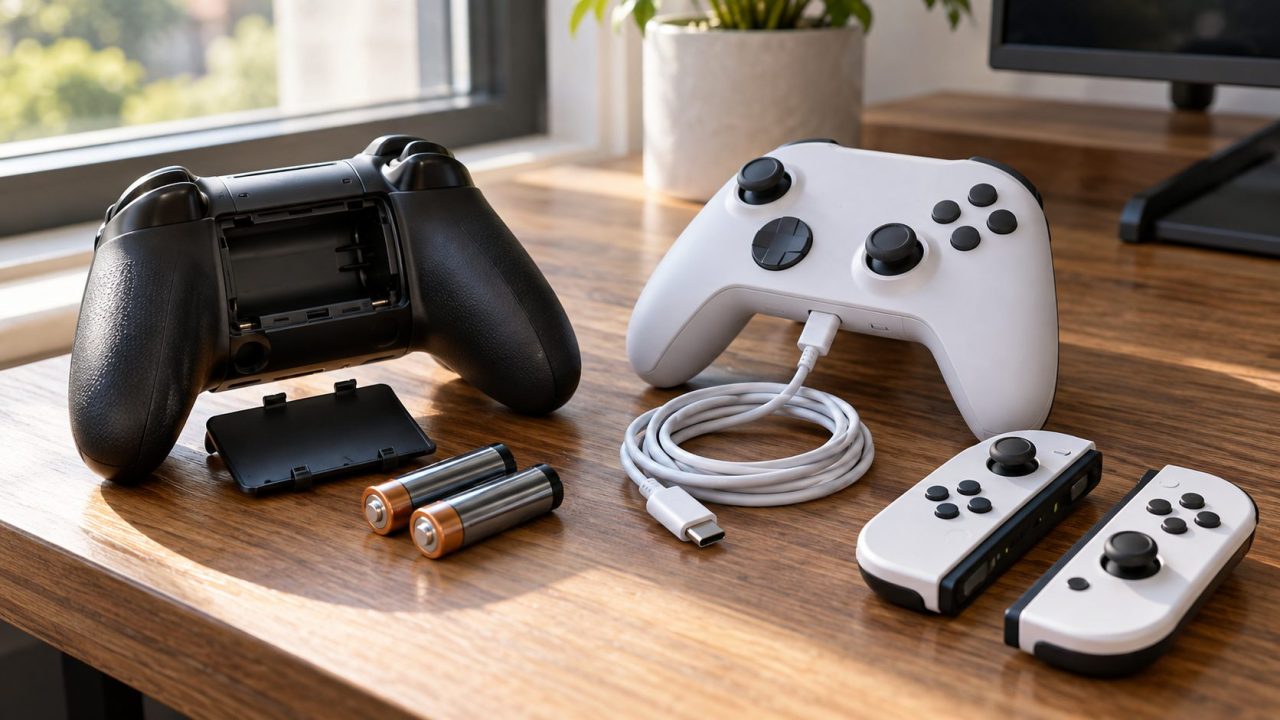
Treat a controller not turning on as a power problem first: flat batteries, the wrong USB cable, an unpowered port or a drained battery that needs time. Then try your console maker’s documented reset, and only then suspect the hardware. No step here involves opening the controller.
Controller Not Turning On? Check for Damage, Then Read the Lights
Swollen, hot, smelly or wet? Don’t plug it in; see the hardware section. Otherwise, plug it in and watch: a controller not turning on at all needs different fixes from one that lights up but won’t pair.
| What you see | Likely cause | Go to |
|---|---|---|
| No lights, even on the cable | Charge-only cable, unpowered port, deeply drained battery (DualSense/Switch) | Power checks |
| Xbox button keeps flashing | Not paired with this console | Xbox |
| Works only on the cable | Pairing, firmware or a worn battery | Firmware, Hardware |
| On, but not responding | Paired elsewhere, or interference | Quick answers |
Power First: Five Checks for a Controller Not Turning On
Start from a known charge
No reset wakes an empty battery. Xbox: fresh AAs or a charged pack (Elite Series 2, Adaptive Controller: USB-C cable). DualSense, Pro Controller: cable. Joy-Con: console or Charging Grip.
Use a data cable
Sony says “charge only” cables can’t be used with a DualSense. To test one, connect a phone to a computer with it: a file-transfer prompt means it carries data.
Try another port
Use another console port or a computer’s USB port; Sony says not every USB wall charger works with a DualSense.
Check the port for lint
Shine a light in and puff out loose lint; Sony says not to push objects into ports. Xbox contacts corroded by leaking AAs: remove the batteries and contact Xbox Support.
Give it time at room temperature
Leave it on the cable at least half an hour, at 50 to 86 °F (10 to 30 °C) as Sony recommends. Unplug it at once if it gets hot.
A controller not turning on after a night in a cold car should warm up to room temperature before you judge the battery.
Xbox Controller Not Turning On or Won’t Sync
AAs and rechargeable packs
Xbox controller not turning on with rechargeable AAs inside? A night on the cable won’t help, because the controller can’t charge AAs. If fresh AAs work but your pack doesn’t, the pack is the problem.
Xbox says its rechargeable pack charges from the console even in standby (Sleep). If yours is set to Shutdown (energy saving), or you aren’t sure, charge it from a PC or USB wall charger.
Power cycle, then the cable test
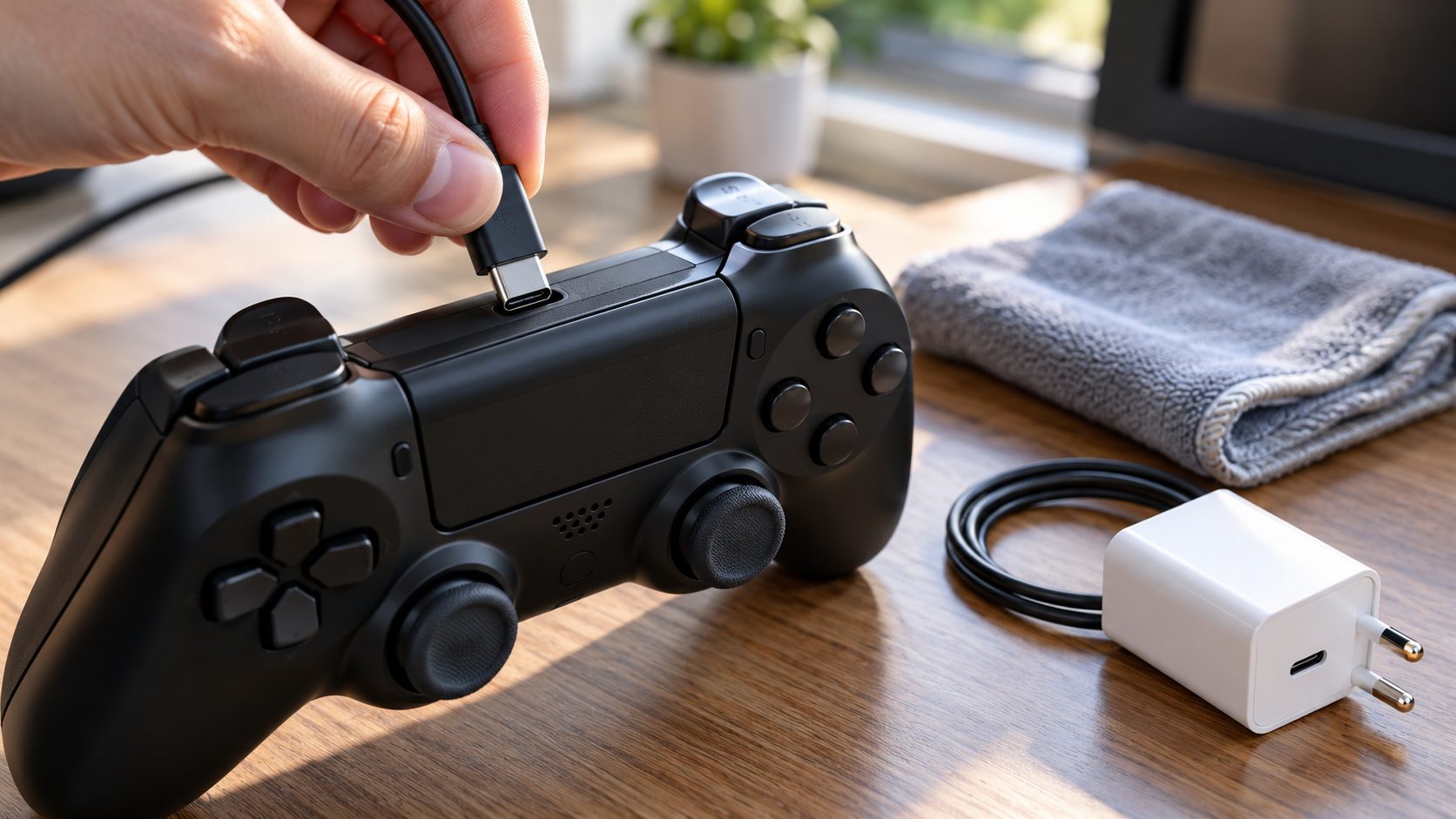
Hold the Xbox button 5 to 10 seconds until it turns off, wait a few seconds, then hold it again. If it stays dark, connect it to the console or a Windows PC with a USB data cable (micro-USB on older Xbox One controllers).
An Xbox controller not turning on even when wired, with another data cable and port, needs replacing, Xbox Support says. The same goes for one that still works only wired after a firmware update.
Controller won’t sync to Xbox
Turn the controller on and press the console’s Pair button (Series X: above the front USB port; Series S: to its right; One S/One X: below the power button; original One: on the side). Within 20 seconds, hold the controller’s Pair button until the Xbox button flashes; it stays lit once connected.
Still won’t pair? Hold the console’s Xbox button about 10 seconds, unplug it for 30 seconds, restart it, then connect the controller with a USB data cable.
PS5 Controller Not Turning On: Charge Check, Then Reset
Is it actually charging?
In rest mode, a PS5 charges a DualSense only if it keeps its USB ports powered. Set Settings > System > Power Saving > Features Available in Rest Mode > Supply Power to USB Ports to Always or 3 Hours (or Adaptive on the slim PS5 and PS5 Pro). With 3 Hours or Adaptive, plug the controller in before rest mode starts (for Adaptive, into a USB-C port); to charge a dead one overnight, choose Always.
If that setting is Off, the ports go dead in rest mode, so a PS5 controller not turning on after a night on the cable may never have charged. While it charges in rest mode, the light bar slowly blinks orange and turns off once it’s full.
Reset the DualSense
Still dark after half an hour on a data cable? Use the reset from Sony’s DualSense troubleshooting page:
- Turn off the PS5 and unplug the controller’s USB cable.
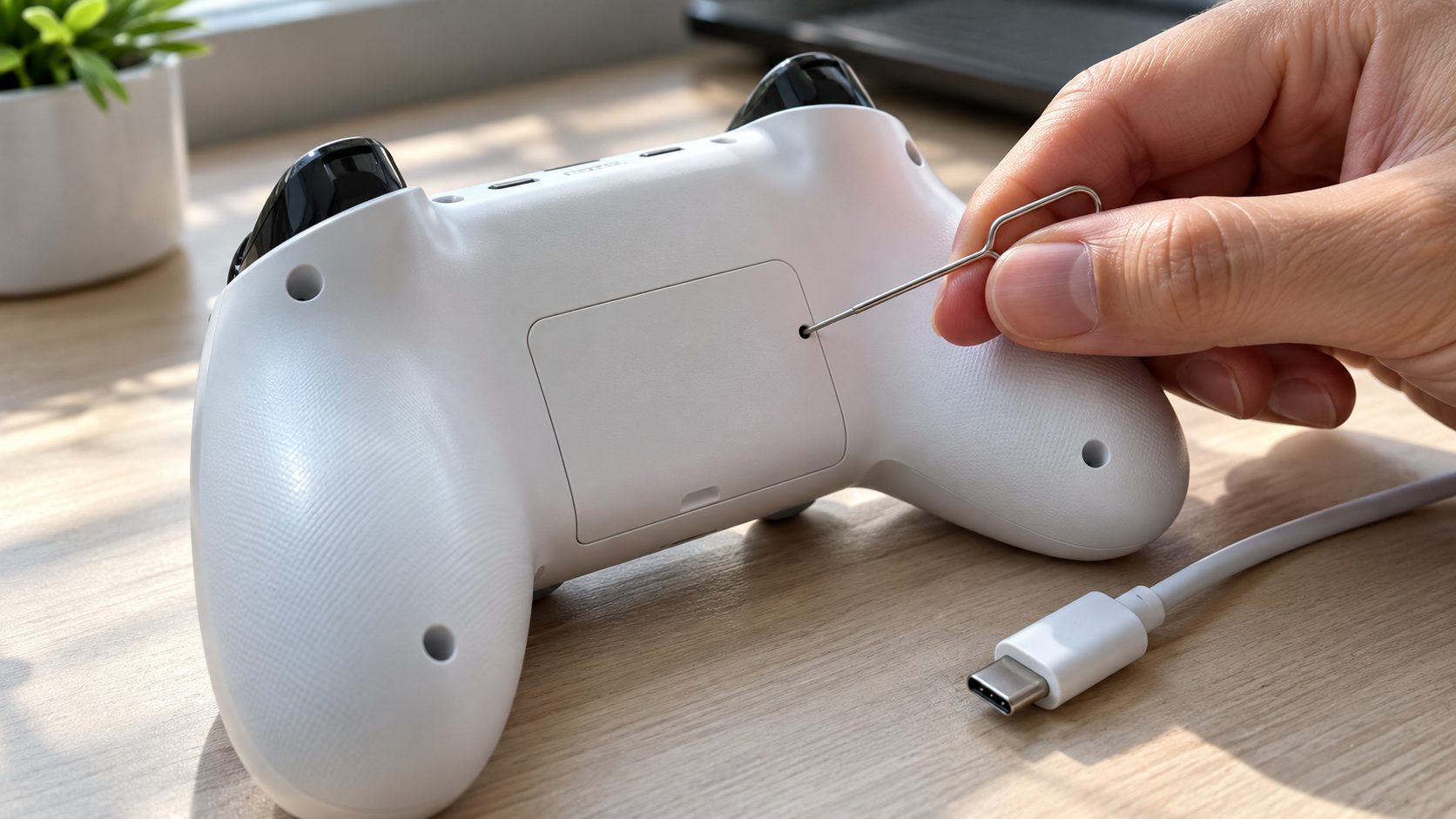
- With a pin or paper clip, press the button in the small hole next to the Sony logo on the back for at least 5 seconds.
- Reconnect it with its original USB cable (or another data cable) and press the PS button.
If the light bar stays off and you can still operate the console (with a second controller, say), update it under Settings > System > System Software > System Software Update and Settings. Then choose Battery issue on that Sony page to open the PlayStation Repairs diagnostic tool.
Switch Controller Not Turning On: Joy-Con and Pro Controller
Joy-Con and Joy-Con 2
A Joy-Con controller not turning on may never have charged: attached Joy-Con charge only while the console is on its AC adapter and switched on or in Sleep Mode. Nintendo’s Joy-Con steps:
- Unplug the AC adapter at both ends and check it for damage; for a Switch or OLED Model it should read MOD. HAC-002.
- Detach both Joy-Con, press SYNC once on each (on the rail, between SL and SR), then reattach them.
- Plug the AC adapter directly into the console.
- Check battery levels under Controllers on the HOME Menu.
On Switch 2, the adapter should read MOD. NGN-01, and Joy-Con 2 take about 3.5 hours to charge fully. A Switch Lite can’t charge Joy-Con, and original Joy-Con can’t charge on a Switch 2; use a Joy-Con Charging Grip.
Pro Controller
For a Pro Controller not turning on, unplug the AC adapter at both ends for 30 seconds, then plug it straight into the controller (Switch 2 Pro Controller: the MOD. NGN-01 adapter with its USB-C cable). The recharge LED by the USB port should stay lit while it charges; if it doesn’t, check that the adapter charges the console.
If the player lights flash and go out when you press a button, it has power but needs pairing. If they stay dark after 15 to 30 minutes of charging, Nintendo says it needs service.
Controller won’t connect to Nintendo Switch
Attaching Joy-Con pairs them. Original Joy-Con can’t attach to a Switch 2, so pair them wirelessly: open HOME Menu > Controllers > Change Grip/Order and hold SYNC for at least a second. A Pro Controller pairs there too: hold the SYNC button next to its USB port.
If that fails, clear all pairings under System Settings > Controllers and Sensors > Disconnect Controllers (Controllers & Accessories on Switch 2) and pair again.
Update the Controller’s Firmware
A firmware update won’t revive a controller not turning on at all; it’s for one that works only on the cable. Don’t unplug it mid-update.
- Xbox: press the Xbox button, then Profile & system > Settings > Devices & connections > Controllers & headsets, select … under the controller, then Update if it’s offered. On Windows, the Xbox Accessories app updates it over USB or the Xbox Wireless Adapter, not Bluetooth.
- PS5: updates follow a system update, or start one under Settings > Accessories > Controller (General) > DualSense Wireless Controller Device Software. On Windows, use the PlayStation Accessories app.
- Switch: System Settings > Controllers and Sensors > Update Controllers (Controllers & Accessories on Switch 2).
Hardware Faults: Worn Battery, Swelling, Water and Warranty
If the controller bulges, gets too hot to touch, smells odd, pops or changes color, stop using and charging it and unplug every cable. Don’t press, puncture or open it; the US National Fire Protection Association (NFPA) says to leave repairs to a qualified professional.
If it’s hissing, popping or smoking, keep your distance. Only if you can do it safely, move it away from anything that can catch fire, then call emergency services (911 in the US). Recycle it at a battery or household hazardous waste drop-off, never in household trash or recycling.
Controller won’t hold a charge
Some decline is normal: Sony and Microsoft both say their rechargeable controller batteries wear with age. Nintendo says any of its controllers that won’t hold a full charge needs service.
After a spill
A controller not turning on after a spill should stay unplugged: the NFPA says not to charge a lithium-ion battery that has been submerged or shows damage. Remove an Xbox controller’s batteries and contact the manufacturer.
Warranty and repair
Still have a controller not turning on? Check the warranty before you buy another. Nintendo of America covers controllers for 12 months, excluding accidents, negligence and tampering; Sony’s and Microsoft’s terms vary by country.
Quick Answers: Charging and No Response
Why is my controller not turning on even though it’s been charging?
Usually the charge never arrived: a charge-only cable, a PS5 with rest-mode USB power off, an Xbox battery pack plugged into a console set to Shutdown (energy saving), or Joy-Con on a powered-off console.
Why is my controller on but not responding?
That’s a connection problem: it may still be paired to another device. Connect an Xbox or PS5 controller by USB data cable and press its Xbox or PS button; on Switch, move closer, away from metal and other wireless devices.
Recap: Power, Reset, Firmware, Then Hardware
For any controller not turning on, go cheapest first: a real charge over a data cable, the maker’s reset, then firmware. Swollen, hot or wet? Stop and contact the manufacturer.
Controller fine but no chat audio? See our fix for a gaming headset not working, or browse more gaming fixes and our other how-to guides.
Leave a comment