

Controller Won’t Connect to Switch? Joy-Con, Pro and Switch 2 Fixes
Joy-Con, Pro Controllers, classic pads and third-party gamepads pair differently, and Switch 2 changed the rules. Start with sleep mode, Airplane Mode and Bluetooth.
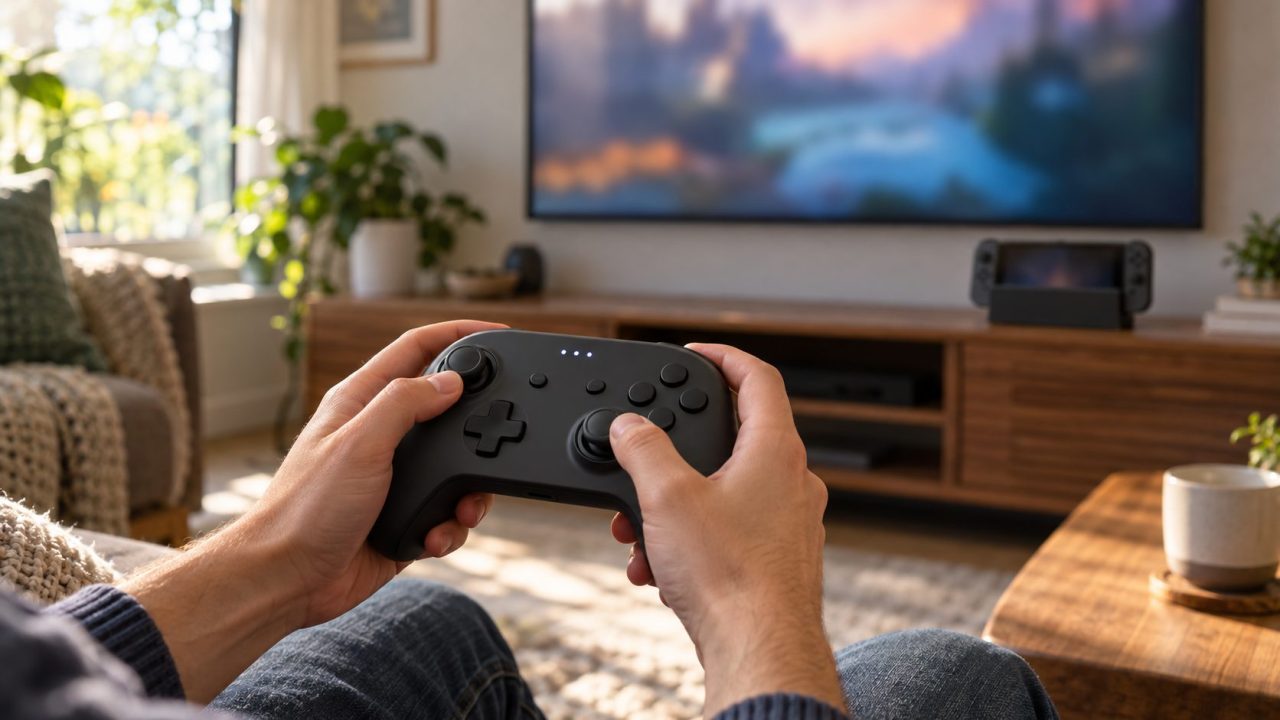
When a controller won’t connect to Switch, the fix depends on the controller and the console. Joy-Con, Pro Controllers, classic pads and third-party gamepads pair differently, and Switch 2 changed several rules. Run the quick checks, then jump to your controller.
Below, “Switch 1” covers the original Switch, Switch OLED and Switch Lite. Nintendo UK and Australia call Airplane Mode “Flight Mode”.
Controller Won’t Connect to Switch? Check These First
Wake the console first: Nintendo says nothing pairs while it’s off or in sleep mode. Press POWER, open HOME Menu > Controllers > Change Grip/Order and hold the controller’s SYNC button for at least one second; its player LED stays lit once paired. When the controller won’t connect to Switch even there, work down this list.
Airplane Mode. It turns off Bluetooth. Turn it off in Quick Settings (hold HOME), or enable Bluetooth under System Settings > Airplane Mode (Controller Connection (Bluetooth) on Switch 1). It’s unavailable in TV mode, so docked players can skip this.
Bluetooth headphones. A third controller won’t connect to Switch while Bluetooth headphones are connected: either console then allows two wireless controllers, and each wireless Joy-Con or Joy-Con 2 counts as one. Disconnect the headphones to add more.
Battery and player LEDs. Charge it first: on Switch 2, LEDs lighting in sequence mean connecting, solid means connected and flashing means a very low battery. No LED after charging? See our guide to a controller not turning on.
Update, then restart. Install the latest update under System Settings > System > System Update. Already up to date? Hold POWER for three seconds and choose Power Options > Restart.
Which Controller Do You Have? Pairing Methods at a Glance
When a controller won’t connect to Switch one way, try the other method in its row.
| Controller | How it pairs | Watch out for |
|---|---|---|
| Joy-Con | Slide onto a Switch or Switch OLED, or SYNC | Wireless only on Switch 2 |
| Joy-Con 2 | Attach to Switch 2, charging grip plugged into the dock, or SYNC | Each counts as a controller when wireless |
| Pro Controller (HAC-013) | SYNC, or USB cable to the dock | Wired play needs a setting |
| Switch 2 Pro Controller (BEE-008) | SYNC, or USB-C to the console or dock | Switch 2 only |
| NES | Slide onto a Switch or Switch OLED; SYNC on Switch 2 | Charges on a Switch, Switch OLED or licensed charging grip |
| SNES, N64, SEGA | SYNC, or USB cable to the dock | Compatible games only |
| GameCube wireless (BEE-021) | SYNC, or USB to the docked console | Switch 2 only |
| Third-party | The maker’s pairing steps | Often needs new firmware for Switch 2 |
Joy-Con Won’t Connect: Attach, SYNC, Then Confirm the Grip
On a Switch or Switch OLED, sliding Joy-Con onto the rails pairs them, and they stay paired once detached. Joy-Con 2 pair by snapping magnetically onto a Switch 2 (+ button on the right), or in a charging grip connected to the dock by USB-C.
To pair wirelessly, including on a Switch Lite, hold the small SYNC button on the rail side for a second on Change Grip/Order. Then press what the screen shows: L and R (or ZL and ZR) for a pair, or SL and SR on each Joy-Con held sideways.
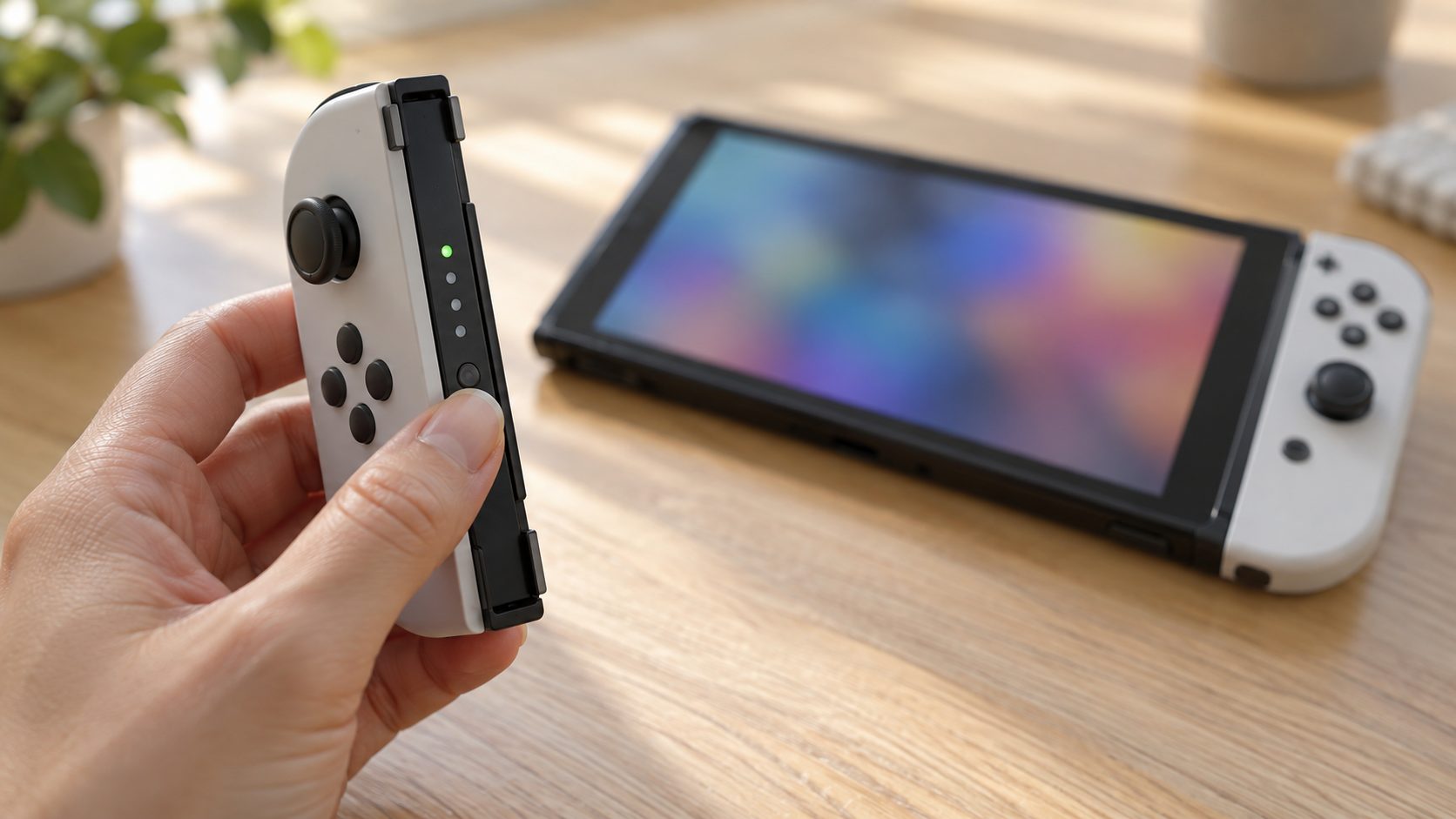
Works attached but not detached? Press SYNC once, then any button, and move closer. Pairing mid-game? A controller won’t connect to Switch games that don’t support Joy-Con or are already at their player limit.
Pro Controller Won’t Pair: Cable, SYNC and the Model Number
After updating and restarting, Nintendo’s Pro Controller pairing guide comes down to this:
- Check the model number. Official Switch Pro Controllers carry HAC-013 on the back, under the Nintendo logo; Switch 2 Pro Controllers carry BEE-008 and work only with Switch 2. Another number means a non-Nintendo pad; ask its maker.
- Pair with a cable. Dock the console, connect the controller to the dock by USB and press A. Nothing? Press SYNC once, then A, and try another port, cable and dock.
- Wired play, original Pro Controller only. Turn on Pro Controller Wired Communication in Controllers and Sensors (Switch 1) or Controllers & Accessories (Switch 2); NFC is off while wired. Switch 2 Pro Controllers go wired automatically.
- Switch Lite. When a Pro Controller won’t connect to Switch Lite, charge it from a wall adapter, press SYNC, then a button, and pair wirelessly. Wired play needs a licensed stand such as the HORI Dual USB PlayStand.
- Game and dock. Some games, such as Sonic Mania, need the Joy-Con detached in handheld or tabletop mode first. Update a LAN-port dock’s firmware too.
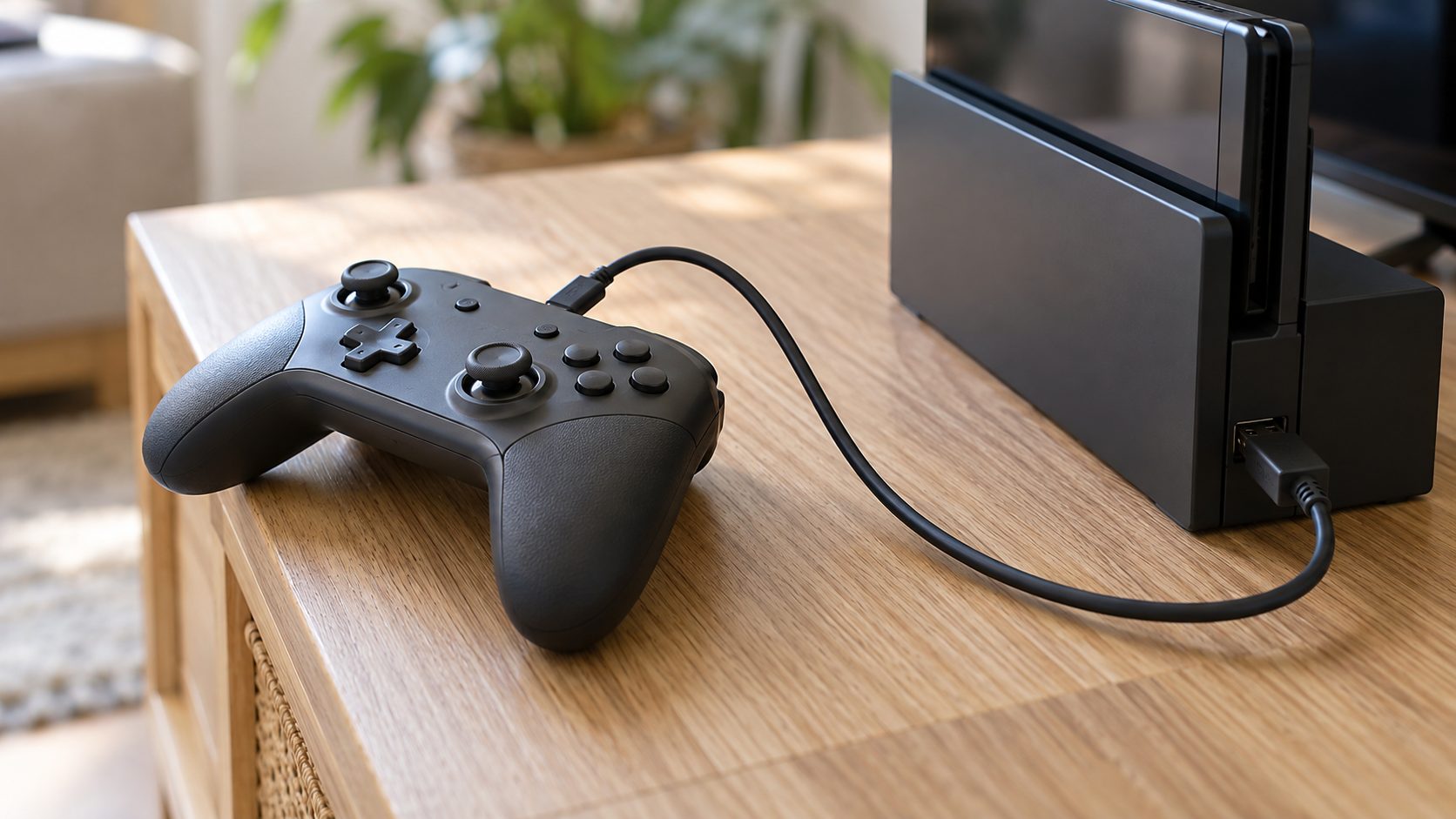
When a Pro Controller won’t connect to Switch by cable or wirelessly after all that, Nintendo’s next step is a repair.
Classic, GameCube and Third-Party Controllers
Reset the pad (SYNC once, then a button), charge it and re-pair on Change Grip/Order, then test a game it supports: Nintendo lists these pads for compatible games only.
NES
Slide them onto a Switch or Switch OLED. On Switch 2 they can’t attach: use SYNC, and charge them on a Switch, Switch OLED or licensed charging grip.
SNES (HAC-042) and SEGA
Pair with SYNC, or plug them into the dock by USB on either console. Both charge from the dock.
N64 (HAC-043)
Pair with SYNC. An N64 controller won’t connect to Switch that way? Plug it in: console or dock on Switch 2, dock on Switch 1, a licensed accessory on Lite.
GameCube
The wireless BEE-021 pad works only on Switch 2; pair it with SYNC or USB. Wired pads use the GameCube Controller Adapter on either console.
If an original GameCube controller won’t connect to Switch, plug the adapter straight into the dock (no USB hub), press A on the HOME Menu and try another adapter port. Switch 2 needs TV mode; a Lite needs a licensed USB stand.
Many third-party pads needed a firmware update for Switch 2; 8BitDo’s support site, for example, lists the version that added it for many of its models. When a third-party controller won’t connect to Switch 2, update it with the maker’s tool first. Past that, Nintendo refers you to the maker.
Controller Won’t Connect to Switch 2? What Changed
Switch 2 takes most Switch 1 controllers, though original Joy-Con work only wirelessly (see the FAQ below). Nintendo’s compatibility table covers the rest.
HOME won’t wake it? Press POWER
If HOME on an older or third-party pad doesn’t wake the Switch 2, press the console’s POWER button; a controller won’t connect to Switch 2 while it sleeps. Third-party wake support is limited: 8BitDo lists Switch 2 shake-to-wake only for its Pro 3 and Ultimate 2 Bluetooth, from firmware 2.00.
Docked pairing trouble? Check the HDMI cable
If wireless controllers won’t pair with a docked Switch 2 or drop soon after, Nintendo’s Switch 2 pairing fix says the dock needs an Ultra High Speed HDMI cable. The original Switch’s cable doesn’t meet that spec and “may affect the performance of the console and accessories.” Swap it, then re-pair.
Count your controllers
Up to eight wireless controllers connect in most cases; a Joy-Con 2 pair on a grip counts as two, and attached ones don’t count. When an extra controller won’t connect to Switch 2, disconnect one you aren’t using. Solid LED but no response? Try System Settings > Controllers & Accessories > Test Input Devices.
Still Won’t Pair? Reset, Clear Pairings and Cut Interference
Work through these in order when a controller won’t connect to Switch even after the steps for your model.
Reset the controller
Press SYNC once to disconnect it, then any button to reconnect, or pair it again.
Delete all pairings
Attach your Joy-Con (Joy-Con 2 on Switch 2) so one controller still works. Open System Settings > Controllers & Accessories > Disconnect Controllers (Controllers and Sensors on Switch 1), hold X, then re-pair each pad.
Update the controllers
Update the console, then choose Update Controllers in the same menu. Only paired, powered-on controllers update; rerun an interrupted update.
Clear the radio path
Don’t put the console behind a TV or under metal; keep it 1 to 1.5 m (3 to 4 ft) from wireless speakers and cordless phones. Move microwaves, laptops and USB 3.0 drives away while testing.
Switch Controller Pairing: Quick Answers
Why won’t my old Joy-Con connect to my Switch 2?
They can’t attach to it. Pair them with SYNC on Change Grip/Order, and charge them on a Switch, Switch OLED or licensed accessory such as a Joy-Con charging grip.
How do I reset a Switch controller that won’t sync?
Press SYNC once, then any button, and re-pair on Change Grip/Order. Still nothing? Delete all pairings under Disconnect Controllers and pair that one first.
Why does my controller only work when it’s plugged in?
Either the battery or the wireless link is failing. An original Pro Controller only sends data over the cable when Pro Controller Wired Communication is on. If the pad dies the moment you unplug it, the battery isn’t holding a charge. If it stays on but the controller won’t connect to Switch without the cable, run the wireless checks above, then ask Nintendo about a repair.
Last Step: Swap-Test, Then Contact Nintendo
Pair another controller to the same console. If only one controller won’t connect to Switch while others pair fine, Nintendo says that controller needs repair. If several fail, suspect the console and mention it when you contact Nintendo. Check for cracks or a damaged rail first.
Pairing a pad elsewhere? See our guides to a controller that won’t connect to Xbox and a Quest 3 controller that won’t connect, or browse our gaming guides.
Leave a comment