

Controller Won’t Connect to PS5 or PS4? Fixes From Cable to Safe Mode
A charge-only cable, a controller paired elsewhere or an overwritten slot: the fix order from cable to Safe Mode, plus what changes on a PS4 with a DualShock 4.
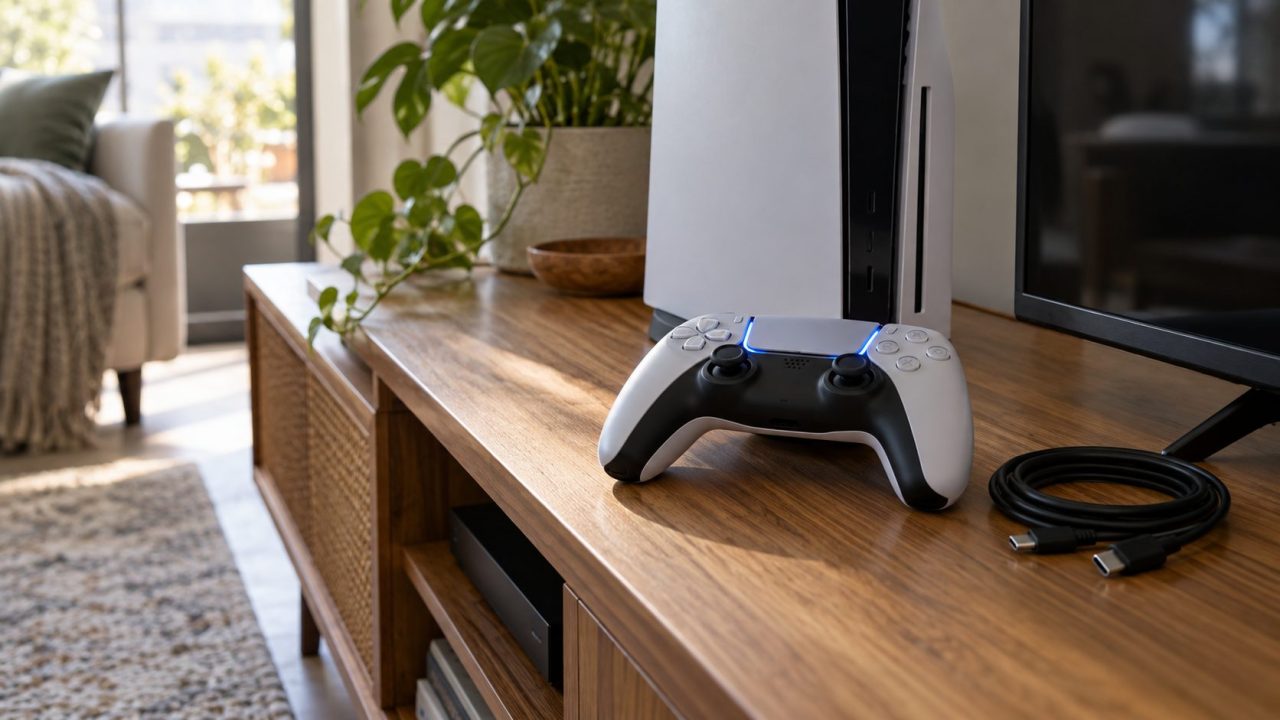
When a controller won’t connect to PS5, the cause is usually small: a cable that only charges, a controller still paired to your laptop, or a pairing slot that got overwritten. Work through these checks, cheapest first.
Quick answer: plug the controller into the PS5 with a USB cable that carries data, not just power, and press PS. The light bar blinks, then the player indicator lights: it’s paired. If not, turn the PS5 off, reset the controller with a pin in the hole on the back for at least 5 seconds, and pair again.
Controller Won’t Connect to PS5? Rule Out Power and the Cable First
If the light bar stays dark even on a cable, see our guide to a controller not turning on. If it lights up but your controller won’t connect to PS5, keep reading.
Suspect the cable first. Sony says to use one labeled “charge and sync” or “charging and data”; a “charge only” cable can’t be used. Spare phone-charger cables often carry power only, and few are labeled.
A data cable
Start with the cable that came with your PS5 or controller, as Sony advises. To test a spare, connect a phone to a computer with it, unlock the phone and accept any prompt: no detection means charge-only or faulty.
Another port
Sony’s charging checklist suggests another USB port, a quick test when a wired controller won’t connect to PS5 too. The launch PS5 has a USB-A and a USB-C port on the front; Slim and Pro models have two USB-C, so a USB-A cable fits only the rear ports.
A charged battery
A dead controller has to charge first. In rest mode the PS5 charges it only if Settings > System > Power Saving > Features Available in Rest Mode > Supply Power to USB Ports is set to Always or 3 Hours.
A responsive console
Sometimes a controller won’t connect to PS5 because the console itself has frozen: the power indicator only blinks white or stays blue instead of turning solid white. Sony says to unplug it, wait 3 minutes and restart.
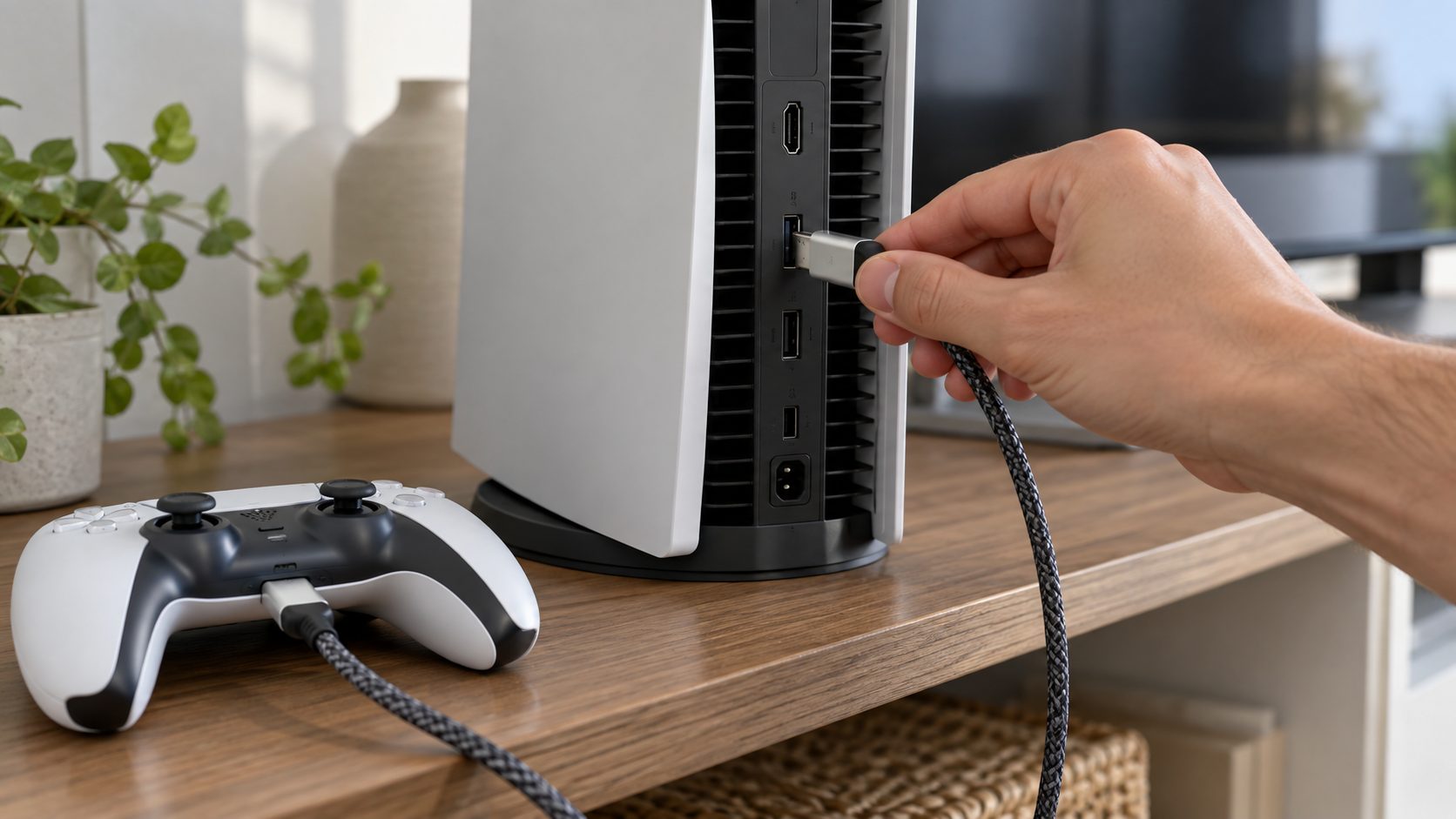
Pair the Controller by USB: Plug In, Press PS
If a controller won’t connect to PS5 wirelessly, pair it by wire, once per console, as Sony’s DualSense support page describes:
- Switch the PS5 on and plug the controller in with a cable that passed the data test.
- Press the PS button. The light bar blinks, then the player indicator lights up: it’s paired.
- Unplug to play wirelessly. With the cable in, Sony says you “can’t pair wirelessly or switch slots” to another console.
Signal keeps dropping? Sony’s fix is the cable. In Settings > Accessories > Controller (General) > Communication Method, Use Bluetooth keeps the controller on Bluetooth even when plugged in, so choose Use USB Cable, which a DualSense Edge needs for any wired play.
Reset the DualSense With a Pin, Then Pair It Again
When a controller won’t connect to PS5 even on a known data cable, reset it, following Sony’s steps:
- Turn off the PS5 and unplug the controller’s USB cable.
- With a pin, press the button in the small hole next to the Sony logo on the back for at least 5 seconds.
- Turn the PS5 back on, connect the controller with the official USB cable and press PS.
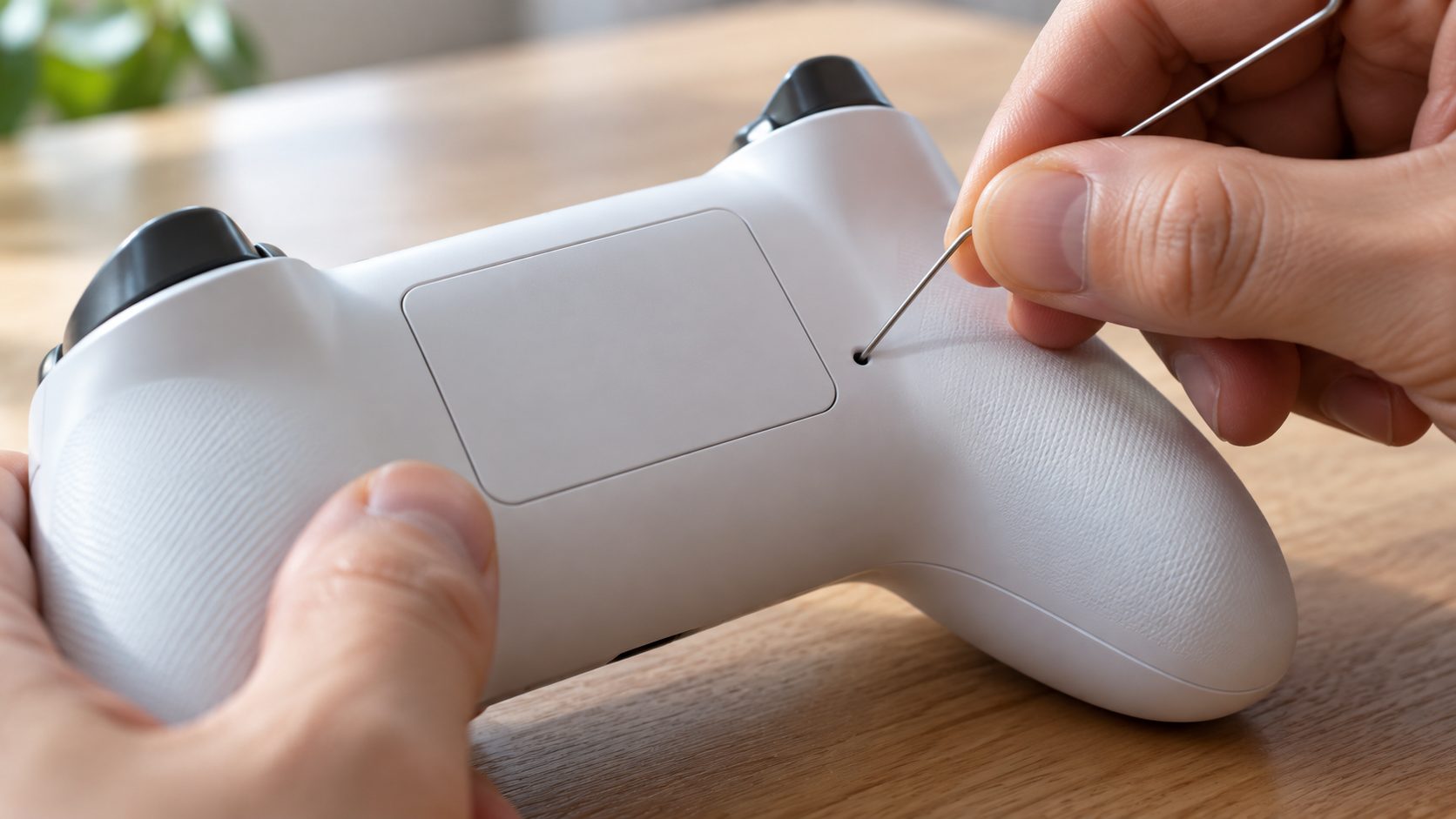
Hard reset did nothing? Redo it with the console fully off, not in rest mode, the cable out and a full 5 seconds. Sony’s PC app guide says a reset doesn’t touch pairing settings, so always finish with the cable step.
Blinking but Won’t Connect or Reconnect? Check the Four Pairing Slots
A DualSense remembers up to four devices, one per slot; when all four are used, a new pairing replaces the one you haven’t connected to for the longest time. After a session on a PC, phone or friend’s PS5, pressing PS can send the controller looking for that device, so it blinks without connecting. Slots arrived with the controller software in the September 2025 PS5 update (25.06-12.00.00); an older controller keeps only its last pairing, so re-pair it by cable and update it.
Unplug the cable first. To switch to a paired slot, hold triangle, circle, cross or square (slots 1 to 4), then press PS for about 3 seconds. To pair into a chosen slot, turn the controller off, open Bluetooth Accessories with a working controller, hold the action button and then PS for over 5 seconds, and select it on screen. One to four lights show the slot.
That’s why a controller won’t connect to PS5 after an evening on your laptop. Plug it in, press PS, and it pairs again, then turn off the laptop’s or phone’s Bluetooth so it can’t grab the controller back.
New controller won’t connect to PS5 without a cable?
This works only while another controller is already paired:
- On the new controller, unplug any cable and hold PS until the player indicator goes out.
- With the working one, go to Settings > Accessories > General > Bluetooth Accessories.
- On the new one, hold create and PS together until the light bar blinks. For a DualShock 4, Sony documents only cable pairing.
- Select it on screen with the working controller.
Controller Won’t Connect to PS5 After a Reset? Fix the Console Side
If the controller won’t connect to PS5 even after a reset and a cable pairing, turn to the console:
Power cycle the PS5
Hold the power button until it beeps and the power indicator stops flashing and goes off. Then unplug the power cable for the 20 minutes Sony recommends.
Update the system software
Go to Settings > System > System Software > System Software Update and Settings. No working controller? Start Safe Mode with it on a cable and choose Update System Software.
Update the controller
Its updates arrive with system updates. To start one, open Settings > Accessories > Controller (General) > DualSense Wireless Controller Device Software.
Or update from a Windows PC
If the console can’t update it, Sony’s PlayStation Accessories app does it on Windows 10 (64-bit) or 11, over USB or Bluetooth.
Controller Won’t Connect to PS5 in Safe Mode
Sony’s Safe Mode steps call for a controller on a USB cable, so use your data cable, not Bluetooth:
- Hold the power button for 3 seconds to turn the PS5 off.
- Hold it again and let go after the second beep, about 7 seconds after the first.
- Connect the controller by USB and press PS.
If the controller won’t connect to PS5 in Safe Mode, or Safe Mode won’t start, Sony points to the USB, HDMI or power cable. Swap one at a time, retrying Safe Mode after each, then do the 20-minute power cycle.
Reset PS5 deletes all user data; Reset PS5 (Reinstall System Software) also removes the system software. On a PS4, the two Initialize PS4 options wipe it too, and Sony says this “cannot be undone.” A controller fault shouldn’t need any of them, but back up to a USB drive or PS Plus Cloud Storage while the console still boots normally.
Use the safer options instead: Clear Cache and Rebuild Database (Clear System Software Cache if the console keeps booting into Safe Mode), Repair Console Storage, which doesn’t erase data, and Restore Default Settings, which resets settings but keeps games, apps, captures and saves.
Controller Won’t Connect to PS4? DualShock 4 Differences
If your DualShock 4 controller won’t connect to PS5 or PS4, pair it the same way: cable in, press PS. Sony says a DS4 “can pair with only one console at a time,” so using it on a friend’s console unpairs it from yours.
- Pair by USB. The DualShock 4 uses micro-USB, and spare micro-USB phone cables are often charge-only. Sony’s PS4 guide documents cable pairing only, so if a controller won’t sync to PS4, use the cable that came with it.
- Reset it. Turn off and unplug the PS4, disconnect the cable, and press the button in the tiny hole on the back, near L2, for at least 5 seconds with a paper clip. Reconnect by USB and press PS.
- Clean the Bluetooth list. In Settings > Devices > Bluetooth Devices, select an unused device, press OPTIONS and choose Forget Device.
Xbox controller acting up too? See our guide to a controller that won’t connect to Xbox.
Frequently Asked Questions
Why won’t my controller connect to my PS5 when it’s plugged in?
When a controller won’t connect to PS5 on a cable, suspect a charge-only cable or a bad port, so try another of each. If it pairs but still runs on Bluetooth, set Communication Method to Use USB Cable. Otherwise, reset it.
Why is my PS5 controller blinking but not connecting?
It’s usually looking for the last device it paired with, like a PC or another console. If a blinking controller won’t connect to PS5, plug it in with a data cable and press PS. A slow orange blink in rest mode just means it’s charging.
Can I use a PS4 controller on a PS5?
Yes, with supported PS4 games, but Sony says “PS5 games can only be played with DualSense wireless controllers.” Not every licensed third-party controller works either, so check with its maker. If a game ignores a connected controller, see our guide to a controller not working in game.
Recap: Light, Cable, Reset, Slots, Console
In order: light, data cable, USB pairing, pin reset, slots, then power cycle and updates. Safe Mode comes last, and only its non-reset options.
If your controller won’t connect to PS5 wirelessly but works on a cable, or won’t pair with any console, suspect a hardware fault. Sony’s DualSense support page, linked above, ends with its PlayStation Repairs diagnostic tool; warranty terms vary by country. More fixes are in our gaming guides.
Leave a comment