

Why Is My Game Flickering? Fix Black Flashes and Screen Flicker
Black flashes, flicker in menus and shimmering textures each have a different cause. Here's how to tell them apart and fix each one on PC, PS5 and Xbox.
Why is my game flickering? The kind of flicker tells you where to look, and the fix is usually a setting or a cable, not a new graphics card.
Why Is My Game Flickering? Name the Symptom First
Flicker, or flashing, is the picture blanking or changing brightness. Tearing (a horizontal seam between two frames) and stutter (hitching motion) need different fixes.
Most “why is my game flickering?” cases fall into one of five patterns:
| What you see | Usual cause |
|---|---|
| Black flashes mid-game | Cable bandwidth, HDR or a driver reset |
| Black flash at launch or alt-tab | Display mode switching |
| Pulsing in menus or loading screens | VRR or panel dimming |
| Flickering textures, shadows or HUD | Game bug, upscaler, overlay or driver |
| Artifacts and crashes in every game | Overclock, heat, power or the GPU |
Xbox’s photosensitive seizure warning says a very small percentage of people can have a seizure from flashing lights in games, even with no history of epilepsy. If you feel lightheaded, your vision changes or you start twitching, stop playing and see a doctor.
Four Quick Checks Before You Change Any Settings
Checks 2 and 3 adapt Microsoft’s flicker guide.
One game or all?
One game only? Suspect that game, its settings or a missing patch. Every game, or the desktop too? Look at the driver, cable or display.
Watch Task Manager
With the game windowed, press Ctrl + Shift + Esc. If Task Manager flickers too, suspect the driver, cable or display; if not, the game, an overlay or an app.
Reset the driver
Press Windows logo key + Ctrl + Shift + B. If nothing changes, restart; if the screen is unreadable, use safe mode.
Record a short clip
If the flicker shows up in the clip, the game or GPU drew it. If clips stay clean while you see it, suspect the cable, VRR, HDR, the panel or a driver reset.
So why is my game flickering on PC when the desktop is steady? Often because VRR, HDR or a new refresh rate kicks in only once a game runs.
Why Is My Game Flashing Black? Cable, HDR and Mode Switches
A black frame, then the picture returns: the display lost the signal or changed modes.
Black flashes mid-game: cable and bandwidth
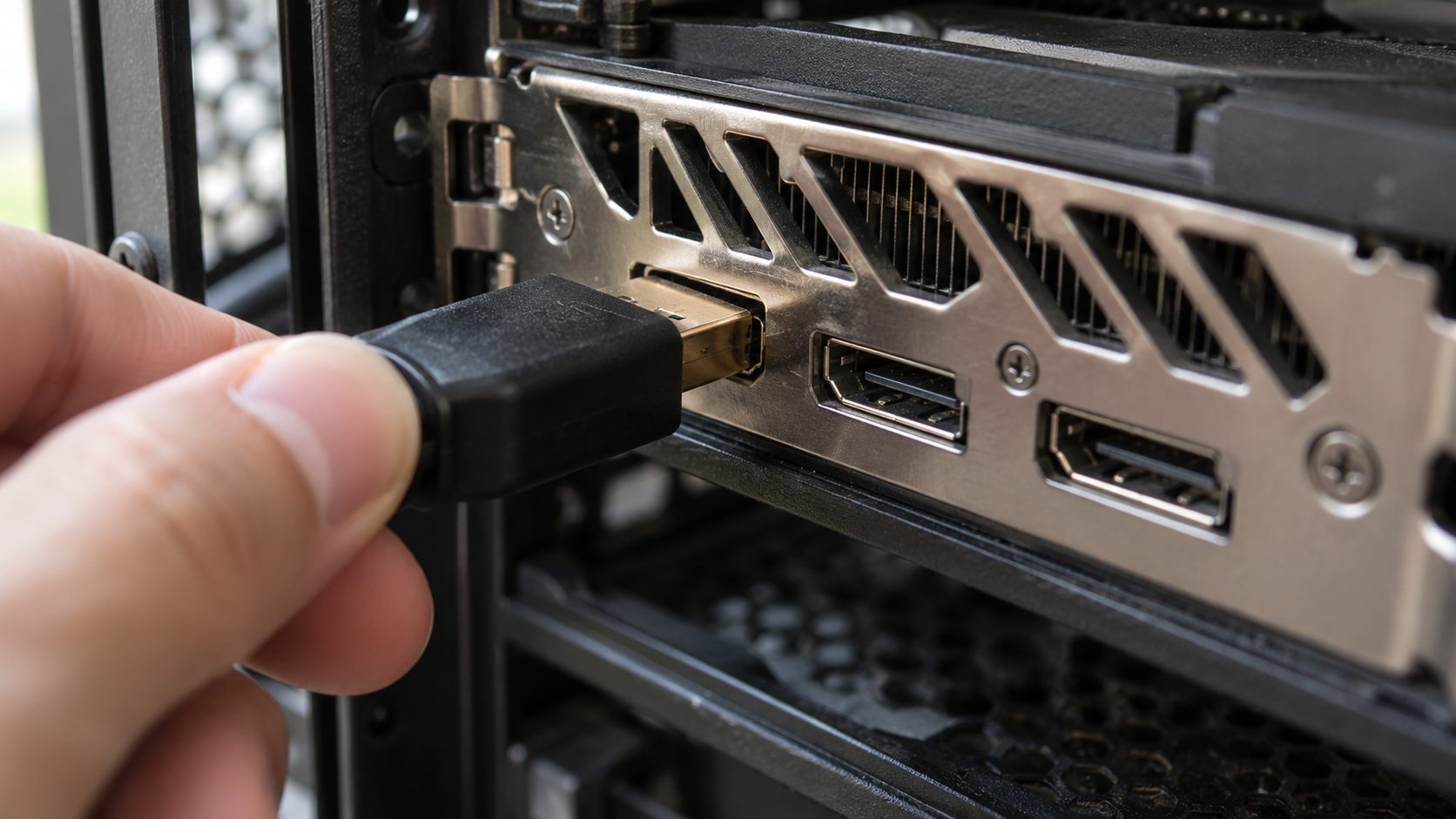
High refresh rates, 4K at 120 Hz and HDR (10-bit color) push more data, so a marginal cable can pass on the desktop and fail in games.
- Reseat both ends, then try another GPU output and another monitor or TV input.
- Swap the cable. For 4K at 120 Hz over HDMI 2.1, use a certified Ultra High Speed HDMI cable and scan its label with a QR code app, since counterfeits exist. On DisplayPort, use a VESA-certified cable (DP40 or DP80 for DP 2.x).
- Connect directly, without splitters, AV receivers or capture-card passthrough.
- Lower the load. Drop the refresh rate or resolution, or turn HDR off. If the flashes stop, the link was overloaded.
Why is my game flickering when I launch it or alt-tab?
That single flash is usually a mode change: exclusive fullscreen sets its own resolution and refresh rate, and alt-tabbing switches them back. A game switching HDR on at launch is a mode change too.
Match the game’s resolution and refresh rate to the desktop’s (Settings > System > Display > Advanced display; Windows 10: Advanced display settings), or try the other mode with our fullscreen and borderless guide. Borderless also avoids the few-second blackout some DSC monitors show on alt-tab. If the game drops to the desktop, see why a game keeps minimizing itself.
Finally, toggle Disable fullscreen optimizations (right-click the .exe, then Properties > Compatibility). On Windows 11, Optimizations for windowed games (Settings > System > Display > Graphics, under Default settings) brings VRR to borderless DirectX 10 and 11 games, so menu flicker that starts afterward is VRR.
Why Is My Game Flickering in Menus and Loading Screens?
Usually it’s variable refresh rate (G-SYNC, FreeSync or HDMI VRR), which refreshes the screen as each frame arrives. Menu and loading-screen frame rates swing: menus are often uncapped, and loading screens stutter.
OLED and many VA panels shift brightness slightly at different refresh rates, so those swings show up as flicker. Below the monitor’s minimum, each frame is shown twice or more: with AMD’s Low Framerate Compensation, a 60–144 Hz monitor shows a 40 FPS game at 80 Hz. Each time the frame rate crosses that line, the refresh rate jumps.
Why is my game flickering in the menu but not in gameplay? Gameplay usually holds a steadier frame rate. Try these in order:
- Steady the frame rate. Set a cap in the game or driver (NVIDIA Control Panel: Manage 3D settings > Max Frame Rate).
- Check the monitor’s menu. Turn off motion-blur reduction (BenQ’s DyAc doesn’t work with VRR), dynamic contrast, eco or light-sensor modes and local dimming. Some OLED monitors add an anti-flicker option, and slow OLED dimming on static menus is normal.
- Update the monitor’s firmware if the maker offers a tool, and never power off mid-update.
- Check NVIDIA’s G-SYNC Compatible list if you run G-SYNC on a FreeSync monitor; listed models are tested for blanking, pulsing and flickering.
- Turn VRR off as the final test.
Flickering Textures, Shadows or HUD: Game, Overlay or Driver
Why is my game flickering in one spot while the rest holds steady? Cable and monitor faults rarely single out a shadow, a wall or the HUD, so patchy, messed-up graphics point to the game, an overlay or the driver.
Game bugs and settings
Z-fighting (two surfaces fighting over one spot) and broken shadows are rendering bugs, so check the patch notes. Toggle DLSS, FSR or XeSS, frame generation and anti-aliasing one at a time; if the image goes soft instead, see why a game looks blurry. Then verify the game files (Steam: right-click the game, Properties > Installed Files > Verify integrity of game files).
Overlays and apps
Disable overlays one by one: Discord, Steam, Xbox Game Bar, MSI Afterburner with RivaTuner, recording and RGB software. If Task Manager stayed steady in check 2, also remove recent apps one at a time.
Why is my game flickering after a driver update?
Roll it back: Device Manager > Display adapters, right-click your adapter, then Properties > Driver > Roll Back Driver. Grayed out? There’s no older driver. Otherwise install your GPU maker’s latest driver, or choose Uninstall Device, check Attempt to remove the driver for this device (Windows 11) and restart so Windows reinstalls it.
PS5 and Xbox Flicker: VRR, 120 Hz and HDR Settings
Why is my game flickering on a console when the TV’s own apps look fine? Those apps skip the HDMI link, while games can switch on VRR, 120 Hz output and HDR. Test them one at a time; menu names can change.
PS5
Under Settings > Screen and Video > Video Output > VRR, turn off both options. Then test Enable 120 Hz Output and HDR set to Off.
Xbox Series X|S
In Settings > General > TV & display options > Video modes, clear Allow variable refresh rate, then try Allow HDR10 and Auto HDR off. Back in TV & display options, set Refresh rate to 60 Hz.
ASUS says three of its 4K IPS monitors, such as the ROG Swift PG32UQ, can flicker with PS5 VRR in a game’s Fidelity mode, which it calls a physical limitation of the IPS panel. Its workaround: switch to Performance mode, then turn the monitor off for three to five minutes.
Why Is My Game Flickering and Crashing? Check the Hardware
Forum threads that start with “why is my game flickering?” often end with “your GPU is dying,” but flicker alone doesn’t prove that. When the GPU can’t finish a task within two seconds (the default), Windows resets the graphics stack (TDR). Microsoft says that shows only as a flicker, followed by a “Display driver stopped responding and has recovered” message.
If you missed the message, look in Event Viewer > Windows Logs > System for Event ID 4101 (source: Display). Occasional resets point to an overclock, the driver, heat or power; suspect the card only when artifacts appear in clips, in every game and on another monitor, with crashes.
With the PC off and unplugged, reseat the GPU power cables and clear dust. A 16-pin 12VHPWR or 12V-2×6 plug must sit fully flush; if it looks melted or discolored, stop using the card and contact its maker. Then, powered on, undo GPU overclocks and undervolts, turn off XMP or EXPO, and watch the GPU temperature in Task Manager > Performance > GPU.
Frequently Asked Questions
Why is my game flickering when screenshots look clean?
Captures record each frame before it leaves the GPU, so cable, VRR, HDR and panel faults never appear, and a one-frame flash can slip between captured frames. To show the problem to support, film the screen with your phone.
Why is my game flickering on a gaming laptop?
Some laptops turn HDR off on battery, and Microsoft notes the screen may go black briefly as it switches; on Windows 11, clear Turn off HDR when my PC is running on battery under Settings > System > Display > HDR. Also set Change brightness based on content to Off (under Brightness), pick a fixed refresh rate instead of Dynamic (Advanced display), and test the maker’s dGPU-only (MUX) mode if it has one.
Why is my game flickering only with G-SYNC or FreeSync on?
Some panels show VRR’s constant refresh-rate changes as flicker. Turning VRR off proves it but brings back tearing, so try a frame cap and the monitor’s settings first.
Why Is My Game Flickering? The Short Version
Name the flicker, run the four quick checks, then fix what they point to. A dying graphics card is the last suspect, not the first answer to “why is my game flickering?”
If one game still flickers, report it to the developer with your GPU, driver version and monitor. More fixes are in our gaming guides.
Leave a comment