

Why Is My Game Windowed? Force Fullscreen and Fix the Wrong Monitor
A title-bar window, a borderless view, a small black-barred picture and the wrong monitor all have different causes. Here's how to tell them apart and fix each.
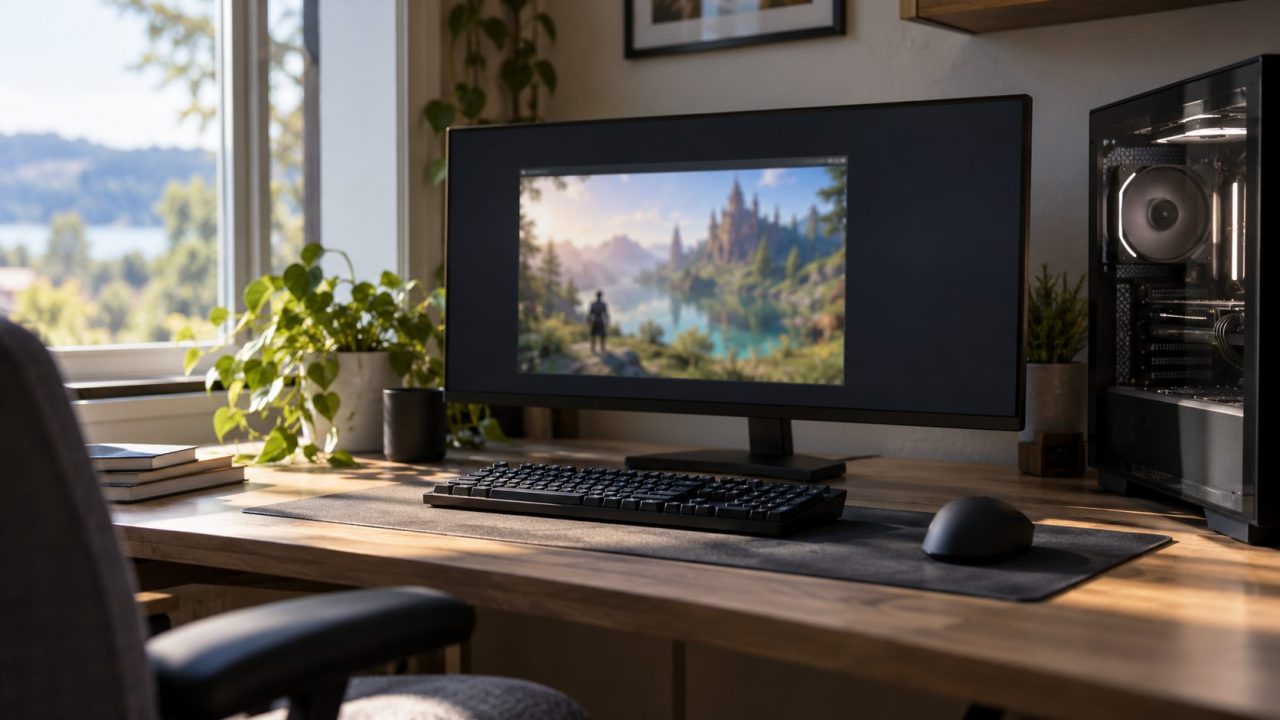
If you’re asking “why is my game windowed?”, look closely first: a title-bar window, a fullscreen picture that acts like a window, a small black-barred image and a game on the wrong monitor need different fixes.
Short answer to “why is my game windowed?”: its Display Mode is usually set to Windowed or Borderless. Set it to Fullscreen, apply and restart the game. Still stuck? Check resolution, scaling and launch options below.
Steps are for Windows 11; some Windows 10 labels differ.
Why Is My Game Windowed? Match the Symptom First
| What you see | Likely cause (jump to fix) |
|---|---|
| A window with a title bar | Mode set to Windowed |
| Set to Fullscreen but acts like a window | Borderless, often by design |
| Small box, black bars or a corner | Resolution or scaling |
| Fullscreen on the other monitor | Window position or main display |
| The setting won’t stick | Launch option, config file or permissions |
| Drops to a window mid-game | Lost focus, overlay or driver |
Quick Fixes: Display Mode, Restart and Alt+Enter
Start inside the game; these checks change nothing else.
Set the mode in the game
In the Video, Graphics or Display options, set Display Mode (or Window Mode) to Fullscreen and apply.
Restart the game
Many games apply a mode change only on relaunch, so quit completely and start again.
Try Alt+Enter
Many PC games toggle fullscreen with it; DirectX and many engines support it by default, though developers can switch it off.
Why Is My Game Windowed When It’s Set to Fullscreen?
If the picture fills the screen but acts like a window, it’s probably borderless (fullscreen windowed). With Fullscreen selected, that’s a likely answer to “why is my game windowed?”, and it isn’t a fault.
Windows also runs many exclusive-fullscreen games as what Microsoft calls a highly optimized borderless window, so fast alt-tab doesn’t reveal the mode.
To test true exclusive mode, right-click the game’s .exe (in Steam: Manage > Browse local files), choose Properties > Compatibility, tick Disable fullscreen optimizations and click Apply. It’s a per-game test; untick it if nothing changes.
Windows 11’s Optimizations for windowed games (Settings > System > Display > Graphics, under Default settings) won’t force fullscreen. Per Microsoft, it moves DirectX 10 and 11 windowed and borderless games to the flip model for lower latency, plus Auto HDR and variable refresh rate on supported displays.
Game Window Small, Black-Barred or Stuck in a Corner?
A small picture with thick black borders looks like a window, so “why is my game windowed?” is often really a resolution or scaling question.
Match the resolution and refresh rate
In Settings > System > Display, note the resolution marked (Recommended) and use it in the game. Microsoft warns that lower resolutions can look small, centered, edged with black or stretched.
Under Advanced display > Choose a refresh rate, an asterisk marks rates your resolution doesn’t support. A resolution and refresh pair the monitor can’t show can make fullscreen fail. Top rate missing? See our guide to a monitor not detecting 144Hz.
Check GPU scaling
Below native resolution, the scaling mode shapes the picture. In NVIDIA Control Panel (Display > Adjust desktop size and position), No scaling leaves a small centered image; Aspect ratio can add black bars. Set Perform scaling on to GPU and tick Override the scaling mode set by games and programs; if the display scales, check the monitor’s own menu.
In AMD Software: Adrenalin Edition, turn on GPU Scaling under Settings > Display. Center gives a small picture; Preserve aspect ratio and Full panel fill more. Labels vary by driver version.

Why is my game windowed in the corner of my screen?
Suspect Windows scaling: games that don’t fully handle it can render at the wrong size, often in just the top-left part of the screen.
Fix it per game first: right-click its .exe, choose Properties > Compatibility > Change high DPI settings, tick Override high DPI scaling behavior, set Scaling performed by to Application and relaunch.
Still wrong? Test Scale (Settings > System > Display) at 100% and relaunch, signing out and back in if needed. With two monitors, try matching their scales.
Why Is My Game Opening on the Wrong Monitor?
Sometimes “why is my game windowed?” is the wrong question: the game is fullscreen, just on the other screen. Per Microsoft’s DirectX documentation, a DirectX game that doesn’t pick a monitor itself goes fullscreen where its window mostly sits. Some games remember their last monitor.
- Switch the game to windowed.
- Press Windows key + Shift + Left or Right arrow to move it, or drag it.
- Switch back to fullscreen.
For a lasting fix, use the game’s Monitor option (Unity games may accept -monitor 2 as a launch option), or select your gaming monitor in Settings > System > Display and tick Make this my main display under Multiple displays.

Quick workaround: press Windows key + P and pick PC screen only or Second screen only, whichever keeps your gaming monitor on. Return to Extend after you quit the game.
Launch Options and Config Files: Back Up First
If Fullscreen keeps reverting, the answer to “why is my game windowed?” is probably a launch option, a config file or a settings file the game can’t save.
Copy a config file (.ini, .cfg or .json, often in Documents\My Games, AppData or the install folder) and its folder somewhere safe first; some games keep saves there. Many Unity games use the registry instead:HKEY_CURRENT_USER\Software\[CompanyName]\[ProductName]
Export that key in Registry Editor (File > Export) first.
Why is my game windowed every time Steam launches it?
In your Steam Library, right-click the game and open Properties > General > Launch Options. Delete anything that forces a window or size, such as -windowed, -sw, -popupwindow, -screen-fullscreen 0 or small -w/-h or -ResX/-ResY values, then relaunch.
To force fullscreen, Source and Unreal games take -fullscreen and Unity games -screen-fullscreen 1. But Steam’s launch options page says its own list covers only Source and GoldSrc games, and any game can ignore these options.
Reset or edit the config file
Rename the settings file (say, GameSettings.ini to GameSettings.old) and start the game; many games rebuild it with defaults. File names vary by game.
Many Unreal Engine games keep GameUserSettings.ini here (WindowsNoEditor in older ones):%LOCALAPPDATA%\[GameName]\Saved\Config\Windows
There, FullscreenMode=0 is fullscreen, 1 windowed fullscreen and 2 windowed; change LastConfirmedFullscreenMode too if present. In Unity games, deleting only the registry values starting with Screenmanager usually restores default display settings.
Why is my game windowed again on the next launch?
Running as administrator is a common answer to “why is my game windowed?”, but it doesn’t change how a game draws. What matters is whether the game can save its config.
- Read-only. Right-click the config file, open Properties > General and untick Read-only.
- Controlled folder access. When on, it can block writes to Documents. Allow the game in Windows Security > Virus & threat protection > Manage ransomware protection > Allow an app through Controlled folder access.
- Steam Cloud. A synced copy can bring back old settings; the toggle is in the game’s Properties > General.
Still Windowed? Focus Thieves, Overlays and Drivers
Microsoft’s DirectX documentation gives example reasons fullscreen fails: the window lacks keyboard focus, something covers it, another app is already fullscreen, or it’s running over Remote Desktop.
- Overlays. Turn them off one at a time: in Steam, Steam > Settings > In Game > Enable the Steam Overlay while in-game. Game Bar, Discord and GPU apps have similar toggles.
- Other fullscreen apps. Close video players or a second game.
Why is my game windowed after a Windows update?
In Device Manager, expand Display adapters. Microsoft Basic Display Adapter means the graphics maker’s driver is missing; install it from NVIDIA, AMD, Intel or your PC maker.
Next, look under Settings > Windows Update > Update history > Driver updates for a new display driver. If one arrived, roll it back (adapter Properties > Driver > Roll Back Driver, grayed out without an older driver) or install the GPU maker’s driver. Then verify the game files (Steam: Properties > Installed Files > Verify integrity of game files).
Last resort: uninstalling the latest quality update (Update history > Uninstall updates) removes its security fixes, and Windows reinstalls it unless updates are paused. Treat it as a short test.
Frequently Asked Questions
Is borderless windowed worse than fullscreen for input lag?
Not necessarily. For flip-model games, Microsoft’s DirectX documentation calls windowed play “effectively equivalent or better” than exclusive fullscreen. Older DirectX 9 games, and DirectX 10 or 11 games without Optimizations for windowed games, can add a little lag.
Why is my game windowed after I alt-tab?
Something took focus or covered the window. Click into the game and switch back with Alt+Enter or its setting.
Why is my game windowed on my second monitor?
Move it with Windows key + Shift + Arrow, then switch to fullscreen, or set the right screen as your main display.
Why is my game windowed and blurry?
It’s likely running below native resolution and being stretched. Pick the (Recommended) resolution in the game, then Fullscreen.
Recap: Mode, Picture, Then Monitor
If you came here asking “why is my game windowed?”, check the display mode and restart, then resolution and scale, then which screen it’s on. Back up config files before editing them.
More fixes are in our gaming guides. Phone screen stuck magnified instead? See our guide to fixing a phone that’s zoomed in.



Leave a comment