

Steam Won’t Download Games or Updates? Fix Queued and Stuck Downloads
Queued, stuck at 0 bytes, failing with a disk write error or frozen at 100%: each has its own cause. Here's how to read what Steam shows and fix it, safest step first.
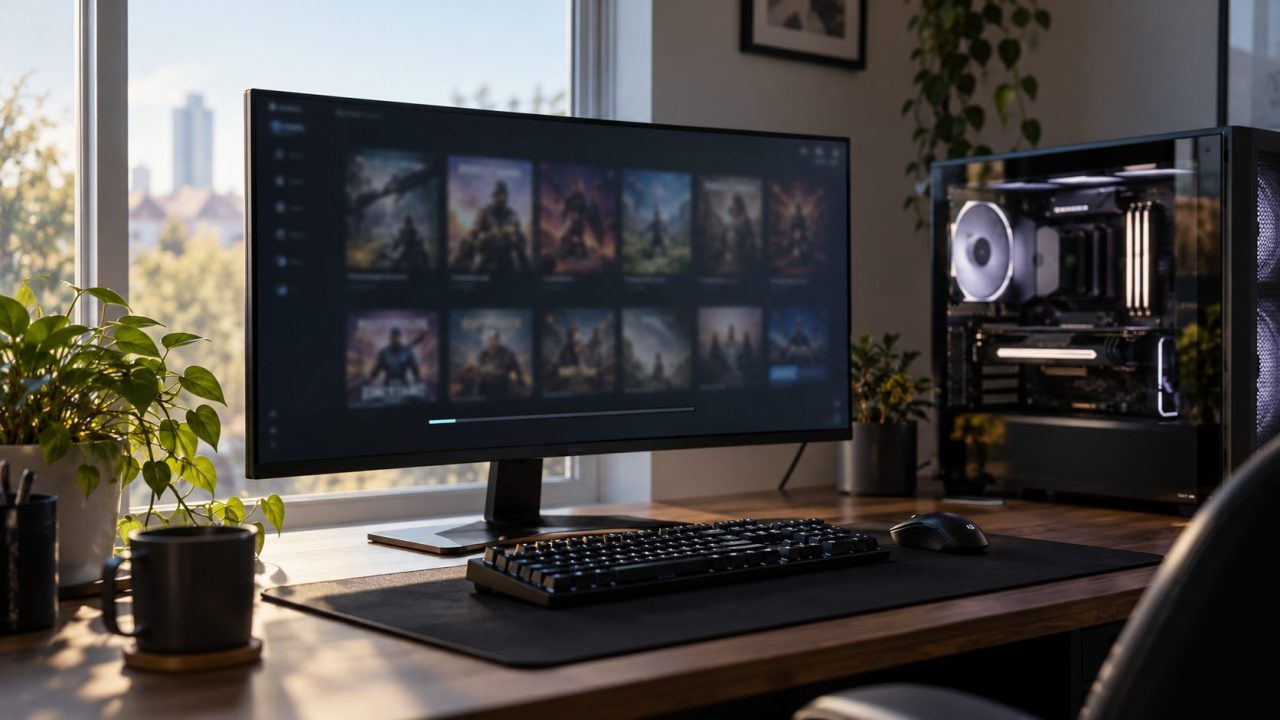
When Steam won’t download a game, an update or DLC, the client usually says why. Update Queued means the item is waiting its turn; a failed job names the real cause in parentheses.
A bar that moves but crawls is a speed problem, with different fixes.
Steam Won’t Download? Read What the Downloads Page Says
Click the download bar at the bottom of the Library to open Downloads. If Steam won’t download and shows no error, start with the queue. A failed job reads An error occurred while updating [game]; per Valve’s error guide, the cause is in the parentheses.
| What Steam shows | Where to start |
|---|---|
| Download Queued, Update Queued, Download Paused | Queue and schedule |
| 0 bytes, Content servers unreachable, Connection time out, Corrupt content cache | Cache and region |
| No internet connection, offline mode | Steam won’t connect guide |
| Not enough free disk space, Disk write error, Missing file privileges, Content file locked | Drive and library folder |
| Disk read error, Corrupt disk | Back up first, then check the drive |
| Stuck at 100%, Corrupt update files, Corrupt download, Corrupt content files | Wait, then verify files |
| No licenses, Content still encrypted, Region restricted, Shared library locked | Ownership and release |
These are the client’s own messages. Valve’s help pages don’t map a fix to each, so this table is ours.
Download Queued or Won’t Start: Check the Queue and Schedule
Downloads sorts items into Active, Up Next, Scheduled, Unscheduled and Completed; only the Active item is downloading. If Steam won’t download anything in the list, check these:
Downloads paused
Does the bottom bar read Downloads Paused – N Items Queued? Click Resume All.
An update window
With Schedule auto-updates on in Settings > Downloads, updates outside that window wait under Scheduled. Start one by hand.
A game is running
Steam won’t download while you play unless Allow downloads during gameplay is ticked; it pauses the queue when a game launches.
A forgotten speed cap
A very low Limit download speed value can look like a freeze. Downloads then shows Downloads limited to: and the cap.
Steam won’t download updates for one game
Under Properties > Updates (right-click the game), Wait until I launch the game holds a patch at Update Queued until you press Play. Immediately download updates moves it to the front of the queue.
Steam Won’t Download Past 0 Bytes: Cache and Region Fixes
A download stuck at 0 bytes, or an error ending in (Content servers unreachable) or (Corrupt content cache), points to the servers, the cache or software in the way:
Pause, resume, restart
Pause and resume the item. Still at 0 bytes? Quit with Steam > Exit, not the window’s X, and restart the PC.
Clear the download cache
Click Settings > Downloads > Clear Cache and confirm. You’ll have to sign in again, but Valve confirms installed games are left alone.
Change the download region
Under Download region on the same page, pick another region near you; Valve says you may need to test several. This is also Valve’s fix for No Steam content servers are currently configured to deliver content for this game, which may be a temporary regional problem.
Rule out blockers
Valve names antivirus, VPNs, firewalls and download accelerators as possible blockers. Test with the VPN off and any download manager disabled.
Try another connection
Some ISPs, especially mobile networks, cache or compress data in ways that break Steam downloads. If Steam won’t download at home, test another network, ideally another provider.
Disk Write Error, No Free Space or Missing File Privileges
When Steam won’t download for one of these reasons, the problem is on your side: the drive, its free space or folder permissions.
Disk write error, Disk read error and Corrupt disk can point to a failing drive, so copy anything irreplaceable elsewhere first.
- Free space. An update can need room beyond the game’s size; Steam may say Not enough disk space available to update this game (X required). Free some up, or add a library on another drive with + in Settings > Storage.
- Repair Library. Valve says library folder permissions sometimes break. In Settings > Storage, open the drive’s … menu and choose Repair Library.
- Security software. Exclude Steam Library folders from antivirus live scanning, as Valve suggests. If Controlled folder access is on, allow Steam under Windows Security > Virus & threat protection > Manage ransomware protection > Allow an app through Controlled folder access.
- External drives. Valve doesn’t recommend them for Steam: they can drop out at bad moments, resetting a download or making games look uninstalled. Reconnect it; if its library is gone from Settings > Storage, add it back with +.
- Mac volumes. If Steam won’t download on a Mac and says Unsupported file system, run
diskutil info /in Terminal (ordiskutil info /Volumes/NAMEfor a second drive). If its File System Personality line includes Case-sensitive, Steam needs a standard, case-insensitive volume.
Then check the drive: in This PC, right-click it and choose Properties > Tools > Error checking, or use Disk Utility > First Aid on a Mac.
To repair, exit Steam and run this in an admin Command Prompt (plain chkdsk only reports):chkdsk D: /f
Use your library’s drive letter. If it offers to force a dismount, answer N so it schedules the check for the next restart. If errors keep returning, run the drive maker’s diagnostic tool and plan a replacement.
Stuck at 100% or Corrupt Update Files: Steam Won’t Finish
Sometimes the complaint isn’t that Steam won’t download, but that it won’t finish. Steam sends games as compressed, encrypted chunks of about 1 MB that your PC must unpack, and some patches rewrite large parts of files. On a hard drive or nearly full disk, it can sit at 100% or on Reserving Space for a long time; while Disk Usage on Downloads is active, leave it running.
Verify the game files
If it truly stops or reports Corrupt update files, right-click the game and choose Properties > Installed Files > Verify integrity of game files (older guides say Local Files). A file or two failing is normal, Valve says. Don’t verify several games at once or during a virus scan.
Corruption keeps coming back on a healthy drive? Valve suggests testing RAM with mdsched and removing any overclock.
Repair Steam without losing games
If Steam won’t download any game at all, the client may be damaged. The safest repair is to reinstall Steam into the same folder with Valve’s installer, which Valve says keeps your games. Don’t uninstall first; that deletes all game content.
Still broken? Valve’s manual fix is to exit Steam and clear its folder (C:\Program Files (x86)\Steam by default) of everything except steam.exe and steamapps, where your games live. Keep userdata too, since it holds local screenshots and settings, and move the rest to a spare folder rather than deleting it. Restart the PC, then run steam.exe from that folder, not an old shortcut.
On a Mac, quit Steam and clear ~/Library/Application Support/Steam except SteamApps, which Valve says holds your games and local saves; mods or custom content may be lost.
Steam Won’t Download DLC or Workshop Items
DLC you own won’t install
Owned DLC normally installs with the game, but a developer can turn automatic DLC download off. Open the game’s Properties > DLC and tick Install for anything listed as Uninstalled.
On a Steam Families game, you get only DLC the lender owns and the publisher marked shareable; free-to-play games and region-restricted content aren’t shared. Shared library locked means a family member is playing that copy. Content still encrypted usually means a preload that hasn’t unlocked. If Steam won’t download DLC you clearly own, verify the game files.
Workshop content and mods
Steam updates subscribed Workshop items when you launch the game and downloads new ones in the background while it runs, Valve’s developer docs say. If Steam won’t download a Workshop item, check the game’s Properties > Workshop tab, where [Not Subscribed: X] flags a missing dependency. Verifying the game files also fetches Workshop items.
Still stuck? Unsubscribe, quit the game so Steam removes the files, and subscribe again. Mods from outside the Workshop rely on their own installer.
Steam Won’t Transfer Over Local Network
Game File Transfer over Local Network in Settings > Downloads copies games from another PC or a Steam Deck at home. The default, Only me, covers only your own account; for a PC on another account, set both to Steam Friends (and be Steam friends) or Anyone. If Steam won’t download from your other PC, check Valve’s requirements:
- Both PCs are online (not in offline mode) on the same network.
- The sender is idle (no downloads or games running) and up to date.
- The game is released and playable on both accounts (no preloads).
- The sender is in desktop mode or is a Steam Deck, not in Big Picture.
- Firewalls allow TCP 27040 and UDP 27031-27036.
Workshop items, Steam Cloud data and shader files always come from the internet. If the connection drops, Steam falls back to its public servers.
Windows 11 also marks new networks Public, hiding the PC from other devices. At home, set Network profile type to Private under Settings > Network & internet > Wi-Fi > [network] properties (or Ethernet); Valve doesn’t list this as a cause.
Frequently Asked Questions
Does clearing the Steam download cache delete my games?
No. Valve says installed games aren’t affected; Steam restarts and you sign in again.
Why won’t Steam download on a school or work network?
If Steam won’t download anything on a campus or office network, blocked ports are likely. Steam needs TCP 80 and 443 plus UDP and TCP 27015-27050, and they can’t be remapped, so ask the admin.
Is a Steam disk write error a sign my drive is failing?
It can be. Rule out space, permissions and Controlled folder access, then back up and check the drive.
Recap: Let Steam Tell You What’s Wrong
Most of the time, Steam won’t download for a reason it already shows: a paused queue, an update window, a full or locked drive, or an error in parentheses. Start there, then clear the cache, switch region, and back up before any disk repair.
More fixes are in our gaming guides, such as when a game opens windowed instead of fullscreen.
Leave a comment