

Why Is My Game Blurry? Fix Soft, Pixelated or Grainy Graphics
A crisp HUD over a soft world, blur only in motion, grain or a dark console picture each point to a different setting. Here's how to read the symptom and fix it.
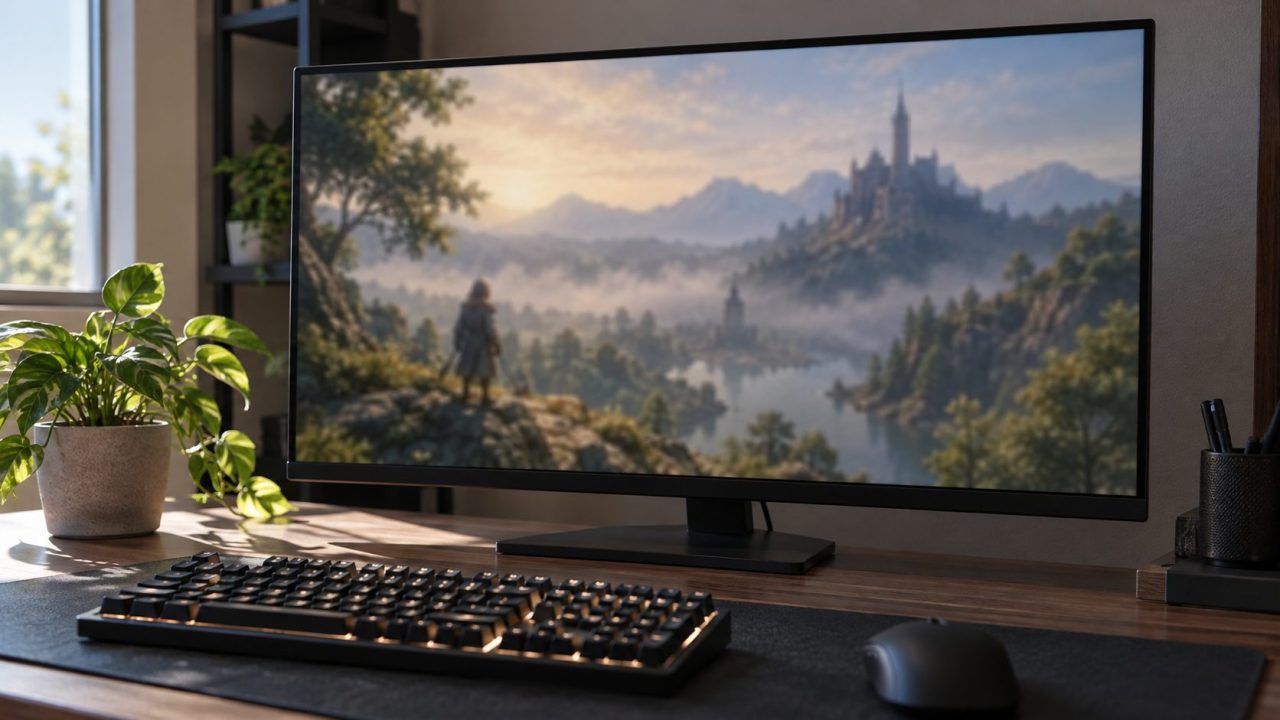
Why is my game blurry when the desktop looks sharp? Usually because of a setting, not failing hardware: render scale, an upscaler preset, blur effects, a non-native resolution, Windows scaling or, on a console, the TV.
Why Is My Game Blurry? Match the Symptom First
What stays sharp, and what goes soft, points to the setting:
- Crisp HUD over a soft 3D world. The game draws fewer pixels than your screen has: render scale or an upscaler preset.
- Everything soft, menus included. Resolution or Windows scaling, or console and TV settings.
- Sharp when still, smeared in motion. Motion blur, TAA or the display itself.
- Grainy, blocky or pixelated. Film grain, ray-tracing noise or a very low resolution.
- Dark or dull on a console. HDR and TV picture settings.
Change one setting at a time and restart the game after each, since some options apply only on relaunch. Menu names vary by game, driver and TV brand.
Render Scale Below 100%: Set It Back to Native
Games call it render scale, resolution scale, screen percentage or, in Fortnite, 3D Resolution. Below 100%, the scene is drawn smaller and stretched, but the UI isn’t: in Unreal Engine’s example, 83% of 1920×1080 renders about 1600×900 under a crisp HUD.
If the HUD is sharp and the world isn’t, the answer to “why is my game blurry?” is fewer pixels, not a failing GPU. Set the slider to 100% (or Native) and turn off dynamic resolution, which lowers it on its own.
Why is my game pixelated in Fortnite?
Epic’s fix: in Main Menu > Settings > Video, set Quality Presets to Low and 3D Resolution to 100%, then raise settings gradually and update your graphics driver. Also check Anti-Aliasing & Super Resolution: a TSR, DLSS or XeSS quality mode changes 3D Resolution, so a Performance setting stays soft. Pick TSR’s highest mode or, on RTX cards, DLAA or DLSS Quality.
Why Is My Game Blurry With DLSS or FSR? Check the Preset
An upscaler renders a smaller frame and rebuilds the rest. With AMD’s FSR scale factors (table below, rounded; DLSS and XeSS ratios may differ), Performance starts from 960×540 at 1080p but 1920×1080 at 4K, so it can look fine on a 4K TV and smeared on a 1080p monitor.
| FSR preset (scale per axis) | 1080p output | 1440p output | 4K output |
|---|---|---|---|
| Native AA (1.0x) | 1920×1080 | 2560×1440 | 3840×2160 |
| Quality (1.5x) | 1280×720 | 1707×960 | 2560×1440 |
| Balanced (1.7x) | 1129×635 | 1506×847 | 2259×1271 |
| Performance (2.0x) | 960×540 | 1280×720 | 1920×1080 |
| Ultra Performance (3.0x) | 640×360 | 853×480 | 1280×720 |
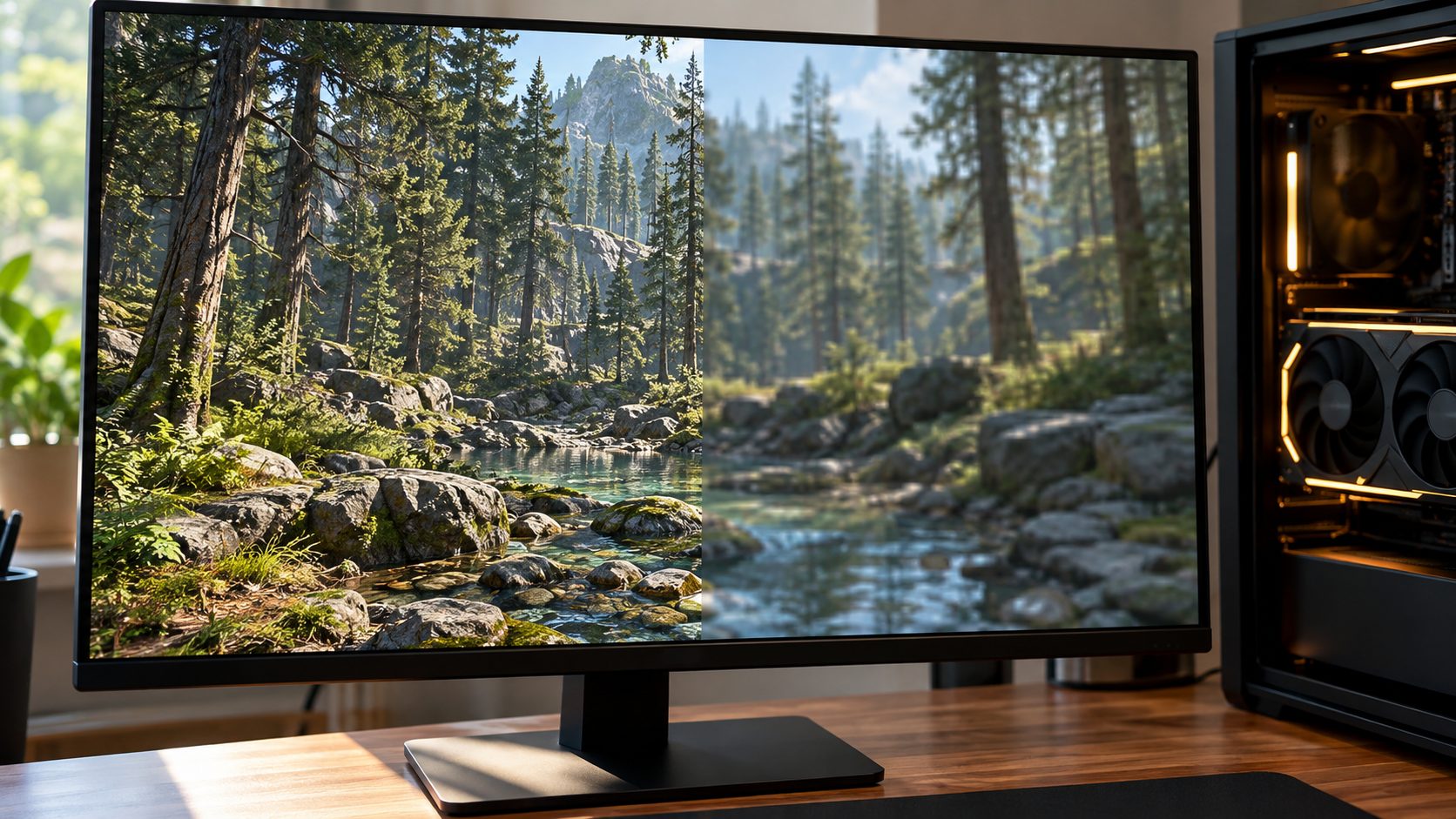
DLSS needs an NVIDIA RTX card (NVIDIA’s DLSS page lists GeForce RTX 20 to 50 Series), so Radeon, Intel and GTX cards won’t show it. FSR 2 and 3 run on Radeon RX 500-series cards and newer and on comparable NVIDIA and Intel GPUs, but AMD’s ML-based FSR Upscaling (FSR 4 in some menus) needs an RX 7000 or 9000 card for now. XeSS runs on any GPU with Shader Model 6.4 support.
A grayed-out option usually means your GPU or the game lacks support. For the sharpest result, pick Quality, or DLAA or FSR Native AA, which work at native resolution.
Why Is My Game Blurry When I Move? Motion Blur and TAA
Sharp when still but smeared when you turn points to post-processing. These cost nothing to switch off:
- Motion blur smears anything moving.
- Depth of field blurs whatever isn’t in focus.
- Chromatic aberration and lens effects add colored fringes toward the screen edges.
Anti-aliasing is a trade-off. Unreal’s documentation says FXAA blends pixel edges and can lose fidelity. In general, TAA blends across frames, which can soften detail and leave ghost trails. MSAA, where offered, keeps textures sharp but costs more.
If the cursor or a dragged window smears on the desktop too, blame the display. Set the monitor’s rated refresh rate in Settings > System > Display > Advanced display (it may sit at 60 Hz), and set its overdrive or response-time option to a moderate level. On a TV, switch to Game mode, which usually turns off motion smoothing.
Add a little sharpening back
Try the game’s sharpening slider first. On Radeon cards, turn on Radeon Image Sharpening in AMD Software under Gaming > Graphics (or a game’s profile) before you launch the game.
On GeForce cards, Alt+F3 opens the overlay’s Game Filters (Freestyle), which include sharpening in supported games, and NVIDIA Image Scaling in the NVIDIA app adds a sharpening slider. Keep it moderate: too much draws halos and crawling noise.
Injectors such as ReShade hook into a game’s rendering. ReShade disables depth access in multiplayer, and its full add-on build is unsigned; anti-cheat systems may treat unsigned injected code as a cheat. Online, stick to in-game or GPU-maker tools.
Why Is My Game Grainy or Pixelated?
Grain is a different problem from “why is my game blurry?”: it’s noise, so sharpening makes it worse. Turn off film grain and reset any sharpening slider you raised.
Grain crawling on shadows, reflections or hair usually comes from ray-traced or screen-space effects, which get noisier at low internal resolution. Raise their quality or the render scale, or turn ray tracing off to confirm. On RTX cards, DLSS Ray Reconstruction, where offered, targets this noise.
Blocky graphics mean a very low render scale, Ultra Performance mode or a resolution far below native. For muddy textures, raise texture quality if your GPU has spare VRAM; if they stay muddy or pop in, VRAM is probably full, so lower it a step. If everything looks bad at once, reset with Epic’s Fortnite method above.
Why Is My Game Blurry on PC? Resolution, Scaling and Drivers
If menus and text are soft too, work through these in order:
Use the native resolution
In Settings > System > Display, pick the resolution marked (Recommended), then choose the same one in the game.
Stop Windows from stretching the game
At 125% or 150% scale, Windows can stretch a windowed game that isn’t DPI-aware. Right-click its .exe, open Properties > Compatibility > Change high DPI settings, tick Override high DPI scaling behavior, set Scaling performed by to Application and relaunch.
Don’t expect GPU scaling to sharpen
No scaling mode makes a non-native resolution sharp, so return to native. If you need a lower one, integer scaling on supported AMD, NVIDIA and Intel GPUs keeps pixels crisp, such as 1080p on a 4K panel; on NVIDIA, look in NVIDIA Control Panel > Adjust desktop size and position.
Update the driver
Install the latest from NVIDIA, AMD, Intel or your laptop maker; if the blur began after an update, roll back.
Still asking “why is my game blurry?” in borderless mode, perhaps picked to stop a game minimizing itself? Test with Scale at 100% in Settings > System > Display; if the game sharpens, the step 2 override is your fix. If it won’t go fullscreen, see our guide to a game stuck windowed.
Console and TV Fixes, Including a Dark Xbox Game
On a console, “why is my game blurry?” usually comes down to the game’s mode, the console’s output or the TV. Pick a Quality or Resolution mode where offered, since Performance modes usually trade resolution for frame rate.
Why is my game blurry on Xbox?
Open the guide, then Profile & system > Settings > General > TV & display options, and pick your TV’s resolution. Under Video fidelity & overscan, keep Color space on Standard; PC RGB is for PC monitors. Connect the console straight to the TV: a receiver or soundbar in between can affect video.
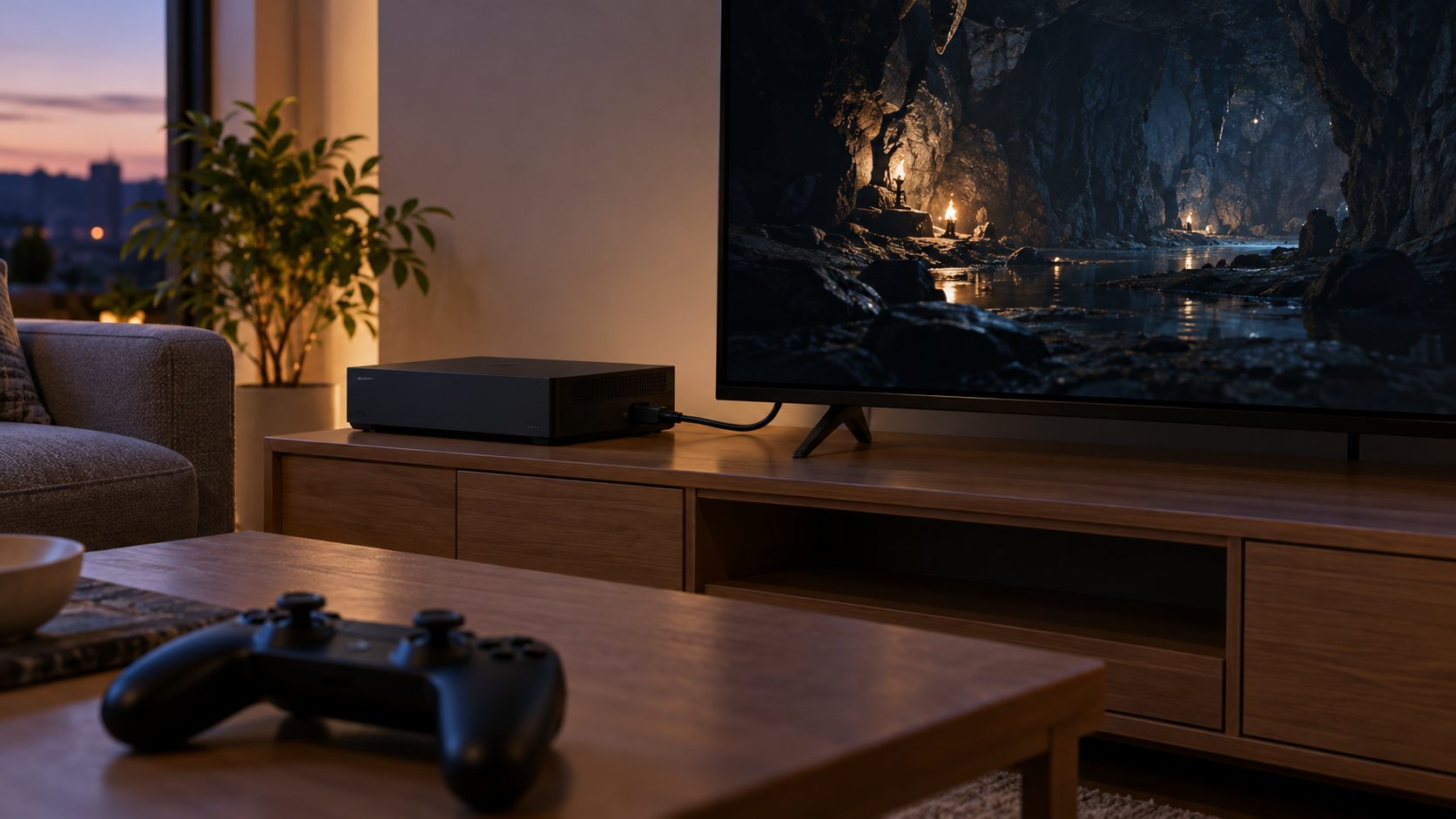
Why is my Xbox game dark?
Start with the game’s brightness or HDR calibration screen. With the TV in HDR, run Calibrate HDR for games in the same Xbox menu; for SDR, use Calibrate TV. Xbox’s HDR guide also says to turn off the TV’s energy saving and light sensor and max its HDR brightness; many TVs keep separate HDR picture settings, adjustable only in HDR mode.
Why is my game blurry on PS5?
In Settings > Screen and Video > Video Output, leave Resolution on Automatic and use Adjust HDR. Use an HDMI 2.1 port if your TV has one, and remove any receiver in between if the picture is wrong. Under Settings > Saved Data and Game/App Settings > Game Presets, pick Resolution Mode for games that offer it; if SDR games look dark or washed out, set HDR to On When Supported.
Why is my game blurry on Switch?
On Switch and Switch 2, open System Settings and set TV Resolution to Automatic; the original Switch tops out at 1080p, Switch 2 at 2160p.
Why is my game blurry on my TV?
If the console’s output is right, check the TV. Use Game mode, set sharpness to minimum (Xbox says extra sharpness causes halos) and turn off noise reduction, which smooths fine detail. Turn off overscan too (Just Scan, Screen Fit or similar): it crops and rescales the picture.
Frequently Asked Questions
Why is my game blurry on PC when my desktop looks sharp?
The game may not be rendering at native resolution. Check its resolution, render scale and upscaler, then Windows scaling.
Do DLSS or FSR make games blurry?
They can. On Performance or Ultra Performance at 1080p, the upscaler is the likely answer to “why is my game blurry?”, because the game starts from 540p or less. Switch to Quality or a native mode.
Why is my game blurry even on high settings?
Some presets switch on an upscaler, dynamic resolution or a render scale below 100%. Check all three after picking High or Ultra.
Why is my game blurry after moving it to another monitor?
If the screens use different Windows scale settings, Windows can bitmap-stretch the game window. Match the scales, use the step 2 override or run fullscreen.
Recap: Symptom, Pixels, Effects, Then the Screen
The symptom is the fastest answer to “why is my game blurry?”: a sharp HUD means fewer pixels, blur in motion means effects or the display, and soft menus mean resolution, scaling or the TV.
More fixes are in our gaming guides.



Leave a comment