

Why Is My Laptop Wallpaper Blurry? Fix Compression, Size and Fit
Windows quietly recompresses JPEG wallpapers, and Fill enlarges any picture smaller than your screen. Here's how to tell which one blurs yours and fix it.
Why is my laptop wallpaper blurry when the original picture looks fine? Usually Windows has re-saved the JPEG at reduced quality, the picture has fewer pixels than the screen, or both. Three quick checks tell you which.
The same fixes work for a blurry or low-quality desktop PC wallpaper on Windows 11 and 10.
Why Is My Laptop Wallpaper Blurry? The Short Answer
Too few pixels, a fit setting that enlarges them, or a recompressed JPEG, often together. Each has a free fix.
- Check the fit. Right-click the desktop, choose Personalize > Background and switch the fit to Center briefly. A border means the picture has fewer pixels than your screen.
- Compare the sizes. Right-click the image file, choose Properties > Details and compare Dimensions with Display resolution in Settings > System > Display.
- Check the file type. A big enough JPEG that looks soft or blotchy was probably recompressed.
Text and icons fuzzy too? Skip to the resolution section.
Windows Re-Saves JPEG Wallpapers at 85% Quality
Why is my laptop wallpaper blurry when the JPEG is big enough? Windows saves its own copy, re-encoded at JPEG quality 85 by default, as TranscodedWallpaper. Microsoft doesn’t document it, but answers on its Q&A forum cite the same figure.
On our Windows 11 25H2 test PC (build 26200.9550), with no registry tweaks, the cached copy matched quality 85. Its source, a 1472×832 photo saved from a chat app, was already at about quality 75, so it lost detail twice before Fill enlarged it 1.30x for the 1920×1080 screen.
Why is my laptop wallpaper blurry when the photo came from a chat app? Chat apps, social media and image-search thumbnails usually hand you a small, already compressed picture, which Windows compresses again. Use the full-size original.
To check yours, open this folder from Win + R, copy TranscodedWallpaper to the desktop and add .jpg to the copy’s name:%AppData%\Microsoft\Windows\Themes
Compare it with your original at full zoom, not by file size: ours was larger than its source (104 KB vs 87 KB) but had still been through a second lossy save.
The No-Registry Fix for Wallpaper Quality: Use a PNG Copy
Since Windows 8, users on Microsoft’s forum have reported that Windows recompresses JPEG wallpapers but not PNGs. That’s undocumented, but it needs no registry edit.
- Open the original picture in Paint.
- Choose File > Save as > PNG picture.
- Right-click the new PNG and choose Set as desktop background.
Expect a bigger file: our 87 KB test JPEG came out at about 445 KB as a PNG.
The Registry Fix: Set JPEGImportQuality to 100
To keep using JPEGs, the JPEGImportQuality value raises the quality of Windows’ copy. It’s also undocumented and cited in Microsoft Q&A answers; values run from 60 to 100.
A wrong registry change can break more than your wallpaper. Export the key first, as Microsoft’s registry backup guide describes, or create a System Restore point.
Paste this key into Registry Editor’s address bar:HKEY_CURRENT_USER\Control Panel\Desktop
Open and export
Press Win + R, run regedit and open the key above. Choose File > Export and save the .reg file.
Add a value, not a key
Right-click the right pane, choose New > DWORD (32-bit) Value and name it JPEGImportQuality. A key (folder) does nothing.
Set it to 100
Double-click it, select Decimal, type 100 and click OK.
Restart and re-apply
Restart, then set the wallpaper again from the original JPEG; the old cached copy stays until you do.
We confirmed the 85% default on our test PC but haven’t tested 100 on it; a fresh TranscodedWallpaper copy, compared at full zoom, shows whether it worked. To undo, delete the value, restart and re-apply the wallpaper.
Why is my laptop wallpaper blurry even at quality 100? Then the picture is probably smaller than your screen.
Picture Smaller Than Your Screen? Fill Is Enlarging It
Enlarging can’t add detail, and Microsoft’s background settings page defines Fill as enlarging the image to cover the screen, cropping it if needed.
Why is my laptop wallpaper blurry on a 16:10 screen?
On a 16:10 panel, Fill must enlarge a “Full HD” 1920×1080 picture until both sides are covered:
| Laptop screen | Fill enlarges 1920×1080 by | Smallest 16:9 picture |
|---|---|---|
| 1920×1080 | Not at all | 1920×1080 |
| 1920×1200 | 1.11x | 2134×1200 |
| 2560×1600 | 1.48x | 2845×1600 |
| 2880×1800 | 1.67x | 3200×1800 |
| 3840×2400 | 2.22x | 4267×2400 |
Even a 3840×2160 “4K” picture is enlarged 1.11x on a 3840×2400 screen. The arithmetic is ours; the Fill rule is Microsoft’s. Easiest: use a picture at exactly your screen’s resolution, or larger.
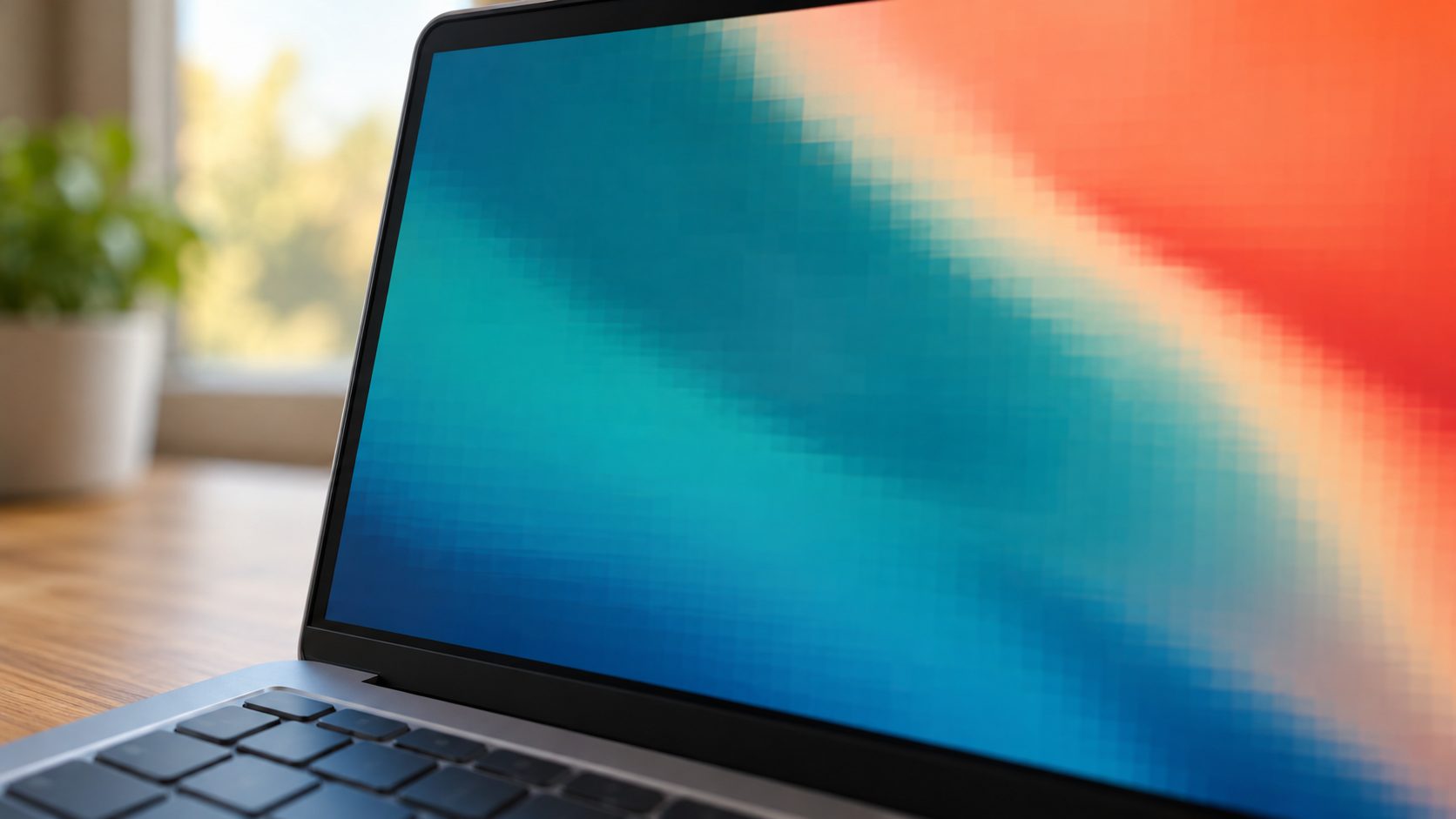
- Fill covers the screen and may crop; best when the picture is at least screen size.
- Fit keeps proportions without cropping but may leave bars.
- Stretch covers the screen but can distort the picture.
- Center shows the original size, with a border if it’s smaller: the sharpest option for a small image.
- Tile repeats small images; Span spreads one image across all monitors, and with different resolutions parts may be cropped or misaligned.
Why is my laptop wallpaper blurry even on Fit? Fit and Stretch enlarge a small picture too; only Center and Tile keep it at its original size.
Everything Looks Soft? Check the Display Resolution
Why is my laptop wallpaper blurry, and everything else on screen too? Open Settings > System > Display and set Display resolution to the option marked (Recommended); Microsoft says that one is usually best. Below it, text looks less sharp, and the picture can appear small, centered with black edges, or stretched.
Scale changes the size of text and apps, not the resolution, so leave it on (Recommended). If the resolution changes by itself, Microsoft suggests a graphics driver update through Windows Update.
Everything oversized? See laptop zoomed-in fixes or, on a phone, our phone zoom guide. For a color cast, see why a PC screen turns yellow.
Why is my laptop wallpaper blurry on a MacBook? Apple says macOS uses the best resolution by default, so compare the picture with the panel’s native pixels (Apple menu > About This Mac > More Info > System Report > Graphics/Displays), not the “looks like” size in Displays settings.
Why Is My Laptop Wallpaper Blurry on an External Monitor?
Microsoft lists a known issue in Windows 11 and 10: when an external monitor’s resolution differs from the laptop’s, the wallpaper may look too small, or too big and cut off at the right and bottom. Microsoft’s workaround:
- In Settings > System > Display, select the external monitor.
- Pick a different Display resolution, then choose Revert.
Duplicating the laptop screen usually forces one shared resolution, leaving a sharper monitor below its native resolution. Press Win + P, choose Extend, then set the monitor to (Recommended).
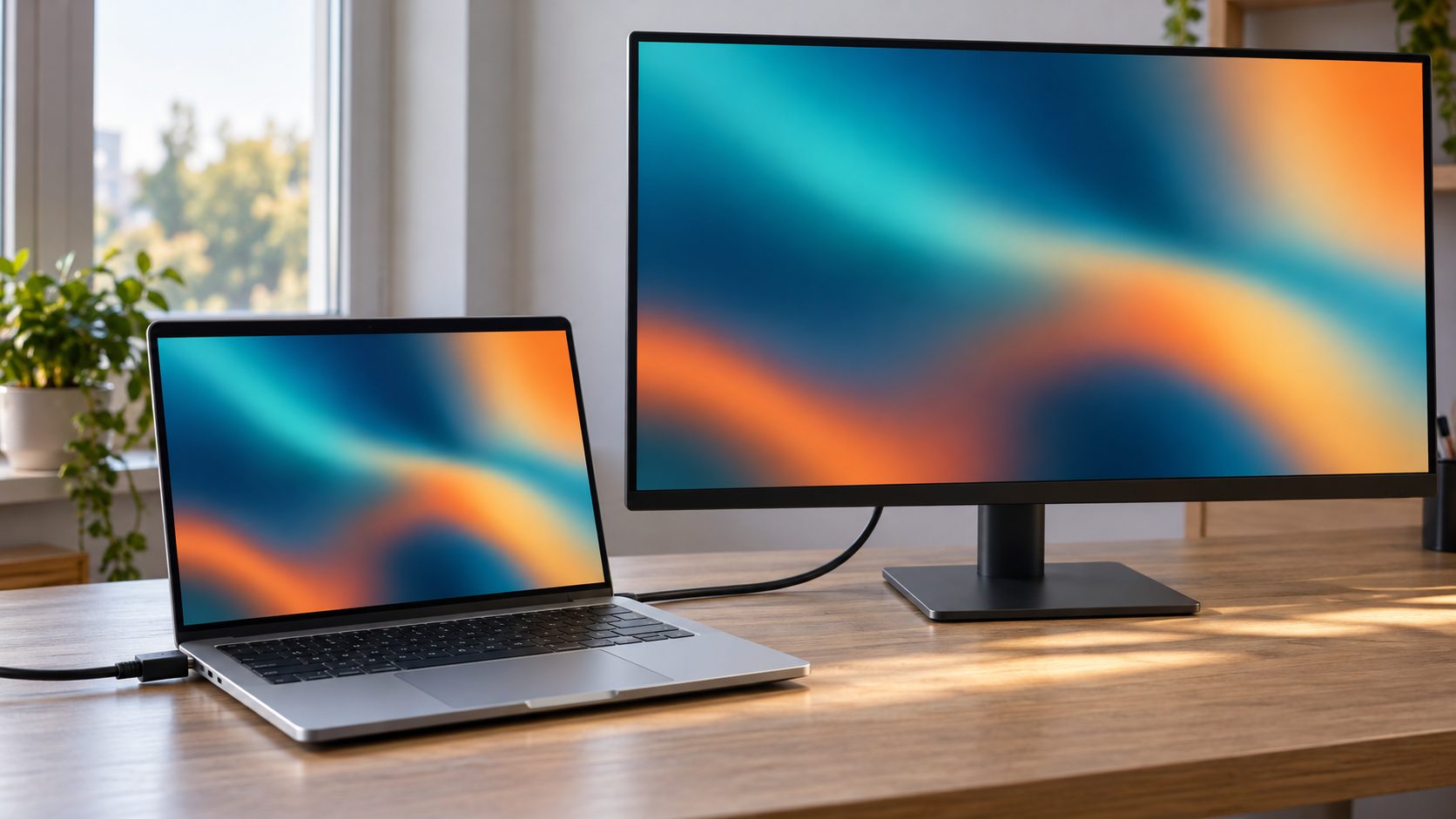
Why is my laptop wallpaper blurry on the second screen even after that? Give each screen a picture sized for it: with Picture selected in Background settings, right-click a thumbnail and choose the monitor. That option isn’t available if you use multiple virtual desktops.
Laptop Background Quality: Common Questions
Does JPEGImportQuality at 100 make the wallpaper lossless?
Not necessarily: even at quality 100, JPEG isn’t lossless. A PNG copy is the reported way to skip the JPEG step.
Why is my laptop wallpaper blurry after I saved it as PNG?
PNG only removes the compression step; it can’t add pixels or change the fit. Compare the picture’s dimensions with your screen and check the fit setting.
Why is my laptop wallpaper blurry only on the lock screen or sign-in screen?
The lock screen has its own setting under Settings > Personalization > Lock screen, often Windows Spotlight. Spotlight images on our 1920×1080 test PC were 1920×1080, though Microsoft doesn’t document their size. The sign-in blur is an intentional acrylic effect. On Pro, Enterprise and Education, open gpedit.msc and enable Computer Configuration > Administrative Templates > System > Logon > Show clear logon background.
On Home, turning off Transparency effects under Settings > Personalization > Colors is commonly reported to remove the sign-in blur too, though Microsoft doesn’t document that.
Why is my laptop wallpaper blurry again after it was fine?
Windows Backup may have restored an older copy. Its Personalization item (wallpaper, color, theme) needs a OneDrive sign-in; turn it off in the Windows Backup app or under Settings > Accounts > Windows backup, then set the wallpaper again from the original file. Spotlight or a theme can also swap the picture.
Why is my laptop wallpaper blurry after an AI upscale?
An upscaler guesses at missing detail rather than restoring it, so a low-resolution picture rarely becomes truly sharp. Find a larger original, or use Center.
Check Size, Then Fit, Then File Type
Why is my laptop wallpaper blurry? Usually a picture that’s too small, a fit that enlarges it or a recompressed JPEG. Check size and fit first, then switch to a PNG copy or try JPEGImportQuality at 100; if the whole screen is soft, fix the resolution.
More display fixes are in our computer guides.
Leave a comment