

Why Is My PC Yellow? Fix Yellow, Gray and Inverted Screen Colors
Yellow, gray, inverted and flashing screens each have their own cause. Match the tint to Night light, a monitor preset, a color filter or the cable, then fix it.
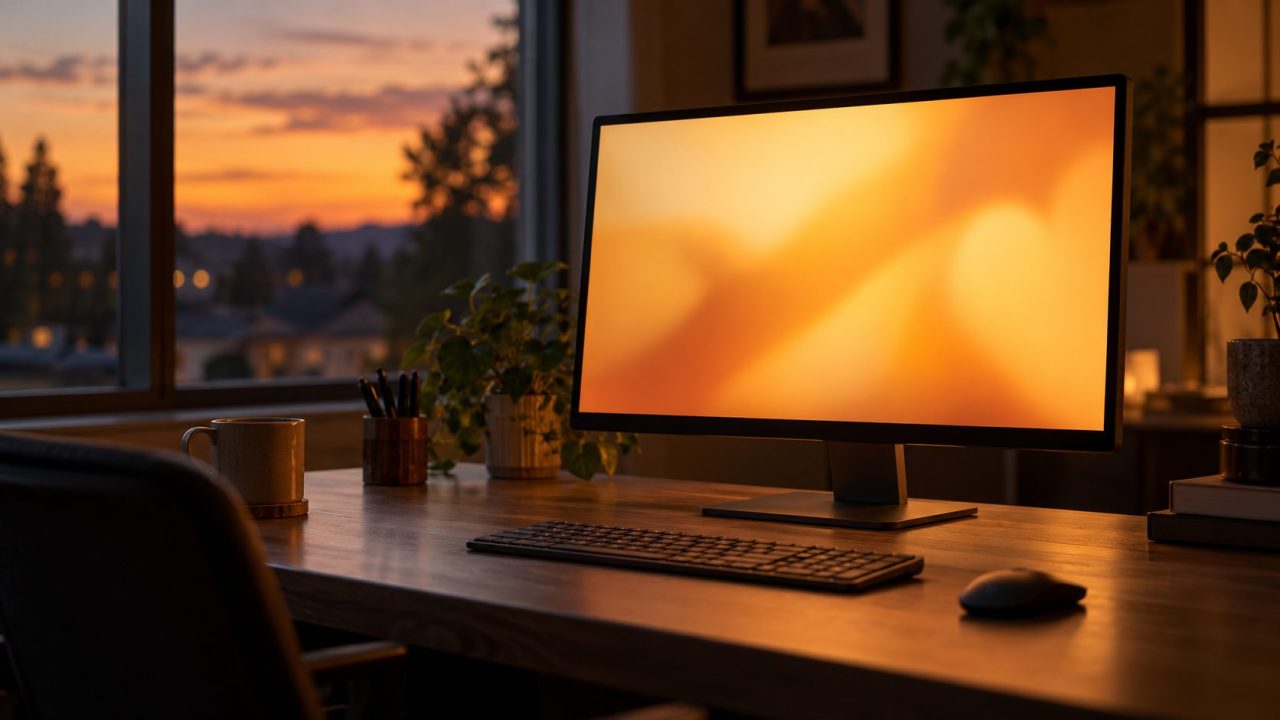
When people ask why is my PC yellow, the cause is usually a setting, not a failing screen. Night light can switch on at sunset; a monitor’s eye-care preset keeps the picture warm all day.
Why Is My PC Yellow? Match the Tint to the Cause
In the evening, the usual answer to “why is my PC yellow?” is Night light on its schedule: switch it off in Quick Settings. Yellow all day? Check that tile, then the monitor’s preset. Other tints:
| What you see | Likely cause | First check |
|---|---|---|
| Warm in the evening | Night light | Quick Settings |
| Yellow all day | Night light left on, monitor preset | Night light, then monitor menu |
| Yellow patches or one warm edge | Panel or backlight | Warranty |
| Reddish or dull on HDR | HDR, color profile | Display > HDR |
| Black and white | Grayscale filter | Color filters |
| Inverted | Magnifier invert | Ctrl + Alt + I |
| Green, pink or flashing | Color format, cable, driver or GPU | Color format, then cable |
Sometimes “why is my PC yellow” is about the box: an amber power or motherboard LED, or an old beige case yellowed with age. LED codes vary by maker; see the manual.
Why Is My PC Yellow at Night? Check Night Light and Its Schedule
On Windows 11:
- Open Quick Settings (the network and volume icons on the taskbar) and switch off Night light.
- For finer control, open Start > Settings > System > Display > Night light.
- Drag Strength left for a milder tint, or switch off Schedule night light (Sunset to sunrise needs location services).
Switched on by hand with no schedule, Night light stays on until you turn it off. Windows 10 uses Settings > System > Display > Night light settings, as Microsoft’s display color guide shows.
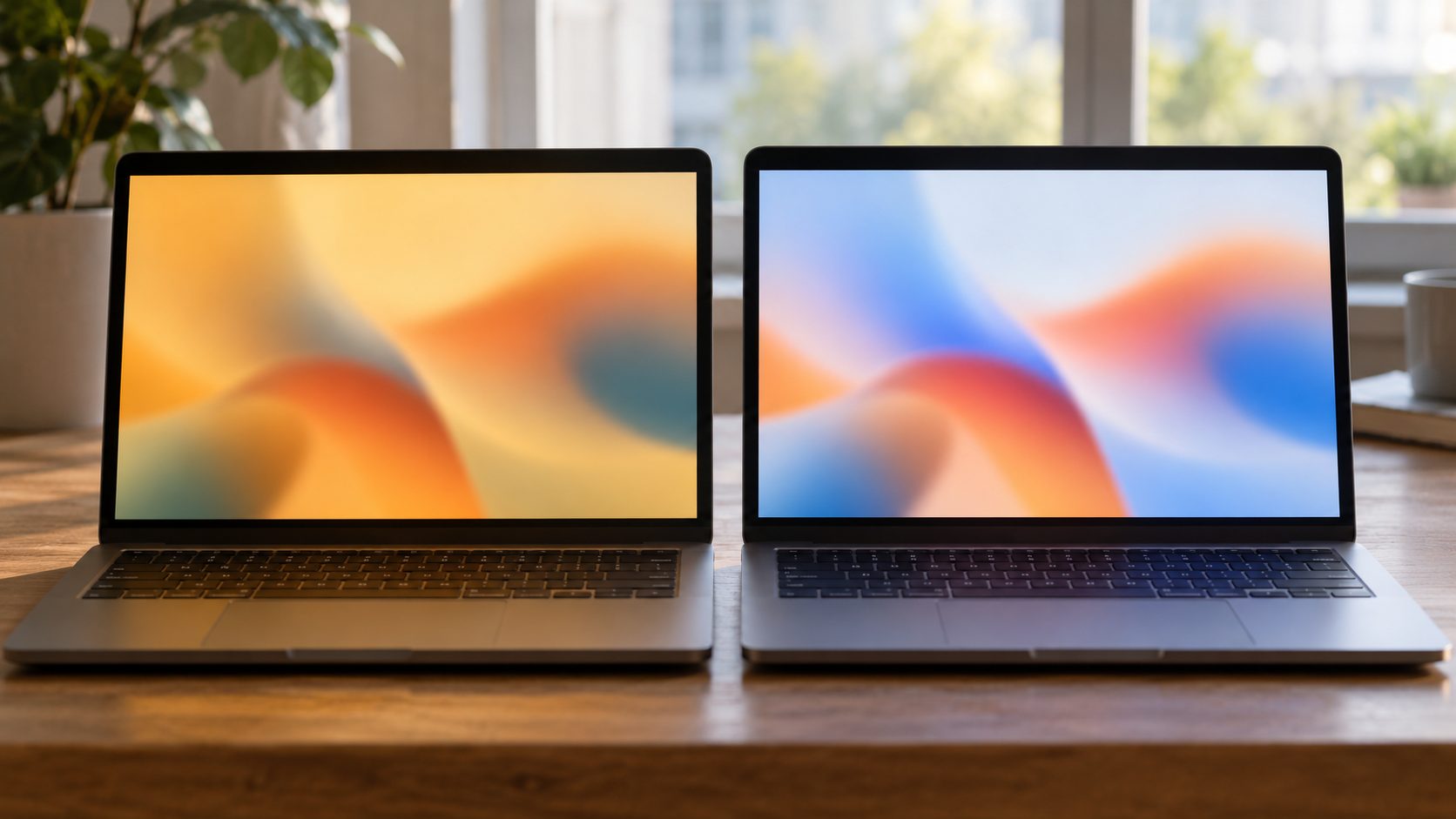
Why Is My PC Yellow All Day? Eye-Care Modes and GPU Color Settings
If Night light is off and the tint lasts all day, it usually comes from outside Windows:
- Monitor or laptop eye-care mode. In the monitor’s menu or the laptop maker’s display app, look for Low Blue Light, Reading, Eye Care or Warm (names vary) and pick a standard mode or factory reset.
- Graphics software. In NVIDIA Control Panel, open Display > Adjust desktop color settings and select Restore Defaults; AMD and Intel apps have similar pages.
- Warm-screen apps. f.lux and similar apps tint the screen on their own schedule; quit them from the system tray or remove them from startup.
Quick test: a monitor preset tints even the BIOS screen. So does a VGA cable that has lost its blue signal, so reseat it before resetting presets.
Yellow or Dull? Check the Color Profile and HDR
Still asking why is my PC yellow? Check the color profile, the file that tells Windows how to show a screen’s colors; a wrong one leaves a cast.
Go to Settings > System > Display > Color profile, pick the display, then choose another profile and Set profile, or run Calibrate display. Windows 10 keeps them in Control Panel’s Color Management. Microsoft’s HDR settings page adds two traps:
Night light plus HDR
With HDR on, Night light can over-saturate colors with a red tint; lower its Strength or turn it off.
HDR off on battery
HDR laptops often turn HDR off on battery, leaving colors dull after a restart. Plug in first, or clear Turn off HDR when my PC is running on battery under Display > HDR.
Black and White or Inverted: Color Filters and Magnifier
Not every “why is my PC yellow” search is about yellow. Two accessibility features can turn the screen gray or negative.
Black and white: the Grayscale filter
Go to Start > Settings > Accessibility > Color filters and turn off Color filters (Windows 10: Ease of Access). Windows key + Ctrl + C toggles them only if Keyboard shortcut for color filters is on; switch that off to stop repeats.
Still gray? Check your graphics software’s saturation or digital vibrance slider and the monitor’s picture mode. For phones, see our phone zoomed in guide.
Inverted colors: Magnifier or a filter
With Magnifier running, Ctrl + Alt + I toggles inverted colors; Windows logo key + Esc closes it. If it returns after every restart, turn off Start Magnifier after sign in under Settings > Accessibility > Magnifier.
No Magnifier? Check Color filters for an inverted filter. Magnified too? Our laptop zoomed in guide turns Magnifier off.
Green, Pink or Flashing Colors: Cable, Port or Graphics Card?
Blocks, lines or lost colors that also show before Windows starts can mean a failing graphics chip or panel. Copy important files off while the screen still works.
Unlike most answers to why is my PC yellow, these tints point to the driver, cable, port or GPU. A uniform pink or green cast over HDMI or DisplayPort is often the driver’s output format; set it to RGB, full range.
In NVIDIA Control Panel: Display > Change resolution > Use NVIDIA color settings (RGB, Full). In AMD Software: Settings > Display > Pixel Format (Full RGB). Intel’s app has a similar quantization setting; names change between versions.
Still there? Try Microsoft’s checks for external monitors:
- Secure both cable ends, then try another cable.
- Use another video port, and remove any dock or adapter.
- Try the monitor on another computer.
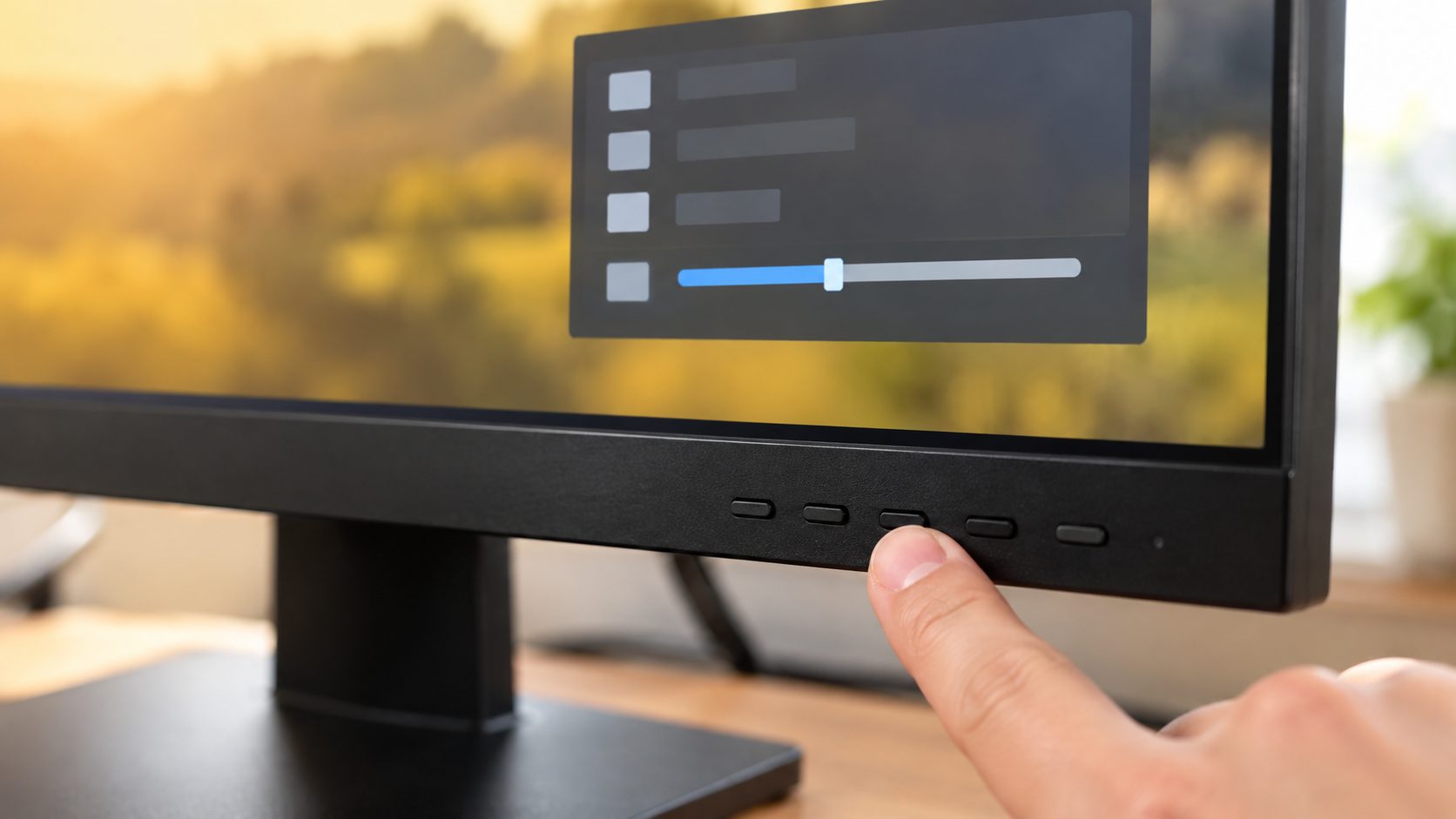
VGA carries red, green and blue on separate pins, so a bent pin or loose plug can drop one. Lose blue and the picture turns yellow, so on VGA, “why is my PC yellow?” can come down to one pin. Lose green and it turns pink; lose red, cyan.
Software or hardware? Two quick tests
- BIOS. Save your work, then in Settings > System > Recovery select Restart now next to Advanced startup and pick Troubleshoot > Advanced options > UEFI Firmware Settings. Only look. A tint there isn’t Windows; a discolored monitor menu means the monitor.
- Task Manager. Press Ctrl + Shift + Esc. If Task Manager flickers too, Microsoft points to the display driver; if not, an app.
Reinstall the Graphics Driver the Safe Way
First press Windows logo key + Ctrl + Shift + B, Microsoft’s quick graphics driver reset. If that fails, or colors broke after an update, use Device Manager (admin account needed).
Roll back or update
Press Win + X, open Device Manager, expand Display adapters and open your adapter. On the Driver tab, select Roll Back Driver if available, or Update driver. The newest drivers come from your graphics card or PC maker.
Reinstall
Download the new driver first. Choose Uninstall device, tick Attempt to remove the driver for this device (Windows 10: Delete the driver software for this device) so the old one can’t return, then restart and run the installer.
Clean install from the maker
NVIDIA’s installer has Perform a clean installation under its custom option, and Intel’s has a clean-install option; names vary by version. AMD has Factory Reset in its installer and the AMD Cleanup Utility, which removes graphics and audio drivers but not chipset ones. AMD recommends safe mode; cleanup can take up to 15 to 20 minutes, with brief flicker.
Avoid third-party driver updaters and driver-cleaner sites.
A green crash screen with a stop code is a stop error, not a tint (Windows preview builds use green); look the code up in Microsoft’s stop-error guide. Green only in videos? Update the driver or turn off hardware acceleration in the browser or player.
Frequently Asked Questions
Why is my PC yellow even with Night light off?
Work through the all-day list above, then the color profile and HDR. Yellow in the BIOS too? Suspect the monitor or its cable.
Why is my PC yellow right after an update?
Roll the graphics driver back (step 1 above), then recheck the color profile and graphics color settings.
Why is my PC yellow on only one screen?
Suspect that screen’s monitor preset or color profile, which Windows sets per display. On a laptop, a tint that changes as you move the lid points to the internal cable.
Why is my PC yellow in patches or along one edge?
Settings tint the whole screen evenly, so blotches or one warm edge point to the panel or its backlight. No setting fixes that; check the warranty.
Why is my MacBook screen yellow?
Check Night Shift in Apple menu > System Settings > Displays. On Macs with True Tone, turn it off there to compare. Still tinted or gray? Check Accessibility > Display > Color filters.
Recap: Read the Tint, Then Work Outward
Most answers to why is my PC yellow are settings: Night light, then the monitor preset, graphics software, color profile and HDR. Gray or inverted means a filter or Magnifier; patches mean hardware.
Green or flashing colors point to the output format, cable, port or driver. More fixes are in our computer guides.


Leave a comment