

Why Is My Laptop Zoomed In? Fix Magnifier, Scale and Browser Zoom
Magnifier, a wrong scale or resolution, or a zoomed browser: three quick tests tell them apart, plus fixes for blurry screens, stuck Ctrl keys and touchpad zoom.
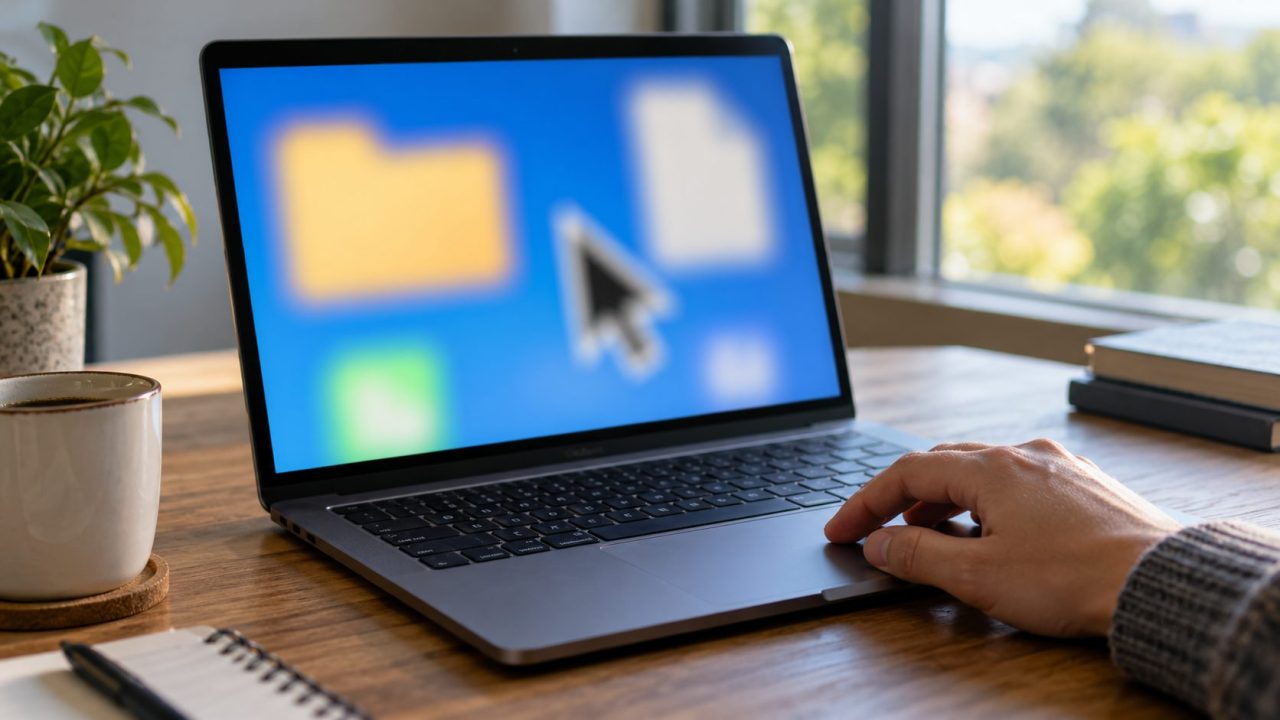
If you’re asking why is my laptop zoomed in, it’s almost always one of three things: Windows Magnifier is running, the display scale or resolution is wrong, or only the browser or one app is zoomed. Zoom that changes on its own points to the Ctrl key or the touchpad instead.
Steps are for Windows 11 on a laptop or desktop PC; MacBooks have their own section.
Why Is My Laptop Zoomed In? Three Causes, Three Quick Tests
The quickest test for “why is my laptop zoomed in?” is Windows logo key + Esc. If the screen snaps back, Magnifier was on. If only your browser still looks big, press Ctrl + 0; if everything is still big, reset the display scale and resolution.
| What you see | Likely cause |
|---|---|
| Picture or a zoom box follows the mouse | Magnifier is on |
| Everything big, fixed in place, sharp | Scale set too high |
| Everything big, fixed in place, blurry | Low resolution, often a missing driver |
| Only the browser or one app is big | Zoom saved in that app |
| Zoom changes when you scroll | Ctrl held down, or touchpad pinch |
Test 1: Does the Screen Follow Your Mouse? Turn Off Magnifier
Move the pointer toward a screen edge. If the whole picture slides with it, a magnified box follows the pointer, or a magnified strip sits across the top, Magnifier is running. Windows logo key + Esc turns it off. On a touchscreen, tap minus (-) to zoom out, then tap Close.
Why is my laptop zoomed in after a keyboard slip? Windows key + Plus (+) starts Magnifier and zooms in, and while it runs, Ctrl + Alt + scroll wheel zooms in or out. Windows key + Minus (-) steps back down.
Stop Magnifier from starting at sign-in
Why is my laptop zoomed in again after every restart? Magnifier is set to start by itself. In Settings > Accessibility > Magnifier (Windows key + Ctrl + M opens it), turn the switch off and clear both Start Magnifier after sign in and Start Magnifier before sign in, as Microsoft’s Magnifier guide shows. On Windows 10, look under Ease of Access.
Test 2: Everything Big but Fixed? Reset Scale and Resolution
If the picture stays put, Windows itself is drawing everything large. Open Start > Settings > System > Display; with a monitor attached, select the laptop’s own screen at the top first.
Under Scale & layout, set Scale to the value marked (Recommended), then do the same for Display resolution just below it. With the right graphics driver installed, the recommended resolution is the panel’s native one.
Why is my laptop zoomed in but still sharp? Then Scale is set too high. A resolution below native looks soft instead and may be stretched or edged with black, as Microsoft’s resolution and layout guide explains.
Why is my laptop zoomed in on text only?
If icons look normal, check Settings > Accessibility > Text size, which enlarges only text. Drag its slider back to 100% and click Apply.
Laptop zoomed out, with everything tiny?
It’s the mirror image of “why is my laptop zoomed in,” and the same page fixes it. On many high-resolution laptop screens the Recommended scale is above 100%, so 100% makes everything tiny. Choose (Recommended) again; if only web pages are small, press Ctrl + 0.
Screen upside down or sideways? Set Display orientation on the same page back to Landscape.
Why Is My Laptop Zoomed In and Blurry? Check the Display Driver
Big, soft, and Display resolution won’t go higher or is grayed out? Windows is probably running without your laptop’s graphics driver, which often happens after a clean install or a major update.
Right-click Start, open Device Manager and expand Display adapters. If it lists Microsoft Basic Display Adapter, Windows is using its generic driver. Microsoft notes that the maker’s driver often unlocks higher resolutions; install it in this order.
Before step 4, download the maker’s driver so you aren’t stuck on the generic one. Get drivers only from Windows Update or the maker’s support site, never driver download sites.
Windows Update
Settings > Windows Update > Check for updates, then Advanced options > Optional updates > Driver updates. Install any display driver listed, then restart.
The laptop maker’s driver
On the maker’s support site, enter your model or serial number and get the graphics driver for your Windows version. Install it, then restart.
Roll back
If trouble began after a driver update: adapter Properties > Driver tab > Roll Back Driver (grayed out if no older driver is saved).
Uninstall and restart
Last resort: right-click the adapter, choose Uninstall device, leave Attempt to remove the driver for this device unchecked, then restart. Windows tries to reinstall it; if the basic adapter returns, run the maker’s installer.
Just changed the resolution? Don’t click anything; Windows switches back in about 15 seconds unless you choose Keep changes. Windows key + Ctrl + Shift + B restarts the graphics driver (a beep or flicker means it worked) but only clears glitches.
If Windows is still unusable, hold Shift while choosing Power > Restart on the sign-in screen. Then pick Troubleshoot > Advanced options > Startup Settings > Restart and press 3 or F3 for Enable low-resolution video, which Microsoft says lets you reset display settings. If the drive is encrypted, have your BitLocker recovery key ready.
Test 3: Only the Browser or One App? Reset Its Zoom
Taskbar normal, only web pages big? Then the fix for “why is my laptop zoomed in?” is in the browser, not Windows. Press Ctrl + 0 (zero) in Chrome, Edge or Firefox, or Command + 0 on a Mac. Ctrl + Plus or Ctrl + mouse wheel is the usual accidental trigger.
If Chrome keeps zooming in on one site, it saved that site’s zoom level; Edge and Firefox do too:
- Chrome. Settings > Privacy and security > Site settings > Additional content settings > Zoom levels, then click X. If every site is big, reset Settings > Appearance > Page zoom.
- Edge. Settings > Accessibility > Page zoom sets the default. To clear one site, open this address and remove the site:
edge://settings/content/zoomLevels - Firefox. It remembers each site’s zoom, even after a restart; Ctrl + 0 there resets it. If every site is big, set Settings > General > Zoom > Default zoom back to 100%.
In Office apps, use the zoom slider at the bottom right. Same thing on your phone? See our phone zoomed in guide.
Laptop Screen Zooming In and Out on Its Own? Check Ctrl and the Touchpad
Why is my laptop zoomed in one minute and normal the next? The usual cause is a held Ctrl key or a touchpad gesture, since Ctrl + scroll zooms in browsers and many apps. Test with an external mouse: if its wheel zooms too, Ctrl is held; if only the touchpad zooms, blame the pinch gesture.
Sticky Keys
Pressing Shift five times can turn it on (Windows asks first), and a tapped Ctrl can then stay active; press Ctrl once more to release a locked one. In Settings > Accessibility > Keyboard, turn off Sticky keys and its keyboard shortcut.
A stuck Ctrl key
Press both Ctrl keys firmly a few times and check for crumbs or a key that doesn’t spring back.
Pinch to zoom
Two fingers, or a resting palm, can zoom. On a precision touchpad, clear Pinch to zoom in Settings > Bluetooth & devices > Touchpad > Scroll & zoom; other touchpads use the maker’s app.
On a MacBook? Turn Off macOS Zoom
On a MacBook, the usual answer to “why is my laptop zoomed in?” is the Zoom accessibility feature. Open Apple menu > System Settings > Accessibility > Zoom (System Preferences on Monterey and earlier).
Option-Command-8 toggles zoom if Use keyboard shortcuts to zoom is on; a three-finger double-tap does too if Use trackpad gesture to zoom is on. Use scroll gesture with modifier keys to zoom zooms when you hold a key such as Control while scrolling. If the desktop is just larger than before, pick another resolution in System Settings > Displays.
Zoomed-In Laptop: Quick Answers
Why is my laptop zoomed in every time I turn it on?
Magnifier is set to start at sign-in; clear both start options (see Test 1). If the screen is also blurry, suspect the graphics driver.
Why is my laptop zoomed in after a Windows update?
An update can change the graphics driver. If Device Manager shows Microsoft Basic Display Adapter, reinstall the driver through Windows Update or from your laptop maker; if a new driver caused it, use Roll Back Driver.
Why is my laptop zoomed in on an external monitor?
Select the monitor at the top of Settings > System > Display and set its Scale and resolution to (Recommended). If both screens show the same picture, press Windows key + P and choose Extend or PC screen only, since Duplicate forces a shared resolution. If a TV crops the edges, set its picture size to Just Scan, Screen Fit or similar, or adjust HDMI scaling in your graphics control app; names vary by brand. On Linux, see our guide to a monitor not detected on Ubuntu.
Recap: Three Tests Before Any Driver Work
Most “why is my laptop zoomed in” problems end with Windows key + Esc, Ctrl + 0 or the (Recommended) values in Settings > System > Display. Only a big, blurry screen with a locked resolution needs driver work.
Browse more fixes in our computer guides.
Leave a comment