

Monitor Not Detected on Ubuntu? Fixes for Wayland, Xorg and NVIDIA
Driver first, session second: why xrandr misleads on Wayland, how to install NVIDIA drivers the Ubuntu way, and fixes for hybrid laptops, docks, KDE, Mint and Fedora.
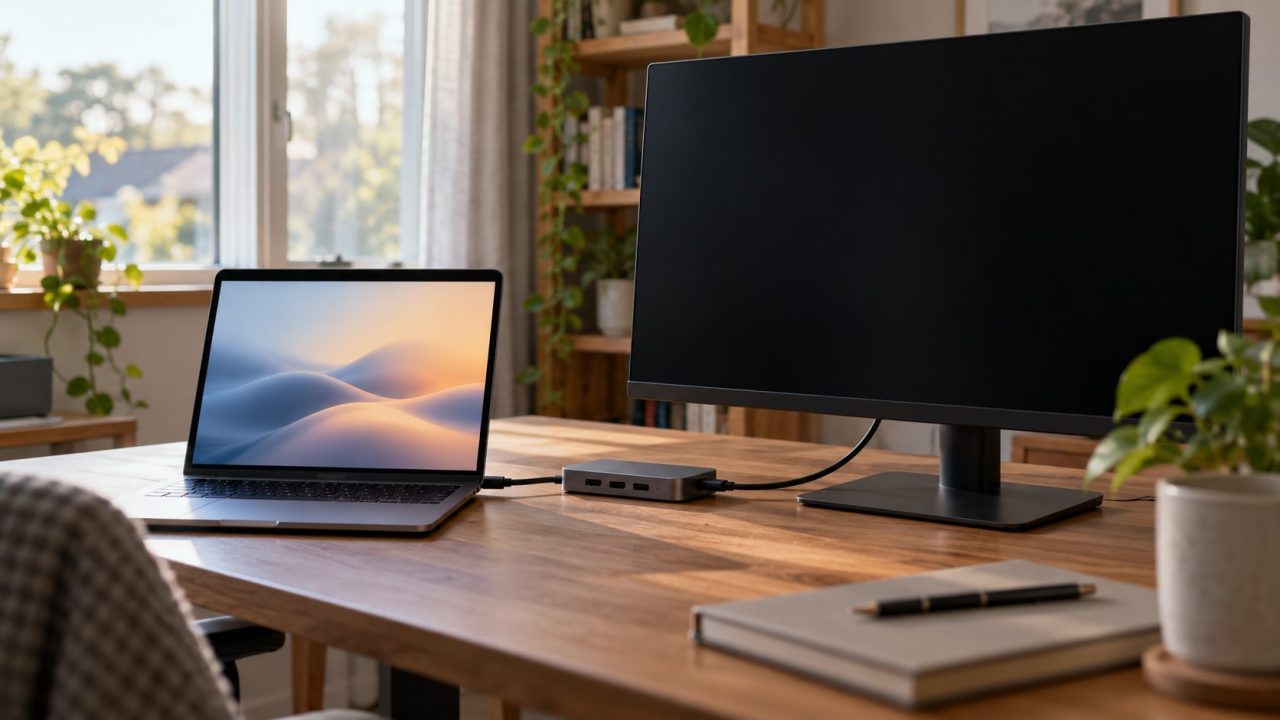
A monitor not detected Ubuntu problem that survives a cable swap usually comes down to the graphics driver, a hybrid laptop’s port wiring, or xrandr misread on Wayland.
Short answer: for any monitor not detected Ubuntu problem, run lspci -k (driver) and echo $XDG_SESSION_TYPE (Wayland or Xorg). On NVIDIA, run sudo ubuntu-drivers install, reboot with the monitor plugged in, then enable it in display settings.
Monitor Not Detected Ubuntu? Find the GPU and Driver First
Rule out the basics: reseat the cable, try another port and input, and reboot with the monitor connected. Then work out which layer is failing:
Port missing from the list
No loaded driver owns the GPU behind it. Common on hybrid laptops and new hardware.
Port says disconnected
The port sees no monitor. Suspect the cable, adapter, dock or driver.
Connected but dark
The kernel sees it, but the desktop has it switched off.
- What the kernel sees. This works on Wayland and Xorg alike:
grep . /sys/class/drm/card*-*/status
Each port prints connected or disconnected; match it to a card above. - Driver in use. Run
lspci -k | grep -EA3 'VGA|3D|Display'
and read Kernel driver in use: nvidia, nouveau, i915 or xe (Intel), or amdgpu. Two entries mean hybrid graphics; nouveau on NVIDIA means the proprietary driver isn’t loaded. - NVIDIA status.
nvidia-smishould list your card (“command not found” usually means no NVIDIA driver is installed);sudo ubuntu-drivers devicesshows the one Ubuntu recommends.
Wayland or Xorg? Check the Session Before Trusting xrandr
Run echo $XDG_SESSION_TYPE; it prints x11, wayland or tty. On Wayland, xrandr only sees Xwayland’s virtual outputs, such as XWAYLAND0, which many monitor not detected Ubuntu threads mistake for a hardware fault.
Sessions vary by release, so monitor not detected Ubuntu 22.04 advice may not fit newer versions:
| Release | Sessions | What to do |
|---|---|---|
| Ubuntu 22.04 | Xorg with NVIDIA desktop cards, else Wayland | Pick Ubuntu on Xorg at login |
| Ubuntu 24.04 | Wayland and Xorg | Check the variable; don’t assume |
| Ubuntu 26.04 | Wayland only (GNOME) | No Xorg fallback; use the Wayland tools below |
| Kubuntu 26.04 | Wayland (Plasma 6.6); X11 needs the unsupported plasma-session-x11 package | Use kscreen-doctor, not xrandr |
Install or Repair the NVIDIA Driver the Ubuntu Way
On NVIDIA, the first monitor not detected Ubuntu fix to try is a clean install from Ubuntu’s packages. Ubuntu recommends them over NVIDIA’s download: they’re signed for Secure Boot, and other drivers can overwrite them.
Open the driver tool
On 22.04 and 24.04, press Super, type Additional Drivers, pick the newest NVIDIA entry marked proprietary, tested and click Apply Changes. 26.04 doesn’t preinstall it (software-properties-gtk); this works everywhere:sudo ubuntu-drivers install
Choose the branch
RTX 50 cards need the -open driver packages, which NVIDIA also recommends for GTX 16 and RTX 20 to 40. GTX 900 and 10-series cards can’t use them; 580 is their last branch:sudo ubuntu-drivers install nvidia:580
Enroll a key if asked
Under Secure Boot (mokutil --sb-state), DKMS builds ask for a password. At the next boot, press a key at the blue MOK screen, choose Enroll MOK > Continue > Yes, enter it and reboot with the monitor plugged in. Skip it and the driver won’t load.
If a second monitor not detected Ubuntu problem began after a driver update and nvidia-smi prints “Driver/library version mismatch”, reboot to load the new module. “No devices were found” can mean nouveau has the card (lsmod | grep nouveau); Ubuntu’s NVIDIA troubleshooting page shows how to blocklist it.
Hybrid Laptops: HDMI Ports Wired to the NVIDIA GPU
Gaming laptops are behind many monitor not detected Ubuntu reports. On some models the HDMI or USB-C port is wired straight to the NVIDIA GPU, so it only works when the NVIDIA driver is loaded and PRIME isn’t set to the integrated GPU.

prime-select query prints nvidia, on-demand or intel. Intel (Power Saving) mode turns the NVIDIA GPU and its ports off; run sudo prime-select on-demand (or nvidia) and reboot. Some laptops also have a firmware mode, often called Discrete or dGPU only, that hands every port to the NVIDIA GPU.
Wayland needs NVIDIA kernel modesetting, which Ubuntu’s packages enable. This should print Y (ignore forum advice to set it to 0):cat /sys/module/nvidia_drm/parameters/modeset
No such file means the module isn’t loaded. If it prints N, find the setting with grep -r 'nvidia.drm' /etc/modprobe.d/ /lib/modprobe.d/ and change the options nvidia-drm modeset=0 (or nvidia_drm) line to modeset=1. Leave any options nouveau modeset=0 line alone. If nvidia-drm.modeset=0 is in GRUB_CMDLINE_LINUX_DEFAULT in /etc/default/grub, delete it and run sudo update-grub. Then run sudo update-initramfs -u and reboot.
On Xorg in On-Demand mode, reverse PRIME can light up that port. If xrandr --listproviders shows NVIDIA-G0, run this with your iGPU’s listed name (modesetting on Intel), then xrandr --auto:xrandr --setprovideroutputsource NVIDIA-G0 modesetting
Both reset at login, so add them to startup applications (NVIDIA’s RandR 1.4 README).
Intel and AMD Graphics, USB-C Docks and DisplayLink
On Intel and AMD, a monitor not detected Ubuntu issue can mean the kernel is older than the GPU or its USB-C outputs. Desktop installs track the HWE kernel: 6.8 is final for 22.04, while 24.04.5 and 26.04 run 7.0. Update and reboot:sudo apt update && sudo apt full-upgrade
If uname -r on 22.04 still shows 5.15, runsudo apt install --install-recommends linux-generic-hwe-22.04
That update also replaces 24.04’s 6.17 kernel, which could panic with USB-C daisy-chained monitors (Launchpad bug 2141225); until then, connect them separately.
Docks are the other common monitor not detected Ubuntu culprit: if the monitor works plugged straight into the laptop, suspect the dock or cable. DisplayLink docks (lsusb | grep -i displaylink) need Synaptics’ driver, which supports 22.04, 24.04 and 26.04; under Secure Boot, its EVDI module needs MOK enrollment.
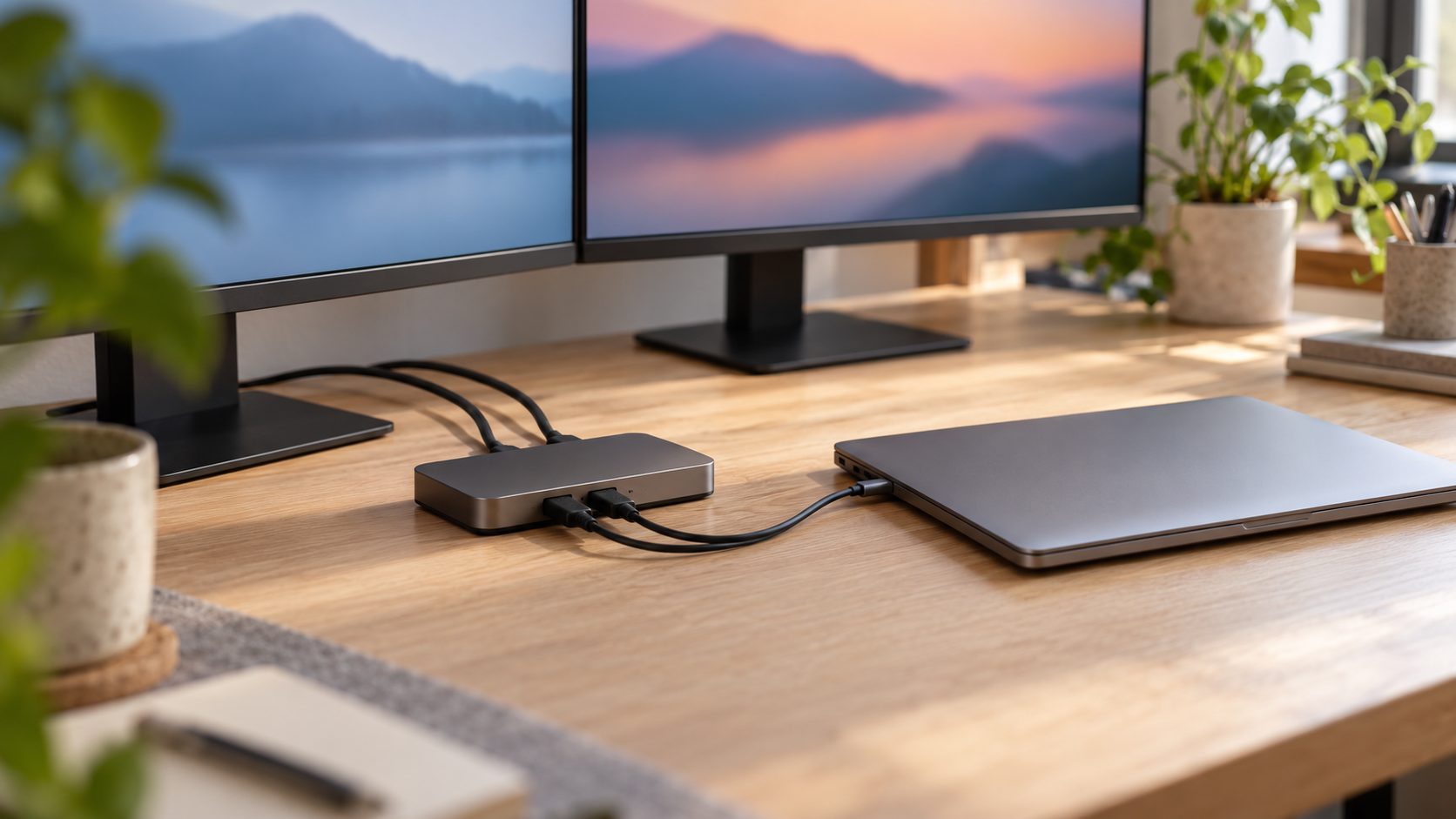
Turn the Monitor On in GNOME, KDE Plasma and Linux Mint
In GNOME (Ubuntu), open Settings > Displays, choose Join Displays or Mirror and click Apply, then Keep Changes within 20 seconds. There’s no Detect button: replug the cable or press Super+P.
Another monitor not detected Ubuntu cause survives reboots: a stale saved layout that keeps that screen disabled. Rename it, then log out and back in:mv ~/.config/monitors.xml ~/.config/monitors.xml.bak
On Xorg only, xrandr lists outputs as connected or disconnected; turn one on by its listed name, for example:xrandr --output HDMI-1 --auto --right-of eDP-1
- KDE Plasma (Kubuntu). Use System Settings > Display & Monitor or Meta+P.
kscreen-doctor -olists outputs;kscreen-doctor output.HDMI-A-1.enable
turns one on. To reset layouts, move aside ~/.config/kwinoutputconfig.json (Plasma 6) or ~/.local/share/kscreen/ (Plasma 5.27). - Linux Mint (Cinnamon). Mint 22.x is built on Ubuntu 24.04, so the monitor not detected Ubuntu driver, kernel and dock fixes above apply. Use Menu > Preferences > Display and Driver Manager; rename ~/.config/cinnamon-monitors.xml to reset the layout.
Fedora Notes, Logs and Safe Config Edits
On Fedora, the diagnostics in this monitor not detected Ubuntu guide carry over, but there’s no ubuntu-drivers or prime-select, and kernel arguments go through grubby. GNOME has been Wayland-only since Fedora 43, KDE since 40.
For NVIDIA, enable RPM Fusion’s free and nonfree repositories. With Secure Boot on, create and import a signing key before installing the driver, as RPM Fusion advises:sudo dnf install kmodtool akmods mokutil opensslsudo kmodgenca -asudo mokutil --import /etc/pki/akmods/certs/public_key.der
Reboot and enroll it at the MOK screen, then install akmod-nvidia (akmod-nvidia-580xx for GTX 900 and 10-series), wait about five minutes for the build, check modinfo -F version nvidia and reboot. Skip nvidia-drm.modeset=1; RPM Fusion says it clashes with a Fedora kernel patch.
Still stuck? With the monitor plugged in, runsudo dmesg | grep -iE 'drm|edid|nvidia'
Invalid or empty EDID messages point to the cable, adapter or dock. Reporting a monitor not detected Ubuntu bug with ubuntu-bug? Keep the monitor connected.
No fix here needs a hand-written xorg.conf, and Ubuntu doesn’t create one. If a guide insists, back up any existing file:sudo cp /etc/X11/xorg.conf /etc/X11/xorg.conf.bak
Black screen afterwards? Press Ctrl+Alt+F3, log in, restore the backup (or move the new file aside if none existed) and reboot:sudo mv /etc/X11/xorg.conf.bak /etc/X11/xorg.conf
Monitor Not Detected Ubuntu: Common Questions
Can I still switch to Xorg on Ubuntu 24.04 or 26.04?
On 24.04, yes, from the gear icon on the login screen. On 26.04, Ubuntu’s GNOME session is Wayland-only.
Can Secure Boot cause a monitor not detected Ubuntu problem?
Yes, if it stops the NVIDIA module loading, but you rarely need to disable it: Ubuntu’s packaged drivers are signed by Canonical. Only DKMS-built modules, DisplayLink’s EVDI included, need a MOK key.
The monitor is detected but shows no signal. What now?
In display settings, drop that monitor’s refresh rate to 60 Hz and its resolution one step. If the picture appears, the cable, adapter or dock can’t carry the higher mode; use a rated cable or connect directly.
Recap: Driver, Session, Then Settings
Work through a monitor not detected Ubuntu problem in this order: driver, session, NVIDIA install, hybrid wiring, kernel or dock, then display settings and the saved layout.
Works in Windows on the same cable and port? Then the fault is on the Linux side. For that PC’s Windows half, see our guides to an SSD not showing up and a problem resetting your PC, or browse more computer guides.


Leave a comment