

How to Fix Laptop Hinge Problems: Loose, Stiff, Cracked or Bulging
A floppy screen, a creaking lid that cracks the case, or a bulging gap: match the symptom, then tighten, replace or repair without tearing the display cable.
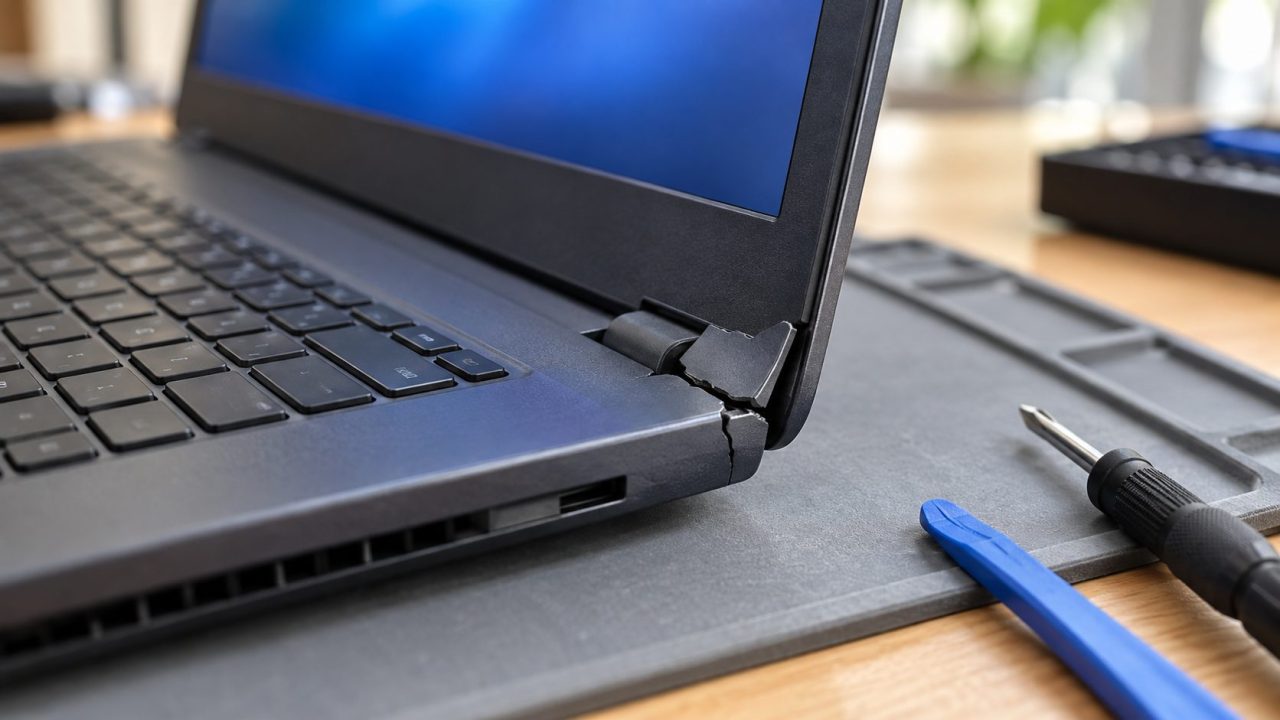
Before you figure out how to fix laptop hinge damage, pin down what failed. A floppy screen usually means loose screws; a creaking lid that cracks the case often means a stiff hinge has torn out its screw posts. A bulging case may be a swollen battery: stop charging and check that first.
Some call the hinge the laptop joint. Screws and steps vary by model, so the numbers below are examples.
How to Fix Laptop Hinge Problems: Start With the Symptom
Open and close the lid slowly, watching the base, corners and screen, then jump to the section on how to fix laptop hinge problems of that kind.
| What you see | Likely cause |
|---|---|
| Bulging case, edge gap, lid won’t close | Swollen battery |
| Screen wobbles or flops back | Loose hinge screws |
| Won’t hold its angle, screws tight | Hinge has lost its friction |
| Stiff, creaking lid | Seizing hinge |
| Crack in the case beside the hinge | Torn-out screw posts |
| Flicker or black screen as the lid moves | Loose or damaged display cable or connector |
Why Is My Laptop Expanding? Rule Out a Swollen Battery
A laptop that seems to be expanding usually has a swollen lithium battery pushing the case apart; HP notes it can affect the touchpad, keyboard and chassis. If that matches, forget about how to fix laptop hinge screws for now: the hinge is fine. Lenovo’s battery best-practices page lists the causes: heat, long periods at full charge, extended cycling, deep discharge in storage, and drop damage.
Stop charging, shut down and unplug. Don’t press the bulge, force the lid shut or pry the battery out: a punctured lithium battery can catch fire. Lenovo warns that rare cases of heavy swelling turn hazardous, so have the maker or an authorized shop replace it.
If you get the old battery back, treat it as damaged: the US EPA says to ask the maker how to handle it, bag it alone, tape the terminals and keep it out of trash and recycling. Check that your local drop-off takes damaged packs.
For always-plugged-in laptops, Lenovo suggests a Vantage Battery Charge Threshold of 80% or less to slow swelling; select HP models offer Battery Health Manager or Adaptive Battery Optimizer.
Before You Open It: Warranty, Manual and Battery Power
Every fix below starts with the bottom cover off, so check these first; the warranty may mean you never need to learn how to fix laptop hinge parts yourself.
- Check the warranty. HP says opening the display and hinges can damage the computer or void the warranty. Wear is often covered, drop damage usually needs accidental-damage cover, and local consumer law may apply after the warranty ends.
- Find your model’s manual. Search the model plus “service guide” or “maintenance manual”; the HP ProBook 4 G2i 14 guide (a 19 MB PDF) is typical.
- Cut battery power. Shut down, unplug everything, remove the bottom cover and lever the battery connector off with a nonconductive pry tool, not the screwdriver (HP warns metal can short it). ThinkPads can instead disable the battery in setup: turn off Fast Startup (Control Panel > Power Options > Choose what the power buttons do > Change settings that are currently unavailable), restart, press F1 at the logo and choose Config > Power > Disable built-in battery, then let it cool.
If the trouble started after a spill, work through our laptop water damage guide first.
Loose or Floppy Screen: How to Fix Laptop Hinge Screws
Hinge screws sit in two places: on the HP example, five hold the display assembly to the base and three fix each hinge to the lid. Base screws hide under the bottom cover or feet; lid screws, behind hinge covers or the bezel.
Firm, not forced
Here’s how to fix laptop hinge wobble without stripping anything: don’t crank the screws down. Hinge screws usually go into brass inserts or a metal frame, so use the manual’s torque if listed (0.294 Nm on the ThinkPad E14 Gen 2). Otherwise, turn a precision driver with your fingertips until the screw stops firmly.
Lenovo’s “extra 90 degrees” rule applies to screws going into plastic, not hinge brackets. If every screw is tight and the screen still won’t stay put, the hinge’s friction is worn out; most can’t be adjusted, so fit a replacement pair.

Chewed or spinning screws
Replace a chewed-up screw with the same size. One that spins without tightening means the thread in the insert or post has stripped and a new screw won’t bite either; see the screw-post repair below.
Length matters: on the ThinkPad E14 Gen 2 the lid-side hinge screws are M2.5 x 2.2 mm and the base-side display screws M2.5 x 6 mm. Swap them and the long screw can push through to the panel.
Stiff Hinge, Cracked Case or Broken Screw Posts
When a laptop hinge “breaks,” the metal part is usually fine. The plastic screw posts or brass inserts around it give way, which is why laptop case cracking starts next to the hinge.
A stiff hinge pushes harder on those posts each time you open the lid. So when you plan how to fix laptop hinge cracks, replace the stiff hinge first and stop re-tightening screws into cracked posts.
Replacement part or epoxy?
A new top cover or bottom case for your model is the lasting chassis fix. Otherwise, here’s how to fix laptop hinge posts with epoxy: clean and rough up both surfaces, then reseat any loose brass insert with two-part epoxy.
Fit the hinge loosely with a waxed screw to keep the insert aligned, and remove the screw before full cure. Clamp cracked pieces and follow the label for cure time. It’s a stopgap: epoxied posts are weaker than the original molding and can fail again.
Keep epoxy and super glue off the hinge mechanism and out of the threads; a hinge glued solid levers the case apart elsewhere. Shims in a wobbly hinge only hide the problem.
Replacing the Hinge Without Tearing the Display Cable
If the hinge is cracked, seized or worn out, this is how to fix laptop hinge damage for good: a part for your exact model, ideally both sides. HP’s ProBook 4 G2i 14 kit includes both hinges plus panel and bezel adhesives.
On the HP example, the display and Wi-Fi antenna cables pass through a metal clip at the hinge, and HP warns flex cables tear easily. A pinched cable or loose connector can cause flicker, a blank screen, or webcam and Wi-Fi faults; reseat connectors before buying a cable.
Disconnect the cables
With the battery unplugged, photograph the routing. Release the display cable at the board (often a ZIF latch), pop the antenna leads off the Wi-Fi card and lift both out of the hinge clips.
Lift off the display
Support the lid, remove the base hinge screws and lift the display assembly away; HP opens it to about 170 degrees first.
Swap both hinges
The ThinkPad E14 Gen 2 needs the bezel off first. Start screws by hand, then tighten to the manual’s torque or fingertip-firm.
Reroute and test
Clip cables back as photographed; fit new bezel adhesive if yours uses it. Reassemble fully and connect the charger before first power-on, then move the lid slowly, watching for flicker.

How to Fix Laptop Hinge Issues on HP, Lenovo, Acer and Dell
The basics of how to fix laptop hinge problems don’t change by brand; the manual, parts and warranty help do.
HP
HP points owners to the HP Support YouTube channel for step-by-step videos and to PartSurfer, which finds the hinge kit by serial or product number (P98026-001 on the ProBook 4 G2i 14).
Lenovo
Lenovo’s Hardware Maintenance Manuals, like the ThinkPad E14 Gen 2 manual, are its official word on how to fix laptop hinge parts: disassembly order, screws and torque. That one lists the hinges as not customer-replaceable; Parts Lookup finds the kit by serial number.
Dell and Acer
On Dell’s support site, enter the Service Tag from the bottom label and open Manuals and Documents; most models have an official Service Manual covering hinge removal. Acer’s site takes the serial number or SNID for manuals, warranty and repairs, but full service guides often aren’t public. To learn how to fix laptop hinge parts on an Acer, you may need a teardown guide or an authorized service center.
Frequently Asked Questions
Can I fix a laptop hinge without a screwdriver?
Not really: whichever guide on how to fix laptop hinge problems you follow starts with opening the case. Without tools, you can only reduce strain: open the lid from the center and don’t force it past its normal angle.
Is it safe to keep using a laptop with a broken hinge?
A broken hinge isn’t dangerous by itself, but every open and close strains the display cable inside, so stop if the screen flickers as the lid moves. If a drop also cut your wired internet, see fixing a laptop Ethernet port.
How do I fix a dent in my laptop case?
Most dents are cosmetic. If one makes the lid rub, binds the hinge or presses on the battery (Lenovo lists deformation as a swelling cause), replace that case part.
Recap: Diagnose First, Then Fix the Cause
Knowing how to fix laptop hinge trouble comes down to diagnosis: tighten loose screws gently, replace a stiff or worn-out hinge before repairing the plastic, and treat a bulging case as a battery problem. Under warranty or out of your depth? Hand it to the maker or a repair shop.
Once you know how to fix laptop hinge damage, prevent a repeat: open the lid from the center, don’t lift the laptop by the screen and keep weight off the lid. More fixes are in our computer guides.



Leave a comment