

How to Fix a WiFi Adapter That’s Missing or Not Working on Windows
No WiFi button, a yellow warning or no adapter at all? Match what Windows shows, read the Device Manager code, then fix the driver, the BIOS switch or the card.
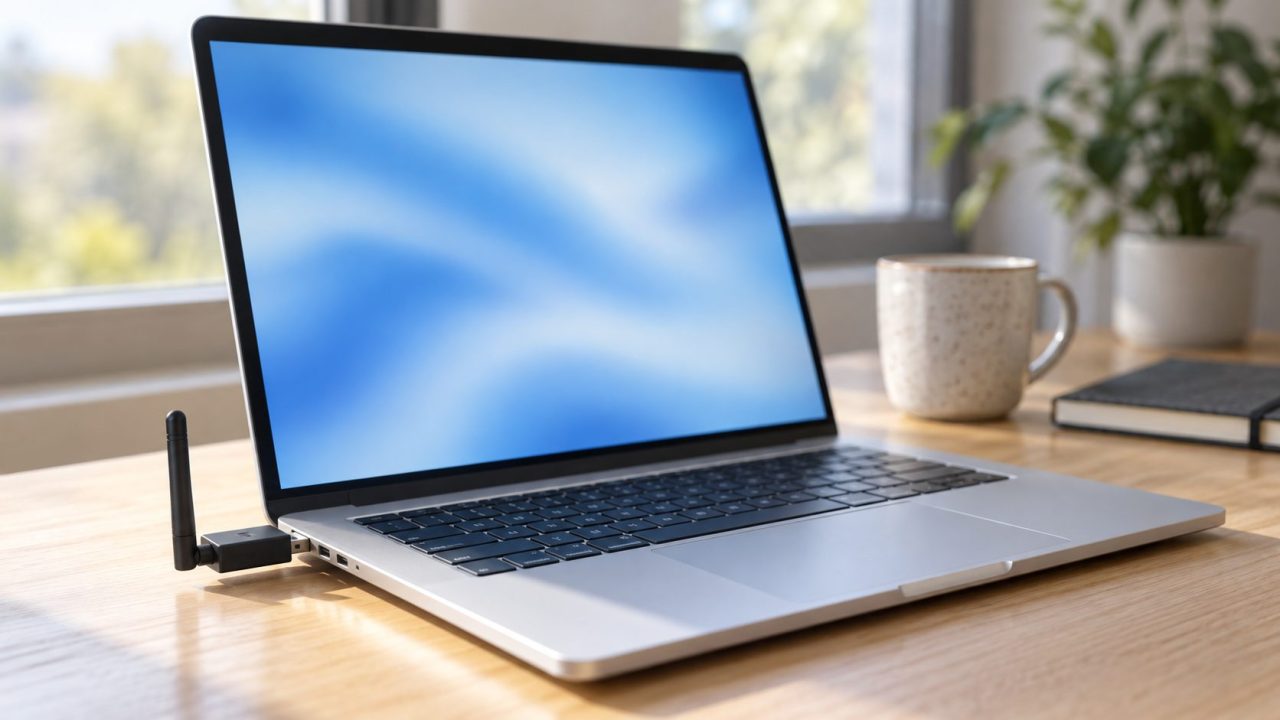
Working out how to fix WiFi adapter problems on Windows starts with what the screen shows: a WiFi button that’s off, no button at all, an adapter with a yellow warning, or no adapter anywhere. Each points to a different fix, and the free, safe checks come first.
This covers built-in and USB adapters on Windows 10 and 11; phones have their own Android and iPhone WiFi guides.
How to Fix WiFi Adapter Problems: What Your Screen Tells You
The answer to how to fix WiFi adapter trouble depends on the symptom. An Off button is a setting, a missing button usually means Windows can’t use the adapter, and a warning icon carries an error code.
WiFi button is off
Airplane mode, a key or a switch. Start here.
No WiFi button
Disabled, hidden or a stopped service. Device Manager.
Yellow warning icon
A device error with a code. Look it up.
Gone after an update
Usually the new driver. Roll it back.
WiFi and Bluetooth both gone
One shared card or a firmware switch. Check the BIOS.
USB adapter not recognized
Port, hub or driver. USB fixes.
Airplane Mode, the WiFi Key and a Real Restart
Select the network icon on the taskbar (Win + A on Windows 11) and check that Wi-Fi is on and Airplane mode is off (also in Settings > Network & internet > Airplane mode). Both are the first general steps on Microsoft’s WiFi troubleshooting page for Windows 10 and 11.
On a laptop, also look for a wireless switch or a key with an antenna or airplane icon, often on the F-row and sometimes pressed with Fn.
Restart, don’t shut down
Fast Startup (on by default since Windows 8) makes Shut down save the loaded kernel drivers and restore them at boot, so a stuck WiFi driver survives it. Start > Power > Restart loads them fresh.
Still missing? Shut down, unplug the charger, dock and USB devices, hold the power button for 15 to 30 seconds, then start up and Restart. When you’re working out how to fix WiFi adapter faults, do this free step early: it can clear a card stuck in a bad power state.
Find the Adapter in Device Manager
Right-click Start, choose Device Manager and expand Network adapters; the WiFi adapter’s name usually includes Wireless, Wi-Fi, WLAN or 802.11. Its icon shows how to fix WiFi adapter issues from here:
- Down arrow. It’s disabled: right-click it and choose Enable device.
- Yellow warning. A device error; read its code.
- Not listed. Windows may not be detecting it. Choose View > Show hidden devices, then Action > Scan for hardware changes.
A grayed-out entry means Windows remembers the card but can’t see it: it may be off in firmware, powered down or failed. Try the power drain and BIOS checks before reinstalling drivers.
No WiFi button, but the adapter looks fine?
Here’s how to fix WiFi adapter trouble caused by a stopped service: open services.msc (Win + R), right-click WLAN AutoConfig and choose Restart, or Start if it’s stopped. If Start is grayed out, open Properties, set Startup type to Automatic, select Apply, then Start.
What Code 10, Code 43 and Other Device Manager Errors Mean
Double-click the adapter and read Device status on the General tab. That code tells you how to fix WiFi adapter errors, and Microsoft’s list of Device Manager error codes gives each its own next step:
| Code | Meaning | Next step |
|---|---|---|
| 10 | Device cannot start | Update Driver, with the maker’s latest |
| 22 | Device is disabled | Enable Device |
| 28 | Drivers not installed | Uninstall, then Scan for hardware changes |
| 31 | Drivers can’t load | Update Driver |
| 43 | Driver reported a failure | Reinstall; if it returns, check hardware |
| 45 | Device not connected | Normal for an unplugged USB adapter |
| 52 | Signature can’t be verified | Get the maker’s latest driver |
If Code 43 survives a clean reinstall and a power drain, see the hardware checks.
How to Fix WiFi Adapter Drivers: Back Up, Roll Back, Reinstall
If WiFi vanished right after an update, suspect the driver. Knowing how to fix WiFi adapter drivers safely comes down to order: save a working driver first, or a reinstall can leave you offline.
Save a backup driver
Put the PC maker’s driver for your exact model on a USB stick, using another PC if needed. To also export installed third-party drivers (Windows 10 1607 or later), run as admin:mkdir C:\backuppnputil /export-driver * C:\backup
Drivers built into Windows aren’t exported; Windows keeps those. See Microsoft’s PnPUtil examples.
Roll back after an update
Open the adapter’s Properties > Driver > Roll Back Driver, pick a reason, choose Yes and restart if asked (admin rights needed). A grayed-out button means no older driver is stored.
Install the maker’s driver
Run the PC maker’s installer as administrator. For a ZIP of .inf files, extract it and use Update driver > Browse my computer for drivers. Intel cards can also take Intel’s own driver; Realtek, Qualcomm and MediaTek ones usually come from the PC or adapter maker. Skip driver-updater apps.
Do a clean reinstall
Right-click the adapter, then Uninstall device. Tick Attempt to remove the driver for this device (Windows 10: Delete the driver software for this device) only if your replacement is on hand. Restart; if it doesn’t come back, use Scan for hardware changes or install your backup:pnputil /add-driver C:\backup\*.inf /subdirs /install
WiFi Off in the BIOS, or WiFi and Bluetooth Gone Together
Check the firmware switch
Firmware can switch WiFi off below Windows, so checking setup is how to fix WiFi adapter problems that no driver touches. Many PCs have a WLAN or wireless enable option there (names vary); check it after any BIOS update or reset.
Many Windows 11 laptops encrypt the drive by default, and firmware changes can trigger BitLocker recovery. Find your recovery key first (usually at account.microsoft.com/devices/recoverykey) and change only the wireless option. Loading setup defaults can change Secure Boot or the storage mode, and Windows may then ask for the key or fail to boot.
Commercial models have a Wi-Fi & Bluetooth slider on the UEFI Devices page. To open UEFI, shut down, hold Volume-Up, press and release Power, and keep holding until UEFI appears.
Why WiFi and Bluetooth fail together
Many laptops put both on one combo card, such as Intel’s AX211. That tells you how to fix WiFi adapter faults that take Bluetooth down too: look for one cause, not two.
Do the power drain and firmware check, then reinstall both drivers from the PC maker’s support page. If both radios are missing everywhere, including a BIOS that normally lists the card, the card or its slot has likely failed.
USB WiFi Adapter Not Working, and When the Card Is Dead
For a USB dongle, here’s how to fix WiFi adapter detection: port first, then driver. Reseat it and try another port on the PC itself, not a hub.
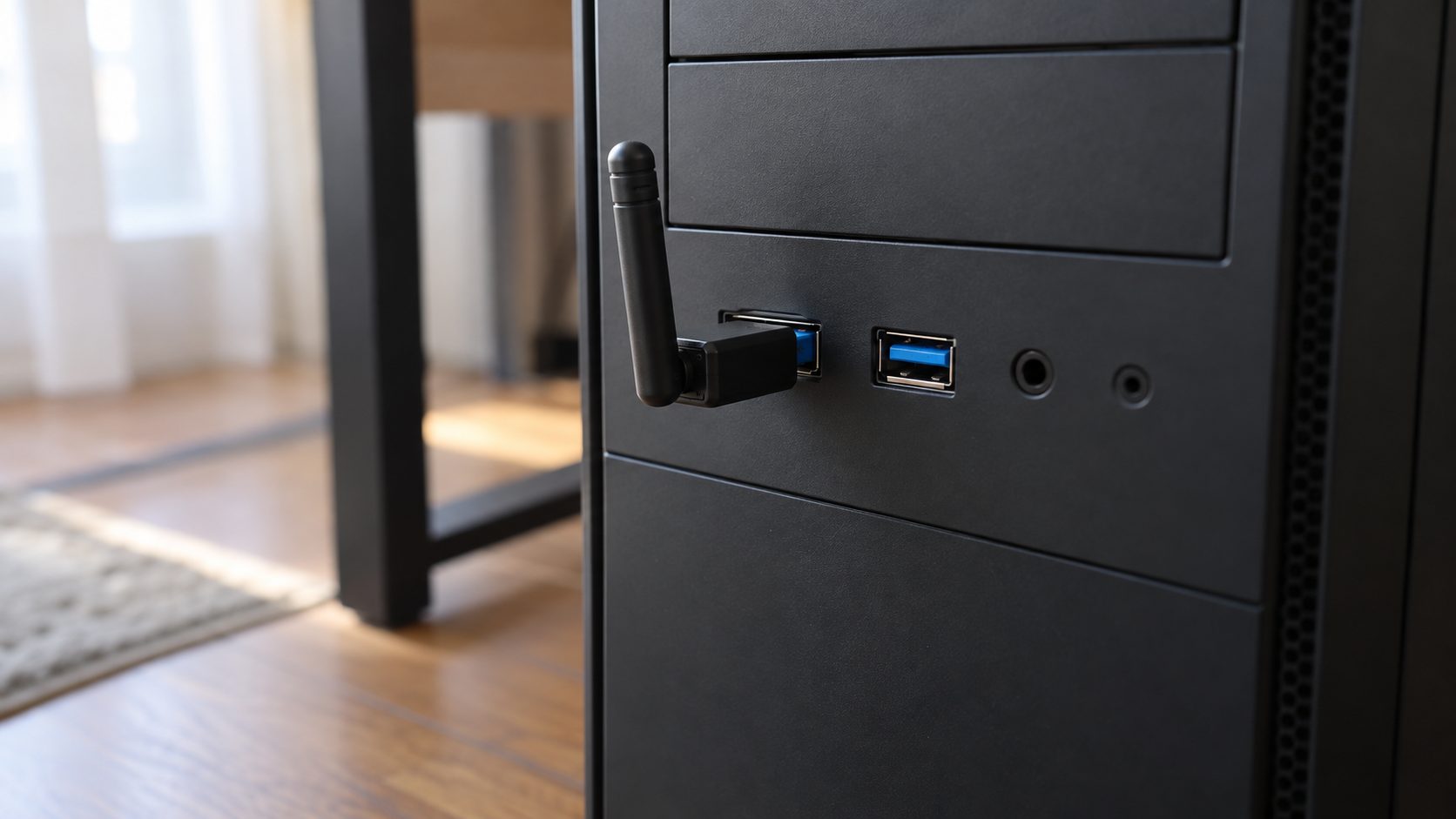
A USB 3.0 dongle needs a USB 3.0 port (often blue or marked SS); USB 2.0 caps at 480 Mbps. On a tower, a front port or short extension cable beats the rear panel, and the cable moves the dongle away from other USB 3.0 ports and drives, which can interfere on 2.4 GHz. If Windows Update swapped the driver, reinstalling the adapter maker’s version is how to fix WiFi adapter trouble that began with the update.
Signs the internal card has failed
Run your PC maker’s diagnostics if they test wireless (many HP PCs: Esc, then F2 at power-on; Dell: F12, then Diagnostics). The card is likely dead if the diagnostics fail it, it’s gone from a BIOS that normally lists it, or Code 43 survives a clean reinstall. Then your warranty decides how to fix WiFi adapter hardware.
Reseat the card and antenna leads only if the service manual calls it user-replaceable; some are soldered. Shut down, unplug the charger, disconnect the internal battery as the manual describes and touch bare metal to discharge static. Meanwhile, a USB WiFi adapter is a sound stopgap.
Quick Answers About Missing WiFi Adapters
Why did my WiFi adapter disappear from Device Manager?
Usually it’s hidden, off in the BIOS, stuck after sleep or Fast Startup, broken by a driver update, or dead. Check hidden devices and drain power before touching the driver.
How do I fix a WiFi adapter driver when the PC has no internet?
Use Ethernet, USB tethering from an Android phone, or the maker’s driver on a USB stick. That’s how to fix WiFi adapter drivers offline; without a backup, leave the remove-driver box unticked when uninstalling.
Why is my laptop WiFi not turning on?
Here’s how to fix WiFi adapter problems on a laptop, in order: the wireless key or switch and Airplane mode, a Restart, then Device Manager and the BIOS. If Bluetooth died too, see the shared card checks.
Switches First, Hardware Last: The Order That Saves Time
That’s how to fix WiFi adapter trouble with the least wasted time: switches and a real Restart, Device Manager and its code, the BIOS switch if the adapter is missing, a backed-up driver fix, then hardware.
Adapter fine but can’t join your network? The troubleshooter and network reset are in our Windows 11 won’t connect to WiFi guide; more fixes are in our internet guides.


Leave a comment