

Router Keeps Disconnecting Ethernet? Fix Drops and Slow Link Speed
Read the Ethernet link speed on Windows or Mac first, then fix what it points to: a worn cable, a 10/100 port, PC power saving, powerline or a mesh satellite.
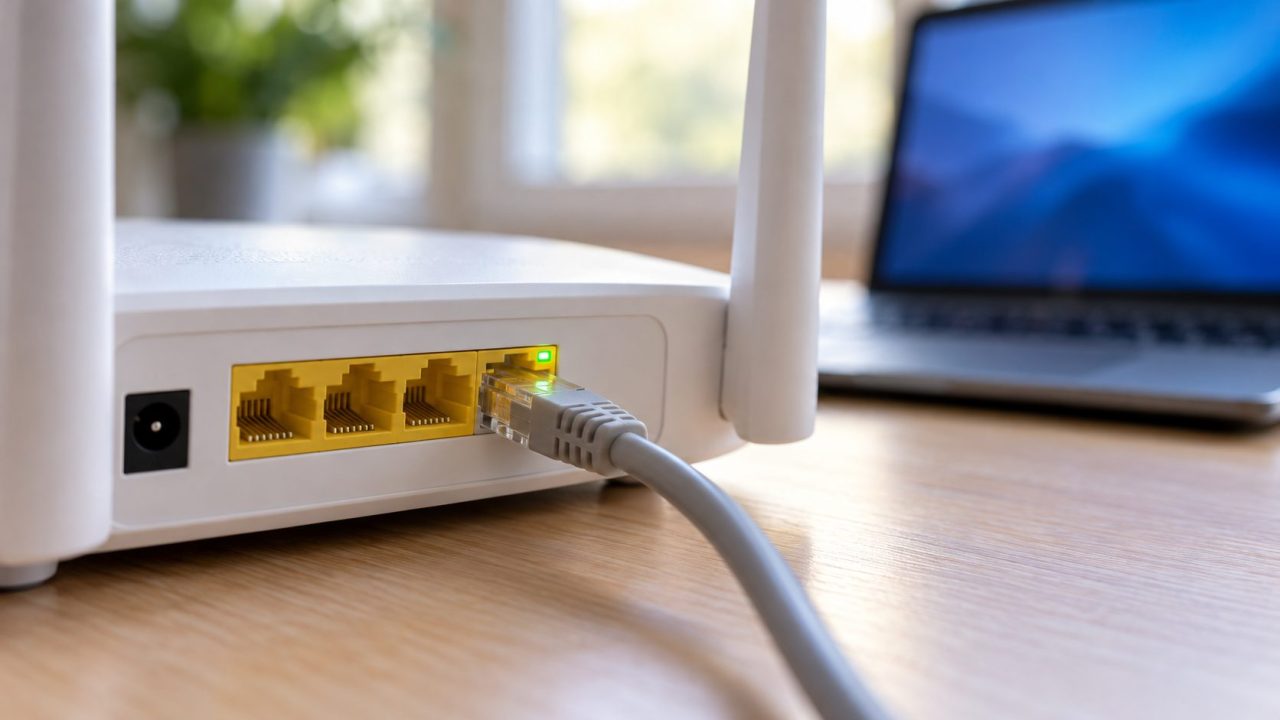
When your router keeps disconnecting Ethernet devices, or a cable runs slower than Wi-Fi, check the link speed first. That one reading sorts most cases into a cable or port fault, PC power saving, or a “wired” path that really runs through powerline or a mesh satellite.
Router Keeps Disconnecting Ethernet? Read the Link Speed First
Link speed is the rate your computer and router agreed on: 1 Gbps on gigabit gear, 2.5 Gbps when both ends are 2.5 GbE. A lower reading points to the cable or a slower part in the path; one that keeps changing means a flapping link. If your router keeps disconnecting Ethernet, this number tells you where to look.
Windows 11
Open Settings > Network & internet > Ethernet and read Link speed (Receive/Transmit); 1000/1000 (Mbps) is gigabit. In PowerShell, check Status and LinkSpeed with:Get-NetAdapter -Physical
The -Physical switch hides VPN and virtual adapters, which report nominal speeds.
macOS
Open Apple menu > System Settings > Network, pick the Ethernet service, then Details > Hardware (on Monterey or earlier: System Preferences > Network > Ethernet > Advanced > Hardware). With Configure on Automatically, the grayed-out Speed and Duplex show the link, such as 1000baseT, full-duplex. In Terminal, find the device name (often en0):networksetup -listallhardwareports
Then read its media line:ifconfig en0 | grep media
What 1 Gbps, 100 Mbps, 10 Mbps or a Dropping Link Means
Check again right after each drop. When a router keeps disconnecting Ethernet because of a failing link, it often reconnects slower.
1 Gbps, and it stays put
Cable and ports are probably fine. If the router keeps disconnecting Ethernet anyway, rule out the internet, then PC power saving.
100 Mbps on gigabit gear
A damaged pair, a Cat5 or four-wire cable, a 10/100 port, switch, adapter or powerline unit, or a forced speed.
10 Mbps
Usually a badly damaged cable or connector, so swap it first. If it appears only after sleep, check power saving.
A speed that changes or drops
The link keeps renegotiating: a loose plug, a broken latch clip, a failing pair or Energy-Efficient Ethernet.
Is the Ethernet Link Dropping, or the Internet?
Two failures look alike when a router keeps disconnecting Ethernet: the link drops, or only the internet does. Ping the router (the Default Gateway in ipconfig) and an internet address in two windows:ping -t 192.168.1.1ping -t 8.8.8.8
Use your own gateway; on a Mac, use the Router line under Details > TCP/IP and drop -t, since Mac ping runs until Control-C.
If both fail and the port light goes out, or Control Panel > Network Connections shows “Network cable unplugged” (Settings: Not connected), the router keeps disconnecting Ethernet at the link level: check the cable, port and power saving. If both fail but the link stays up, suspect the router (did its uptime reset? is it hot?) or a lost IP address, covered below.
If only the internet ping fails, the drop is upstream: see our guides for when the router keeps disconnecting everyone or keeps kicking devices off one at a time.
Why Is My WiFi Working but Not My Ethernet?
If Wi-Fi works but the router keeps disconnecting Ethernet, or the cable never connects, check the port lights: none at either end means no physical link. Reseat both plugs or try another cable, using a LAN port rather than the WAN or Internet port the modem uses. Then run ncpa.cpl from Win + R and enable the adapter if it says Disabled.
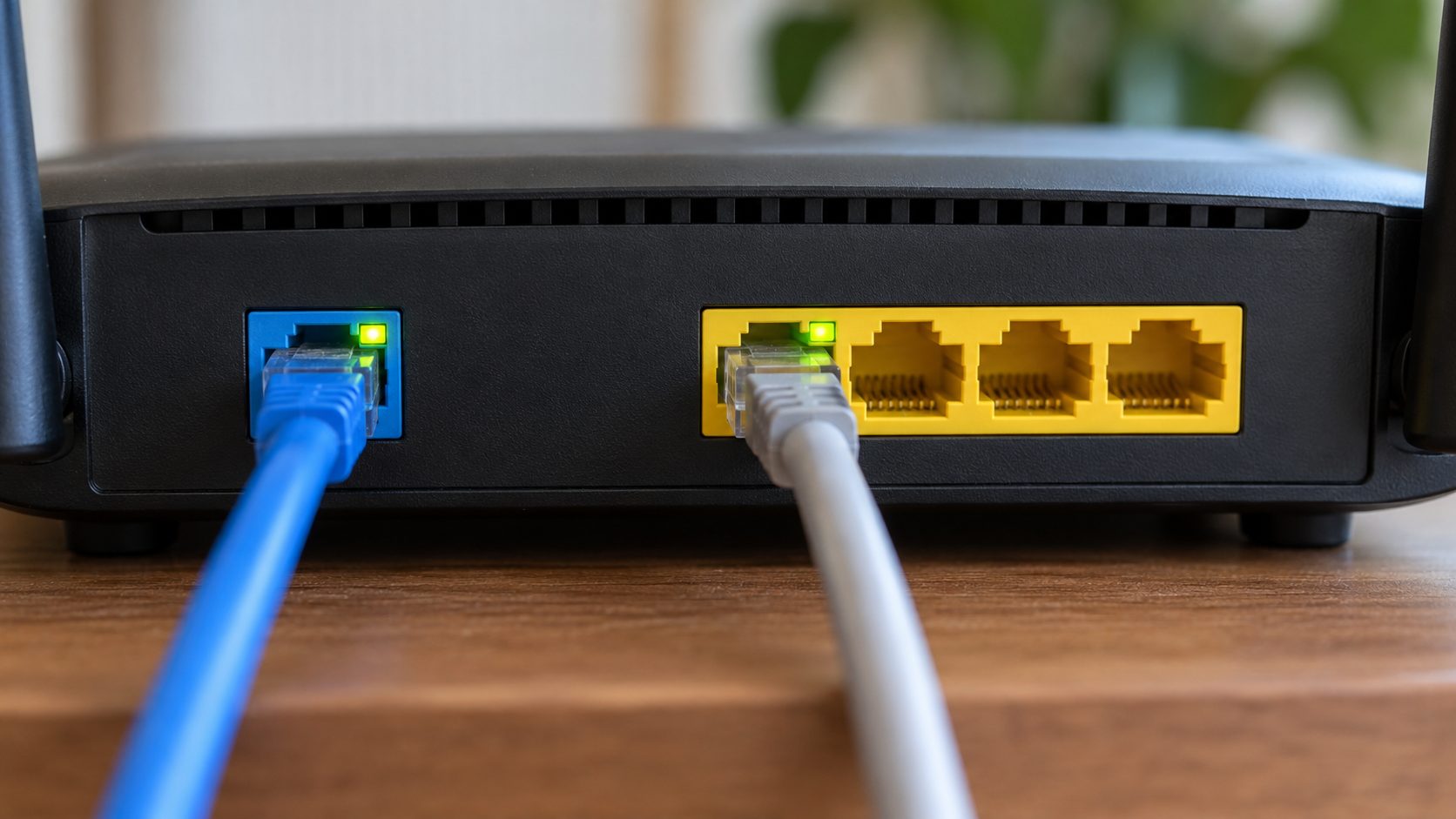
A link light but no internet often means an addressing problem: a 169.254.x.x address in ipconfig means the router’s DHCP server didn’t answer. Check that DHCP is on in the router’s LAN settings and that Settings > Network & internet > Ethernet shows IP assignment as Automatic (DHCP).
Then power-cycle: unplug the router and modem for about 30 seconds, plug the modem in first, and reconnect the router once the modem’s lights settle. If that fails, Microsoft’s Ethernet fix list adds the Get Help troubleshooter, command-line resets and, last, Network reset, which returns every adapter to default settings. Write down any static IP, DNS or VPN settings before those resets.
Swap the Cable, Then the Router Port
A known-good Cat5e or Cat6 cable is the fastest test when the router keeps disconnecting Ethernet on one device. Check the old one for kinks and a broken latch clip.
Fast Ethernet (100 Mbps) uses two pairs, on pins 1, 2, 3 and 6; gigabit uses all four. A four-wire cable, or a fault on the two pairs Fast Ethernet skips, still carries 100 Mbps, so the link caps there or keeps dropping. A fault on pins 1, 2, 3 or 6 usually kills the link.
NETGEAR’s cable table, citing TIA standards, rates Cat5 at 100 Mbps and Cat5e at 1 Gbps, up to 100 m. Replace any “CAT5” cable (no “e”) that reads 100 Mbps, including the modem-to-router one, since a 100 Mbps link there caps every device.
Router port
Try another LAN port. Some budget and ISP routers have 100 Mbps Fast Ethernet ports.
Switch
Plug straight into the router once. An old 10/100 switch caps everything behind it.
USB adapter
Many cheap ones are 10/100. A gigabit adapter on a USB 2.0 port can read 1 Gbps yet deliver far less; use a USB 3 port.
Firmware
Update it from the router’s app or admin page; menus vary by brand.
PC Fixes When the Router Keeps Disconnecting Ethernet
With the cable and port ruled out, check the PC. Right-click Start, open Device Manager > Network adapters, and double-click your Ethernet adapter.
On the Power Management tab, clear Allow the computer to turn off this device to save power. On the Advanced tab, disable Energy-Efficient Ethernet, Advanced EEE, Green Ethernet or Power Saving Mode; names vary by driver. These matter most when the router keeps disconnecting Ethernet while the PC sits idle.
Intel’s adapter guide notes that EEE saves power only when both ends have it on and can add a little latency as the link wakes. If your router has an EEE option, turn it off there too.
Forcing “1.0 Gbps Full Duplex” is common advice, but Intel says the setting must match the other end, and most home routers can’t set port speed, so forcing one side risks a mismatch. If yours shows a fixed value, set it back to Auto.
Driver: if the adapter is missing from Device Manager, or the router keeps disconnecting Ethernet after all that, replace the driver. Download it from the PC or motherboard maker first and keep it on a USB drive, then uninstall the adapter with its driver (if it’s listed), restart, and install the saved copy if Windows doesn’t.
Why Is My WiFi Faster Than Ethernet?
A healthy gigabit cable should match or beat Wi-Fi on most home plans, though speed tests over it top out around 940 Mbps. If Wi-Fi is quicker or simply works better, the wired path is stuck at 100 Mbps somewhere, isn’t a cable all the way, or your plan outruns the port.
Powerline adapters
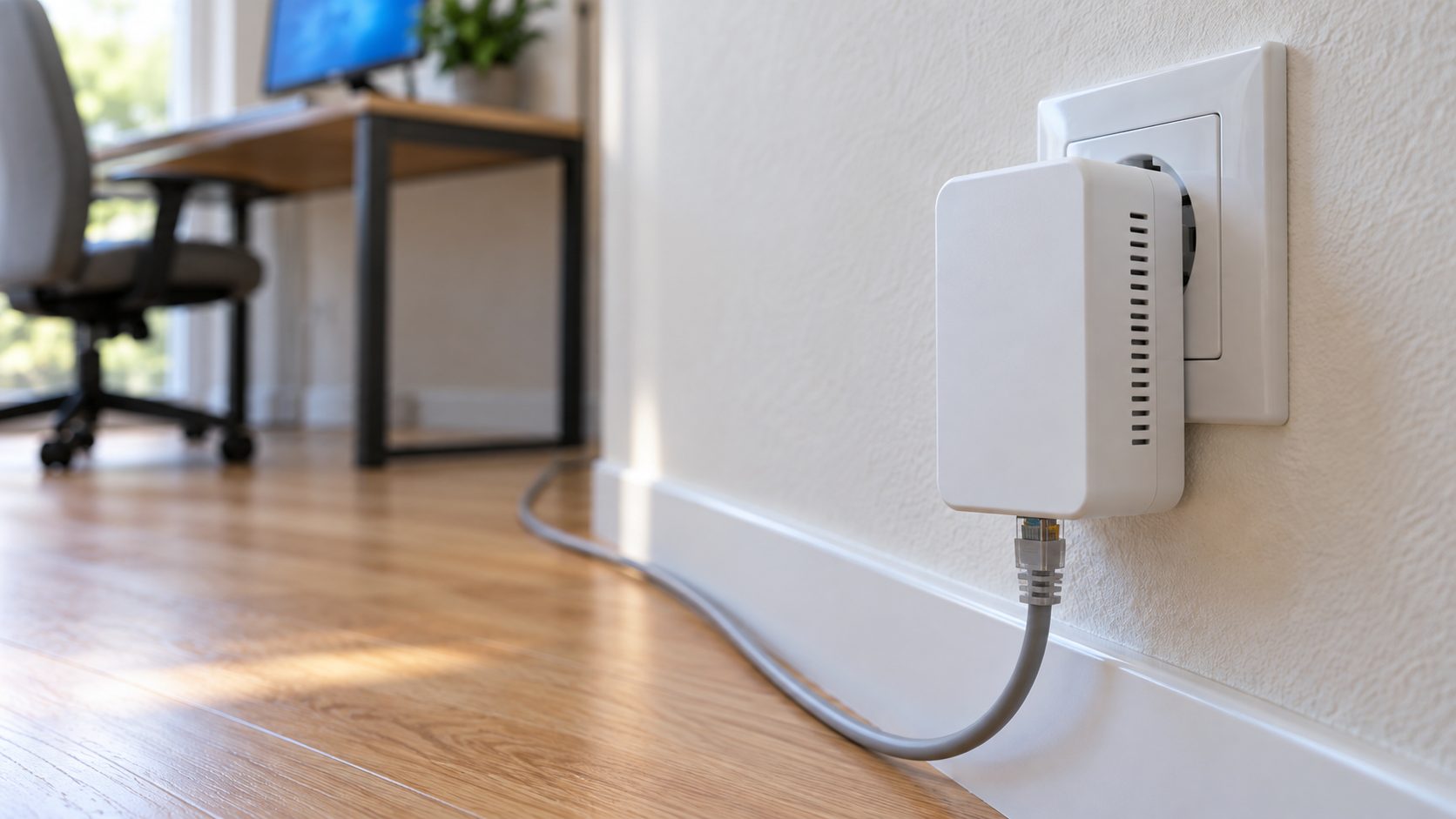
Real throughput depends on your home’s wiring and usually lands far below the box rating, and many AV600-class adapters have 10/100 ports that cap them at 100 Mbps. Plug them straight into wall outlets, not power strips or surge protectors, away from motor appliances and chargers.
Mesh satellites
A PC wired to a wirelessly linked satellite depends on that satellite’s link to the main unit. If the router keeps disconnecting Ethernet only there, move the satellite closer or, if your system supports it, use Ethernet backhaul.
A strong Wi-Fi 6, 6E or 7 link
A Wi-Fi 6 or 6E laptop near the router can beat a 100 Mbps port, but rarely a healthy 1 Gbps link. On plans faster than 1 Gbps, Wi-Fi 7 can legitimately win, since some routers pair a 2.5G internet port with gigabit LAN ports; check whether that LAN port and your network card are 1G or 2.5G. For weak uploads, see slow Wi-Fi upload speed.
Why is my WiFi faster than Ethernet on PS5?
The PS5 and PS5 Slim have a gigabit port and Wi-Fi 6; the PS5 Pro adds Wi-Fi 7. On a plan of 1 Gbps or less, a working cable shouldn’t lose, so if Wi-Fi wins or the router keeps disconnecting Ethernet on the console, suspect the cable, a 10/100 switch, powerline or a mesh satellite. On a multi-gig plan, a PS5 Pro on Wi-Fi 7 can legitimately beat its gigabit port. The PS5 doesn’t show link speed, so test the cable on a laptop, then run Test Internet Connection (Settings > Network > Connection Status) a few times on each connection.
Router Keeps Disconnecting Ethernet: Cable, LAN and Speed Questions
Why does my Ethernet say 100 Mbps instead of 1 Gbps?
A pair is damaged, or something in the path can’t do gigabit. Swap the cable, then bypass any switch or powerline unit.
Can a bad cable make the router keep dropping the Ethernet connection?
Yes. A damaged pair or loose plug can make the link drop, renegotiate and come back slower. When the router keeps disconnecting Ethernet and the speed jumps between 1 Gbps and 100 Mbps, replace the cable first.
Why does my router LAN keep disconnecting every wired device?
If the router keeps disconnecting Ethernet on every wired device at once, suspect what they share: the router, its firmware or a switch. Look for a looped cable, such as two links between a switch and the router. If the router’s uptime resets with each drop, it’s rebooting: give it airflow or try a replacement power adapter rated for it.
Start With the Link Speed, Then Work Down the Path
When the router keeps disconnecting Ethernet, let the link speed pick the next step: a 100 Mbps or jumpy reading means the cable, a port or a 10/100 part, while a steady 1 Gbps with drops points to power saving, the driver or the internet.
If Wi-Fi drops at the same moment too, our home internet troubleshooting guides pick up from the router and your ISP.



Leave a comment