

Router Keeps Kicking Devices Off? Fixes When Only Some Devices Drop
When only some devices drop, check power saving, phones switching to mobile data, private addresses the router doesn't recognize, DHCP leases and band steering.
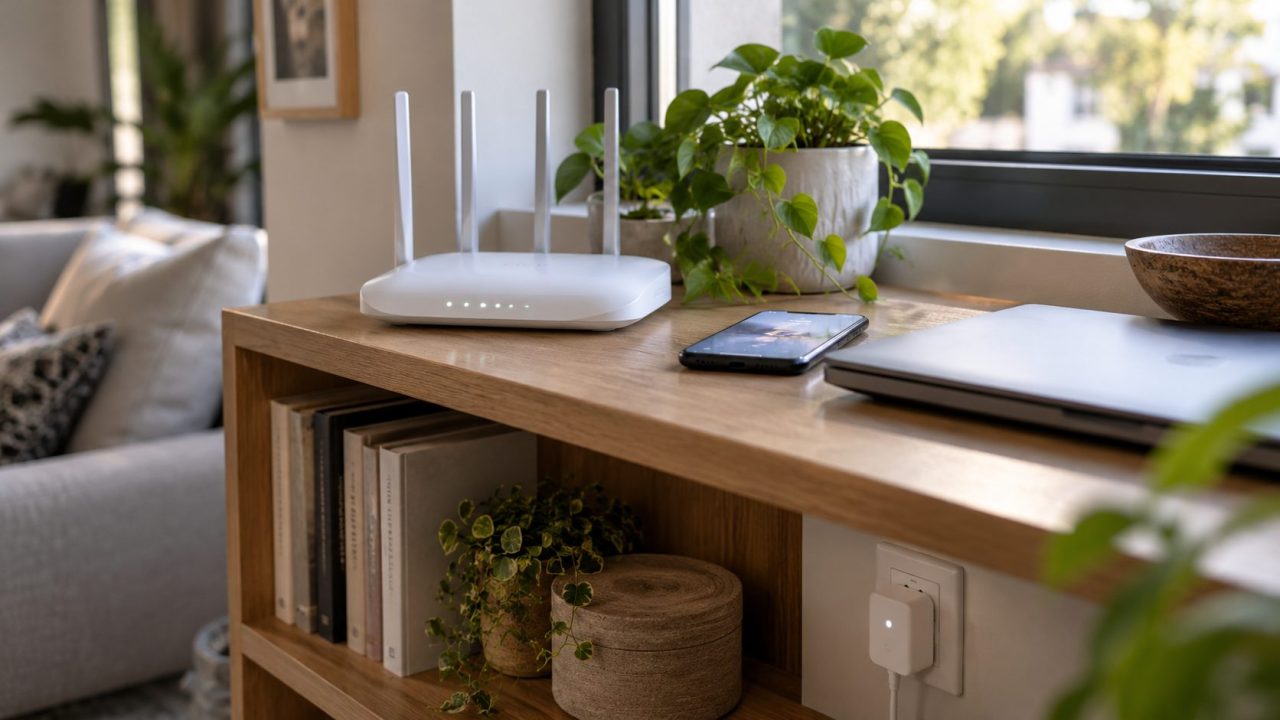
When your router keeps kicking devices off but the rest of the house stays online, either the router treats those devices differently or they leave on their own. Who drops, and when, points to the fix.
Router Keeps Kicking Devices Off? First Note Which Ones Drop and When
If every device drops at once, the line, modem or router is at fault; our guide to Wi-Fi drops on every device covers that.
Use this table when the router keeps kicking devices off one or two at a time:
| Who drops, and when | Likely cause |
|---|---|
| One laptop or phone | Power saving, driver or mobile-data switching |
| A new phone, or one you just rejoined | New private address |
| Kids’ devices at a set hour | Parental time limit |
| Every few hours, like clockwork | DHCP renewal |
| Smart plugs, old gadgets, mesh moves | Steering, roaming, WPA3 |
| Only devices in far rooms | Weak signal or a signal cutoff |
Find Out Which Side Ended the Connection
Before restarting anything, check whether your router keeps kicking devices off or the devices leave on their own:
Save the client list and log
In the router’s app or web page, note the device’s band, signal and MAC address in the client list (Clients, Attached Devices or similar). Then screenshot the system log, usually under Advanced, System or Administration, around a drop.
Run the Windows Wi-Fi report
In an administrator Terminal or Command Prompt, run:netsh wlan show wlanreport
Open the HTML file it names. Its Disconnect Reasons section covers three days and often hints whether Windows, the driver or the network ended each session; Microsoft’s report guide explains the rest.
Then restart both ends
Unplug the router for at least 60 seconds, as TP-Link advises, and restart the device. Some routers wipe the log on restart, so do this last.
Phones and Laptops That Leave on Their Own
Often it only looks as if the router keeps kicking devices off. Devices also cut Wi-Fi to save power or jump to mobile data, so check an idle device first.
Windows 11 and 10 laptops
Right-click Start, choose Device Manager and expand Network adapters. In the Wi-Fi adapter’s Properties, on the Power Management tab, uncheck Allow the computer to turn off this device to save power. If drops began after a driver update, use Roll Back Driver.
No such tab, as on many newer laptops? In Power Options > Change plan settings > Change advanced power settings, set Wireless Adapter Settings to Maximum Performance, if listed.
iPhone
Connectivity Assist, at the bottom of Settings > Wi-Fi, uses cellular data when Wi-Fi is slow or unusable; older iOS has Wi-Fi Assist under Settings > Cellular (Mobile Data). The iPhone stays joined, but this can hide a failing link, so Apple says to turn it off while troubleshooting.
Android
On a Pixel, Settings > Network & internet > Adaptive connectivity > Auto-switch to mobile network moves the phone to cellular when Wi-Fi has no internet or a weak link. Samsung’s One UI has Switch to mobile data under Intelligent Wi-Fi; other brands differ.
Router Keeps Kicking Devices Off by Rule? Private Addresses and Time Limits
Phones and many laptops join Wi-Fi with a private, randomized MAC address, which trips up MAC-based router rules. TP-Link’s Allow List mode blocks unlisted devices even though they can see the network. Parental controls and DHCP reservations usually match by MAC too.
On iOS 18 or later, Private Wi-Fi Address (the info button next to the network in Settings > Wi-Fi) offers Off, Fixed and Rotating. Fixed, the default on WPA2-or-better networks, doesn’t rotate. But forgetting the network discards it (unless you last forgot it under 24 hours earlier), as do Reset Network Settings and Erase All Content and Settings.
That’s why a router keeps kicking devices off right after the classic “forget and rejoin” fix. Apple’s Private Wi-Fi Address page lists every rule.
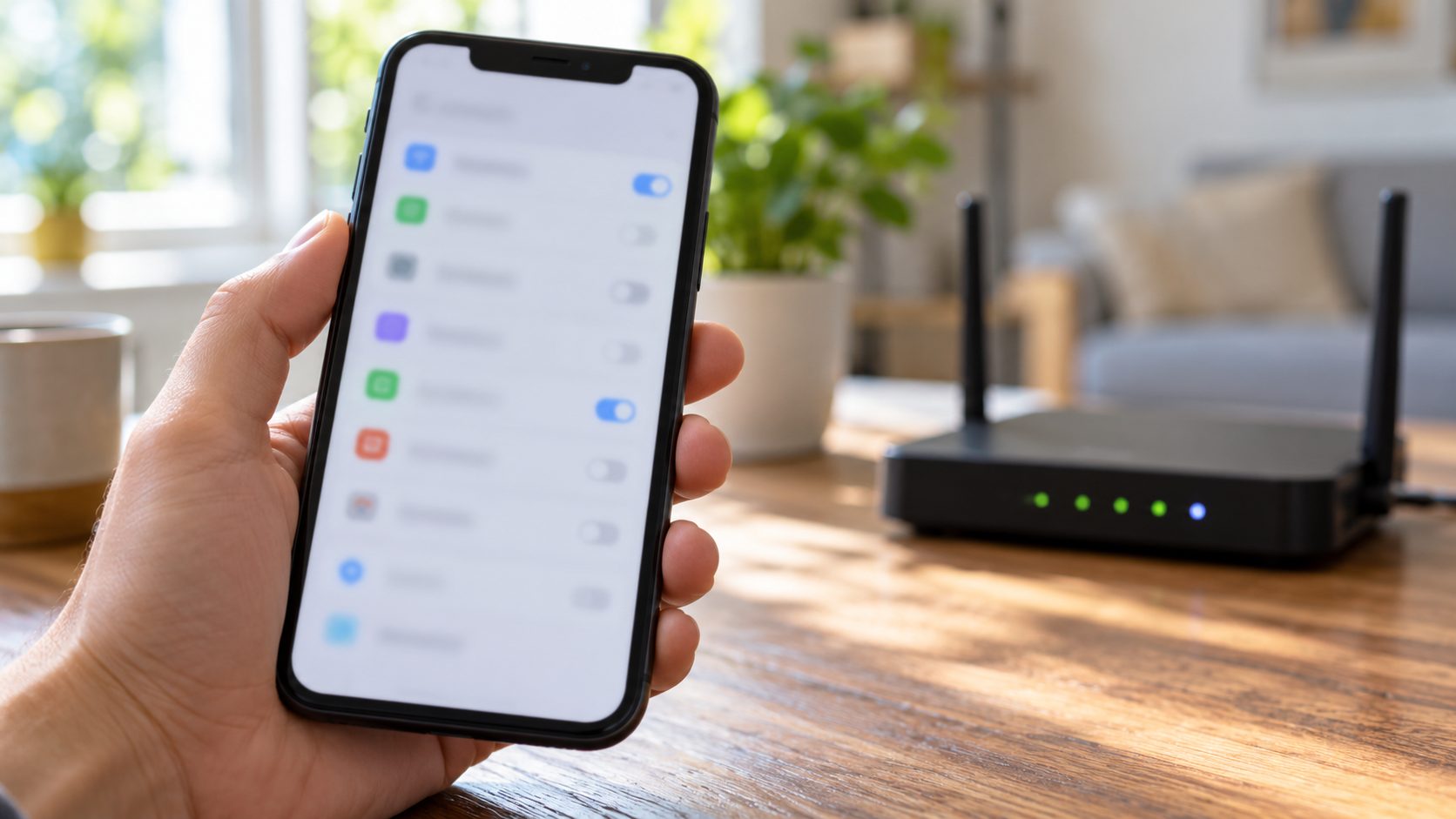
Android differs. On a normal home network, its randomized MAC (the default since Android 10) survives forgetting the network, changing after a factory reset or a new network name or security type. Windows 11’s version is Random hardware addresses, under Settings > Network & internet > Wi-Fi.
In the client list, a MAC whose second character is 2, 6, A or E is usually a private address.
Don’t turn private addresses off for good. On iPhone, pick Fixed and add the address it shows to the router’s list. On Android, add the randomized MAC; for parental controls, Google suggests the hardware MAC too. Apple advises disabling MAC filtering anyway, since MACs are easy to copy.
Bedtimes and time limits that end early
Parental controls are the likely reason a router keeps kicking devices off at the same hour each evening. TP-Link’s time limits count background tasks like iCloud syncing, so a tablet can use up its allowance before anyone touches it.
Router Keeps Kicking Devices Off Every Few Hours? Check DHCP
Each device borrows its IP address for a lease. Under the DHCP standard, it tries to renew at half the lease and again at 87.5%; if the lease expires first, it must start over.
Drops on a steady clock suggest the router keeps kicking devices off at renewal, not for weak signal. Watch for gaps that match the lease, or half of it if the router rejects renewals. Check the DHCP settings, often under LAN, and update the firmware.
Apple recommends an 8-hour lease at home and 1 hour on guest networks. Each new private MAC takes a fresh lease, so a small pool can fill; if the client list nears the pool size, widen the DHCP range. A manual IP inside the pool can also clash, so set devices to automatic.
Band Steering, Fast Roaming and Other Features That Push Clients Off
Smart plugs, cameras and older gadgets suffer first when a router keeps kicking devices off over a feature they can’t handle. Turn these off one at a time, undoing each if nothing changes. The names are TP-Link’s; Netgear, ASUS, eero and ISP gateways use their own, so search the manual for the feature.
Band steering
TP-Link says its Smart Connect can cause compatibility problems with certain clients.
Fast Roaming
Clients that can’t read 802.11r information may fail to connect or keep dropping.
WPA3 only
Some older clients can’t join. Use WPA2/WPA3 Transitional, Apple’s pick for older devices, or WPA2 Personal (AES) as the fallback; never WEP, TKIP or WPA/WPA2 mixed. Afterward, re-check allow lists, since phones may get new private addresses.
Smart plugs and cameras on 2.4 GHz
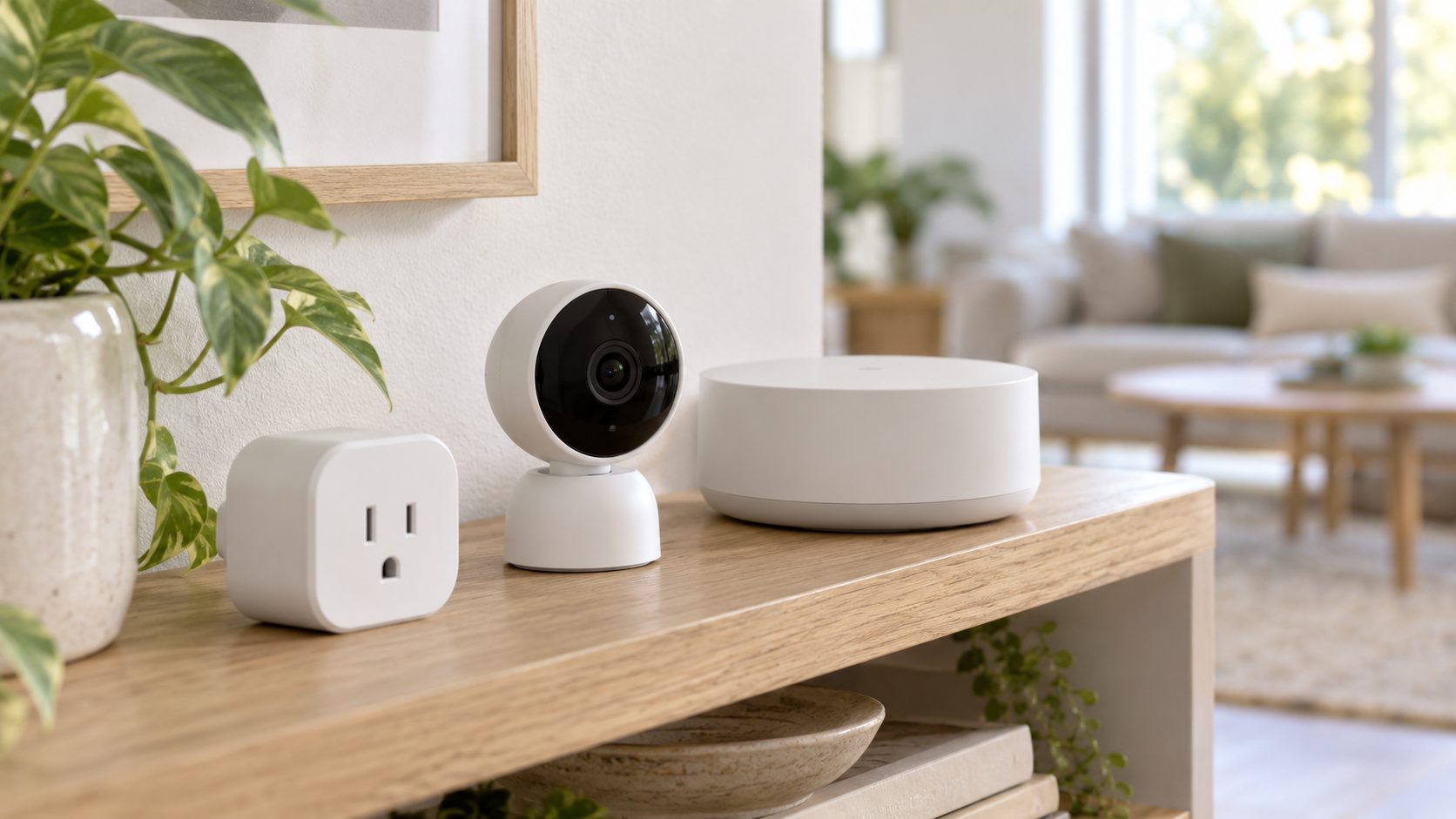
TP-Link says some 2.4 GHz-only smart devices struggle when both bands share one name, and many can’t roam between mesh nodes, so they cling to a distant unit or drop. Its Deco systems offer an IoT Network for them.
Separate band names also work, though Apple’s recommended router settings warn devices might not connect reliably that way. An IoT network is cleaner than a guest network, whose client isolation can block control from your main Wi-Fi.
Signal, band and channel
Range is the plain answer when your router keeps kicking devices off only in far rooms. Move closer, try the other band, and keep the router away from microwaves and Bluetooth gear. Apple and TP-Link recommend 20 MHz width on 2.4 GHz.
Some routers also drop weak clients on purpose: ASUS calls it Roaming assistant, UniFi calls it Minimum RSSI. Lower the threshold or turn it off as a test, especially on a single router with no mesh.
Last Steps: Updates, Network Reset and Too Many Devices
Outdated software on either end is the last common reason a router keeps kicking devices off. Update the router’s firmware (Apple recommends automatic updates) and the device’s OS or Wi-Fi driver.
Note your Wi-Fi passwords first. An iPhone loses all Wi-Fi networks plus cellular, VPN and APN settings. Windows reinstalls its network adapters, and VPN software may need reinstalling. A Pixel’s Reset Bluetooth & Wi-Fi also clears Bluetooth pairings.
Use it only if other fixes failed. iPhone: Settings > General > Transfer or Reset iPhone > Reset > Reset Network Settings. Pixel: Settings > System > Reset options > Reset Bluetooth & Wi-Fi. Windows 11: Settings > Network & internet > Advanced network settings > Network reset.
Finally, count the devices in the client list. Limits vary by model and often aren’t published, so if new devices fail once the list is long, ask your ISP about its gateway or replace an old, unsupported router.
Frequently Asked Questions
Why does my router keep kicking my phone off but not my laptop?
Phones hop to mobile data more readily and use private addresses by default, which a router filter may not recognize. Check both before you decide the router keeps kicking devices off.
Can a router kick devices off on purpose?
Yes. A router keeps kicking devices off on purpose when a block list, an allow list (MAC filtering), a parental time limit, a minimum-signal rule or a steering feature tells it to. Check the block list first.
Should I turn off Private Wi-Fi Address to stop the drops?
Only as a test. If the drops stop, a router rule still uses an old address: turn privacy back on (Fixed on iPhone) and update that rule to the address the phone then shows. If your router keeps kicking devices off with privacy off, the address wasn’t the cause; turn it back on.
Fix the Pattern, Not the Whole Network
Let the pattern guide you when your router keeps kicking devices off: who drops, when, and which side ended the connection. Change one setting at a time and keep WPA2/WPA3 and private addresses on.
For planned restarts, see our router that keeps rebooting guide; for confusing lights, the router that keeps blinking one, or browse more internet guides.

Leave a comment