

Router Keeps Blinking? What Each Light and Color Usually Means
Which light is blinking matters more than its color. Tell traffic from trouble, check six brands' meanings, and fix an amber Internet light or a stuck startup.
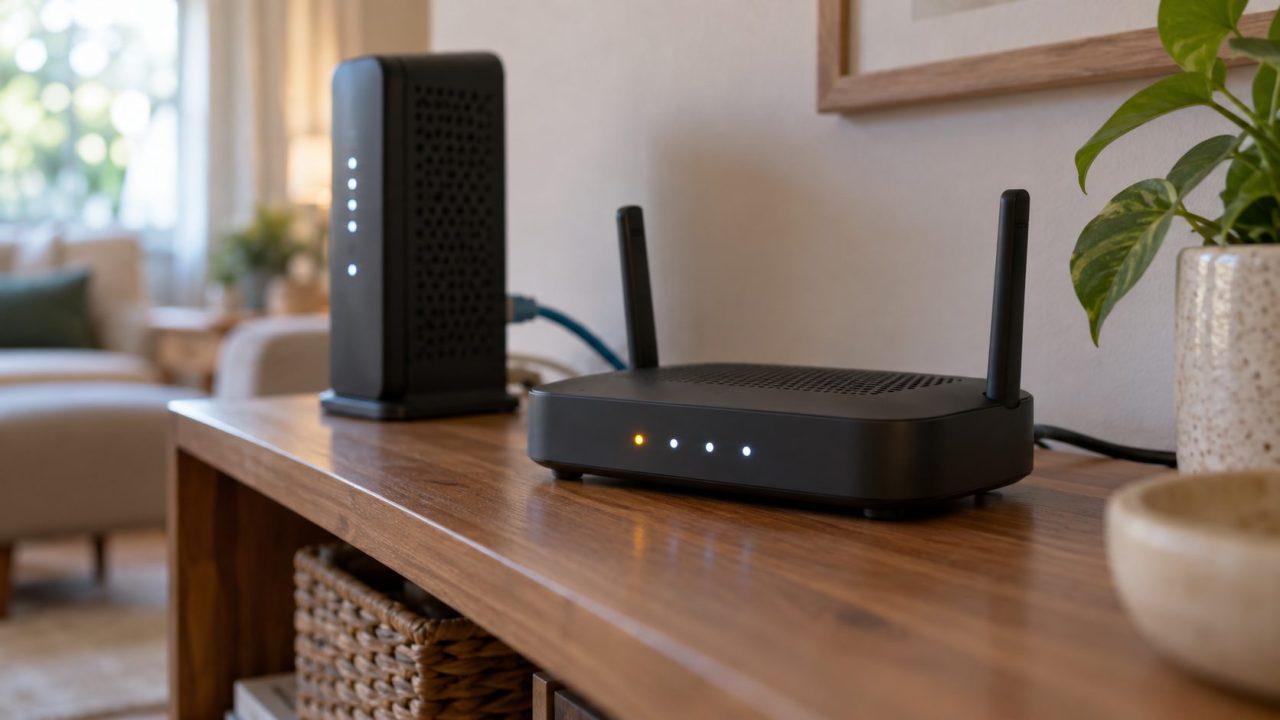
When your router keeps blinking, which light is blinking matters more than its color. A fast flicker on the Wi-Fi, Ethernet or Internet light is usually data moving. A pulsing power or status light often means booting or updating, but on some models it signals a fault (an eero flashing orange, for one), so check your brand below.
Router Keeps Blinking? Find Out Which Light It Is First
Blinking on the Wi-Fi, Ethernet or Internet light while pages load normally is traffic. Trouble looks different: the router keeps blinking its power or status light long after a restart, or the Internet light stays amber.
- Power. Usually blinks or turns amber while the router starts, updates or resets.
- Internet or WAN. The modem link; amber or off points to the cable, the modem or your provider.
- Wi-Fi and Ethernet. Flicker with traffic on the wireless network or on that port.
- WPS. Blinks while a WPS pairing is in progress, then turns solid or off. On some models the WPS button doubles as Reset, so don’t hold it down.
- One status light. Mesh units such as eero, Deco, Velop and NETGEAR Orbi put every message into one light’s color and rhythm.
That’s why the light matters: on a NETGEAR router, a blinking white Internet light means traffic, but a blinking white Power light means corrupted firmware.
Fast Flicker, Slow Pulse or Solid: Reading the Rhythm
To confirm a fast flicker is traffic, start a big download and watch: if the router keeps blinking faster, that’s your data.
A slow, even pulse often marks a job that ends on its own, like booting, setup or an update, but some brands pulse for errors too. A solid light is a steady state, good or bad.
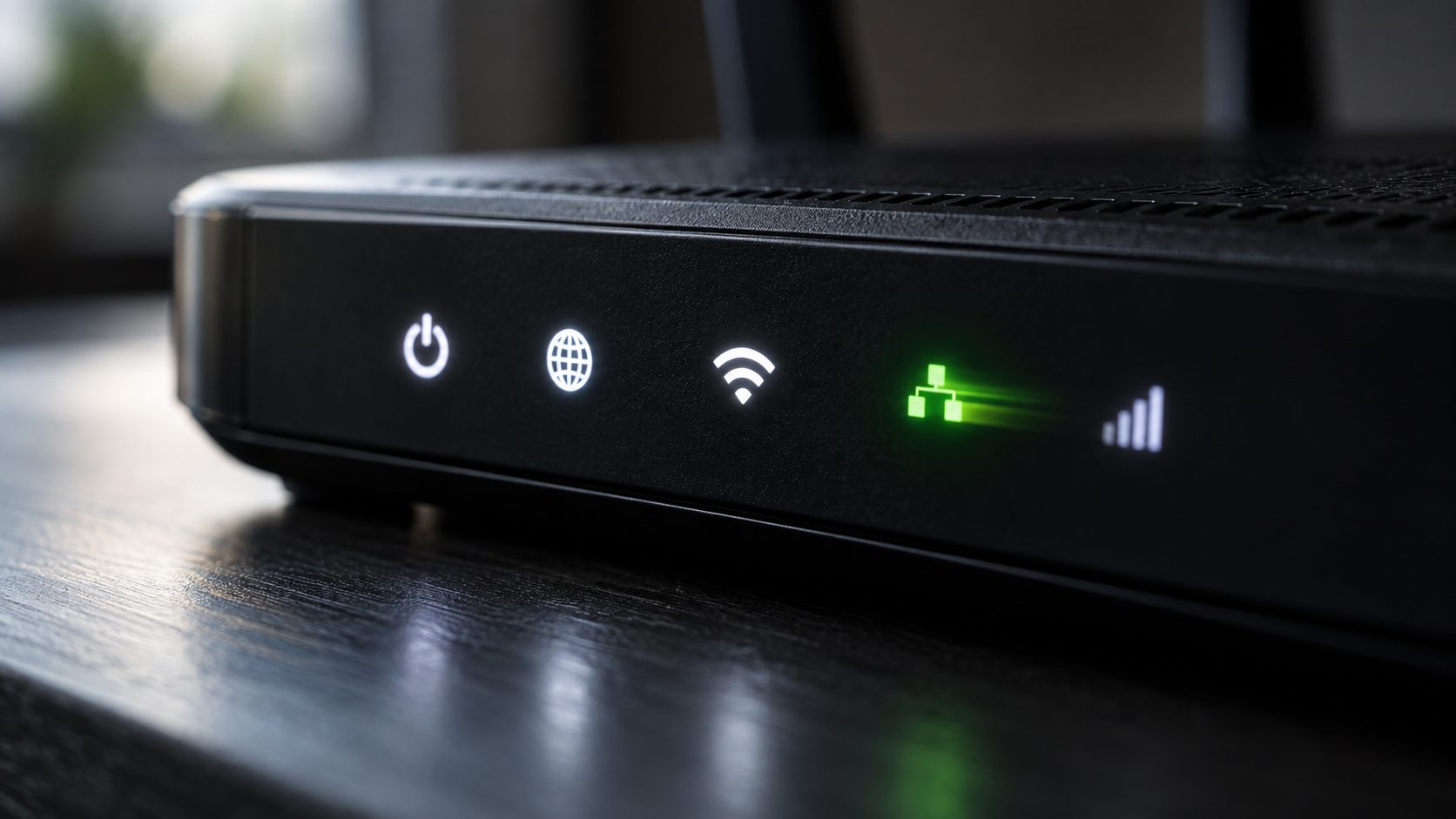
No lights at all? Check the adapter and outlet, then the LED setting: TP-Link, eero, Google and many other routers can dim or switch the lights off.
What Each Brand’s Blinking Colors Mean
Here’s what each maker’s light guide says when a router keeps blinking a given color, plus a few solid states. A dash means none listed; models differ, so check yours.
| Router | Orange / yellow | White | Blue | Green |
|---|---|---|---|---|
| NETGEAR routers (one LED per job, not Orbi) | Power blinking amber: updating or Reset pressed. Internet solid amber: no internet yet | Internet, Wi-Fi, Ethernet blinking: traffic. Power blinking: corrupted firmware | — | Solid: ready (older models) |
| TP-Link Deco X and BE | Pulsing: resetting. Solid: starting up | — | Pulsing: ready for setup | Pulsing: updating. Solid: all well |
| ASUS Router Go (RT-AX57 Go) | Blinking: Reset pressed. Solid on a node: weak backhaul | — | Breathing: connecting to parent | Pulsing: starting up |
| Linksys Velop MX5300, MX4000, MX8500 | Solid on a child node: weak connection | — | Blinking: starting up | — |
| eero (not eero Signal) | Flashing: power supply problem | Flashing: connecting | Flashing: Bluetooth pairing | Flashing: several eeros identified |
| Google Nest Wifi Pro | Slow blink: network error | Fast pulse: booting or updating | Slow pulse: ready for setup | — |
The other rows come from TP-Link, ASUS, Linksys and Google support pages. NETGEAR Orbi uses one ring light with its own chart instead; on Orbi, magenta means no internet (router) or no link to the router (satellite).
ASUS RT and ZenWiFi models and TP-Link Archer layouts vary, so check that model’s Quick Start Guide.
Red, briefly: offline or an error on most, but a flashing red eero is just resetting. Your router keeps blinking a color its chart doesn’t list? Ask the maker’s support team.
Blinking Because It’s Updating? Don’t Unplug It
TP-Link names powering off during a firmware upload as the most common cause of a bricked router. Leave it plugged in while the router keeps blinking in an update pattern, such as a NETGEAR Power light blinking amber, a Deco pulsing green (X and BE) or white (M4, E4, W2400), or a Nest Wifi Pro pulsing white fast.
If a TP-Link router keeps blinking its power light rapidly, or shows Power and WPS stuck on, after an interrupted update, it may be bricked. On Archer AX models, one orange light in the middle can mean bricked or rescue mode.
How to Fix an Amber or Orange Internet Light
On NETGEAR, solid amber means the router sees the modem cable but no internet; an unlit Internet light means no cable. For either, or if your router keeps blinking orange and its chart says no internet (Google Wifi, for example), go in order:
Check the cable
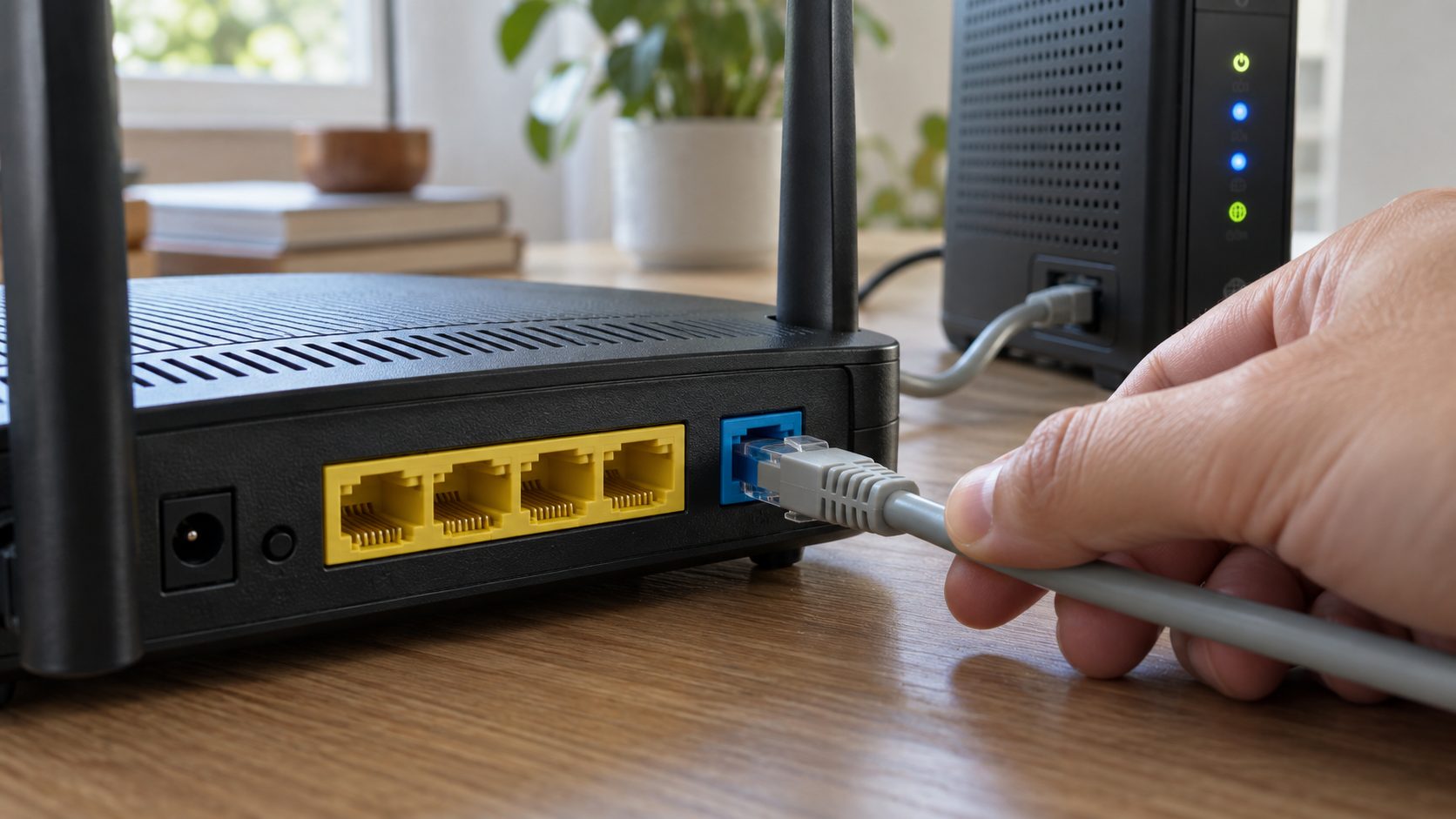
Connect the modem to the router’s Internet (WAN) port, not a LAN port, and turn the modem on. Reseat both ends; if the light stays off, try another cable.
Check for an outage
Your provider’s app or status page shows local outages; during one, nothing at home clears the light.
Power cycle in order
Turn off both boxes and remove any modem backup battery. Wait 2 minutes, turn on the modem, give it 5 minutes, then turn on the router. That’s NETGEAR’s order.
Test the modem
Plug a computer straight into the modem and restart the modem so it sees the computer. Still no internet? The modem or line is likely at fault, so call your provider. Skip this test if you use a PPPoE login; the computer can’t connect without it.
Check the connection type
Ask your provider whether you need Dynamic IP, PPPoE or Static IP. For PPPoE, enter the username and password in the router’s Internet or WAN settings, especially after a reset.
Fix a MAC or IP clash
Some providers lock service to one MAC address; on many TP-Link Archer models, clone the computer’s MAC under Advanced > Network > Internet > MAC Clone. If the router’s LAN IP sits in the modem’s range, change it under Advanced > Network > LAN.
Internet light fine but pages won’t load? See Wi-Fi connected but no internet.
Router Keeps Blinking After a Restart? Fix a Stuck Startup
A Nest Wifi Pro boots in about a minute, and TP-Link says to give a Deco stuck on yellow about two minutes. When the router keeps blinking well past that, try these checks, based on NETGEAR’s guide to a stuck Power light:
- Check the power. Use the original adapter and try plugging it straight into a wall outlet instead of a surge protector or power strip, then power cycle.
- Unplug every LAN cable. Reconnect them one at a time, avoiding network loops such as two cables between the same router and switch.
- Factory reset. It erases your Wi-Fi name, password and any PPPoE login, so write them down to re-enter afterward. Hold times vary: a Nest Wifi Pro needs about 12 seconds, until its light turns solid yellow.
- Recover the firmware. A failed update, or losing power during one, can corrupt it. Use the file for your exact model and hardware version (on the label) from the maker’s site for your country; a mismatched file can brick it for good. Connect by Ethernet, follow the maker’s guide (NETGEAR uses TFTP; TP-Link may need a static IP), and never cut power mid-upload. Some older models can’t be recovered, so contact support.
Lights that cycle through startup again and again point to a boot loop; see what to do when a router keeps rebooting.
Router Keeps Blinking Orange, Yellow, White, Blue or Green
When a router keeps blinking one color, the meaning depends on the brand, so match both before you act.
Orange or amber
Router keeps blinking orange? On a NETGEAR Power light, it’s an update or reset, so wait. On eero, it’s power: try the original adapter in another outlet. On Google Wifi, it’s no internet: run the cable steps.
Yellow
A slow-blinking yellow Nest Wifi Pro has lost internet: check the modem cable, then unplug and replug both devices. Solid yellow during a factory reset means wait up to 10 minutes; fast blinking is a setup error. A flashing yellow eero has a power problem, and a solid yellow Velop or ASUS Router Go node has a weak link.
White
Usually booting, connecting or updating (eero, Nest Wifi Pro, Deco M4 or E4), so give it a few minutes. A NETGEAR Power light blinking white needs firmware recovery.
Blue
Setup or pairing on Deco, eero and Google, so finish it in the Deco, eero or Google Home app. If a Linksys Velop router keeps blinking blue, it’s just starting up.
Green
A Deco X or BE pulsing green is updating, so keep it plugged in. An ASUS Router Go pulsing green is starting up, and a flashing green eero is identifying several units.
Lights normal but Wi-Fi drops? See why a router keeps disconnecting.
Unplug, Wait or Reset? Quick Answers
Should I unplug it if my router keeps blinking?
Not during a firmware update or a factory reset, since losing power mid-update can brick it. Otherwise, power cycle: turn both off, start the modem first, then the router, unless your brand’s guide says otherwise.
Is it normal that my router keeps blinking all day?
Yes, if it’s the Wi-Fi, Ethernet or Internet light and the connection works; connected devices send data even when idle. A power or status light that keeps flashing for hours is not normal.
Why is one Ethernet light amber when the internet works?
On NETGEAR, amber means that port linked at 100 or 10 Mbps instead of 1 Gbps. That’s normal if the device only has a 100 Mbps port, as some TVs and printers do; otherwise, try a Cat 5e or better cable or another port.
When the Blinking Points to Hardware
Suspect the hardware when your router keeps blinking the same pattern after a factory reset and a firmware recovery, or shows no lights on the original adapter in a working outlet.
Contact the maker’s support with the model and the exact pattern, or replace the unit. More fixes are in our internet guides.


Leave a comment