

Router Keeps Disconnecting? Find Out If It’s the Line, Router or Wi-Fi
One wired computer shows whether drops start at the line, the modem, the router or the Wi-Fi radio. Read the lights, save the logs, fix that part and log it for your ISP.
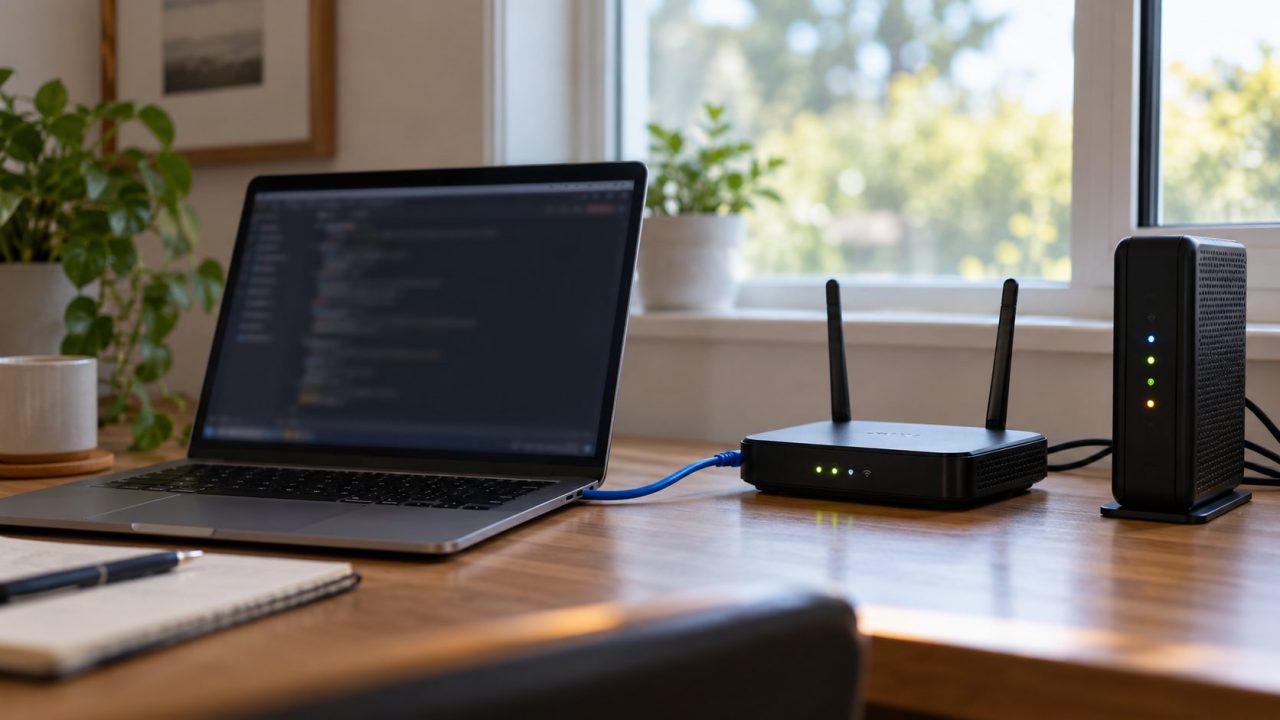
When your router keeps disconnecting every device in the house at once, the drop starts in one of three places: the line and modem, the router, or its Wi-Fi radio. One computer plugged in by Ethernet tells you which, for free. Then you fix that part, or hand your ISP proof.
This guide is for when the router keeps disconnecting everyone: the internet keeps going out and coming back, or the Wi-Fi drops on every device at once. If it stays down, or only one device struggles, see Wi-Fi connected but no internet or, for a phone, Android phone won’t connect to Wi-Fi. Don’t buy hardware until the test points at a box.
Router Keeps Disconnecting? Use One Wired Device as the Control
Plug a laptop into the router by Ethernet (a USB adapter works) and leave it pinging both the router and the internet. The next time the router keeps disconnecting, read the result. If only the router answers, suspect the line, the modem or the router’s link to it. If the router goes silent too, it’s the router; if the laptop stays online while Wi-Fi drops, it’s the radio.
If the router keeps disconnecting the wired computer too, it isn’t a wireless problem; TP-Link’s Wi-Fi drop guide uses the same check.
First turn the laptop’s Wi-Fi off, plug in its charger and set sleep and lid-close to Never, so it can’t switch to Wi-Fi or doze off and fake a drop.
On Windows, run ipconfig and note the Default Gateway (often 192.168.1.1). Then run this in PowerShell; it pings 1.1.1.1 (a public DNS server, not your ISP) and saves each reply with its time to your user folder:ping.exe -t 1.1.1.1 | ForEach-Object { "{0:yyyy-MM-dd HH:mm:ss} {1}" -f (Get-Date), $_ } | Tee-Object -FilePath "$HOME\ping-internet.txt" -Append
In a second window, swap in your gateway for 1.1.1.1 and ping-router for ping-internet. Leave both running until the router keeps disconnecting again, then press Ctrl+C and open the files to see when each drop started and ended.
On a Mac, find the Router address under System Settings > Network > Ethernet > Details > TCP/IP. Run this in one Terminal window, and the same with that address and ping-router in another:ping --apple-time 1.1.1.1 | tee ~/Desktop/ping-internet.txt
Each reply shows its time, so a gap marks the drop.
Catch a Drop: Read the Lights and Save the Logs Before You Reboot
Restarting at once can erase the best clue to why your router keeps disconnecting. TP-Link asks Deco owners to export the system log within an hour of a drop, without rebooting; how much a restart erases varies by brand.
- Check for an outage on your provider’s status page or app, over mobile data.
- Read the lights. Note the modem’s online or sync light and the router’s internet light (meanings vary by model). TP-Link’s DSL guide treats a flashing or dark DSL light as a line fault: test without the splitter, then call the ISP.
- On mesh, check every unit. On TP-Link Deco, a red main unit has lost the modem or the internet, a red satellite has lost the other units, and normal lights while devices drop point to Wi-Fi. Off, yellow, red, then white (or green) means it rebooted; other brands differ.
- Save the router log (TP-Link: Advanced > System Tools > System Log; NETGEAR: ADVANCED > Administration > Logs; names vary).
- Save the modem log. Many cable modems open at 192.168.100.1; on NETGEAR it’s ADVANCED > Administration > Event Log (NETGEAR’s steps). Screenshot it, note the time yourself (its clock is only right once the modem is online) and don’t press Clear Log. Other modems differ.
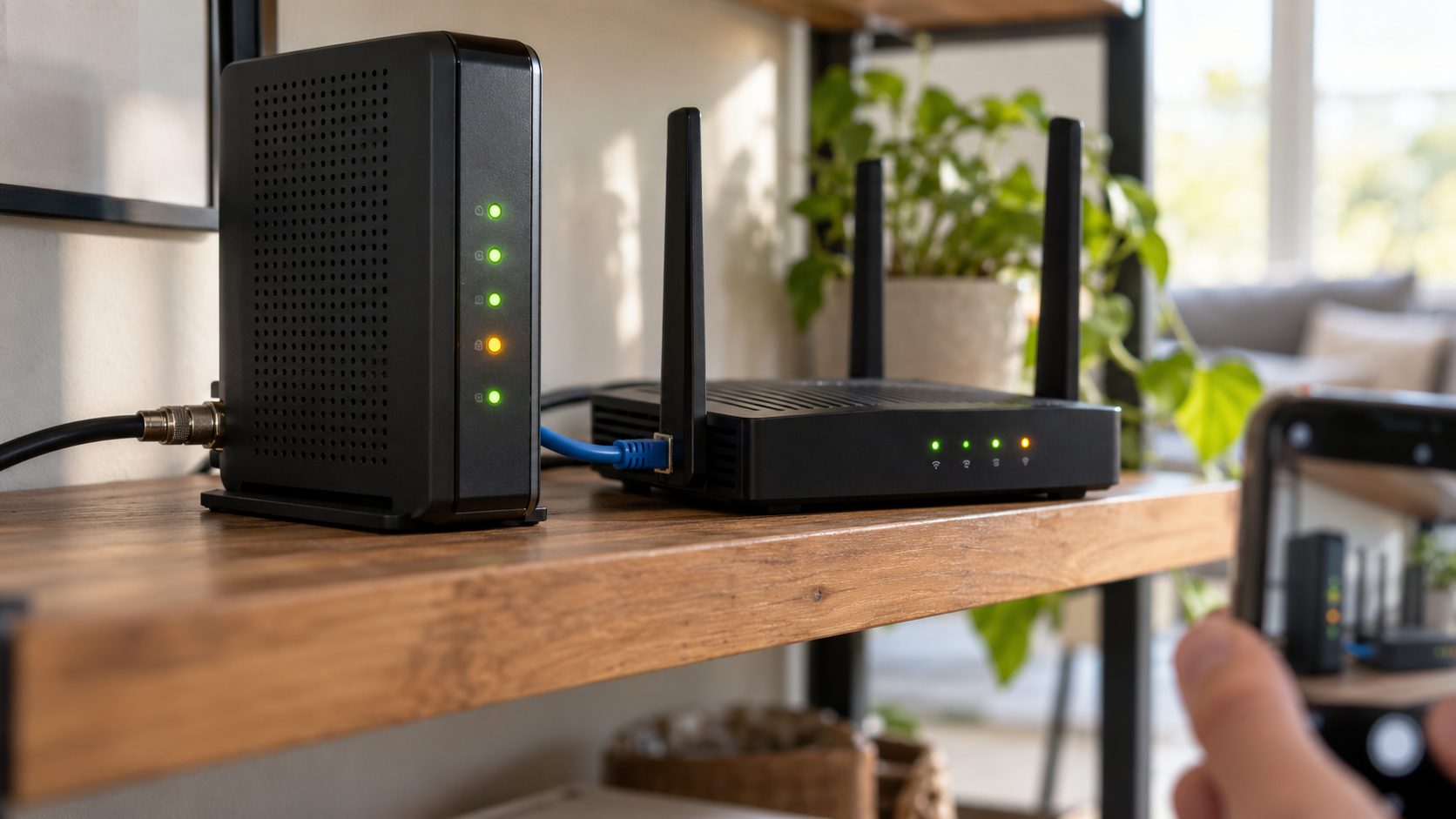
Cable modem logs often show T3 or T4 timeouts: missed check-ins with the provider’s equipment, commonly from line noise. You don’t need to decode them; just keep them for your ISP. On DSL, save the DSL status page too.
Line, Modem, Router or Wi-Fi? Read Your Results
Ignore a single lost reply; a drop is several failures in a row. Each time the router keeps disconnecting, find the row that matches the wired computer:
| During the drop | Likely cause | Go to |
|---|---|---|
| Router replies, 1.1.1.1 doesn’t | Line, modem or the router’s WAN link | Line and modem fixes |
| Router stops replying too | Router crashed or restarted | Router checks |
| Wired fine, all Wi-Fi drops | Wi-Fi radio or channel | Wi-Fi fixes |
| Only 5 GHz drops, for a minute or more | Radar on a DFS channel | Channel test |
| 1.1.1.1 replies, sites won’t load | DNS | DNS check |
“General failure” on the router ping usually means the cable link went down, often because the router restarted. If the router keeps disconnecting at the same time every night, check its reboot schedule and automatic update time.
Fix a Line or Modem That Keeps Dropping the Internet
When a router keeps disconnecting, it may just be passing on a line fault. After saving the logs, restart in the order from Microsoft’s Wi-Fi troubleshooting guide. Everyone goes offline for a few minutes.
Unplug both boxes
Router first, then the modem. Modem lights still on? Remove its backup battery.
Wait 30 seconds
Longer is fine. Then refit any battery.
Modem back first
Plug it in and wait until its lights stop blinking.
Then the router
Give it a few minutes. A combo box needs just one restart.
Then check the coax or phone cable is seated at both ends, coax finger-tight. Don’t unplug or sharply bend a fiber lead, and never look into its end. On DSL, use the first wall socket, a short known-good cable and no extension lead, put a microfilter on every phone, fax or alarm, then try without the splitter.
If the router keeps disconnecting after that while still answering your ping, test without it. Skip this on a PPPoE line (the router’s internet settings show a PPPoE username) or a modem-router combo, where it can’t work.
Plug the laptop (Wi-Fi still off) into the modem with the same cable and restart the modem, since many cable modems only accept a new device after a restart. Keep its firewall on (on Windows, set the network to Public) and leave the internet ping running as long as drops usually take to appear. Still dropping? The modem or service is at fault; call your ISP with your log.
Router Keeps Disconnecting From the Modem? Check the WAN Link
If the computer stays online on the modem but drops through the router, the router keeps disconnecting on its side of the link. Cheap checks first:
- Seat the Ethernet cable firmly in the router’s WAN (internet) port and the modem, then try another cable.
- Mesh main unit red? Connect only the main unit to the modem and try another cable and port.
- Update the firmware (usually under System or Administration) and turn on automatic updates if offered.
- Router ping dropped too, and its lights ran a startup sequence? Then the router keeps disconnecting because it’s restarting itself; keep it ventilated and see why a router keeps rebooting.
- 1.1.1.1 replied but sites failed? TP-Link notes that DNS lookup failures can cause intermittent drops even on a solid connection; see the every-device fixes.
It’s tempting when a router keeps disconnecting, but a reset erases your Wi-Fi name, password and settings. Get any PPPoE login from your ISP first, or the router can’t reconnect. The call-your-ISP-first checklist lists what else to have ready.
Router Wi-Fi Keeps Disconnecting on Every Device
If the router keeps disconnecting Wi-Fi while the wired computer stays up, the radio is the problem. Change one setting at a time (on TP-Link: Advanced > Wireless > Wireless Settings) and give each a day:
- Move it away from interference. Microwaves, cordless phones, wireless cameras, fluorescent lights, power cables, fridges and Bluetooth devices interfere, per Apple and TP-Link. Place the router high and in the open.
- Check the channel. Apple recommends Auto; if drops continue on Auto, test a fixed channel. Apple also suggests fewer active devices on one band.
- Set 2.4 GHz width to 20 MHz, as Apple and TP-Link advise. TP-Link also suggests 20 MHz on 5 GHz, which cuts top speed; test it and return to Auto (Apple’s pick) if it doesn’t help.
- Only 5 GHz vanishing for a minute or more? That fits radar on a DFS channel (52–64 or 100–144 in the US). US rules make Wi-Fi leave within 10 seconds and listen 60 seconds before using another DFS channel; in the UK and EU, some channels need a 10-minute check. Check the router log for “radar” or “DFS”, then test channels 36–48 at 80 MHz or less (160 MHz there still reaches DFS channels).
- Split the bands as a test. TP-Link says Smart Connect (band steering elsewhere) can cause compatibility problems with some devices. Turn it off and give each band its own name for a few days; if nothing improves, go back to one name, as Apple recommends.
- Mesh satellite red? Move it closer to the main unit, or swap it with another unit to see if the fault follows the hardware.

On a Windows 10 or 11 laptop that uses Wi-Fi, run this in an administrator Command Prompt for an HTML report of three days of Wi-Fi sessions and why each ended:netsh wlan show wlanreport
On a Mac, Option-click the Wi-Fi icon, choose Open Wireless Diagnostics, then Monitor my Wi-Fi connection. Each covers only that computer.
Keep a Drop Log Your ISP Can Act On
Support lines hear “my router keeps disconnecting” all day. A dated log with the wired result shows it isn’t your Wi-Fi. Fill in one row per drop:
| Column | What to write |
|---|---|
| Date and time | Start and end, from your ping files |
| Router ping | Replied or not |
| Internet ping | Replied or not, via the router and direct to the modem |
| Wi-Fi devices | All down, some down or fine |
| Lights | Modem and router, during the drop |
| Logs saved | Screenshot file names |
| What you did | Waited, restarted in order, swapped a cable |
Lead with the wired result: a computer on Ethernet loses the internet while the router still answers, and also when plugged straight into the modem. Give the drop times, offer the screenshots and ask them to check the line at those times.
Frequently Asked Questions
What does it mean when the router keeps disconnecting every few minutes?
Short, regular drops usually mean the line or modem is resyncing, the router is losing its link to the modem, or the Wi-Fi radio or channel is failing. The wired test shows which.
How do I know if it’s my router or my internet provider?
If your router keeps disconnecting and a wired computer still reaches it but not the internet, even on the modem directly, it’s the line, modem or provider. If the router stops answering too, it’s the router. On a PPPoE line or combo box, skip the direct test and let your log make the case.
Why is my Wi-Fi going in and out when the internet light stays on?
If a wired computer stays online while Wi-Fi drops, suspect the radio side: interference, a crowded channel, band steering, firmware or a DFS channel. A steady internet light alone doesn’t prove the line is fine; see the Wi-Fi fixes above.
Should I factory reset if my router keeps disconnecting?
Only after saving the logs, once the tests point at the router, and with your ISP login in hand; see the warning above.
Do I need a new router or modem?
Not just because the router keeps disconnecting. Replace the router only if a wired computer drops through it but not on the modem, even after a firmware update, or if only Wi-Fi drops after every fix and a reset. Drops either way? Call your ISP; if you own the modem, they may confirm whether it’s at fault.
Let the Wired Test Choose the Fix
When a router keeps disconnecting, one wired computer shows which box or band is behind it. Save the logs before you restart, fix only what the test points at, and hand the ISP a drop log for anything on their side.
For more fixes like this, browse the internet and Wi-Fi guides.


Leave a comment