

Windows 11 Won’t Reset? Fix ‘There Was a Problem Resetting Your PC’
Why Windows 11 rolls back a failed reset, what each reset option deletes, and eight numbered fixes, from switching to Cloud download to a clean install.
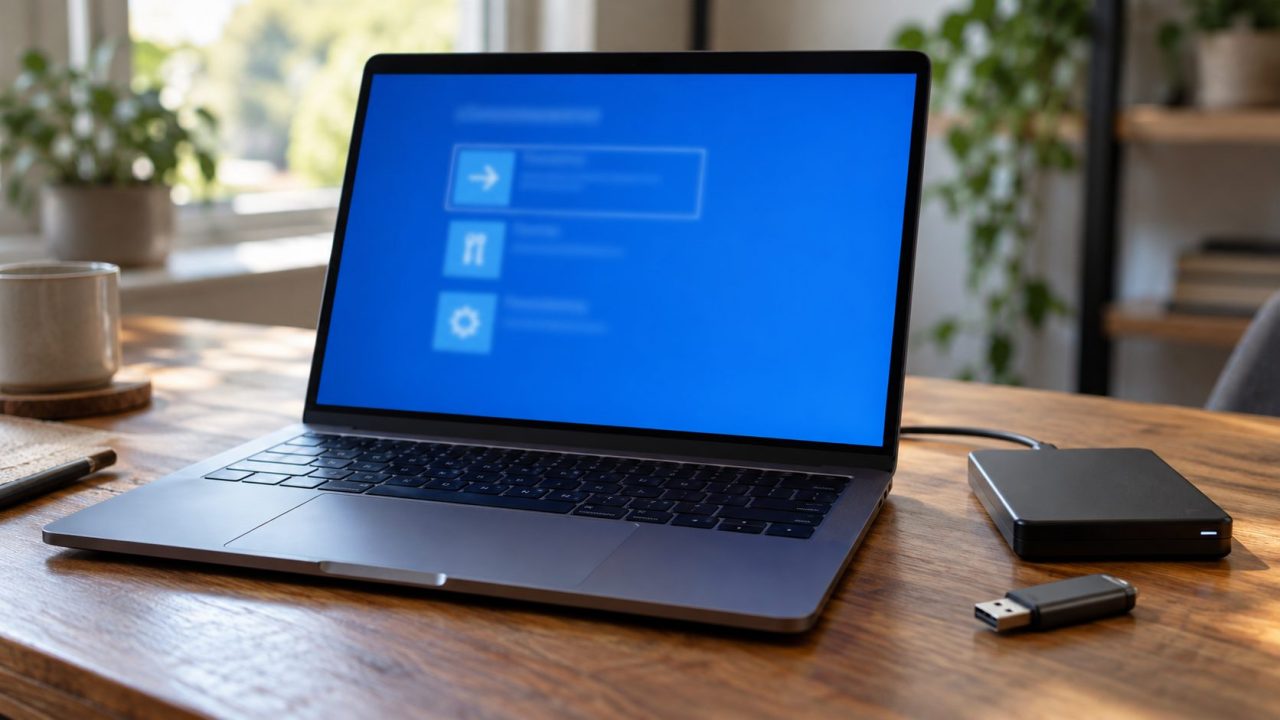
“There was a problem resetting your PC. No changes were made.” Windows rolls a reset back when the files it rebuilds from are corrupted, the recovery environment it runs in is damaged, or a buggy update interferes. The eight fixes below run from harmless retries to a full reinstall; stop at the first one that works.
To repair Windows without a wipe, try Reinstall now (Windows 11 22H2 or later, fully updated) under Settings > System > Recovery > Fix problems using Windows Update; it keeps files, apps and settings. System Restore, or Point-in-time restore on 24H2 and later, may also do. Selling the PC? You need Remove everything.
On Windows 10, the reset is under Settings > Update & Security > Recovery, commands run in Windows PowerShell (Admin), and Reinstall now doesn’t exist.
What “There Was a Problem Resetting Your PC” Really Means
“No changes were made” is literal: a reset that fails inside Windows RE, the recovery environment, rolls back. Local reinstall rebuilds Windows from the component store (C:\Windows\WinSxS), not a separate recovery image, so a damaged store is a common cause of the “problem resetting your PC” error.
| What you see | Likely cause | Go to |
|---|---|---|
| “Problem resetting your PC” with Local reinstall only | Damaged component store | Fixes 1–4, then Fix 6 |
| “Problem resetting your PC” with Cloud download too | Windows RE damaged or misconfigured | Fix 5 |
| “Could not find the recovery environment” | Windows RE disabled or missing | Fix 5 |
Keep My Files vs Remove Everything: What Each Option Deletes
In Settings > System > Recovery > Reset PC, pick Keep my files or Remove everything, then Cloud download or Local reinstall. Microsoft’s technical documentation lists what each option keeps.
| What happens to | Keep my files | Remove everything |
|---|---|---|
| Personal files | Kept | Deleted; without Clean data, undelete tools may recover them |
| Desktop and Store apps | Removed; the PC maker’s apps return if Restore preinstalled apps is on | Removed; the PC maker’s apps are restored |
| AppData: unsynced browser profiles, some game saves | Wiped; old copy kept in C:\Windows.old | Deleted |
| Settings | Mostly reset; accounts, Wi-Fi profiles and themes stay | Removed |
| Other partitions, such as D: | Untouched | Formatted only if you turn on Delete files from all drives |
Before selling, turn on Clean data: it’s slower but makes deleted files harder to recover. Microsoft notes it doesn’t meet government or industry erasure standards.
“There was a problem resetting your PC” means nothing changed this time, but the next attempt may succeed and can’t be undone. Copy what you’d miss, including unsynced bookmarks, to an external drive or cloud storage, then unplug the drive.
Fixes 1–4: Quick Checks for a Problem Resetting Your PC
Only the cleanup in Fix 3 deletes anything right away; the rest change nothing until you retry the reset, and a retry that goes through does what you chose above.
Switch the source
If Local reinstall gave the “problem resetting your PC” error, pick Cloud download, which fetches a fresh copy, and vice versa.
Install updates
In Settings > Windows Update, install everything and restart.
Plug in and free up space
Keep a laptop charging. In Settings > System > Storage > Cleanup recommendations, clear Temporary files, but leave Downloads unticked unless you’ve backed it up, because it holds your own files. The same goes for Large or unused files: tick only backed-up ones.
Launch it from Settings
If Windows RE showed the “problem resetting your PC” error, retry from Settings, which first repairs the component store via Windows Update when it can.
Updates matter: an August 2025 update broke resets on Windows 11 22H2/23H2 and Windows 10 22H2, and Reinstall now on Windows 11, until the out-of-band fixes KB5066189 and KB5066188, now in later updates. Microsoft’s Windows release health page lists newer known issues.
Fix 5: Check That Windows Recovery Environment Is Enabled
Every reset runs inside Windows RE. If it’s off, you usually see “Could not find the recovery environment”; if it’s damaged, both sources end with “There was a problem resetting your PC.”
Right-click Start, choose Terminal (Admin), select Yes and run:reagentc /info
- Windows RE status: Enabled with a \Recovery\WindowsRE location means it’s set up. If resets still fail, run
reagentc /disable, thenreagentc /enable. - Windows RE status: Disabled: run
reagentc /enable, thenreagentc /infoto confirm. - /enable says “The Windows RE image was not found”: Winre.wim is missing. Go to Fix 8; an in-place reinstall usually restores it.
Fix 6: Repair the Component Store With DISM, Then SFC
If Local reinstall keeps failing with “There was a problem resetting your PC,” repair its source with DISM first, then SFC. Install updates, restart, open Terminal (Admin) and run:DISM.exe /Online /Cleanup-image /Restorehealth
Keep the space before each slash and stay online; DISM downloads repair files. If it fails, use the in-place reinstall in Fix 8.

After “The operation completed successfully,” run:sfc /scannow
Wait for “Verification 100% complete,” then match the result:
- Did not find any integrity violations or Found corrupt files and successfully repaired them: restart and retry the reset.
- Could not perform the requested operation: run SFC in safe mode (Windows RE > Troubleshoot > Advanced options > Startup Settings > Restart, then press 4).
- Unable to fix some of them: skip the CBS.log details and retry with Cloud download, which doesn’t reuse local files.
Fix 7: Start the Reset From Windows Recovery Environment
If Settings keeps showing the “problem resetting your PC” message, or Windows won’t start, launch the reset from Windows RE.
With BitLocker or device encryption on, Reset this PC in Windows RE asks for the 48-digit recovery key. Get it now: in Terminal (Admin), runmanage-bde -protectors -get C:
and write down the Numerical Password or save it on your phone, not on this PC.
If Windows won’t start, check aka.ms/myrecoverykey from another device. Without the key, only options that erase the drive remain; our BitLocker recovery key guide lists where else it may be saved.
Any of these gets you to Windows RE:
- Settings: System > Recovery > Advanced startup > Restart now.
- Start menu or sign-in screen: hold Shift and select Power > Restart.
- Windows won’t boot: hold the power button to shut down as the logo appears, twice. On the third start, choose Advanced options.
Then select Troubleshoot > Reset this PC. If none of these reaches the blue Choose an option screen, Windows RE is missing; a USB drive won’t offer Reset this PC, so go to Fix 8.
Cloud download works best over Ethernet. Microsoft warns the screen may occasionally stay black for over 15 minutes and the PC may restart itself; don’t power it off, or the reset can fail.
Fix 8: Reinstall Windows 11 Instead
If every route still ends with “There was a problem resetting your PC,” reinstall Windows, least destructive first. Options 1 and 2 erase nothing; afterward, Reset this PC often works if you still need a wipe.
- Reinstall now. It keeps files, apps and settings but may be missing on work or school PCs.
- In-place reinstall. With Windows running, open setup.exe on the USB or mounted ISO and choose Change what to keep > Keep personal files and apps. Use matching edition and language, same version or newer.
- Clean install. This erases the Windows drive, so copy your files off first. Try your PC maker’s recovery media, if offered, before Microsoft’s. Otherwise, boot from the USB (boot-menu key, often F12, F11, F9 or Esc), choose Install Windows 11 and tick I agree everything will be deleted including files, apps, and settings.
Get MediaCreationTool.exe or the ISO from Microsoft’s Download Windows 11 page (microsoft.com/software-download/windows11). The tool erases a USB drive of 8 GB or more and makes only x64 media. For Arm-based PCs, such as Snapdragon laptops, use the Arm64 ISO linked from that page (microsoft.com/software-download/windows11arm64): mount it for an in-place reinstall, or make a USB from it, which may need the maker’s drivers. You can also use the maker’s recovery media.
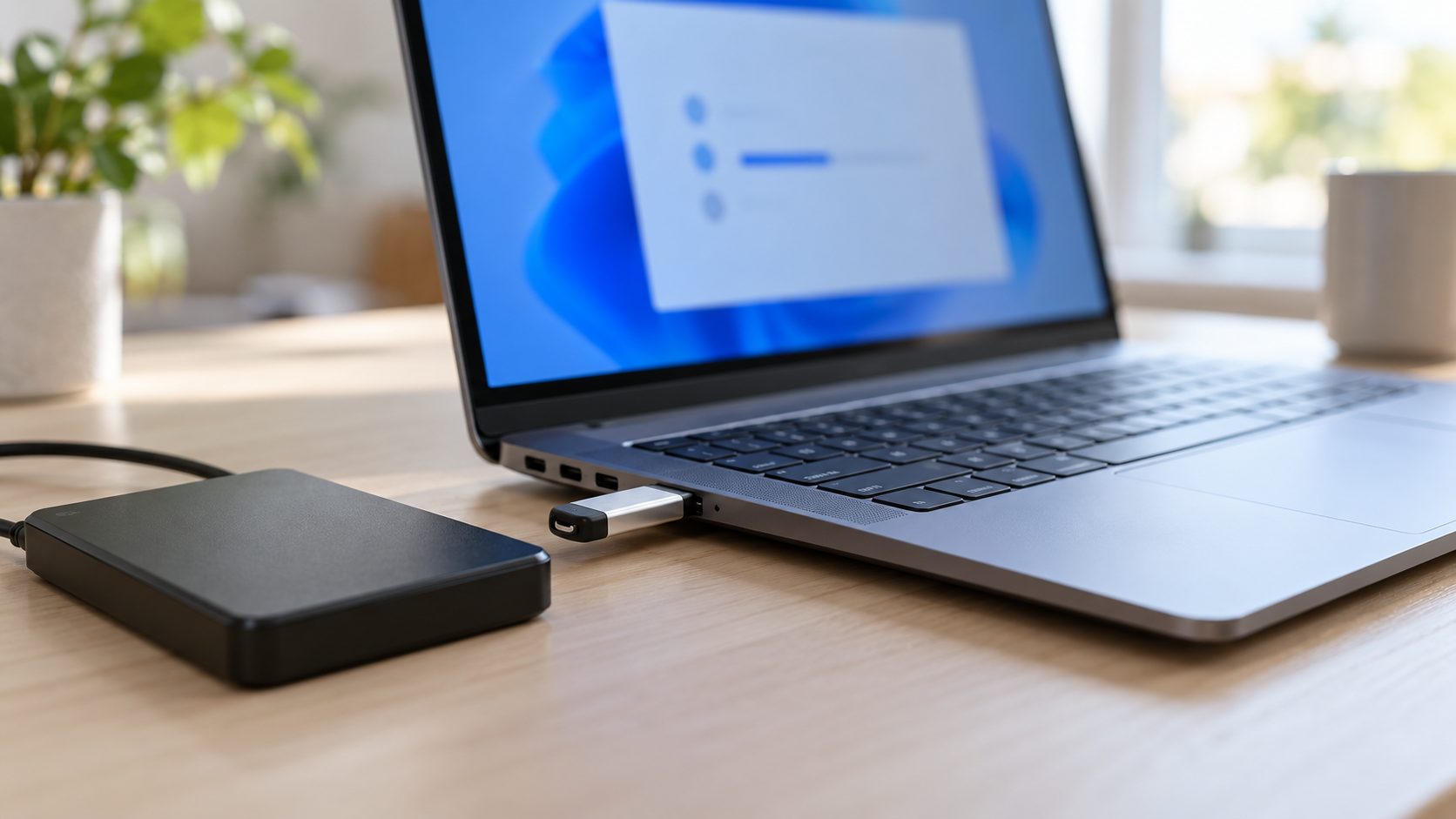
In a clean install, delete only the Windows drive’s partitions. Microsoft’s example calls it Disk 0, but numbering varies: identify it by size and by its System, MSR (Reserved), Primary and Recovery partitions, or unplug other drives first.
Install your licensed edition; if asked for a key, choose I don’t have a product key, and a digital license activates online. Microsoft’s reinstall guide shows each screen; if Setup can’t see the drive, see our SSD not showing up guide.
Frequently Asked Questions
Are my files safe after “There was a problem resetting your PC”?
Almost always: the message means Windows rolled the reset back. Back up anyway, since rollback isn’t guaranteed.
Why won’t Windows let me reset or factory reset my PC?
“Could not find the recovery environment” means Windows RE is off or missing; run reagentc /enable. A reset that starts, then rolls back with “There was a problem resetting your PC,” usually points to damaged files: switch to Cloud download or run DISM. On work or school PCs, IT may block resets.
Is Reset this PC the same as a factory reset?
Close, but not identical: both reinstall options bring back your current Windows version, not the day-one image. Your PC maker’s recovery media, where offered, usually restores that image and can get around the “problem resetting your PC” error.
If Windows 11 Still Won’t Reset
Still getting “There was a problem resetting your PC” after Fixes 5 and 6? Go to Fix 8: Reinstall now or an in-place reinstall for a working PC, the clean install for a wipe. If even that fails, suspect the drive and run your PC maker’s built-in hardware diagnostics. More fixes are in our software and apps guides, computer guides and all English guides.


Leave a comment