

VPN Not Working but Connected? Fix DNS, Kill Switch and Location
Your VPN says Connected, yet pages won't load or your location won't change. Pinpoint DNS, kill switch, MTU, IPv6 and split-tunnel causes and fix them safely.
A VPN not working but connected is a confusing sight: the switch is green, yet pages spin or sites still show your real city. The tunnel is up, but routing, DNS, packet size or a blocking setting is failing inside it. Two minutes of testing tells you which.
Menus follow Windows 11, macOS, iPhone and stock Android; VPN app labels vary by provider.
VPN Not Working but Connected? Start With a Two-Minute Test
“Connected” only means the VPN app has set up its tunnel. It doesn’t prove that traffic flows through it, that its DNS servers answer, or that every app uses it. That’s why a VPN not working but connected is so common.
Turn the VPN off
If nothing loads, pause any kill switch too (Android: Block connections without VPN). Still nothing? Your local connection is the problem, not the VPN; see Wi-Fi connected but no internet.
VPN on: ping an IP
In Command Prompt or Mac Terminal (Ctrl+C stops it), run ping 1.1.1.1. Replies mean traffic gets through; some servers ignore ping, so one failure isn’t proof.
VPN on: ping a name
Run ping -4 google.com (Mac: ping google.com). If the IP worked but the name can’t be found, Microsoft’s ping reference points to a DNS problem. An address with no replies means DNS works.
Match the result
Find your result in the cards below.
On a phone (no built-in ping), open this IP-only address in the browser with the VPN on:https://1.1.1.1/cdn-cgi/trace
If it shows a few lines of text but normal sites fail, it’s DNS. If even this won’t load, traffic isn’t getting through.
Nothing loads, no pings
Try another server or protocol, then the kill switch.
IPs ping, names fail
Go to the DNS fixes.
Some sites hang
Test the packet size.
Wrong location
See location and leaks.
Switch the Server, Protocol and Network First
A VPN not working but connected on one server and fine on another points to that server, which only your provider can fix.
- Another server. Try two or three, one of them nearby.
- Another protocol. Most apps offer WireGuard, OpenVPN (UDP or TCP) or IKEv2, and a network may block one but not another.
- Another network. Try mobile data; if the VPN works there, the Wi-Fi network is the difference (see the FAQ).
- A restart. Restart the app, then the device.
IPs Ping Fine but Sites Won’t Load: Fix the DNS
Many VPNs hand your device their own DNS servers. A VPN not working but connected with working pings often means the device is still using a manual or ISP DNS address the tunnel can’t reach.
- Flush the cache. On Windows, run
ipconfig /flushdnsto clear cached and failed lookups;ipconfig /alllists the VPN adapter’s DNS servers. On a Mac, run in Terminal:sudo dscacheutil -flushcache; sudo killall -HUP mDNSResponder - Remove manual DNS. Windows 11: Settings > Network & internet > Wi-Fi > Manage known networks > your network (or Ethernet > your network), then DNS server assignment > Edit > Automatic (DHCP). Mac: System Settings > Network > your connection > Details > DNS; delete servers you added with the minus button. Android: Settings > Network & internet > Private DNS; a named provider hostname never falls back, so pick Automatic while testing.
- Let the VPN manage DNS. Turn on the app’s own DNS or leak protection option, if it has one.

A VPN not working but connected in the browser alone can come from secure DNS. Chrome’s Secure DNS falls back to normal lookups in its default automatic mode, but not with a custom provider, so a VPN that allows only its own DNS can leave the browser blank. It’s under Settings > Privacy and security > Security, then Use secure DNS under Advanced. Edge and Firefox have similar no-fallback modes.
No Internet at All: Kill Switch, Firewall or Another VPN
A kill switch blocks traffic whenever the tunnel isn’t carrying it. If the tunnel stalls while the app still says Connected, you get a VPN not working but connected with no internet at all.
On Android it’s Block connections without VPN, under Settings > Network & internet > VPN, then the gear (other phones: search Settings for “VPN”); apps lose their connection whenever the VPN is down. On work-managed iPhones, an Always On VPN profile drops all traffic when its tunnels are down; ask your IT team.
Reconnect first. If you switch the kill switch off, do it for one quick test only, because a dropped tunnel then sends traffic over your normal connection. Don’t leave a firewall or antivirus disabled either: allow the VPN app in it instead.
Also quit any second VPN, proxy or internet-filtering app; they compete for the same connection.
Some Sites Load, Others Hang: Test the Packet Size
A tunnel’s own header leaves less room for data in each packet. When “packet too big” messages don’t get through, connections hang (RFC 4821). A VPN not working but connected this way looks like a slow server: small pages load, big ones stall.
With the VPN on, run on Windows:ping -4 -f -l 1300 google.com
or on a Mac:ping -D -s 1300 google.com
The -f or -D flag forbids splitting the packet; the number is its size in bytes.
Change the size in steps of 20 to find the largest that gets replies. An error such as “Packet needs to be fragmented but DF set” just marks the limit, which is normal; WireGuard’s usual default stops at 1,392. Trouble looks different: large pings that simply time out.
If you see that, switch between TCP and UDP or another protocol, or set the app’s MTU, if offered, to your largest working size plus 28 for the headers.
Location Not Changing? Find What Skips the Tunnel
Sometimes everything loads, but sites still show your real city. That’s a VPN not working but connected in the privacy sense: something skips the tunnel. Treat this as a leak check.
- Split tunneling. Only chosen routes or apps use the VPN. Check the app’s excluded-apps list.
- A leftover proxy. With a manual proxy (Windows: Settings > Network & internet > Proxy) or a browser proxy extension on, sites see the proxy’s address. Turn off any you don’t use.
- IPv6. RFC 7359 explains that IPv4-only VPN clients can let IPv6 traffic leave in the clear. Turn on the app’s IPv6 or leak protection; disabling IPv6 is only a stopgap.
Sites use more than your IP: Google’s location help lists device location, saved home and work addresses, past activity and IP address. The bottom of a results page shows which one it used.
google.com may reuse your last device location from a cookie that expires after 6 hours. Clear its cookies, and block location in your browser’s site settings for sites that don’t need it, since that permission reveals your real position whatever your IP.
WebRTC, which browsers use for calls, can reveal your ISP’s address with split tunneling, and a site with camera or microphone access may see more addresses.
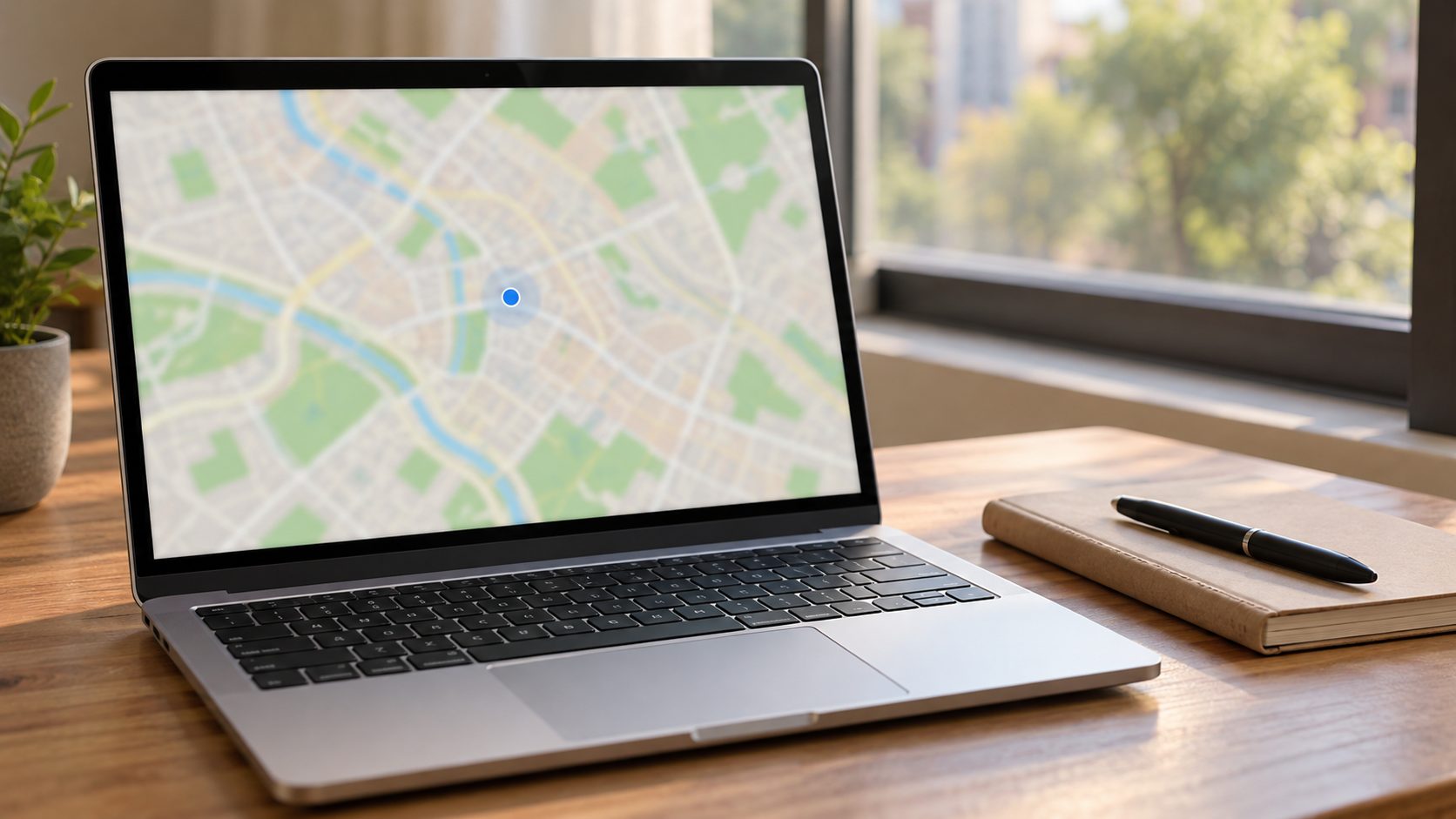
Quick leak check: VPN off, then on
Open any IP and DNS leak test page with the VPN off, then on. IPv4 should change to the VPN’s address and IPv6 should show the VPN’s or none. Neither the DNS resolver nor WebRTC should show your ISP.
iCloud Private Relay can muddy the result, and Apple notes that VPN apps on a Mac can install settings that conflict with it. For a clean test, turn off Limit IP Address Tracking for that network (iPhone: Settings > Wi-Fi > More Info; Mac: System Settings > Network > your connection > Details).
Worked Before but Not Anymore? Updates, Flagged Servers and Resets
Finding your VPN not working but connected after months without trouble usually means something changed. Update the app and system, sign out and in, then reinstall if needed.
CAPTCHAs or blocks on certain sites point to the server’s address: Google’s unusual traffic help says some VPNs get all traffic blocked because Google can’t tell abusive traffic apart. Pick another server.
Windows 11’s Settings > Network & internet > Advanced network settings > Network reset restarts the PC, and Microsoft warns you might need to reinstall networking software, including your VPN. Have your Wi-Fi password and VPN sign-in ready.
A VPN not working but connected on every server and network needs your provider: send the app’s connection log, your OS version, the servers and protocols you tried, and your ping results.
VPN Not Working but Connected: Quick Answers
Why does my VPN say Connected but no websites load?
That’s the classic VPN not working but connected case: the tunnel is up, but traffic or DNS isn’t. The ping test above tells you which.
Is it safe to turn off the kill switch to get online?
Only briefly, and only if a moment of unprotected traffic is acceptable; close apps that send anything sensitive first. If that fixes your VPN not working but connected, the tunnel is dropping, so fix it and turn the switch back on.
VPN not working but connected only on Wi-Fi?
If mobile data works, the Wi-Fi network or router may block your protocol, so try another; network blocks get their own guide, VPN not working on Wi-Fi. If an extender’s light won’t settle, see our Wi-Fi extender blinking guide.
Fixing a VPN Not Working but Connected, One Layer at a Time
A VPN not working but connected usually fails at one layer: the server, DNS, a blocking setting, packet size or traffic skipping the tunnel. Test first, change one thing at a time, and keep your protections on.
More home-network fixes are in our internet guides.


Leave a comment