

How to Transfer an eSIM to a New Phone (iPhone and Android)
Six ways to move your number to a new phone, from iPhone Quick Transfer to a carrier QR code, and why you should never delete the old eSIM first.
How you transfer eSIM service depends on the two phones and your carrier. With carrier support, the new phone pulls your number from the old one; otherwise, the carrier issues a new eSIM by QR code or app. Either way, don’t delete the old eSIM until the new one works.
Which eSIM Transfer Path Fits Your Phones
| Moving | Method | Old phone needed? |
|---|---|---|
| iPhone to iPhone | eSIM Quick Transfer | Yes, nearby and unlocked with its passcode |
| Android to Android | Transfer SIM (Pixel), eSIM Instant Transfer (Samsung) | Yes |
| Android to iPhone | Transfer from Android (iOS 26+, Android 16+) | Yes |
| iPhone to Android | Galaxy or Pixel: Transfer SIM from iPhone (iOS 26+) | Yes |
| Any phones, no direct option | New carrier eSIM by QR code or app | Not required; keep it on for carrier verification texts |
| Old phone lost or broken | Replacement eSIM after an ID check | No |
Direct methods need carrier support. Without it, you can still transfer eSIM service with a carrier QR code.
Before You Transfer eSIM Service: Five Checks
- Carrier support. Carrier lists differ by country and phone maker, so check your carrier’s eSIM page.
- A phone with eSIM. Every iPhone from the XS and XR on has it, except many models sold in mainland China, Hong Kong and Macao, which use two physical SIMs. On Android, look for Add eSIM (Samsung) or Add SIM > Set up an eSIM (Pixel) in the SIM settings.
- No carrier lock on the new phone, unless it’s locked to the carrier you’re keeping. On iPhone, Carrier Lock in Settings > General > About should say “No SIM restrictions.” That screen also lists an EID if the phone has eSIM.
- Updated software, Bluetooth on, working Wi-Fi. Connected but nothing loads? See Wi-Fi connected but no internet.
- The old phone, charged, nearby and with its passcode handy. Direct methods ask you to confirm on it, and carriers may text codes to it.
You can’t transfer eSIM plans by moving a card, and deleting the old eSIM doesn’t free it up for the new phone. Delete it first and, as Apple notes, your carrier has to issue a replacement; until it does, neither phone has service.
Let the transfer switch the old SIM off; if it fails, Google notes the old eSIM keeps working. Keep the old phone intact until the new one makes calls.
How to Transfer eSIM to a New iPhone
If your carrier supports eSIM Quick Transfer, you can transfer eSIM plans between iPhones without calling the carrier. Apple’s eSIM setup page asks for iOS 18.4 or later and the same Apple Account on both, Bluetooth on, and the old iPhone nearby and unlocked with its passcode.
Start side by side
Turn on the new iPhone next to the old one, on Wi-Fi.
Pick your number
Choose it on Set Up Cellular or when asked to transfer your number. iOS 26 or later can move several.
Approve on the old iPhone
If asked, tap Transfer or enter the code shown on the new iPhone.
Wait, then test
Once the new plan activates, the old SIM deactivates. Make a test call.
Already past setup?
Open Settings > Cellular (Mobile Service in some regions), tap Set Up Cellular or Add eSIM, pick the number or Transfer From Nearby iPhone, and approve on the old iPhone. A “Finish Setting Up Your Carrier’s Cellular Plan” banner means you finish on the carrier’s site.
No number or transfer option? Recheck those requirements first. If all are met, your carrier likely doesn’t offer Quick Transfer for that line; use the QR code route.
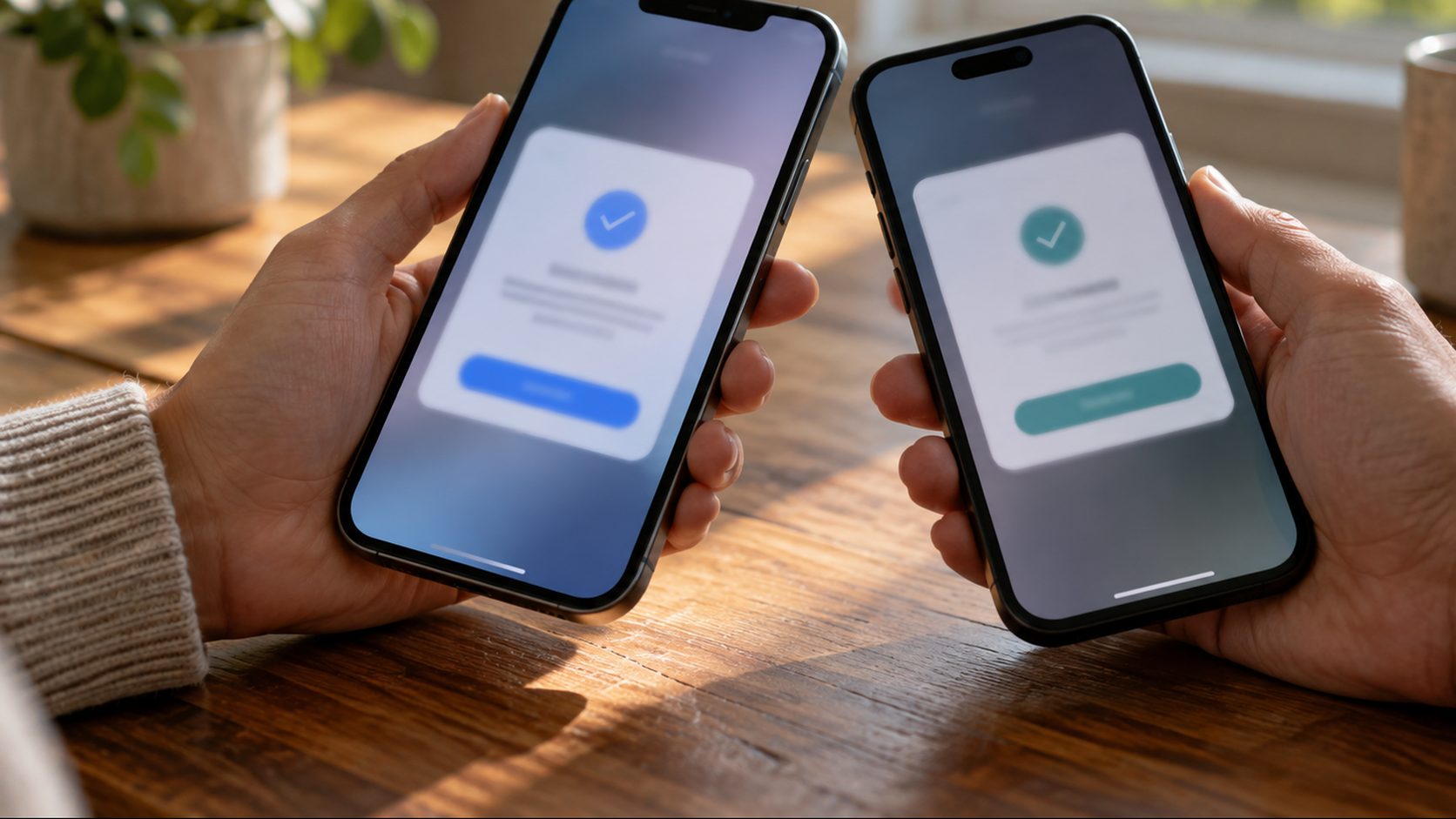
Android to Android: Pixel, Samsung and Other Brands
Many recent Android phones can transfer eSIM profiles directly with carrier support. Menus vary by maker.
Pixel: Transfer eSIM During Setup or Later
Google requires Android 12 or later on both phones, current Google Play services and a screen lock.
- During setup, keep the old phone nearby, choose your SIM and tap Transfer. Later: Settings > Network & internet > SIMs > Add SIM > Transfer SIM from another device.
- Confirm on the old phone with its screen lock if asked.
- Tap Activate on the new Pixel, then make a test call.
Samsung Galaxy: eSIM Instant Transfer
- On the new Galaxy: Settings > Connections > SIM manager > Add eSIM > Transfer SIM from Galaxy/Android phone (Transfer SIM from another phone in some regions).
- On the old phone, tap Transfer in the pop-up and enter the code shown on the new one.
- On the new phone, pick the number and tap Transfer.
- Back on the old phone, tap Transfer once more, then Done.
Motorola, OnePlus and Other Brands
A new Galaxy or Pixel can also pull the eSIM from other Android brands, carrier permitting. On other makers’ phones, open the SIM settings, tap the option to add an eSIM and look for a way to transfer eSIM profiles from another phone. None? Use the QR code route.
How to Transfer eSIM Between iPhone and Android
Since iOS 26, some iPhones and Android phones can transfer eSIM plans directly, again only with carrier support.
Android to iPhone
Apple’s Android-to-iPhone guide lists an iPhone 11 or later on iOS 26 or later, a compatible Android 16 or later phone, and Wi-Fi and Bluetooth on both.
- On the iPhone, open Settings > Set Up Cellular (or Cellular > Add eSIM if it already has a SIM) and tap Transfer from Android, then tap Transfer From Android on the next screen. A QR code appears.
- On the Android, scan that code with the camera, pick the number and tap Transfer.
- Make a test call on the iPhone. The Android’s SIM deactivates once the move finishes.
Scan failing? Tap Other Options on the iPhone to see a session ID and pairing code. On the Android, go to Settings > Google services > All services > Pair with iPhone or iPad > Transfer eSIM and enter both.
Transfer eSIM From iPhone to Samsung or Another Android
Moving only the eSIM, started from a Galaxy or Pixel, needs iOS 26 or later plus a supported phone and carrier; check with your phone maker. First turn off iMessage (Settings > Apps > Messages) and FaceTime (Settings > Apps > FaceTime) so texts from iPhone users reach the Android.
- Start on the Android. Galaxy: Settings > Connections > SIM manager > Add eSIM > Transfer SIM from iPhone. Pixel: Settings > Network & internet > SIMs > Add SIM > Transfer a SIM from another phone > iPhone. A QR code appears.
- On the iPhone, scan it with the camera, or on iOS 26.3 or later from Settings > Cellular > Transfer to Android > Transfer eSIM. Pick the number.
- Confirm and test. Tap Continue or double-click the side button when asked. The number stops working on the iPhone; test it on the Android.
Want photos and messages too? Apple’s Transfer to Android flow (iOS 26.3 or later, a compatible Android 17 phone) moves data and the eSIM together: while the Android is in setup, open Settings > General > Transfer or Reset iPhone > Transfer to Android and scan its code.
How to Transfer eSIM Using a QR Code or Carrier Activation
Use this route when you can’t transfer eSIM service directly. Request it with the new phone in hand and on Wi-Fi: your old eSIM usually stops working once the new one is issued.
- Request a new eSIM (an “eSIM swap”) in the carrier’s app, website or store, with the new phone’s IMEI and EID ready; dialing *#06# shows them on most phones. Keep the old phone on in case the carrier texts it a code. Old setup QR codes usually work only once.
- Install it on Wi-Fi. iPhone: scan with the Camera app and tap Cellular Plan Detected, or go to Settings > Cellular > Set Up Cellular or Add eSIM > Use QR Code (under Other Options if hidden). Samsung: SIM manager > Add eSIM > Scan QR code. Pixel: Add SIM > Set up an eSIM.
- Enter the confirmation code if you got one, then test before touching the old phone.
Code arrived on the new phone itself? Scan it from a computer screen, or on iPhone (iOS 17.4 or later) touch and hold it in your default email app or browser and tap Add eSIM. Never share or post the code.
Some carriers push the plan by notification or app instead, and some countries require an in-person ID check at a store.
Old Phone Lost, Stolen or Broken? Transfer eSIM Through the Carrier
You can’t transfer eSIM service directly unless the old phone approves the move, so if a cracked one still unlocks, try that first. Otherwise, only the carrier can move your number:
- Lost or stolen? Lock it down. Mark it lost in Find My (iPhone) or Find Hub (Android) and, as Apple advises, ask your carrier to disable the line.
- Pass the ID check. If the account login texts a code to the lost line, call or visit the carrier. Have your ID, account PIN and the new phone’s IMEI or EID.
- Add the replacement eSIM, then restore your backup. Apple and Google may text a sign-in code to your number, so install the eSIM when setup offers it (Use QR Code on the iPhone’s Set Up Cellular screen, or the carrier’s prompt), then restore from iCloud or Google. Erasing a set-up phone to restore? Keep the eSIM when asked.
Frequently Asked Questions
Can I transfer eSIM and data to a new phone at the same time?
Yes, in the same setup, but as two moves: the eSIM carries only your number and plan, while photos and apps come with the data transfer or a cloud backup. Across platforms, Apple’s Transfer to Android (iOS 26.3 or later) and Transfer without App flows move both in one pass, and both need a compatible Android 17 phone.
Why can’t I transfer eSIM service from my old phone?
Usually the old phone isn’t unlocked or nearby with Bluetooth on, one phone needs an update, the new phone is carrier-locked, or two iPhones use different Apple Accounts. On Samsung, a SIM card in the new phone or finished setup can hide the setup option; remove the card, or use SIM manager. Otherwise, your carrier probably doesn’t offer direct transfer for that line; use the QR code route.
Can I move a travel eSIM to a new phone?
Usually not directly. A deleted eSIM has to be reissued, and a travel provider may refuse, losing unused data. Not installed yet? Install it on the new phone. Already on the old one? Ask the provider before deleting it. The new phone must not be carrier-locked.
After the Move: Test, Fix, Then Delete the Old eSIM
Once you transfer eSIM service, turn Wi-Fi off on the new phone, then make a call, send a text and load a web page.
If any of the three fails, try these in order: toggle Airplane Mode, turn the line off and on, restart, install any carrier settings update (iPhone: Settings > General > About), then call the carrier. Calls work but data doesn’t? Make sure the new line is the one set for data (iPhone: Settings > Cellular > Cellular Data). On iPhone, also check that Settings > Apps > Messages > Send & Receive lists your number.
Only when all three work, delete the old eSIM: on iPhone, Settings > Cellular > Delete eSIM (with several plans, tap the plan, then Delete Plan); on Android, the SIM settings. Selling the phone? Confirm your data moved and sign out of your Apple Account or Google account first. Deleting the eSIM doesn’t cancel your plan; only the carrier can.
New phone stalling at 80% on the charger? That’s often on purpose; see why a phone stops charging at 80%. More fixes are in our mobile guides and on the English home page.


Leave a comment