

SSD Not Showing Up on Xbox or PS5? Storage Requirements and Fixes
A missing console drive often breaks a storage rule. On Xbox, check size, USB speed and the format prompt, then updates and ports; on PS5, the port, hub and M.2 fit.
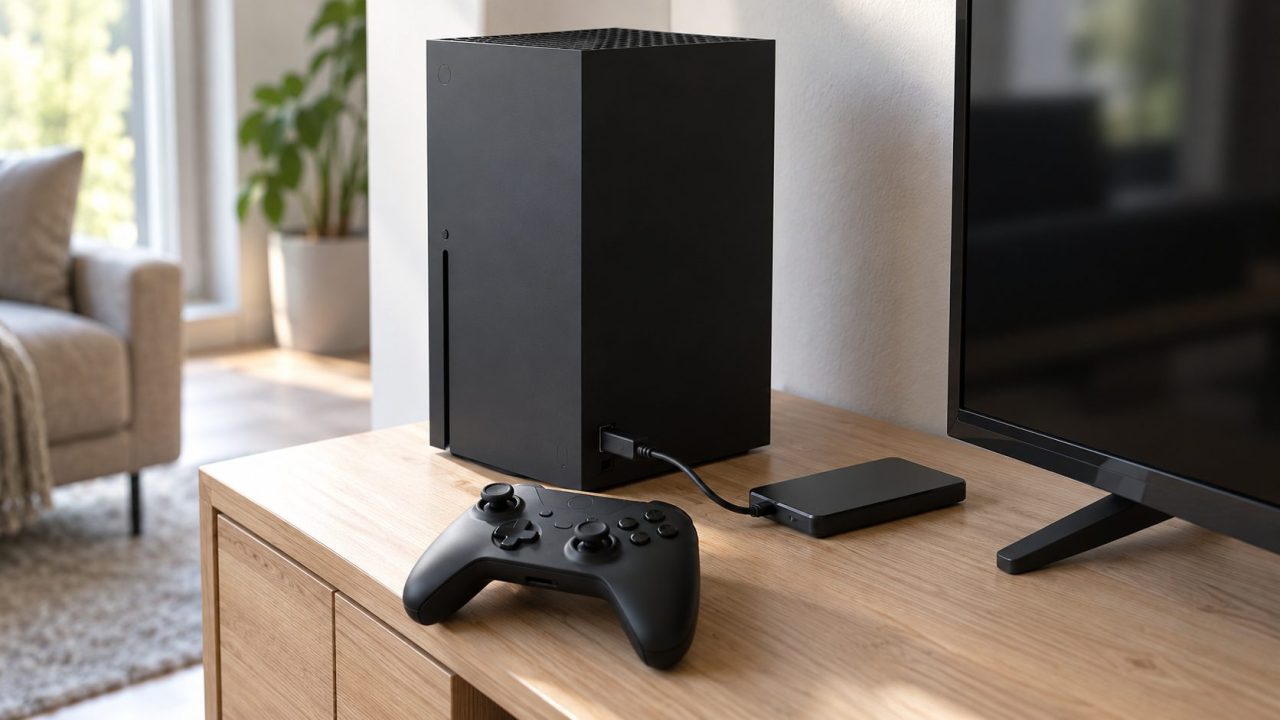
An SSD not showing up on Xbox or PS5 is often a requirements problem, not a dead drive. A drive that’s too small or running at USB 2.0 speed can’t hold games: an Xbox offers it for media only, and a PS5 won’t take it as extended storage. Check the rules for your storage type first.
Both consoles erase a drive when they first format it for games, M.2 SSDs included. Copy off any files you want to keep first.
Which Kind of Console Storage Is Missing?
An SSD not showing up on Xbox needs different fixes from a missing PS5 drive, and each console takes two kinds of extra storage:
| Storage | Connects by | Size | Play games from it? |
|---|---|---|---|
| Xbox USB drive | USB 3.x port | 128 GB or more | Yes, except Optimized for Series X|S titles |
| Xbox Expansion Card | Expansion slot, Series X|S only | 512 GB to 4 TB | Yes |
| PS5 USB extended storage | SuperSpeed USB, no hub | 250 GB to 8 TB | PS4 games only |
| PS5 M.2 SSD | Internal M.2 slot | 250 GB to 8 TB | Yes |
For an SSD not showing up on Xbox One, only the first row applies. Xbox One has no card slot and can’t run Series X|S versions, but for cross-gen (Smart Delivery) games it installs its own version, which runs from USB.
Xbox External SSD Requirements: Xbox One and Series X|S
Before you troubleshoot an SSD not showing up on Xbox, check it against Xbox Support’s storage rules for both console families. Miss one and the drive is media-only.
- USB 3.0 or faster, and so must any hub in between.
- 128 GB or larger.
- A partition. Most drives ship with one.
- Three storage devices at most connected at once.
Series X|S ports are USB-A (USB 3.1 Gen 1), so a USB-C SSD needs a C-to-A cable that carries USB 3 data. A Thunderbolt-only SSD with no USB mode won’t work.
A game that won’t launch is a different problem from an SSD not showing up on Xbox. Optimized for Series X|S games can sit on USB but must move to the internal SSD or an Expansion Card to play.
SSD Not Showing Up on Xbox at All? Check Storage Devices
Press the Xbox button, then go to Profile & system > Settings > System > Storage devices. If the drive is listed, the console has detected it; the fix is in its setup, below. If it’s missing, jump to the fixes for an external SSD not showing up on Xbox.
Answer the format prompt
When you first connect a qualifying drive, the console asks whether to use it for games and apps or for media. Choosing games formats the drive, which erases it. After you name it, pick one console (its games update automatically) or several (you update them manually).
Listed, but only for media?
Is your SSD not showing up on Xbox as an install location, even though it’s listed? It’s probably set up for media. If you canceled the prompt, go to Settings > System > Storage, select the drive and choose Format, per Xbox’s storage management page. If it stays media-only, it fails a rule: check its size and USB 3 connection.
External SSD Not Showing Up on Xbox Series X or Series S: Fixes in Order
This order also fits an SSD not showing up on Xbox One. Steps 1 to 4 follow Xbox Support’s order.
Install updates
Open Settings > System > Updates, install anything pending, then recheck Storage devices.
Change a power option
If the power mode is Sleep, open Settings > General > Power options, clear When Xbox is off, turn off storage, then restart.
Reconnect and switch ports
Unplug the drive, then try another USB port and another USB 3 cable or enclosure. Skip any hub.
Power cycle
Unplug the drive, hold the console’s Xbox button about 10 seconds until it shuts down, then restart and reconnect.
Test it on a PC
Still have an SSD not showing up on Xbox? Try it on a Windows PC, and decline any offer to initialize or format it. If Windows can’t detect it at all, use our SSD not showing up guide, then the drive maker’s site.
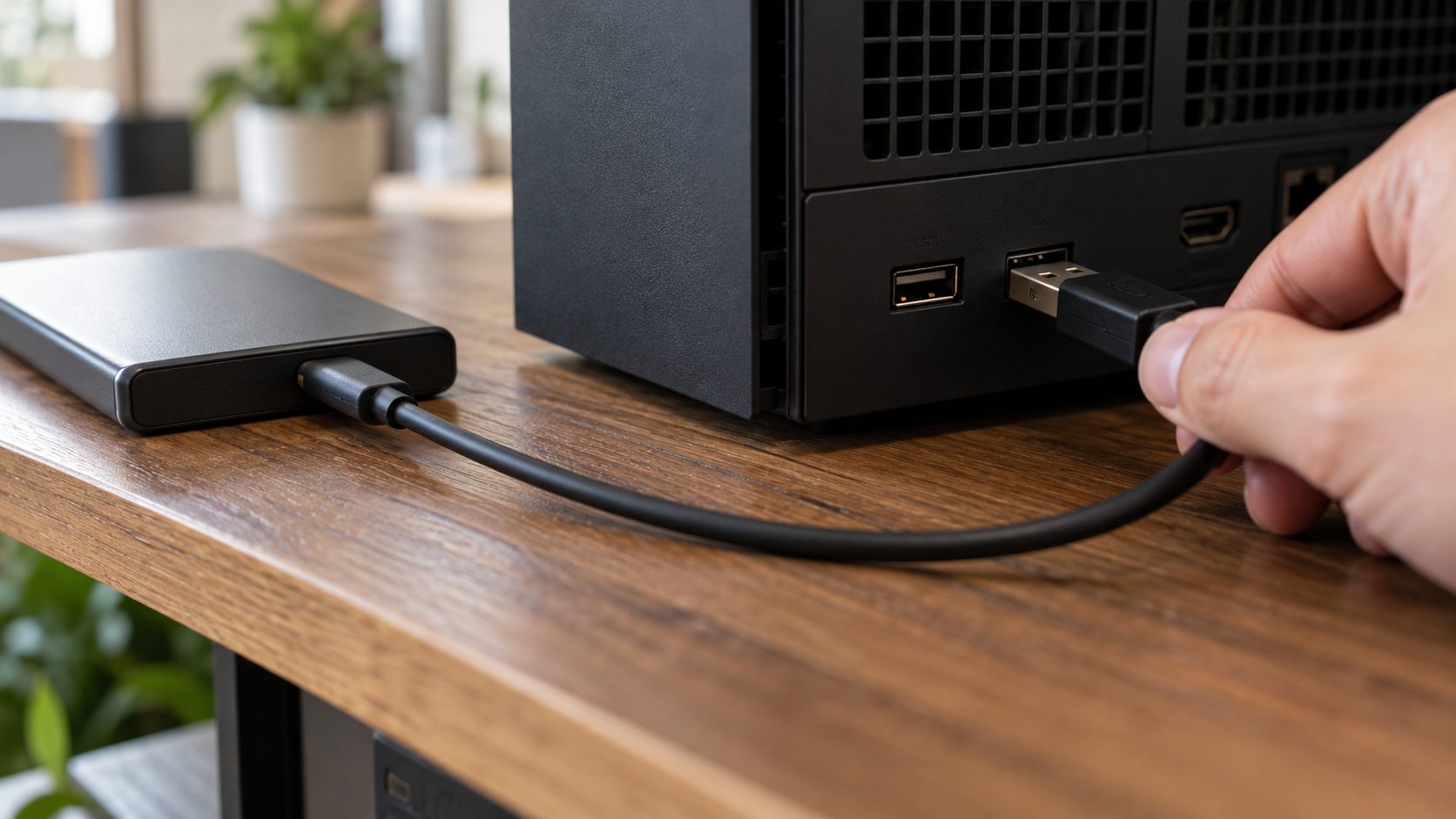
If Windows detects it, the drive probably works. Recheck the console’s ports and cable, or try a powered USB 3 hub if the drive needs more power.
Storage Expansion Card Not Recognized on Xbox Series X|S
A card has no cable or port to swap, so its fixes differ from those for an external SSD not showing up on Xbox. Cards from Seagate (now up to 4 TB) and Western Digital perform like the internal SSD and work only in Series X|S. Install a new console’s first system update before inserting one.
- Check Settings > System > Storage.
- Make sure its protective cover is off and the card is fully seated in the slot.
- Not listed? Remove the card, wait 30 seconds and reinsert it firmly.
- Still missing after 30 seconds? Remove it, restart the console and insert it again.
- Then contact Seagate or Western Digital.
Blank screen at power-on? Remove the card and any USB drives.
SSD Not Showing on PS5 Over USB: Port, Hub and Format
PS5 USB extended storage needs SuperSpeed USB 5 Gbps or faster, 250 GB to 8 TB, no hub, and only one such drive in use at a time. Sony doesn’t guarantee every drive works.
Sony’s USB ports guide lists the front USB-A on the original PS5 (CFI-1000) and one front USB-C on the Slim and Pro (CFI-2000/7000) as Hi-Speed only. Use a rear USB-A port; those are SuperSpeed on every model.
Choose Settings > Storage > USB Extended Storage > Format as USB Extended Storage, which erases the drive; don’t unplug or power off mid-format. Drives already used as extended storage on a PS4 or another PS5 skip this. Unplug with Safely Remove from PS5.
Drive detected but games not working from it? PS5 games can’t run from USB; copy them back to console storage or the M.2 SSD. PS4 games run from the drive.
PS5 M.2 SSD Not Detected After Installing It
Install the latest system software first, then check the drive against Sony’s M.2 SSD page:
- PCIe Gen4 x4 M.2 NVMe, Key M. M.2 SATA drives aren’t supported.
- 250 GB to 8 TB, in a 2230, 2242, 2260, 2280 or 22110 size.
- A heatsink or heat transfer sheet is required, with the total up to 25 mm wide and 11.25 mm thick (8.0 mm above the board, 2.45 mm below). Don’t stack a second heatsink on a built-in one.
- 5,500 MB/s sequential read is recommended.
Reseat it, then use the format guide
Turn the console off, unplug everything, let it cool and touch grounded metal to discharge static. Move the spacer to the groove for your SSD’s length, insert the SSD diagonally all the way into the connector, then lower it flush and screw it down. On a CFI-1000, a slot cover that won’t close probably means the cooling is too big. Don’t power on with the cover off.
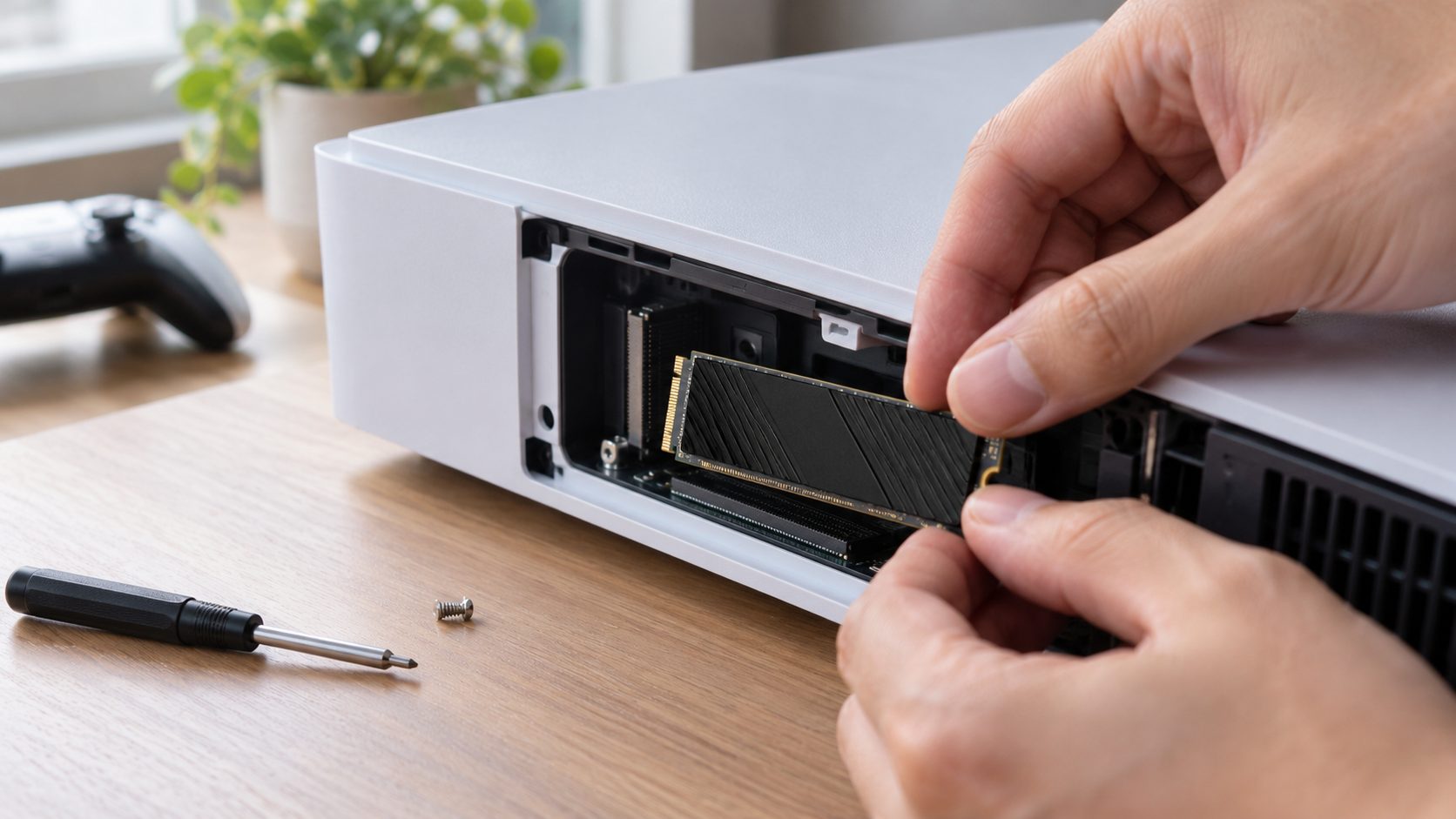
At power-on the PS5 shows a formatting guide; formatting erases the whole SSD. A drive moved from another PS5 needs no format; sign in with the same account to play its games.
Frequently Asked Questions
Why is my SSD not showing up on Xbox as a games drive?
Check three things: is it under 128 GB, running at USB 2.0 speed (old drive, hub or cable), or set up for media? If it meets the rules, reformat it for games in Settings > System > Storage, which erases it.
Do I need to format the SSD on a PC first?
No. Both consoles format the drive themselves, which erases it. A PC helps only to add a partition to a blank drive, or to test whether an SSD not showing up on Xbox works at all.
What’s the largest SSD an Xbox or PS5 will take?
Xbox has no 16 TB cap: it splits bigger drives into partitions of up to 16 TB (24 TB becomes 16 plus 8) and allows eight extra partitions, an Expansion Card included. PS5 takes 250 GB to 8 TB, over USB or M.2.
Can a USB hub cause an SSD not showing up on Xbox or PS5?
On Xbox, a hub slower than USB 3.0 makes the drive media-only, and an unpowered hub may not supply enough power, so test with the drive plugged straight in. PS5 doesn’t allow extended storage through a hub.
Check the Storage Type Before the Drive
For an SSD not showing up on Xbox, check the storage rules and the format prompt before blaming the drive. On PS5, check the port, hub and M.2 fit, and back up files before any format.
Controller trouble instead? See our fixes for a controller not turning on or one that won’t connect to Xbox. More drive fixes are in our computer guides.



Leave a comment