

Why Is My PC Beeping? Startup Codes, Blinking Lights and Random Dings
Startup beeps, blinking lights, keys that beep instead of typing, random chimes or a UPS on battery: what yours means and which fixes are safe to try.
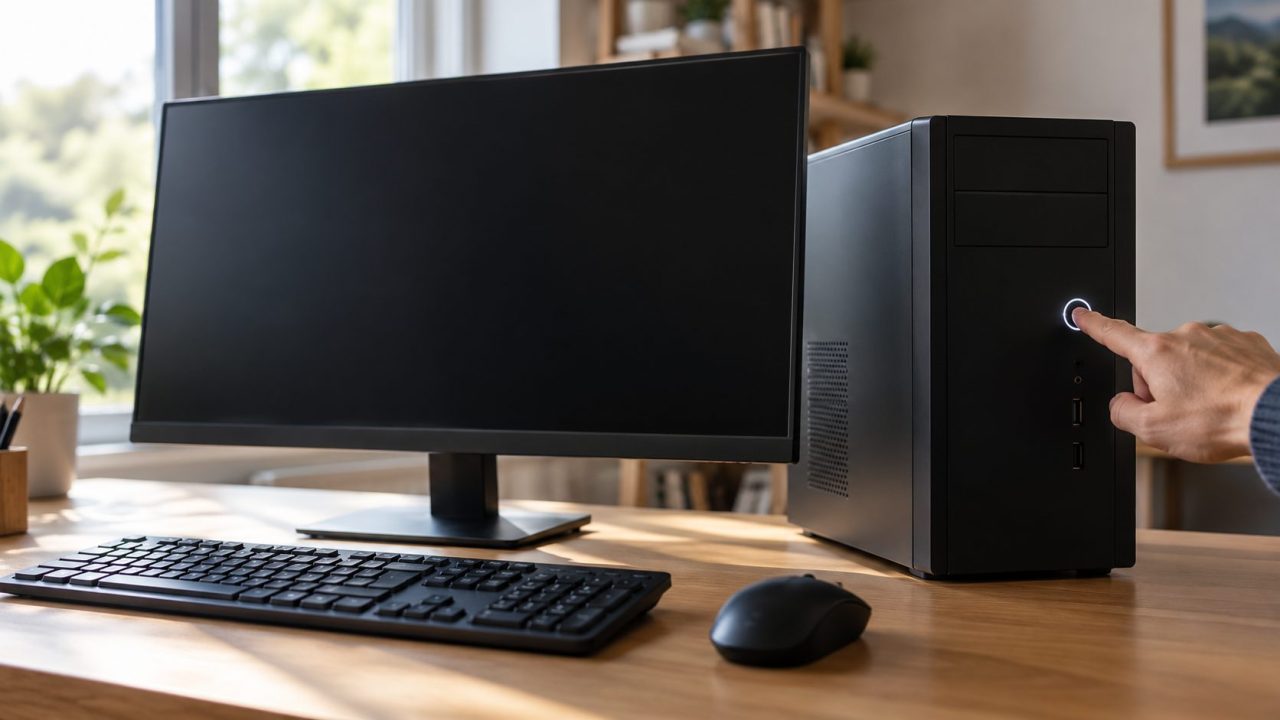
Why is my PC beeping? It depends on when. Beeps or blinking lights at power-on, before any picture, are a hardware diagnostic code. Beeps while Windows runs usually mean a keyboard setting, a dropping USB device or a battery alarm. If it beeps with the PC off, check the battery backup.
Why Is My PC Beeping? Start With When It Happens
Match your symptom to a row:
| When it happens | Usual cause | Go to |
|---|---|---|
| One beep, then a normal start | Self-test passed | Nothing to fix |
| Repeating beeps, black screen | Startup error code | Count it |
| Blinking lights, no beeps | Light code or standby | Lights |
| Keys beep instead of typing | Filter, Sticky or Toggle Keys | Windows |
| Random chimes while you work | USB dropout, alerts, battery | Windows |
| Nonstop alarm while running | Stuck key, fan or heat warning | Windows |
| Beeping with the PC off | A UPS (battery backup) | UPS |
Why Is My PC Beeping at Startup? Count the Pattern
At power-on, the PC runs a self-test (POST). A laptop that passes may beep once, twice or not at all, Dell says; a repeating pattern means it failed before it could show an error.
Silence proves nothing: many desktop cases have no speaker or buzzer. No sound and a black screen? Look for lights.
Listen to a full cycle and write it down
Note short or long beeps and the pauses: “3 short, 1 long”, or “2, 3” for a two-part light code. Dell laptop codes loop until you press power.
Restart and count again
HP desktops stop beeping after five repetitions but keep blinking, so watch the lights.
Find the exact model
Use the model sticker, or the motherboard model on a self-built PC.

Look Up the Code in Your Maker’s Own Table
Search “why is my PC beeping” and you’ll often find generic AMI, Award or Phoenix charts, but each maker numbers its own codes. Here’s how four product lines report missing memory:
| PC | Pattern | Maker’s meaning |
|---|---|---|
| Dell laptops with beep codes | 2 beeps | No memory detected |
| Dell Inspiron laptops, 2016 on | 2 amber, then 3 white battery-light blinks | No memory detected |
| HP notebooks | 3 red, then 2 white Caps Lock blinks | Memory |
| Lenovo ThinkCentre desktops | 3 short beeps, 1 long | Memory not detected |
Start with Dell’s laptop beep codes or HP’s notebook light and beep codes; both makers keep separate desktop pages.
Supported ThinkPads (most from 2018 on) play a melody on a black-screen failure. Lenovo’s Android PC Diagnostics app decodes this SmartBeep while you press Fn to replay it.
No Beeps, Just Blinking Lights
On newer machines, “why is my PC beeping?” often becomes “why is it blinking?” Dell replaced most Inspiron laptop beeps with light patterns from 2016.
Dell battery light
Inspiron laptops from 2016 on blink amber, then white: 3 + 2 is a video or PCI card failure. Dell says the code shows how far startup got, not the cause.
HP Caps Lock or power light
Long red blinks give the category, short white ones the detail (both white on single-color lights). 3 + 3 is graphics. HP desktops blink the power light the same way.
Motherboard LEDs
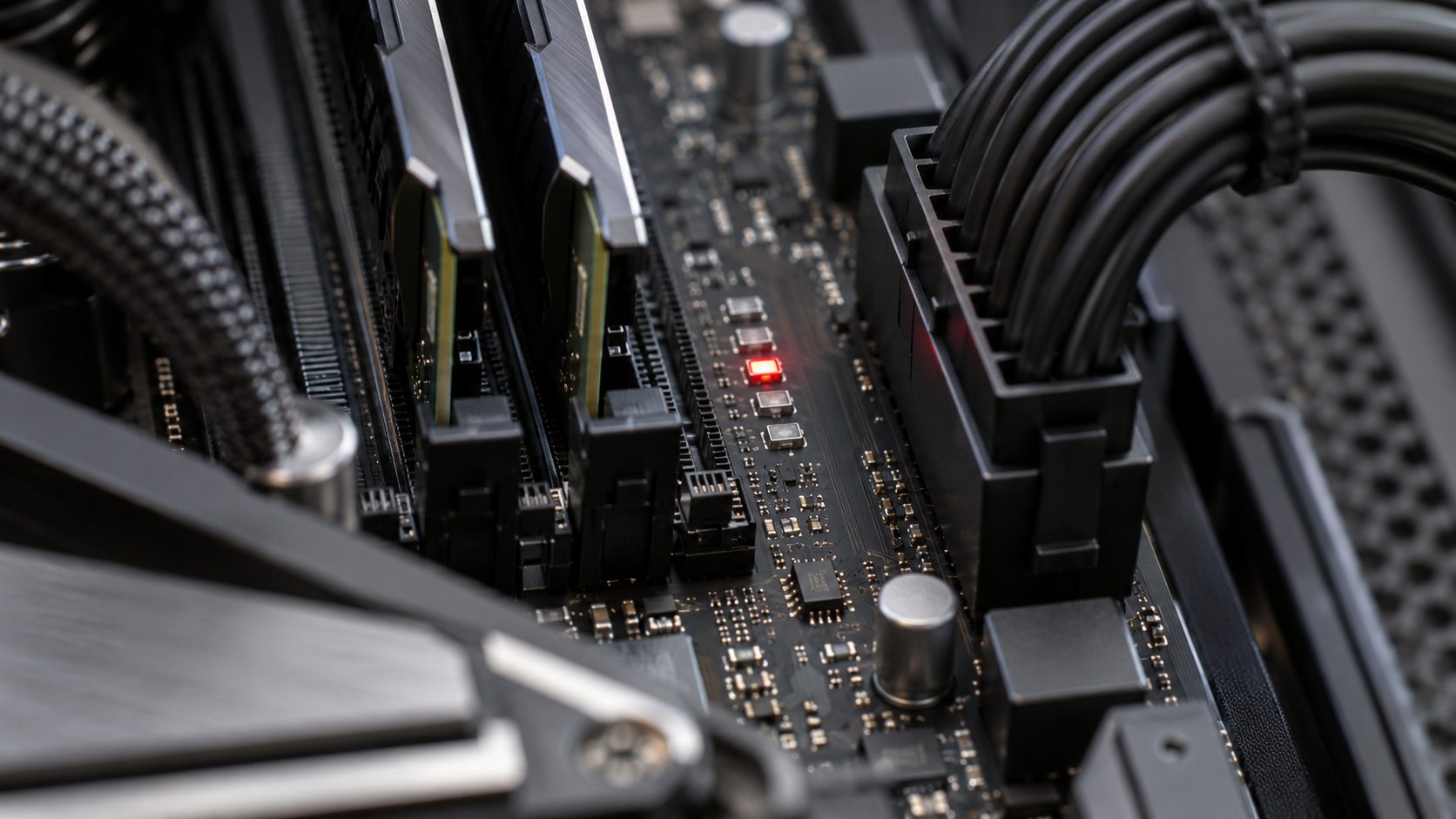
Supported ASUS boards have four Q-LEDs: CPU, DRAM, VGA and BOOT. One that stays lit marks the failed stage. MSI and others fit similar LEDs.
Case power light
ASUS boards with Q-LED Core blink it instead. 4 blinks a second: no memory (Intel) or no CPU (AMD). One every 2 seconds: no graphics. 4 seconds on, 4 off: no boot drive.
After new memory, a new CPU, a BIOS update or a CMOS clear, memory training (especially DDR5) can keep the DRAM LED lit for several minutes. Wait; don’t cut the power.
Not every blink is a fault: on Inspiron laptops, flashing white means standby. If a sleeping PC keeps waking and chiming, see why Windows 11 won’t sleep.
Safe First Fixes for a Startup Code, and When to Stop
Check your warranty and service manual: some makers let owners replace memory, others want it serviced. Unplug the PC and touch bare metal on the case to discharge static. On a desktop, switch off the power supply and press power once; on a laptop, disconnect the internal battery as the manual describes.
- Hard reset. HP’s version: unplug the charger, remove a removable battery, discs, cards and peripherals, then hold power about 15 seconds. If Windows itself hangs, see Windows 11 won’t restart.
- Heat codes. HP’s 4 + 2 (CPU), 4 + 3 (room too hot) and 4 + 4 (graphics) mean overheating: shut down, unplug, clear the vents with canned air and let it cool about 10 minutes.
- Minimum setup. On a desktop, keep only the CPU, board, power supply, one memory module and (if the CPU lacks built-in graphics) the graphics card; add parts back one by one.
- Reseat where allowed. Memory on desktops and laptops with a memory door; a graphics card or M.2 drive on desktops. ASUS suggests one module first, and memory from the board’s QVL (support list).
- Test or reset. If the PC reaches its startup menus, press Esc then F2 on HP, or F12 then Diagnostics on Dell. On a desktop, clearing CMOS (jumper or button, see the board manual) resets BIOS settings.
- HP notebook BIOS code (2 + 2). On another PC, download the BIOS for the broken notebook’s exact model (enter the product number from its bottom label; don’t let HP detect the PC you’re using), confirm it matches, then use HP’s BIOS update utility in that download to create the recovery USB drive and plug it in. With the charger connected, hold Windows + B (Windows + V on some models), press power for 2-3 seconds, then release power but keep holding the keys until HP BIOS Update appears.
- Know when to stop. Processor-not-detected, motherboard and laptop graphics-chip codes mean a repair, not a reseat.
Why Is My PC Beeping While Windows Is Running?
With the desktop on screen, “why is my PC beeping?” points to a Windows sound, a stuck key or a hardware alarm.
Why is my PC beeping when I type?
That’s usually Filter Keys: holding right Shift for eight seconds turns it on, and Windows then ignores brief keystrokes. Five Shift presses toggle Sticky Keys; holding Num Lock five seconds toggles Toggle Keys, which beeps on the lock keys.
A stuck right Shift key can switch Filter Keys on by itself, so check for one. Then turn off each feature and its shortcut in Settings > Accessibility > Keyboard (Windows 10: Ease of Access > Keyboard).
ThinkPad beeping when many keys are pressed at once? Turn off Config > Beep and Alarm > Keyboard Beep in the BIOS (F1 at startup, F10 saves).
Why is my PC beeping nonstop? A jammed key or a fan alarm
A jammed key, or something resting on the keyboard, can make the PC ding over and over; unplug the keyboard to test. On a desktop, a nonstop alarm can also be a CPU fan or heat warning: shut down, check the fan spins and the vents are clear, then check the BIOS hardware monitor.
Why is my PC beeping randomly? Check for a USB dropout
In Settings > System > Sound > More sound settings > Sounds (Windows 10: Sound Control Panel), test Device Connect and Device Disconnect against what you hear. A repeating pair means a device keeps dropping: watch Device Manager (right-click Start) for the flickering entry and try another port or cable.
Laptop dinging or beeping at you
Go to Settings > System > Notifications (Windows 10: Notifications & actions), pick the noisy app and turn off Play a sound when a notification arrives. Beeps as the charge drops are the low or critical battery alarm; plug in.
Why Is My PC Beeping When It’s Switched Off? Check the UPS
Beeps after shutdown or during a power cut? Then “why is my PC beeping?” has a simple answer: it isn’t. Check the battery backup (UPS); APC lists these Back-UPS tones:
- An occasional single beep: normal.
- 4 beeps every 30 seconds (1 every 5 seconds on some models): running on battery.
- Continuous beeping: low battery, about 2 minutes before shutdown.
- A solid tone: overload; unplug nonessential gear.
- One minute of beeps every 5 hours: failed self-test, replace the battery.
Other UPS brands use their own patterns; check the unit’s manual.
Frequently Asked Questions
Why is my PC beeping when I turn it on?
A single beep and a normal start is a passed self-test. Only a repeating pattern or a black screen needs attention.
Why is my PC beeping continuously and not turning on?
It’s repeating a startup error code, often memory: count it and check your maker’s table. If it beeps nonstop once Windows is up, check the CPU fan and look for a stuck key.
Why is my PC beeping every few minutes?
On a running PC, suspect a USB device reconnecting or the battery alarm. With the PC off, it’s likely a UPS on battery.
Why is my laptop power button blinking?
Often it’s just asleep. Colored patterns with a black screen right after power-on are diagnostic codes.
Why is my PC flashing red?
On a desktop, read the label beside the lit motherboard LED. On HP, red Caps Lock (laptop) or power-light (desktop) blinks start an error code.
So, Why Is My PC Beeping? Let the Timing Decide
At power-on it’s a code: count it, find the model, use the maker’s table. While Windows runs, check the accessibility keys, USB devices, battery and fans; with the PC off, the UPS.
More fixes are in our computer guides.


Leave a comment