

Monitor Not Detecting Xbox, PS5, Switch or Steam Deck? Console Fixes
Wrong input, a tired cable, a box in the chain or a mode the monitor can't show: console-to-monitor fixes for Xbox, PS5, Switch and Steam Deck, cheapest first.
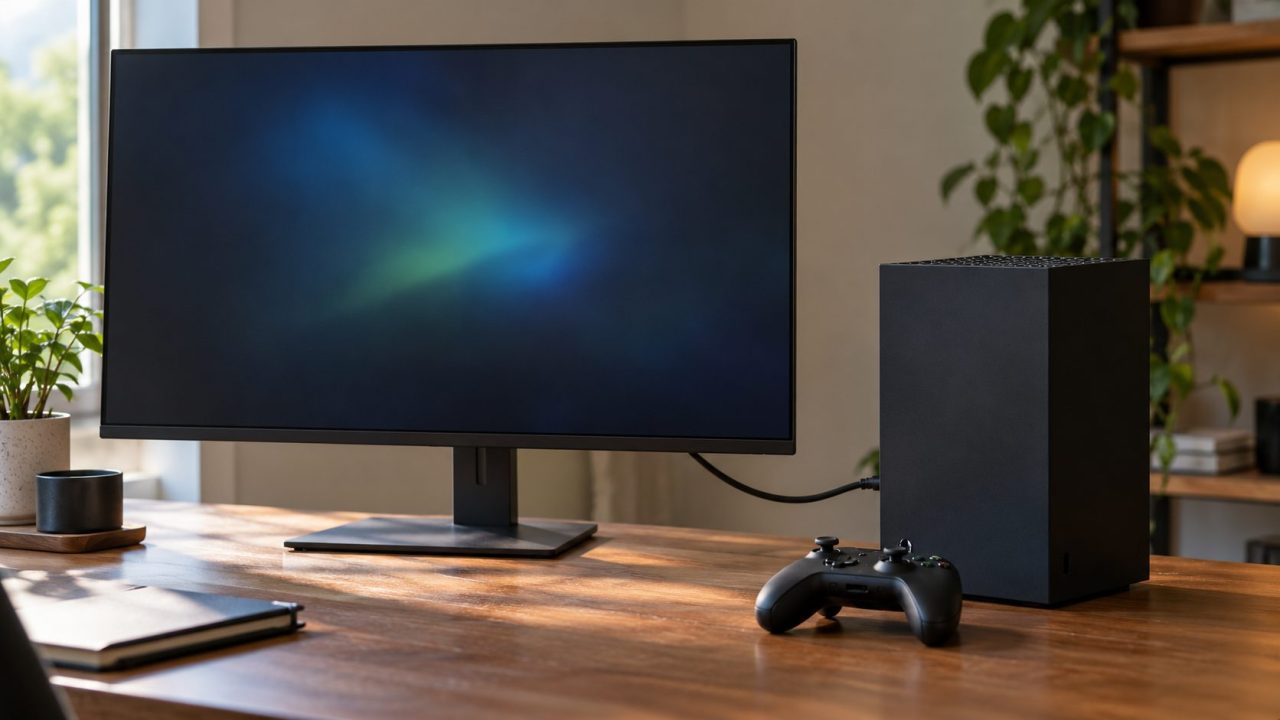
A monitor not detecting Xbox video usually comes down to the wrong input, a bad cable or port, a box in the chain, or a video mode the monitor can’t show. Start with the free checks, then use the console’s own video reset.
For a computer, see our guides to a monitor not detecting a MacBook or a monitor not detected in Ubuntu.
Monitor Not Detecting Xbox or Another Console? Check Input, Cable and Port First
Do these physical checks before treating a monitor not detecting Xbox video as a settings problem.
The right input
With both devices on, pick the console’s HDMI input on the monitor; auto source switching can miss a console.
The HDMI out port
Use the console’s HDMI out (to TV) port. An Xbox One’s HDMI in port sends no picture.
Switch Lite won’t work
Switch Lite has no TV mode, so no adapter will put it on a monitor.
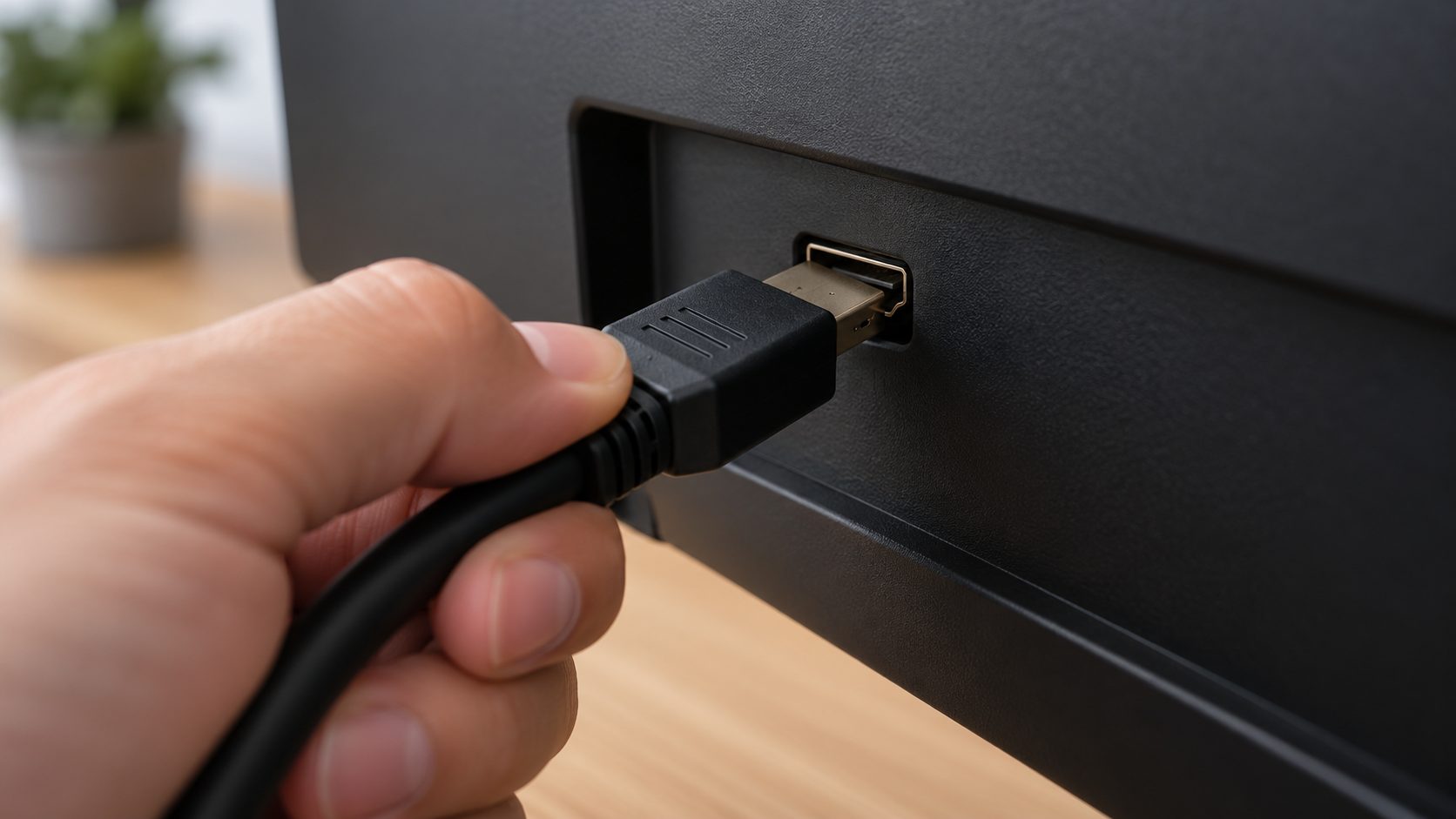
- Reseat both ends. Push the HDMI plug all the way in at the console and at the monitor.
- Swap the port, then the cable. Try another monitor input, then the console’s own cable; some displays offer full 4K features only on certain HDMI ports.
- Connect directly. Remove any AV receiver, soundbar, splitter, capture card or KVM switch while you test; Xbox lists in-between devices as a cause.
- Power-cycle. Xbox: hold the power button for 10 seconds, then turn it on. PS5: PlayStation says to unplug the console and monitor for 20 minutes.
- Try a TV, then update. If the console works on a TV, a monitor not detecting Xbox video most likely has a mode, HDCP or port-support mismatch, covered next. Also install any monitor firmware update.
Monitor Not Detecting Xbox but a TV or PC Works? EDID, HDCP and HDMI 2.1
A display reports its supported modes through EDID (extended display identification data). On Auto-detect, Xbox picks a resolution from that report, so a monitor not detecting Xbox video may simply be getting a mode it can’t show. A PC may still work if it uses DisplayPort or a mode the monitor handles.
HDCP copy protection is the second suspect: Xbox says protected 4K content needs HDCP 2.2, turned on in the display’s settings.
Bandwidth is the third: 4K at 120Hz needs HDMI 2.1 and a certified Ultra High Speed cable, so don’t count on it from an HDMI 2.0 monitor.
| Console | Top output | What it needs |
|---|---|---|
| Xbox Series X | 4K up to 120 fps | HDMI 2.1 display; the included cable |
| Xbox Series S | 1440p, upscaled 4K | Separate Ultra High Speed cable for 4K 120Hz |
| PS5 | 4K 120Hz | HDMI 2.1 port, direct link |
| Switch 2 | 4K 60 fps; 120 fps at 1080p or 1440p | Ultra High Speed cable, NGN-01 adapter |
| Original Switch | 1080p | HAC-002 adapter, official dock |
| Steam Deck | 4K 120Hz from USB-C | Official dock: 4K 60Hz or 1440p 120Hz |
Monitor Not Detecting Xbox Series X|S? Start in Low-Resolution Mode
Still blank? Xbox’s blank-screen guide gets around a monitor not detecting Xbox video by forcing a 640 x 480 low-resolution start.
Turn it off
Eject any disc, then hold the power button on the front of the console for 10 seconds.
Hold the right pair
Series X and any Xbox One with a disc drive: Power + Eject. Series S and One S All-Digital: Power + Pair. Let go at the second beep, about 10 seconds after the first.
Pick a resolution
In Profile & system > Settings > General > TV & display options, set Display to a supported mode. Confirm within 20 seconds or it reverts.
Auto-detect or HDMI
Keep Video fidelity & overscan > Display on Auto-detect, as Xbox recommends. Need the reset at every boot? Set it to HDMI, though Xbox says 4K isn’t available then.
Don’t switch to DVI to fix a monitor not detecting Xbox video: Xbox says DVI turns off HDMI audio, and Series X|S has no optical port. If only 4K content goes blank, Xbox’s last resort is unchecking Video modes > Allow 4K.
Monitor Not Detecting PS5? Use Safe Mode’s Change Video Output
The cable checks for a monitor not detecting Xbox video apply to PS5 too, so run them first. Then enter PS5 Safe Mode: hold the power button for 3 seconds to turn it off, then hold it again until the second beep, about 7 seconds later. Connect the controller by USB and press PS.
Choose option 2, Change Video Output, then Change Resolution or Change HDCP Mode, which PlayStation suggests for blank screens. On an older monitor, try the HDCP 1.4 option if listed; protected 4K video may then not play.
Skip the other options for a picture problem, especially the two Reset PS5 ones: they erase the console’s data.
Once you have a picture, set Resolution and Video Transfer Rate to Automatic in Settings > Screen and Video > Video Output; 1440p appears if the monitor supports it. 4K 120Hz needs an HDMI 2.1 port, the PS5’s cable or another Ultra High Speed one, and a direct link. Without them, turn 120 Hz Output and VRR off.
Nintendo Switch and Switch 2: Dock Power Order and the Right Adapter
For a monitor not detecting Switch video, start with the dock’s power.
Original Switch
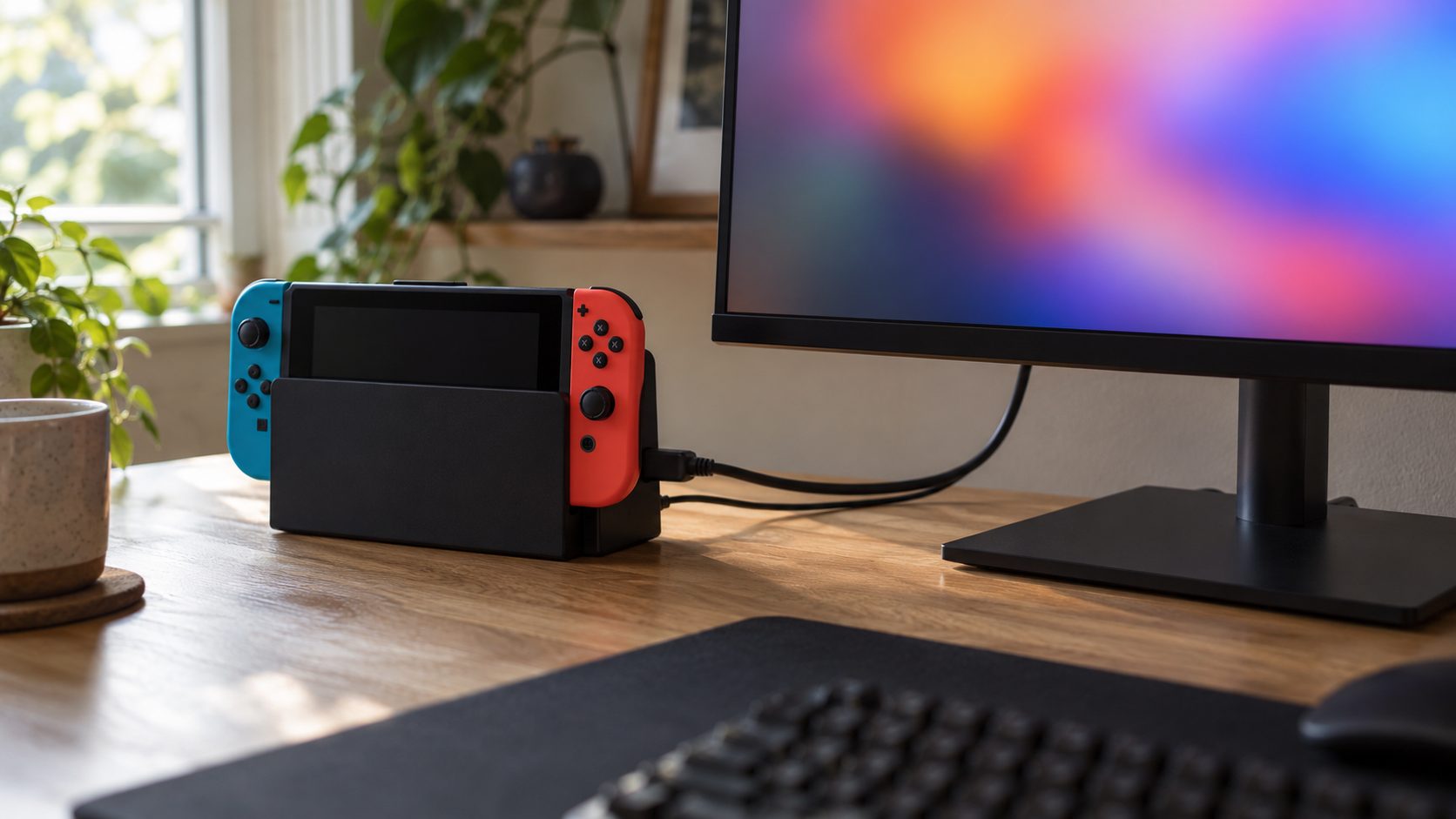
Check it works handheld and is updated, then unplug the AC adapter from the wall and dock for 30 seconds. Reconnect in Nintendo’s order: the HAC-002 adapter into the dock’s AC ADAPTER terminal and a wall outlet, HDMI OUT straight to the monitor, then turn the monitor on and dock the console.
A dock LED that flashes and goes off when you plug in the adapter is normal. Still blank? Lower TV Resolution in System Settings > TV Settings.
Switch 2
Nintendo says the AC adapter, dock and HDMI cable from the original Switch can’t run Switch 2 TV mode. Use the NGN-01 adapter (the dock needs at least 54W) and an Ultra High Speed cable, or the console may ask for the supplied adapter.
Remove any case and turn the monitor on before docking. The console’s screen should then go black; if it stays lit, Nintendo says the dock needs service.
Nintendo also lists HDMI splitters, heat and the display’s VRR setting: connect the dock directly, clear its vents and turn VRR off on the monitor. Then set System Settings > Display > TV Resolution to Automatic while docked.
External Monitor Not Working With Steam Deck? Check USB-C, the Dock and Safe Mode
The Deck’s USB-C port is its only video output and carries DisplayPort, so a monitor not recognizing a Steam Deck points to the USB-C chain. From Valve’s docking guide:
- A black Deck screen is normal. In Gaming Mode, it goes dark once a display connects.
- Active adapters only. Passive DisplayPort-to-HDMI adapters aren’t supported; use DP 1.4 or HDMI 2.0+ cables. Thunderbolt and DisplayLink docks may work but aren’t officially supported.
- External display safe mode. Unplug the Deck, turn on Settings > Display > External display safe mode, then plug it back in for a low resolution and refresh rate.
- Reset the dock. Unplug its power, the display cable and the Deck (the Deck alone can keep the dock powered), then reconnect. For a dock firmware update, Valve says: restart the Deck while docked with power in, unplug both, wait 10 seconds, replug.
Monitor Speakers Not Working With Xbox or PS5? Check the Audio Output
Even after you fix a monitor not detecting Xbox video, sound can be missing. HDMI audio plays from the monitor, not your PC’s speakers, so use its speakers or headphone jack if it has them, or a headset on the controller. Check it isn’t muted.
Xbox: no sound at all? In TV & display options > Video fidelity & overscan, set Display to HDMI if it’s on DVI; that’s Xbox’s first audio fix. Return to Auto-detect later for 4K. Then, in Profile & system > Settings > General > Volume & audio output > Speaker audio, set HDMI audio to Stereo uncompressed and test with Advanced > Audio setup.
PS5: set Settings > Sound > Audio Output > Output Device to HDMI; a connected headset can take the sound.
Original Switch: check System Settings > TV Settings > TV Sound.
Monitor Not Detecting Xbox, PS5, Switch or Steam Deck: Common Questions
Why is my monitor not detecting Xbox with a drive plugged in?
Xbox says a Storage Expansion Card, USB hard drive or charging station can blank the screen if the console updates at power-on. Leave only HDMI, power and Ethernet connected until it finishes.
Why is my monitor not detecting Xbox at 120Hz?
Xbox offers 120Hz only if the display accepts it over HDMI; some monitors do 120Hz only over DisplayPort, which the console lacks. Without HDMI 2.1, try 120Hz at 1080p or 1440p. Our monitor not detecting 144Hz guide covers port limits.
Can I use a monitor that only has DisplayPort?
Xbox, PS5 and the Switch dock output HDMI, so you’d need a powered, active HDMI-to-DisplayPort converter that lists HDCP support; without HDCP the screen can stay black, and 120Hz or VRR may not pass. Steam Deck’s USB-C port carries DisplayPort natively.
Is a monitor not detecting Xbox a sign the console is broken?
Not by itself. If it stays blank on every display and cable after the steps above, contact the maker’s support about a repair.
Recap: Work From the Cable to the Console
For a monitor not detecting Xbox, PS5, Switch or Steam Deck video, go in order: input and power, the cable and anything in between, then the console’s safe video mode. Raise 4K, 120Hz or VRR one setting at a time.
If a monitor not detecting Xbox video also stays blank with a PC, our computer guides cover more display fixes.
Leave a comment