

Monitor Not Detected HDMI to DisplayPort? Why Direction Matters
Video adapters convert one way only. Match the source and monitor ends, power an active converter, check DP++ and VGA limits, then test the adapter itself.
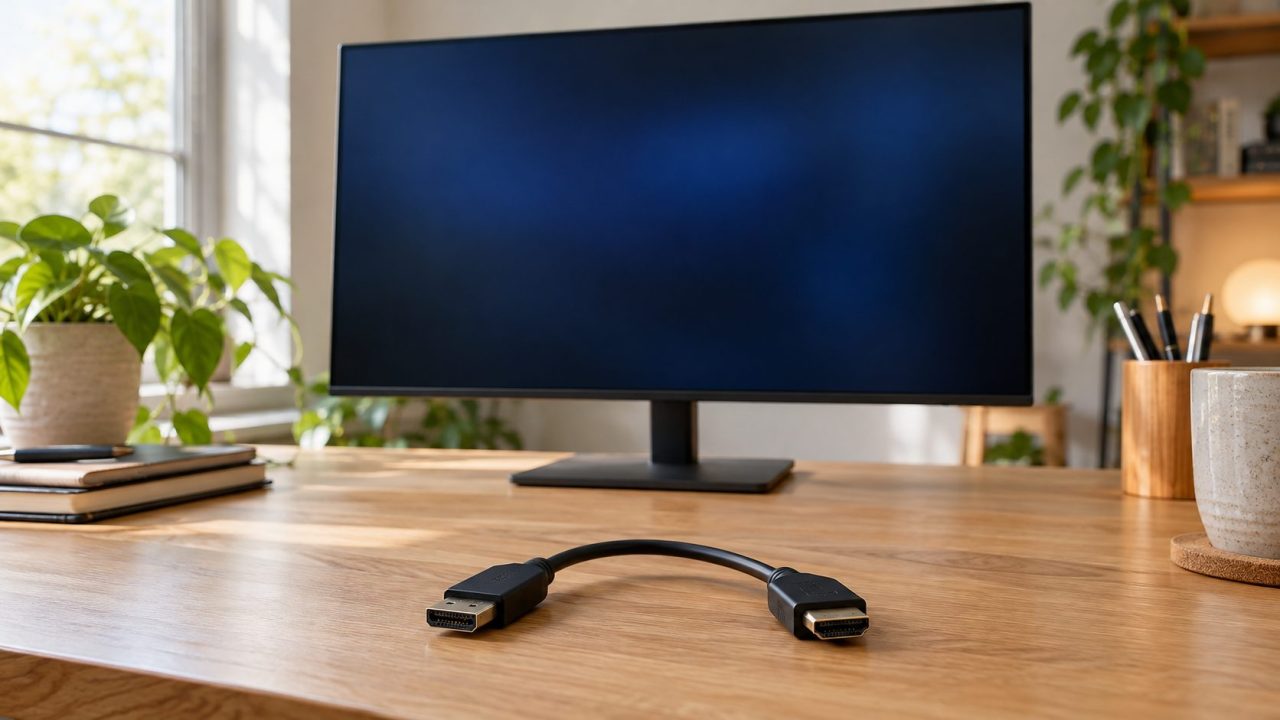
If you’re stuck with a monitor not detected HDMI to DisplayPort problem, the monitor is often fine and the adapter faces the wrong way. Most video adapters convert in one direction only, and the cheap passive cable that turns DisplayPort output into HDMI can’t carry HDMI into a DisplayPort monitor.
Monitor Not Detected HDMI to DisplayPort? Start With Which End Is the Source
To fix a monitor not detected HDMI to DisplayPort problem, first match the adapter’s labeled ends to the source (the PC or console) and the monitor input. DisplayPort out to HDMI in can use a passive cable if the port supports DP++ (most full-size DP ports do; USB-C doesn’t). HDMI out to DisplayPort in always needs an active, usually USB-powered converter.
| Source output | Monitor input | Passive OK? | What you need |
|---|---|---|---|
| DisplayPort with DP++ | HDMI | Yes | DP-to-HDMI cable |
| DisplayPort without DP++ | HDMI | No | Active DP-to-HDMI adapter |
| HDMI | DisplayPort | No | Active converter, usually USB-powered |
| USB-C | HDMI | No | USB-C-to-HDMI adapter, if the port outputs video (DP Alt Mode or Thunderbolt) |
| HDMI or DisplayPort | VGA | No | Active converter |
| VGA | HDMI | No | Powered VGA-to-HDMI converter |
| DVI-I | VGA | Yes | DVI-to-VGA adapter |
| DVI-D | VGA | No | Active converter |
No driver or setting fixes a monitor not detected HDMI to DisplayPort problem caused by a passive cable.
Why Adapters Only Work One Way: DP++ vs Active Chips
A converter’s chip decodes its input, so it works in one direction. Club 3D explains that active products mark their ends Input/Output or Source/Destination; plain extension cables with no chip work both ways.
Passive DP-to-HDMI cables rely on DP++ (Dual-Mode DisplayPort): the computer’s DisplayPort output sends an HDMI-compatible signal itself. No standard lets a DisplayPort monitor accept HDMI that way, so many monitor not detected HDMI to DisplayPort cases trace back to a passive cable.
- Often unmarked. DP++ is optional in the DisplayPort standard. Cable Matters says most modern graphics cards support it, but some don’t, and many ports lack the logo.
- Usually present on Mini DisplayPort. Most mDP ports, including Thunderbolt 1 and 2, accept passive HDMI adapters; check the spec sheet.
The DisplayPort end of a DP-to-HDMI cable goes into the computer, but listings don’t always name the ends in that order. Judge the hardware: a plain cable with no converter box and no USB lead is almost always DP-to-HDMI. Run it from an HDMI computer to a DisplayPort monitor and you’ll get the monitor not detected HDMI to DisplayPort problem every time. A real HDMI-to-DP converter has a chip box, usually a USB lead, and lists HDMI as its input.
HDMI Out to a DisplayPort Monitor: Use a Powered Active Converter
The fix for a monitor not detected HDMI to DisplayPort problem is an active converter built for that direction. Club 3D’s CAC-1331, for example, takes HDMI from a console or laptop and outputs DisplayPort 1.2 at up to 4K 60 Hz.
These converters usually take USB power, because an HDMI port’s 5 V pin is rated for only about 50 mA. Without it, even the right converter can still cause a monitor not detected HDMI to DisplayPort error, so if the picture is missing or drops out, power it from a USB wall charger.
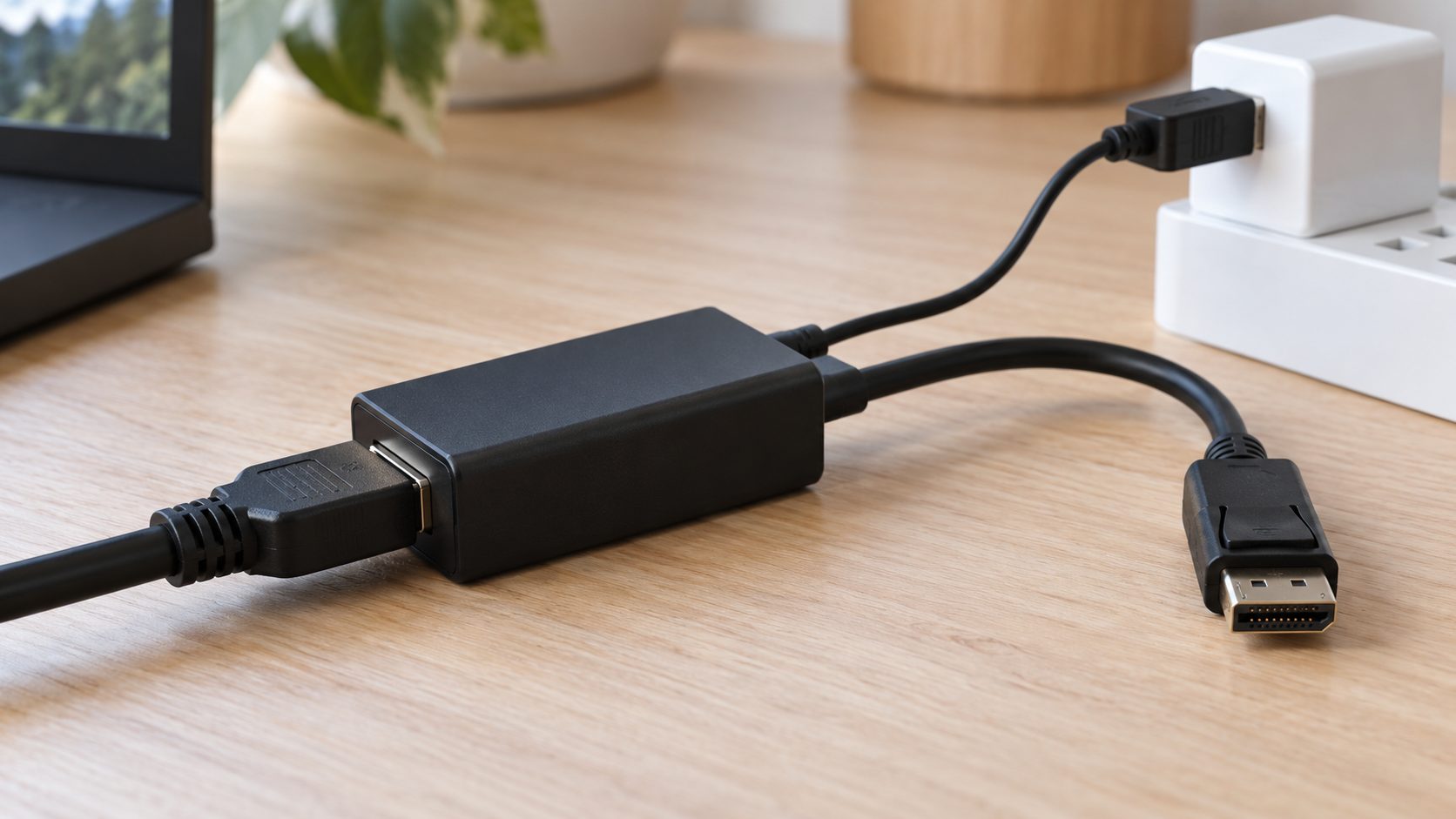
For a console or streaming box, choose a converter that lists HDCP (the CAC-1331 lists 1.4 and 2.2); our monitor not detecting Xbox guide covers consoles. In the monitor’s menu, pick DisplayPort instead of Auto, and if there’s a DisplayPort version option (names vary by brand), try a different setting, as Microsoft’s Surface guide suggests.
DisplayPort to HDMI Not Detected: When a Passive Cable Isn’t Enough
A monitor not detecting DisplayPort to HDMI is the reverse of a monitor not detected HDMI to DisplayPort case. The direction is right, so a passive cable works as long as the port has DP++. Go active when:
- The port lacks DP++. Club 3D’s DisplayPort FAQ says active adapters work with every DisplayPort output.
- The source is USB-C. DisplayPort Alt Mode has no dual-mode, so passive adapters fail. USB-C-to-HDMI adapters convert actively, but only on a port with DP Alt Mode or Thunderbolt (check the spec sheet); a data-only USB-C port can’t output video through them (a DisplayLink adapter with its own driver works instead). For Macs, see our monitor not detecting MacBook guide.
- You want 4K above 30 Hz. Type 2 passive adapters top out around 4K 30 Hz. Some newer passive cables claim 4K 60 Hz on DP 1.3 or 1.4 ports, but results vary by GPU; an active adapter such as the CAC-1080 is the reliable route.
Monitor Not Detected With VGA: HDMI to VGA, VGA to HDMI and DVI
VGA is analog, so every link between it and HDMI or DisplayPort needs a converter chip. The same direction rule behind a monitor not detected HDMI to DisplayPort problem applies here too.
- HDMI to VGA: active. Club 3D’s HDMI-to-VGA adapter, for example, has a Micro-USB power input for low-power HDMI sources and an audio jack, since VGA carries no sound.
- VGA to HDMI: a second monitor not detected with a VGA to HDMI adapter may be a reversed HDMI-to-VGA cable. A VGA computer feeding an HDMI monitor needs a powered VGA-to-HDMI converter.
- DVI to VGA: a passive adapter only fits and works on a DVI-I port (four pin holes around the flat slot). A DVI-D port has no analog signal and needs an active converter.
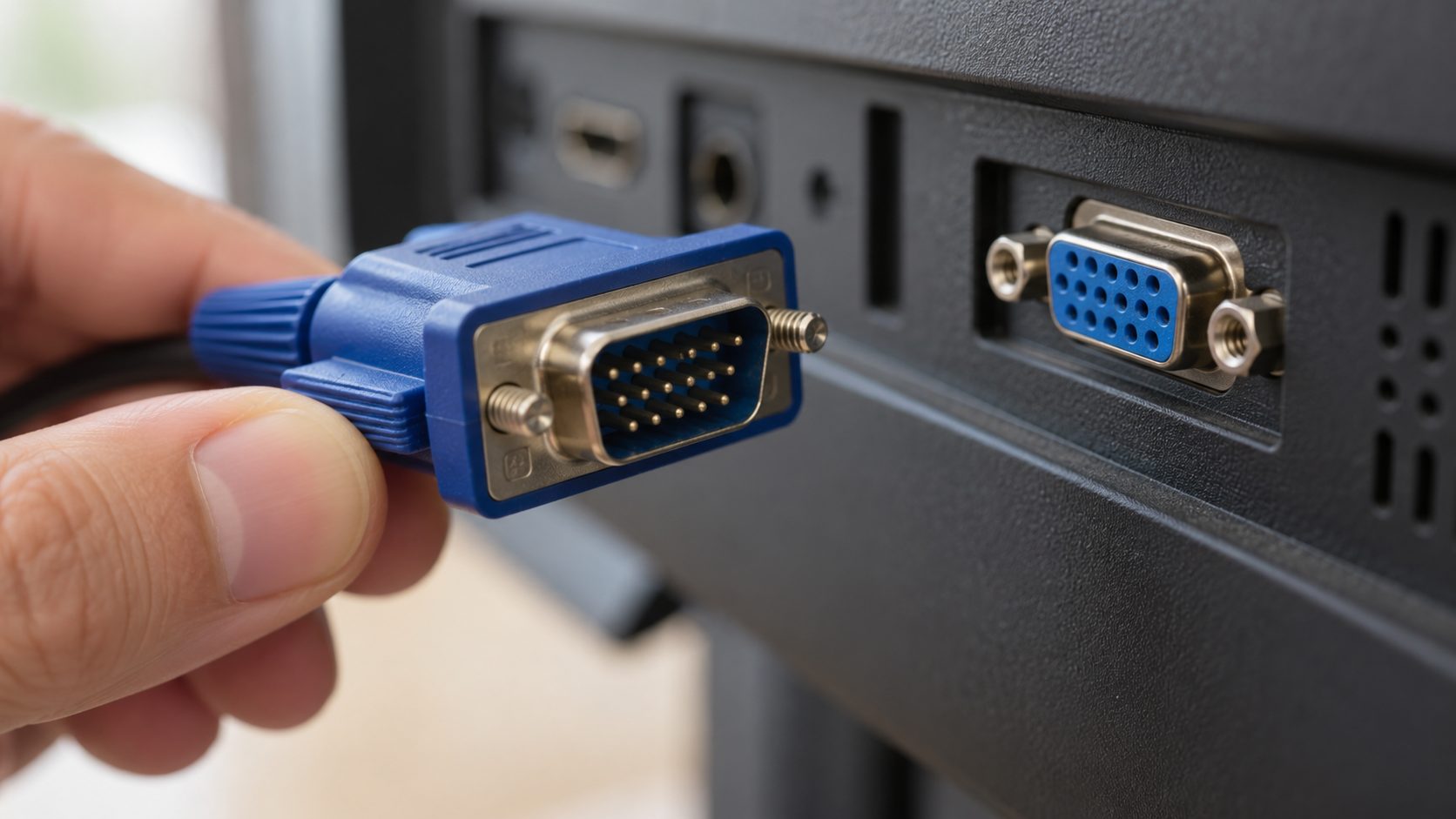
Dell monitor not detecting VGA cable
Dell’s E2216H user’s guide (a VGA and DP model) separates a monitor fault from a missing signal:
- Open the monitor’s on-screen Menu, choose Input Source and select VGA instead of Auto Select.
- Turn off the computer and monitor, unplug the video cables from the computer and turn the monitor on. A floating dialog on a black screen means the monitor works and sees no signal.
- Check the VGA plug for bent or broken pins; a damaged cable brings up the same dialog.
- Run Auto Adjust only once a picture appears; it needs a live VGA signal.
Menus and buttons differ on other Dell models, so check your manual.
Resolution and Refresh Limits to Expect From Each Adapter Type
Sometimes a monitor not detected HDMI to DisplayPort problem is really a mode the converter can’t carry. Treat these as typical ceilings, not guarantees: passive rows follow the DP++ Type 1 and 2 classes, and active rows are Club 3D models, so other brands differ.
| Adapter type | Expected ceiling |
|---|---|
| Passive DP++ Type 1 | About 1920×1200 at 60 Hz |
| Passive DP++ Type 2 | About 1080p 120 Hz, 1440p 60 Hz or 4K 30 Hz |
| Active DP to HDMI 2.0b (CAC-1080) | 4K 60 Hz HDR |
| Active HDMI to DP 1.2 (CAC-1331) | 4K 60 Hz |
| Active HDMI 2.1 to DP 1.4 (CAC-1335) | 4K 120 Hz or 8K 30 Hz |
| VGA converters (CAC-1302, CAC-2013, CAC-1720) | 1080p 60 Hz to 1920×1200 at 60 Hz |
The lower of the port and adapter ratings wins. If 60 Hz works but higher rates don’t, see our monitor not detecting 144Hz guide.
How to Test the Adapter Itself, Step by Step
Right converter, but still a monitor not detected HDMI to DisplayPort error? Test each part, changing one thing at a time:
Rule out the monitor
Do the cables-unplugged self-test above. A no-signal box means the panel works and the fault is elsewhere.
Try a native cable
Connect DP to DP or HDMI to HDMI from any device to clear the monitor’s input.
Swap power, lower the mode
Reseat both ends, use a wall charger for the USB lead and set 1920×1080 at 60 Hz (on a PC, from another working screen).
Move the adapter
Try a different source and display. Microsoft’s Surface guide says if nothing shows there either, the adapter may need replacing.
Replace it
Failing everywhere means it’s faulty; working elsewhere points to the wrong type, power or mode for this pair.
Windows still not seeing it?
Windows can’t fix a monitor not detected HDMI to DisplayPort problem caused by the wrong adapter. Once the converter is right, press Win + P and choose Extend; if the screen stays dark, Win + Ctrl + Shift + B resets the graphics driver. Microsoft’s troubleshooting page covers the rest, including unplugging docks you don’t need.
On Linux, see our monitor not detected in Ubuntu guide.
Monitor Not Detected HDMI to DisplayPort: Common Questions
Why does a DisplayPort to HDMI cable work, but not HDMI to DisplayPort?
The passive cable relies on DP++, which only a DisplayPort source has. Run backwards, it can never work, so a monitor not detected HDMI to DisplayPort result with that cable doesn’t mean anything is broken.
Do HDMI to DisplayPort adapters need USB power?
Most have a USB lead, because an HDMI port supplies very little power. Plug it in every time: an underpowered converter can cause a monitor not detected HDMI to DisplayPort error even when the direction is right.
Why is my monitor not detected over VGA?
Usually a passive adapter sits where an active one is needed, the converter faces the wrong way, or the input is set to another port. On HDMI-to-VGA converters, also connect the power lead.
Recap: Direction First, Then DP++, Power and Limits
Many monitor not detected HDMI to DisplayPort cases end at the first check: the adapter must run from source to monitor, and HDMI into DisplayPort needs an active converter. Then confirm DP++, power the converter, stay within its mode ceiling and, last, test the adapter itself.
For more display fixes, browse our computer guides.
Leave a comment