

How to Fix a Laptop USB Port That Stopped Working
One dead port or all of them? Prove where the fault is, then work through cables, Windows errors, power saving, drivers, USB-C icons and physical damage.
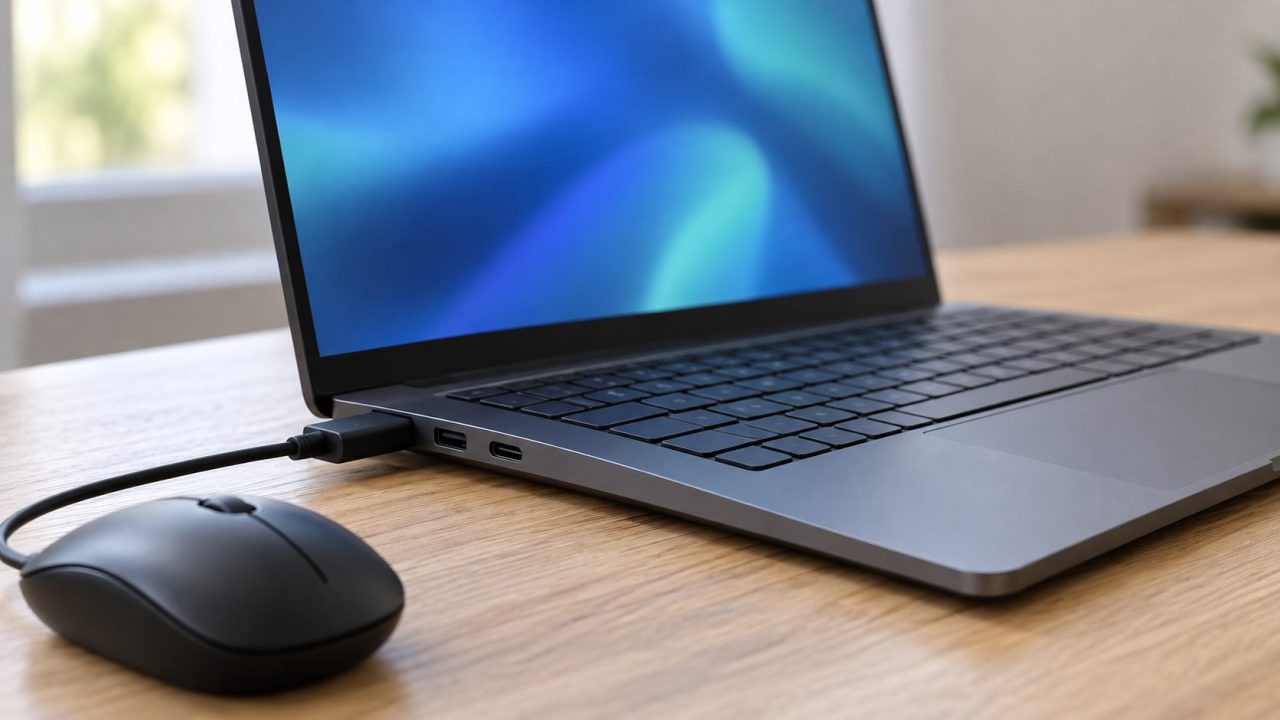
A USB port that stopped working is often not dead. First find out whether the fault follows the port, the device or the whole laptop. Here’s how to fix laptop USB port problems in that order: free checks, then Windows settings and drivers, then damage that needs a shop.
Why Is My Laptop USB Port Not Working? Test the Port First
Short answer: count the dead ports first, because that number decides how to fix laptop USB port problems. One dead port points to debris, damage or a USB-C port that lacks a feature. If every port died at once, suspect a driver, a power setting or firmware.
Then swap-test both ways: your device in another port and another computer, and a known-good mouse in the suspect port. If good devices fail there and yours works elsewhere, it’s the port; if yours fails everywhere, blame the device or its cable.
This table shows how to fix laptop USB port problems by symptom.
| What you see | Likely cause | Go to |
|---|---|---|
| One port fails with every device | Debris, damage or USB-C port type | USB-C, damage |
| Port died right after you plugged something in | Overcurrent shutdown | Unplug it, then drain power |
| All ports stopped at once | Driver, update or firmware | Errors, drivers |
| Device drops out when idle | Power saving | Power settings |
Rule Out the Cable, Hub and Power Draw
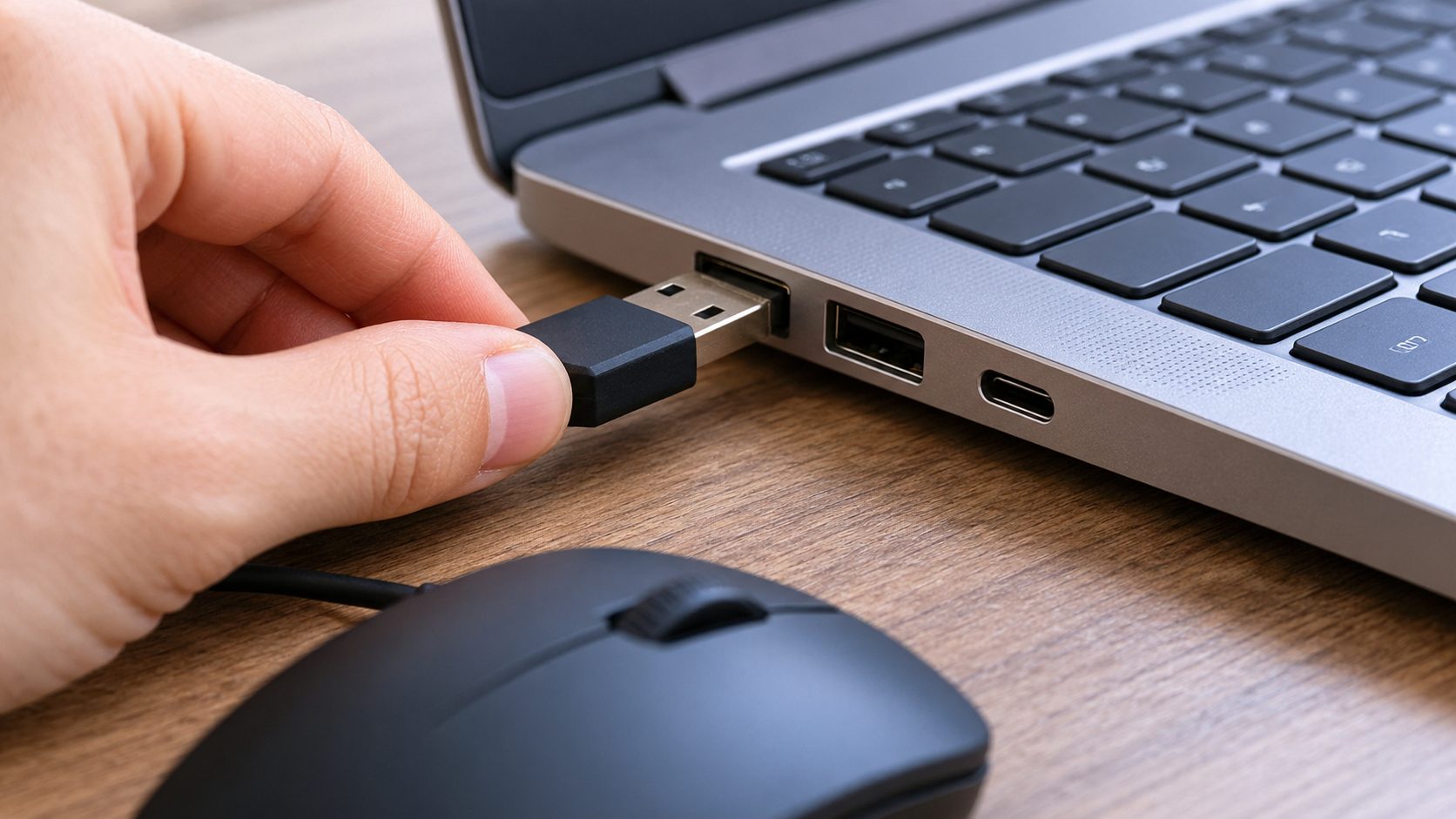
Before deciding how to fix laptop USB port trouble, remove everything between the laptop and the device:
- Connect directly. Unplug hubs, docks and adapters.
- Swap the cable. Not every USB-C cable supports every feature; one that charges may not carry data or video.
- Cut the power load. For a “USB device might need more power” alert, Microsoft says to power the device externally if it can be, keep the laptop on its charger and unplug unused USB devices.
How to fix laptop USB port glitches by draining residual power
A faulty device or cable that draws too much current can make a port shut itself off, and Windows may report a power surge. Unplug that device, shut down, disconnect the charger and all USB devices, then hold the power button to drain leftover power. Timing varies, and some models use a reset pinhole, so check your manual.
How to Fix Laptop USB Port Errors That Windows Reports
Turn on USB alerts first: in Windows 11, Settings > Bluetooth & devices > USB > Connection notifications; in Windows 10, Settings > Devices > USB, then tick Notify me if there are issues connecting to USB devices. Microsoft’s guide to fixing USB-C problems explains each message.
Next, right-click Start, open Device Manager and look for a yellow warning under Universal Serial Bus controllers, Other devices or the device’s own category. Double-click it: the code under Device status tells you how to fix laptop USB port errors far better than guessing (see Microsoft’s list of Device Manager error codes).
Code 43
A driver reported a failure. Uninstall the device, then choose Action > Scan for hardware changes.
Code 10
The device cannot start. Update its driver first; if that fails, uninstall it and restart.
Code 28
Its drivers aren’t installed. Uninstall it, then Action > Scan for hardware changes; if Windows asks, get the driver from the laptop maker.
Code 45
The device was connected before but isn’t now. No fix needed.
Skip the old Hardware and Devices troubleshooter: it runs on a tool Microsoft deprecated in January 2023.
Stop Windows From Powering the Port Down
When a device drops out after sitting idle, test two settings.
Root hub power management. In Device Manager, open each USB Root Hub > Power Management and clear Allow the computer to turn off this device to save power. If an entry has no Power Management tab, skip it.
USB selective suspend. In Control Panel > Power Options > Change plan settings > Change advanced power settings, expand USB settings and disable USB selective suspend setting, if listed.
Selective suspend sleeps one idle port without touching the others, saving battery. It’s on by default, and Microsoft strongly recommends not disabling it. Many guides on how to fix laptop USB port dropouts say to switch it off for good; do it only as a test.
How to Fix Laptop USB Port Failures: Controllers, Drivers and BIOS
If every port is dead or errors keep returning, the order below shows how to fix laptop USB port problems from the safest step to the riskiest. Most steps come from ASUS’s USB-C troubleshooting guide; menus differ on other brands.
Uninstalling root hubs or host controllers cuts every USB device, and on some models the touchpad or built-in keyboard, until Windows restarts. Save your work first. If you lose all input, hold the power button until the laptop turns off, then start it; Windows reinstalls the controllers at boot.
Roll back a bad update
If ports died after an update, use Roll Back Driver on the controller’s Driver tab (admin rights needed).
Remove root hubs
Uninstall every USB Root Hub, plus the USB4 Root Device Router if listed, then restart.
Remove host controllers
Uninstall every USB Host Controller, plus the USB4 Host Router if listed, then restart.
Install the maker’s drivers
Run Windows Update, then get chipset, USB4 and Thunderbolt drivers from the laptop maker’s support site.
Still dead? Only now open BIOS or UEFI setup and check that USB and Thunderbolt ports aren’t disabled (names vary; look for items such as I/O Port Access or Port Options). On a work laptop, ask IT first; ports may be blocked by policy.
If BitLocker or Device encryption is on, changing BIOS settings or firmware can trigger the recovery-key screen. Find your key first (for a Microsoft account, at aka.ms/myrecoverykey) and suspend BitLocker before a BIOS update.
Then load BIOS defaults, which also resets boot order and custom settings. If that fails, update the BIOS with the maker’s tool on wall power and never interrupt it. Get drivers and firmware only from the maker’s site or Windows Update, never third-party driver sites. ASUS’s last resorts are System Restore, then a PC reset, so back up first.
How to Fix Laptop USB-C Port Problems: Read the Icons
Identical-looking USB-C ports on one laptop can do different jobs. ASUS’s guide to identifying USB-C port functions lists four types, each with its own mark: data only, charging, display-capable and full-featured. Put a USB4, Thunderbolt or DisplayPort device in a port without that feature and Windows may say “Use different USB port” if another port has it. So the quickest answer to how to fix laptop USB port complaints is often the port next door.
- Marks. USB-IF logos state speed, such as 5Gbps or 80Gbps. A lightning bolt with an arrowhead (sometimes with a 4 or 5) means Thunderbolt; a battery or plug icon usually means charging. Designs change, so the manual or spec sheet is the final word.
- Charging. Use the laptop’s own charger and cable in its charging port, not a hub or dock; a PC needing 12V/3A won’t charge at full speed from a 5V/3A charger. A tingle from the case while charging is a separate issue (see our laptop vibrating guide).
- Monitors and USB4. Video (DisplayPort Alternate Mode) and Thunderbolt need support in the port, the cable and the device; no setting adds them. For USB4, Microsoft says to use the device’s own cable or a certified USB4 cable.
On Mac laptops with Apple silicon, a new accessory may need approval before it passes data; if refused, it can still charge. The setting is System Settings > Privacy & Security > Accessories > Allow accessories to connect (on macOS Ventura to Sequoia, directly under Privacy & Security).
How to Fix Laptop USB Port Damage, or When to Hand It Over
Shut down and unplug the charger first. Never put a pin, paper clip or anything metal in a port; the contacts bend and short easily.
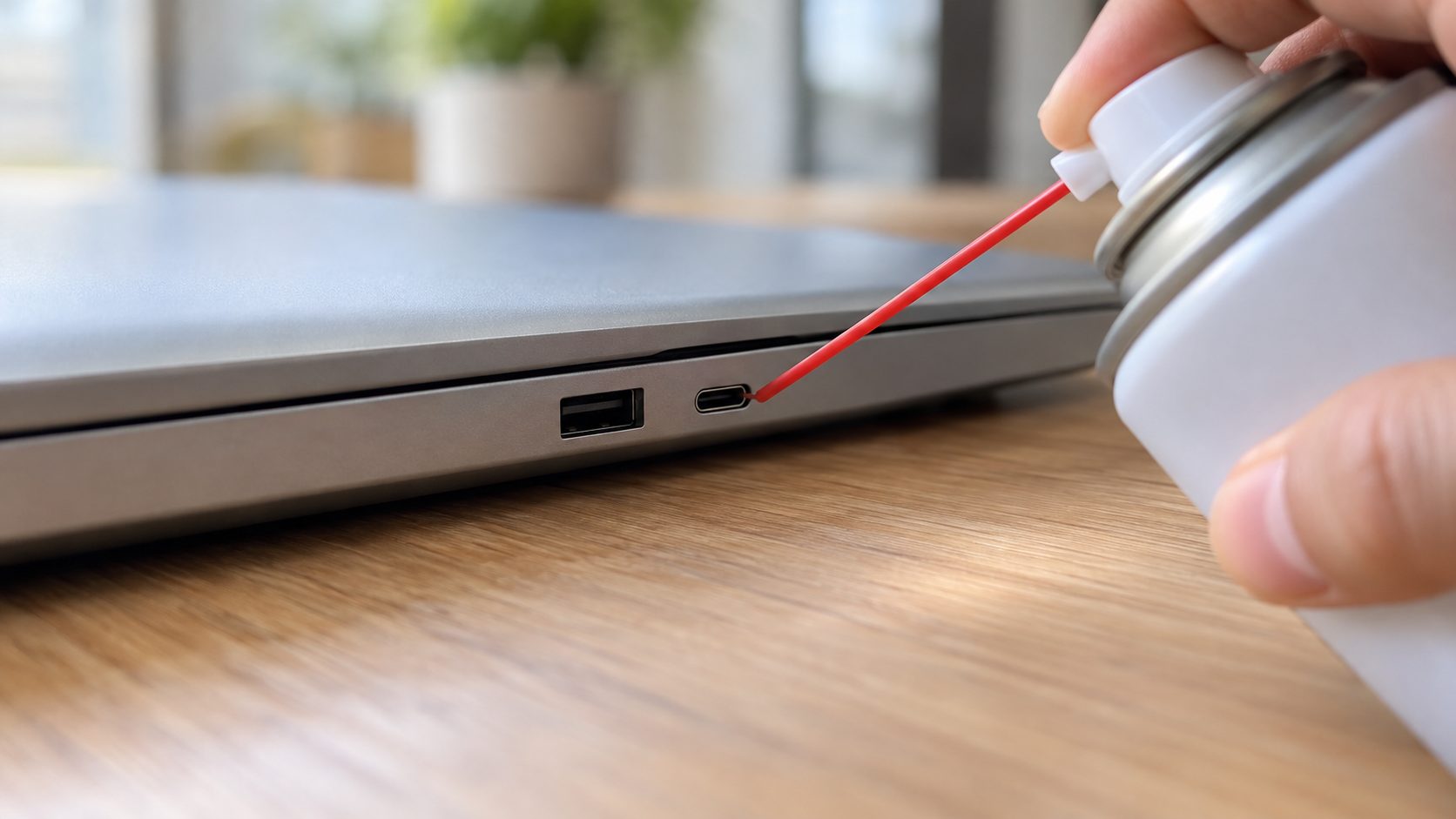
Cleaning is the only hands-on fix to try yourself. Shine a flashlight inside, since lint can stop a plug seating fully, then use short bursts of compressed air, which Microsoft suggests for USB-C ports that won’t charge. Skip toothpicks and liquids.
A plug that wobbles, falls out or works only at an angle points to a damaged connector, as does a bent USB-A tongue or green corrosion after a spill (see our laptop water damage guide). Past that point, how to fix laptop USB port damage is a question for a repair shop; check the warranty first.
Laptop USB Port Questions
Can a broken laptop USB port be repaired?
Usually, but how to fix laptop USB port hardware depends on how the port is mounted. Many are soldered to the motherboard, which means board-level work by a repair shop; others sit on a small daughterboard a shop can swap.
Why did all my USB ports stop working at the same time?
That points to software, firmware or power, not one broken connector, so use the software half of this guide on how to fix laptop USB port problems: roll back a bad update, reinstall controllers and drivers, then check the BIOS.
Will a USB hub work around a dead laptop USB port?
Only if you plug it into a different, working port. A powered hub can help power-hungry devices, but don’t charge the laptop through one; Microsoft lists that as a cause of slow or failed charging.
Bottom Line: How to Fix Laptop USB Port Faults Without Guessing
Swap-test first, drop hubs and weak cables, and read what Windows reports, then reinstall controllers and drivers before you touch the BIOS. That’s how to fix laptop USB port problems in software; a port that still fails or wobbles needs a repair shop. More fixes are in our computer guides.

Leave a comment