

Android Auto Keeps Freezing or Lagging? Is It the Phone, Cable or Car?
A frozen car screen can start in the phone, the cable or Wi-Fi link, or the head unit. Find which in a few minutes, then fix heat, cables and settings in order.
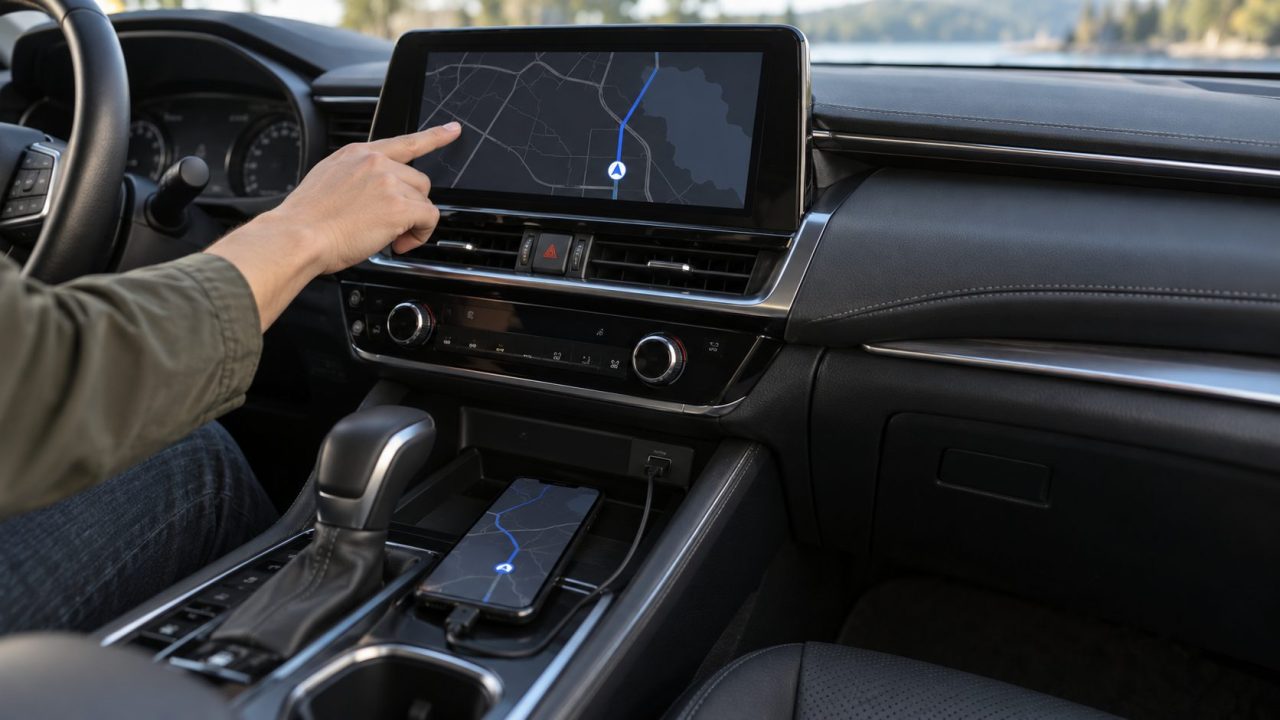
When Android Auto keeps freezing, the fault usually sits in one of three places: the phone that runs the app, the cable or Wi-Fi link that carries the picture, or the car screen that shows it. A hot phone, a worn cable and a slow head unit look alike from the driver’s seat, so find the layer first.
Seeing a crash message instead? Read why Android Auto keeps stopping.
Pull over and put the car in Park before you touch cables or settings. If the phone is hot, unplug it and don’t use it until it cools down, as Google advises.
Android Auto Keeps Freezing: Lag, Stutter or a Full Freeze?
Lag, stutter or glitching: the map jumps and taps land late, but the picture catches up. Usually the phone is struggling or the wireless link is weak.
A full freeze: the screen gets stuck and ignores taps until you reconnect. If that happens over bumps, suspect the cable or the USB port.
When Android Auto keeps freezing solid, recover in this order once you’re parked; if the phone’s own screen is frozen too, go straight to step 3. Want to send Google a bug report? Capture it first (last section).
Reconnect
Unplug the cable and plug it back in. On wireless, turn the phone’s Wi-Fi off and on.
Restart the car screen
Restart the infotainment system (see the owner’s manual).
Restart the phone
For a frozen Pixel, Google says to hold the power button for about 60 seconds. Other brands differ.
Find the Layer First: Phone, Link or Car Screen
These quick checks show where to look when Android Auto keeps freezing.
| What you notice | Where to look |
|---|---|
| The phone’s own screen is slow, or it feels hot | The phone |
| Only on hot days, long drives or while charging | Phone heat |
| Wired only, and worse over bumps | Cable or USB port |
| Wireless only; a cable runs smoothly | Wi-Fi link |
| The car’s own radio and settings menus lag too | Head unit |
| One app (Maps, Waze, music) stalls; the rest responds | That app: update it, clear its cache |
| Freezes every few minutes in any car, since an update | App version |
| Only on a Samsung phone | One UI power saving |
Phone Layer: Heat, Battery Saver and Low Storage
Android Auto runs on the phone, so anything that slows the phone slows the car screen.
Heat is the first suspect
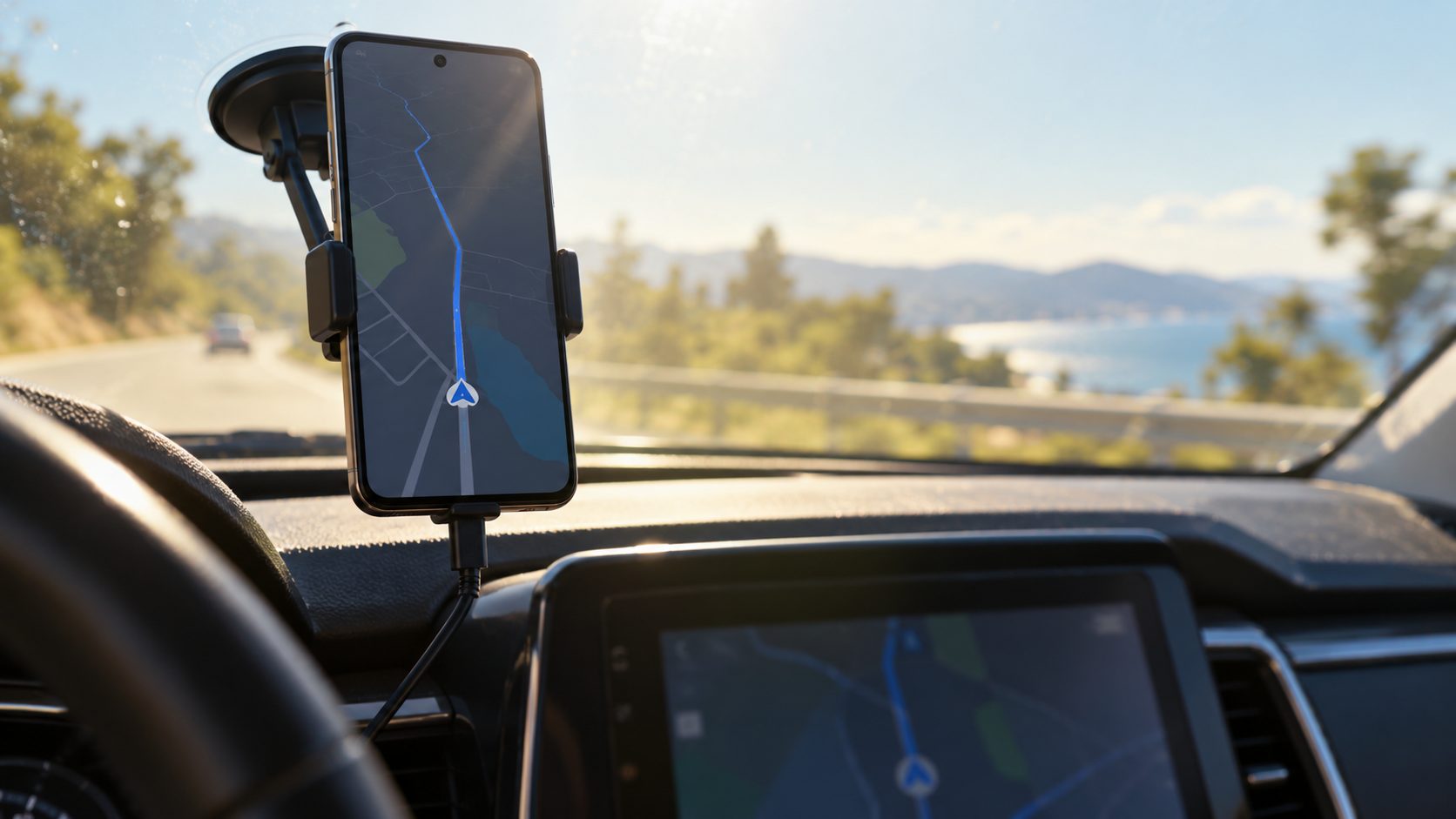
The classic case is a phone in a sunny windshield mount, running maps while it charges. Google lists long navigation, streaming, heavy apps while charging and hotspot use among the causes of overheating.
Google’s overheating guide says a Pixel that gets too hot may reduce CPU performance, partly or fully turn off mobile data or Wi-Fi, and enter low power mode. Other brands throttle in similar ways. That can explain why Android Auto keeps freezing late on a long, sunny drive.
On recent Pixels, check Settings > Battery > Battery diagnostics > Phone is very warm. Google says Warm may reduce screen brightness and network speeds, and Elevated temporarily limits performance.
Use an air-vent mount with the AC on (not with the heater blowing), keep the phone out of direct sun and lower the brightness. A wireless-charging cradle adds heat, so skip it on hot days.
Battery Saver and background load
If Android Auto keeps freezing on a low battery, Battery Saver may be why: Google says it limits background activity, so network connections and apps may be delayed. Turn it off for the drive, then set Android Auto and your maps and music apps to Unrestricted: App info > App battery usage > Allow background usage on recent Pixels (Samsung: App info > Battery; names vary by brand).
Free up storage, then clear the cache
Google warns that a phone can have issues with less than 10% of its storage free, so check Settings > Storage and make room. Then, if Android Auto keeps freezing, clear its cache: Settings > Apps > See all apps > Android Auto > Storage & cache > Clear cache (tap Show system apps if it’s hidden; Samsung: Settings > Apps > Android Auto > Storage). Don’t tap Clear storage, which permanently deletes all of the app’s data.
Wired Link: Cable, USB Port and Hubs
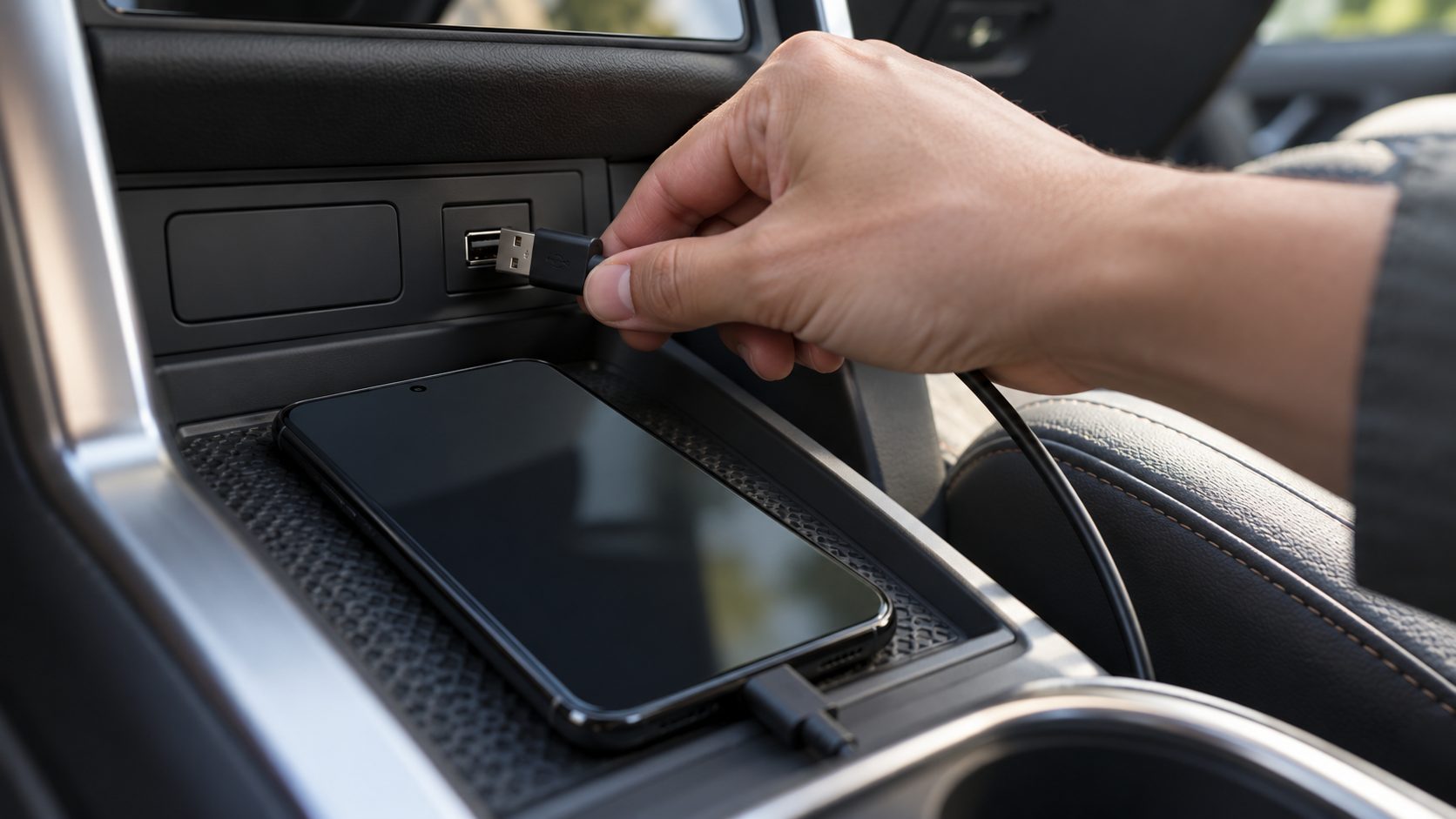
When Android Auto keeps freezing on a wired connection, especially over bumps, start with the cable. These rules come from Google’s Android Auto troubleshooting page:
- Keep it short. Use a cable under 3 feet (1 meter).
- Plug in directly. No USB hubs or extension cables. Try the car’s other USB port too.
- Start with the phone’s own cable. A third-party cable can work if it meets USB-IF standards; Google suggests checking that it was certified within the past two years.
- Replace a worn cable. If Android Auto worked before and has stopped, Google says a new cable will likely fix it. Not every cable suits every car, so try more than one.
Wireless Android Auto Keeps Lagging? Check Wi-Fi and Heat
Wireless Android Auto needs Android 11 or later, 5 GHz Wi-Fi and a compatible car. Bluetooth pairs the phone, but the picture travels over Wi-Fi. Google advises keeping Bluetooth, Wi-Fi and Location on during setup; leave them on for the drive.
Heat is a likely reason wireless Android Auto keeps freezing in summer: a throttling phone may cut back Wi-Fi, and wireless charging or a passenger hotspot adds heat.
Test with one drive on a short cable. If Android Auto keeps freezing on the cable too, look at the phone or the car; if not, the wireless link is the problem. A plug-in wireless adapter has its own firmware, so check its maker for updates.
Car Screen: Restart the Head Unit, Then Ask About Firmware
Suspect the head unit when Android Auto keeps freezing and the car’s own menus lag too.
Restart it
Google’s car-side steps: check that Android Auto is turned on in the car’s settings, then restart the infotainment system.
Factory screens
Only some carmakers ship updates, over the air or at a dealer. Ask yours; there may be none.
Aftermarket units
For Pioneer, Kenwood and similar receivers, Google says to check the maker’s website for firmware.
Optional: lower the projection resolution
A hidden setting may help when Android Auto keeps freezing on an older head unit that decodes video slowly. In Android Auto’s settings, tap Version (or Version and permission info) 10 times and allow development settings. Then open the three-dot menu at the top right > Developer settings > Video resolution, and pick a value lower than the current one. Never pick a higher one.
Google doesn’t document this option, so note the original value and switch back if nothing improves. Leave the phone’s own Developer options alone, especially Background process limit, which can close apps Android Auto needs.
Android Auto Keeps Freezing on Samsung or After an Update
One UI adds its own power saving. Turn off Power saving for the drive, then in Settings > Battery > Background usage limits (older One UI: Battery and device care > Battery) move Android Auto and your car apps to Never auto sleeping apps. Our Android Auto keeps stopping guide covers the other One UI checks.
If Android Auto keeps freezing after an update, on any brand, check three things:
- Your version. Check Version in Android Auto’s settings. Fixes ship through the Play Store: in August 2026, Google’s Android Auto team confirmed a fix for a 17.x bug that froze or dropped the connection every few minutes, and asked users to update to 17.4 or later.
- Known issues. Google pins an Android Auto Known Issues list in its Help Community; check it for your phone model before deeper troubleshooting.
- The beta. Google warns beta versions can be less stable. To leave, open the Play Store > profile icon > Manage apps & devices > Beta > Android Auto > Leave. That alone doesn’t roll you back: in Android Auto’s App info, tap the three-dot menu > Uninstall updates, then update again in the Play Store. You may need to set up your car again.
Then update Android Auto, Google Play services, the phone’s system software and your maps and music apps.
Android Auto Lag and Freezing: Quick Answers
Android Auto keeps freezing, but my phone works fine. Why?
The link or the head unit may be the bottleneck, or a warm phone may be cutting back Wi-Fi before its own screen lags. Check the car’s menus, then try another cable.
Do I need a USB 3 cable to stop Android Auto stuttering?
Google doesn’t ask for one. It advises a high-quality cable under 3 feet (1 meter), ideally the one that came with the phone, with no hubs or extensions.
Why does it only freeze on hot days or long drives?
Suspect heat when Android Auto keeps freezing only then: navigation, charging and sunlight warm the phone until it throttles.
Still Freezing? Capture a Bug Report for Google
If Android Auto keeps freezing after every layer check, give Google a log of the moment. First complete the one-time setup in Google’s bug-report guide, with the car in Park.
When the car screen next freezes, have a passenger do this, or pull over safely first. If the car screen still responds, press and hold its status area; if it’s frozen, open the phone’s Power menu and tap Bug report. Keep the cable plugged in, or the wireless session running, until the report is captured and sent, or key details may be lost.
For other in-car problems, read what to do when an OBD2 scanner won’t connect or browse our car tech guides.
Leave a comment