

Steam Won’t Connect? Fix ‘Could Not Connect to the Steam Network’
Check Steam's servers first, then work through the firewall, VPN, -tcp, network reset and router fixes, and set up offline mode before your internet drops.
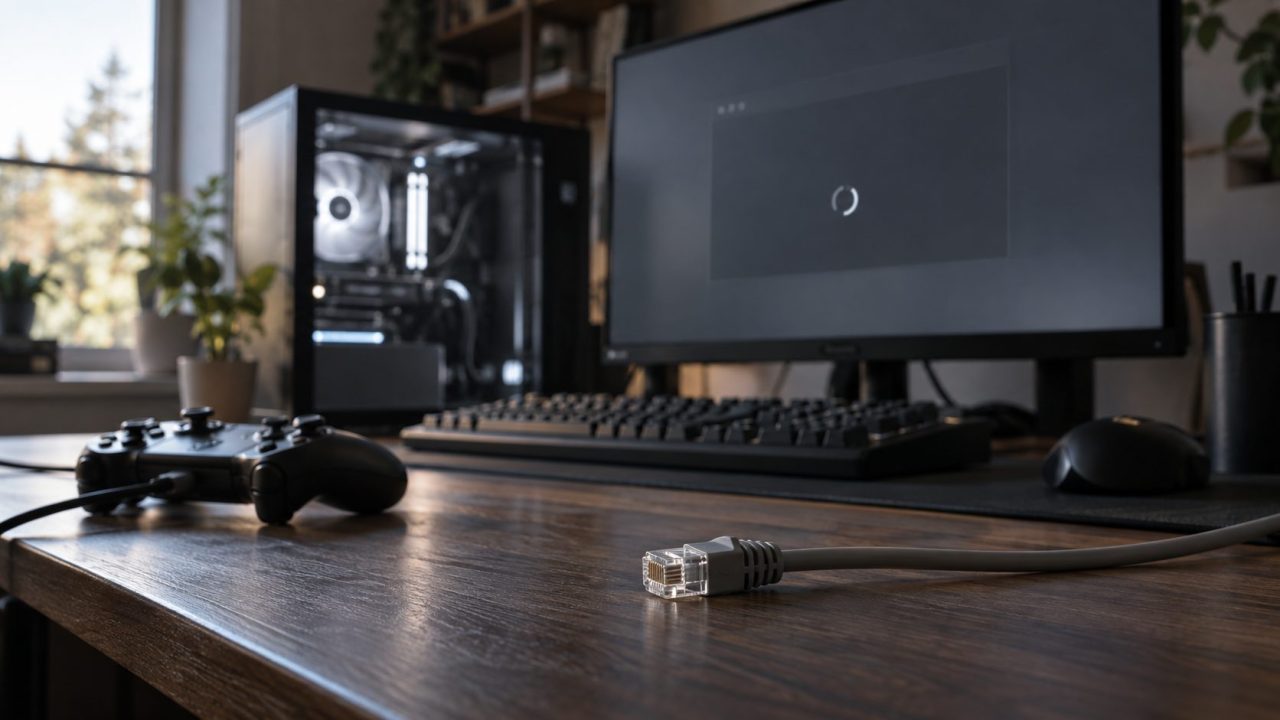
When Steam won’t connect, the client opens but shows “Could not connect to the Steam network,” sits in offline mode or loads a blank store. Check Steam’s servers first, then the causes on your side, cheapest first.
Short answer: if Steam won’t connect while other apps work and Steam’s servers are up, look at your firewall, VPN or security software, then the router. Stuck in offline mode? Fix the connection first.
This covers a Windows 10 or 11 client that opens but can’t get online, not one that won’t launch.
Steam Won’t Connect? First Check Whether It’s Only Steam
Try a few websites and another online app.
Nothing else works
Then it isn’t Steam. If Windows shows a connection but pages won’t load, see our Wi-Fi connected but no internet guide.
Only Steam fails
Browsers work, but Steam won’t connect to the internet or doesn’t recognize your connection.
It opens in offline mode
Fix the connection below, then leave offline mode.
Either way, restart the PC and power-cycle the modem and router; Valve recommends that before anything else.
Rule Out Steam’s Servers and Tuesday Maintenance
Step one in Valve’s network troubleshooting checklist is a server check, but its status link now opens Steam Charts, which shows player counts and top games, not outages. A sudden drop in players online, or Steam’s web pages timing out in your browser too, points to Valve’s side.
Players often report short Tuesday maintenance, but Valve publishes no fixed window. Its downtime FAQ says it tries to schedule planned downtime in US Pacific business hours, usually for under an hour. Give it an hour if Steam won’t connect then.
Let Steam Through Your Firewall, Antivirus and VPN
Valve warns that a firewall can block Steam after a fresh install or update, so suspect one first when Steam won’t connect right after an update. Windows’ own firewall allows outgoing traffic by default, so check your third-party security suite’s app rules first. Then press Win+R, run wf.msc and disable any Outbound Rules entry that blocks steam.exe or steamwebhelper.exe.
Finally, reset Steam’s Windows firewall entries as Valve describes:
- Exit Steam with Steam > Exit.
- Open Windows Security > Firewall & network protection > Allow an app through firewall and click Change settings.
- Select each Steam entry and click Remove. Valve lists steam.exe, steaminstall.exe, steamTmp.exe, hl.exe and hl2.exe.
- Start Steam and click Allow access when Windows asks, then restart the PC. No prompt? Add steam.exe from the Steam folder with Allow another app.
A brief firewall-off test is fine, but turn it back on afterward, as Valve advises.
Pause VPNs, proxies and blocking programs
Valve’s list of programs that can cut Steam off includes antivirus, VPNs, anti-spyware, IP filters, P2P clients and download accelerators. Exit them one at a time, restarting Steam after each. In security software, trust the whole Steam folder instead of switching protection off, since trusting only steam.exe can leave steamwebhelper.exe blocked and the store blank.
Then open Settings > Network & internet > Proxy and turn off any proxy server or setup script you didn’t add. University and office networks often block Steam’s ports, so on those networks Steam won’t connect until the admin opens them.
Steam won’t connect only in the evenings or at other set hours? Valve says your ISP may be blocking or shaping its traffic. Test at other times of day and call the provider if the pattern holds.
Switch Steam to TCP and Change the Download Region
When Steam won’t connect even with the firewall and VPN ruled out, try -tcp. Valve’s launch options page still lists it (TCP instead of UDP) but doesn’t say how much it helps today, so treat it as a reversible test.
- Fully exit Steam from its tray icon. In C:\Program Files (x86)\Steam, right-click steam.exe and choose Create shortcut (under Show more options on Windows 11). Click Yes if Windows offers to put it on the desktop.
- Right-click the shortcut, choose Properties and open the Shortcut tab.
- Add a space and -tcp to the end of Target, so it reads:
"C:\Program Files (x86)\Steam\steam.exe" -tcp
Click Apply, then OK, and launch Steam from it.
If Steam starts with Windows, that copy runs without -tcp, so use the shortcut; delete it to undo. Joined the Steam client beta? Adding -clearbeta the same way returns you to the regular release.
Download errors: change the region before clearing the cache
This is for download and update errors, not the login error. For “servers unavailable” or “too busy,” Valve suggests a nearby region under Steam > Settings > Downloads > Download region. Clearing the download cache there spares installed games but signs you out, so only do it online.
Steam Won’t Connect to the Network? Reset Winsock, DNS and the Router
When browsers work but Steam won’t connect, reset the Windows network stack. A Winsock reset removes third-party network hooks some older VPN and security tools install. Note any static IP first, as you may need to re-enter it. In an administrator Command Prompt (search for cmd, then choose Run as administrator), run Microsoft’s sequence:
netsh winsock resetnetsh int ip resetipconfig /releaseipconfig /renewipconfig /flushdns
The connection drops briefly between release and renew. Reinstall any security or proxy program that stops working afterward. Restart, test Steam, and set DNS back to automatic if you changed it.
Still failing? Network reset (Settings > Network & internet > Advanced network settings on Windows 11, Status on Windows 10) removes network adapters and restarts the PC, so save your work first. VPN clients and Wi-Fi passwords may need setting up again.
Test the router and your ISP
If your modem and router are separate devices, close Steam and plug the PC straight into the modem, as Valve’s router guide suggests. If Steam connects, the router is the cause: turn off stateful inspection, dynamic packet filtering, QoS and UPnP one at a time, switching each back on if nothing changes.
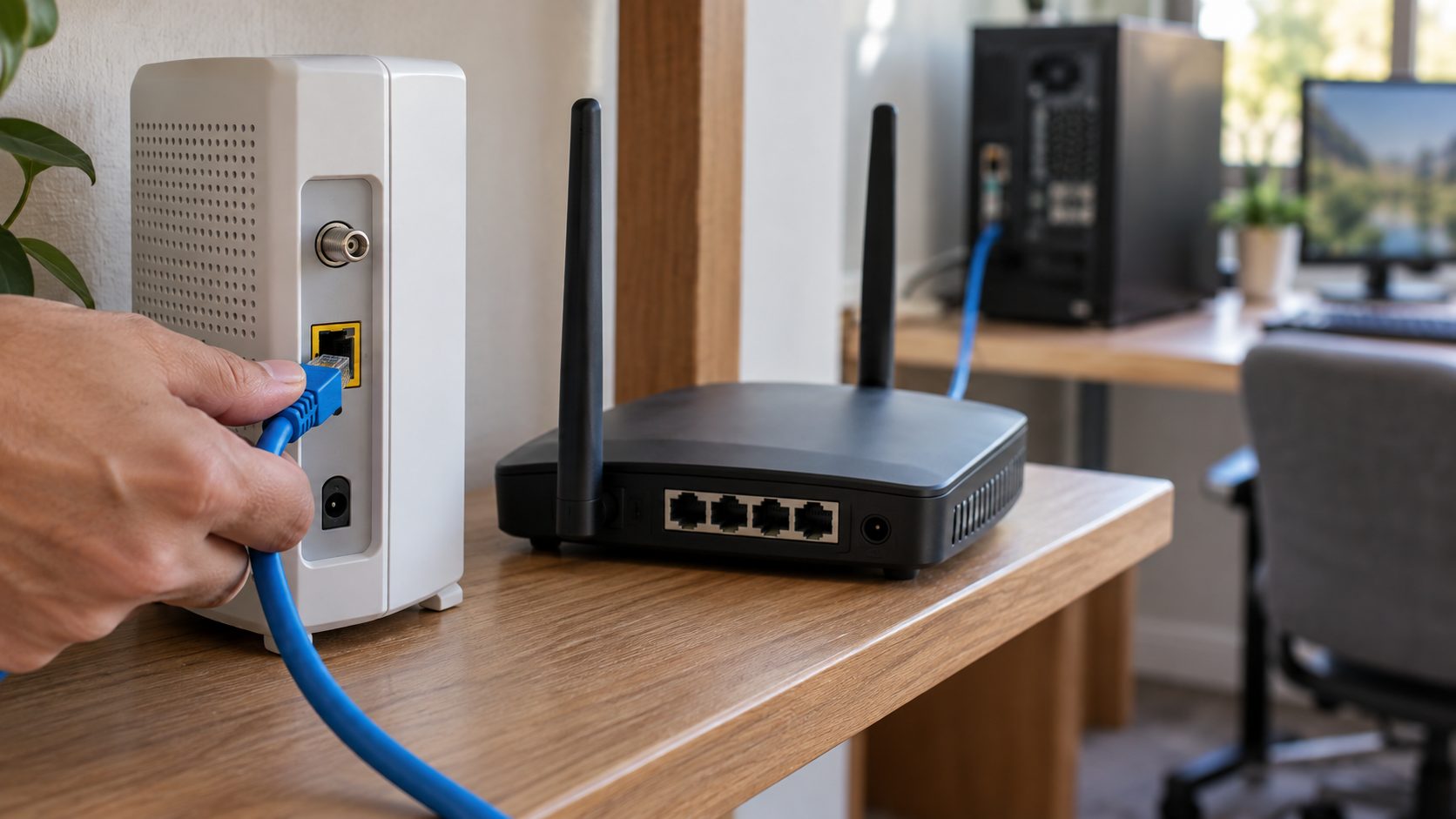
Test with a cable too, as Wi-Fi and powerline links can drop out. A phone hotspot is a fair second network, though Valve says mobile networks can upset Steam too. If another network works but Steam won’t connect at home, ask your ISP whether it blocks Steam traffic.
Repair Steam without losing your games
Your games live in its steamapps folder, and Valve says uninstalling Steam deletes every game inside it plus your userdata. Run the installer over your existing install instead, without uninstalling. If you must uninstall, move steamapps out of the Steam folder first.
Steam won’t connect even after all that? Valve’s fix for “servers unavailable” errors is to exit Steam and delete everything in C:\Program Files (x86)\Steam except steam.exe and steamapps; keep userdata too, as it holds local saves. Steam then re-downloads its files and asks you to sign in, so offline mode won’t work until you do. Re-add any missing games drive under Steam > Settings > Storage.
Steam Stuck in Offline Mode or Won’t Go Online
When Steam can’t connect at startup, it offers Start in Offline Mode. Your library opens, but Steam stays offline until you choose Steam > Go Online. If it falls straight back, Steam won’t connect online for one of the reasons above.
Go Offline won’t work? Sign in online with Remember me ticked, untick Don’t save account credentials on this computer under Steam > Settings > Security, then choose Steam > Go Offline and let Steam restart.
| What you see | What it means | What to do |
|---|---|---|
| “Could not connect to the Steam network” | Client can’t reach Valve | Servers, then firewall |
| Login window, no internet | No stored login | Get online; there’s no bypass |
| Go Offline won’t stick | Login not stored | Set up offline mode while online (below) |
| “This game cannot be started in Offline Mode” | Steam or the game needs an update | Go online, update, launch once |
How to Set Up Steam Offline Mode Before You Lose Internet
Offline mode must be prepared while you’re online, which is why Steam won’t open in offline mode on a PC that was never set up. From Valve’s offline mode guide:
Log in with Remember me ticked
Older guides call it Remember my password.
Update and launch each game
Most games need one online launch before they’ll run offline.
Keep credentials saved
In Steam > Settings > Security, leave Don’t save account credentials on this computer unticked.
Choose Go Offline
From the Steam menu, while you still have a connection.
Exit with Steam > Exit before shutting down, never through Task Manager: Valve says offline mode needs stored information that a forced close can lose.
Why some games still need a connection
Valve says games that need an active connection or use an external launcher won’t work offline, so titles that go through the EA app or Ubisoft Connect may not run. Nothing updates meanwhile, and Steam Cloud sync pauses, so after a conflict you’ll usually want the most recently modified save.
Frequently Asked Questions
Steam won’t connect to the network, but my internet works. Why?
Logging in uses TCP ports 80 and 443 plus TCP and UDP ports 27015 to 27050. A firewall, VPN, proxy or campus network that allows browsing can still block those.
Why won’t Steam open without internet?
Only after an online login with Remember me ticked. A login window means there’s no stored login, and no way past it while Steam won’t connect.
Is Steam down every Tuesday?
Not on a set schedule. Players often report short Tuesday maintenance, but outages can happen any day, so check the server signs above whenever Steam won’t connect.
Will reinstalling Steam delete my games?
Not if you run the installer over your existing install. Uninstalling first, or deleting the folder, removes the games inside it.
Work From Valve’s Side to Yours
Rule out Valve’s servers before changing anything when Steam won’t connect, then check the firewall, VPN, proxy and router. Go Online works once the connection does.
Controller trouble next? See our guides to a controller not working in game and a controller that won’t connect to Xbox, or browse all gaming guides.
Leave a comment