

Monitor Not Detecting Keyboard or Mouse? Fix Its USB Hub and Audio
HDMI and DisplayPort carry no USB, so a monitor's hub needs its own upstream cable. Then check pairing, KVM, USB-C Prioritization, Windows or Mac settings and audio.
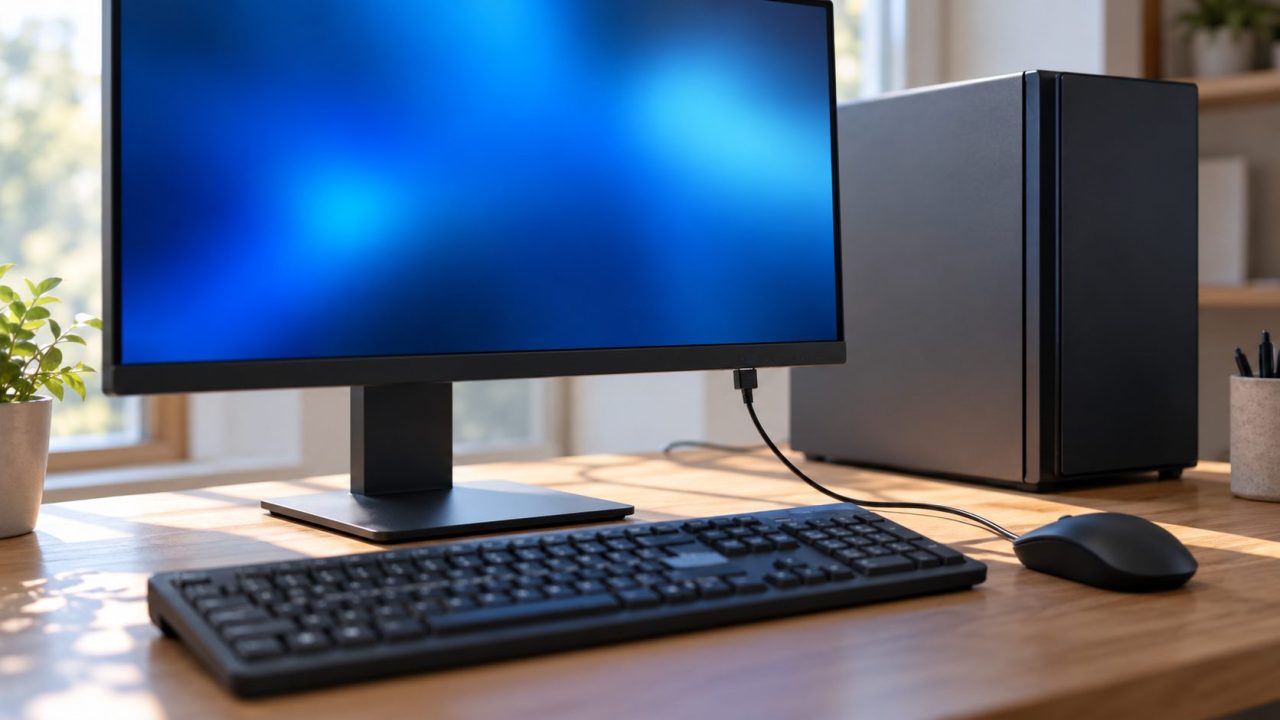
A monitor not detecting keyboard input often has a simple cause: the monitor’s USB ports form a hub, and the hub has no data link to your computer. HDMI and DisplayPort carry picture and sound, but no USB data.
This guide covers a monitor not detecting keyboard, mouse or other USB devices, plus its audio jack. For a blank screen, see our guides to a monitor not detecting a MacBook or a monitor not detected in Ubuntu.
Monitor Not Detecting Keyboard? HDMI and DisplayPort Carry No USB
The fix for a monitor not detecting keyboard input is a USB cable from the computer to the monitor’s USB upstream port, alongside the video cable. Until that link exists, the downstream ports stay inactive.
BenQ’s FAQ on this problem says the same: the hub turns on once a USB-C-to-USB-C or USB-C-to-USB-A cable links the monitor to the computer.
| Your setup | Hub works? | Why |
|---|---|---|
| HDMI or DisplayPort only | No | Picture and sound only |
| Video cable + USB-A-to-USB-B cable | Yes | The classic upstream link |
| Video cable + USB-A-to-USB-C cable | Yes | Data only; common with USB-C monitors |
| One USB-C cable for both | If the PC port allows | Needs DisplayPort Alt Mode and a full-featured cable, not a charge-only one |
| Through a dock or hub | Maybe | Connect directly to test |
Connect the USB Upstream Cable, Then Isolate the Fault
For a monitor not detecting keyboard input, test after each step:
Find the upstream port
Look for a USB-B (nearly square) or USB-C socket. Some models, such as the U2722DE, also have a USB-C downstream port; the manual’s port diagram labels each.
Use the monitor’s own cable
Run the included cable from the upstream port straight to the computer, not through a dock.
Plug in the keyboard
Use a downstream port, the right way up: Dell warns that inserting a device backwards can damage a port.
Restart and wait
Reseat both ends, restart the PC and power-cycle the monitor. Dell says to leave the monitor on for at least 15 seconds before testing.
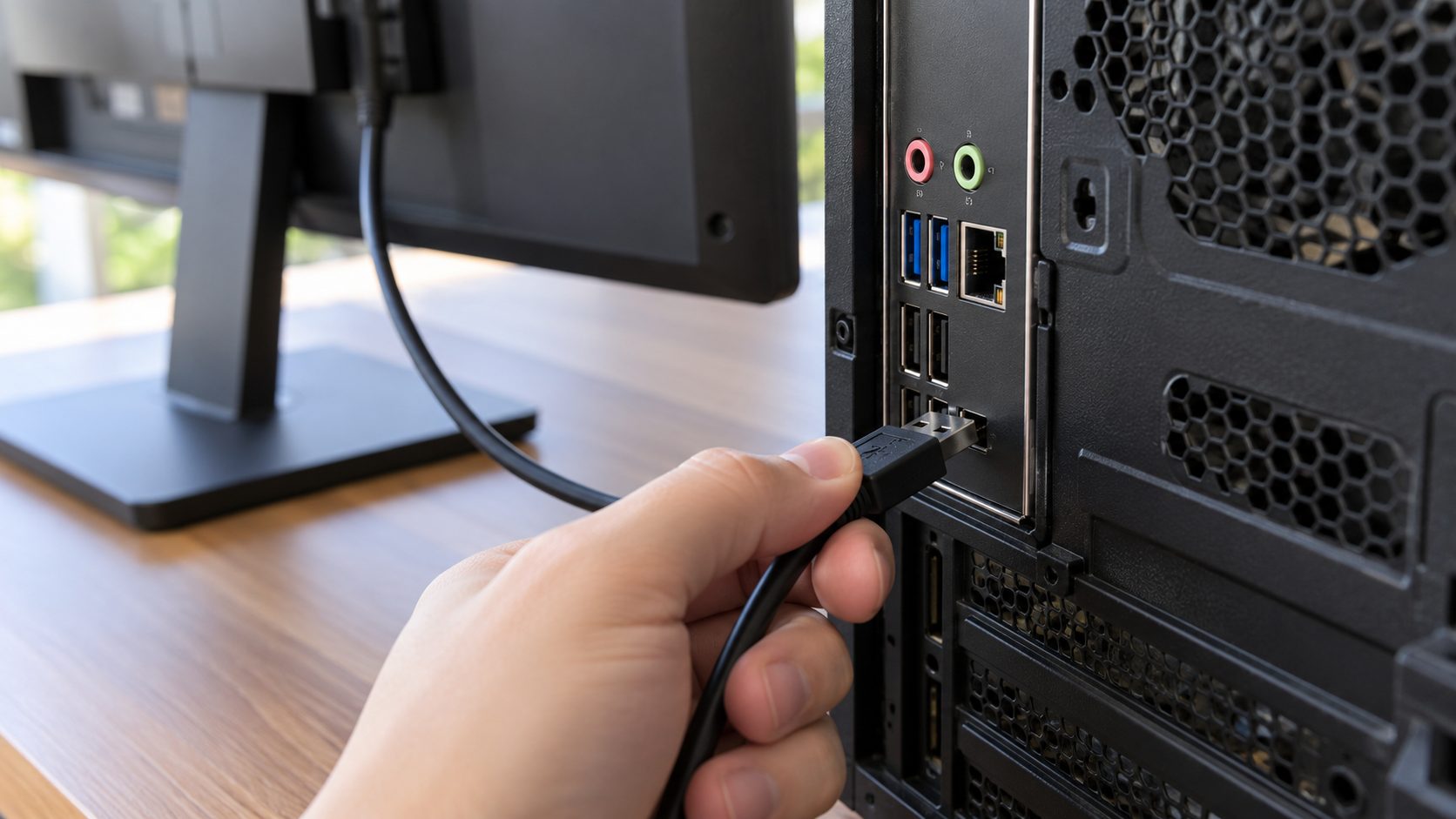
Still dead? Narrow it down:
- Plug the keyboard into the PC. If it fails there too, the keyboard or its receiver is at fault.
- Swap the port and cable. A bad port or worn cable can pass for a dead hub.
- Move power-hungry devices. The U2722DE’s standard ports supply up to 0.9 A; Dell says to plug portable hard drives into the PC directly.
Keyboard Works on One Input but Not Another? Check USB Pairing and KVM
A monitor not detecting keyboard input on only one video input points to a pairing problem. On monitors with two upstream ports, each input is paired with one of them, and the keyboard follows the input on screen.
The U2722DE user’s guide shows Dell’s version: DP assign to and HDMI assign to in the USB menu. With one upstream cable, that port is active. Other brands’ menus differ, so check your manual’s USB or KVM section.
On a KVM monitor, each PC uses its own upstream port, and a wrong KVM selection looks just like a monitor not detecting keyboard input. Dell’s KVM guide and manuals note four things:
No Bluetooth
Bluetooth devices aren’t supported; wireless sets work through their USB receiver.
No shared webcam
A webcam on the hub works only with the PC the KVM has selected, never both at once.
Auto KVM
On select models, control goes to the most recently connected PC.
PBP mode
On the U2722DE, the KVM USB Switch shortcut works only in PBP mode.
Once the pairing is right, try a second PC on the same input and upstream port. A monitor not detecting keyboard input there too points to the hub or cable; if the hub works, Dell says the first PC is the likely problem.
USB-C Monitors: How USB-C Prioritization Slows or Drops the Hub
Select Dell USB-C monitors, such as the U2721DE, U2722DE and C2722DE, have a USB-C Prioritization option: High Resolution or High Data Speed. On the U2722DE, it’s under Display in the on-screen menu, and High Resolution limits hub devices to USB 2.0 (480 Mbps).
Dell says the hub may stop working after a switch from High Data Speed to High Resolution, because it has to re-detect devices. If a monitor not detecting keyboard input began right after that change, unplug the USB-C cable and plug it back in.
Dell’s manuals say to disconnect USB storage before changing this setting (U2721DE) or switching upstream ports (U2722DE). The U2721DE’s switch takes up to 12 seconds, and a drive cut off mid-copy can lose files.
If the U2721DE refuses the change, shut the PC down first: on-the-fly switching is blocked while USB-C Charging is On During Power Off. A PC powered only by the monitor’s USB-C port loses power during a switch.
Don’t switch to High Data Speed just for a keyboard, which runs fine at USB 2.0. On a PC without DisplayPort 1.4, the U2721DE manual says that setting reduces screen performance; if your refresh rate drops, see our monitor not detecting 144Hz guide.
Monitor Not Detecting Keyboard After Sleep? Windows and Mac Checks
If a monitor not detecting keyboard input recovers after a restart and then fails again, check Windows power saving, as Dell advises:
- Press Win + X and open Device Manager.
- Expand Universal Serial Bus controllers and double-click a USB Root Hub.
- On Power Management (not every hub has it), untick Allow the computer to turn off this device to save power and click OK.
- Repeat for every root hub and for the Generic USB Hub entries that appear with the monitor connected, then restart.
With a USB-C monitor, Windows 11 alerts such as “Use different USB port” or “Display connection might be limited” can mean, Microsoft says, a wrong PC port or a hub or dock in the way. Connect straight to a USB-C port that supports DisplayPort Alt Mode.
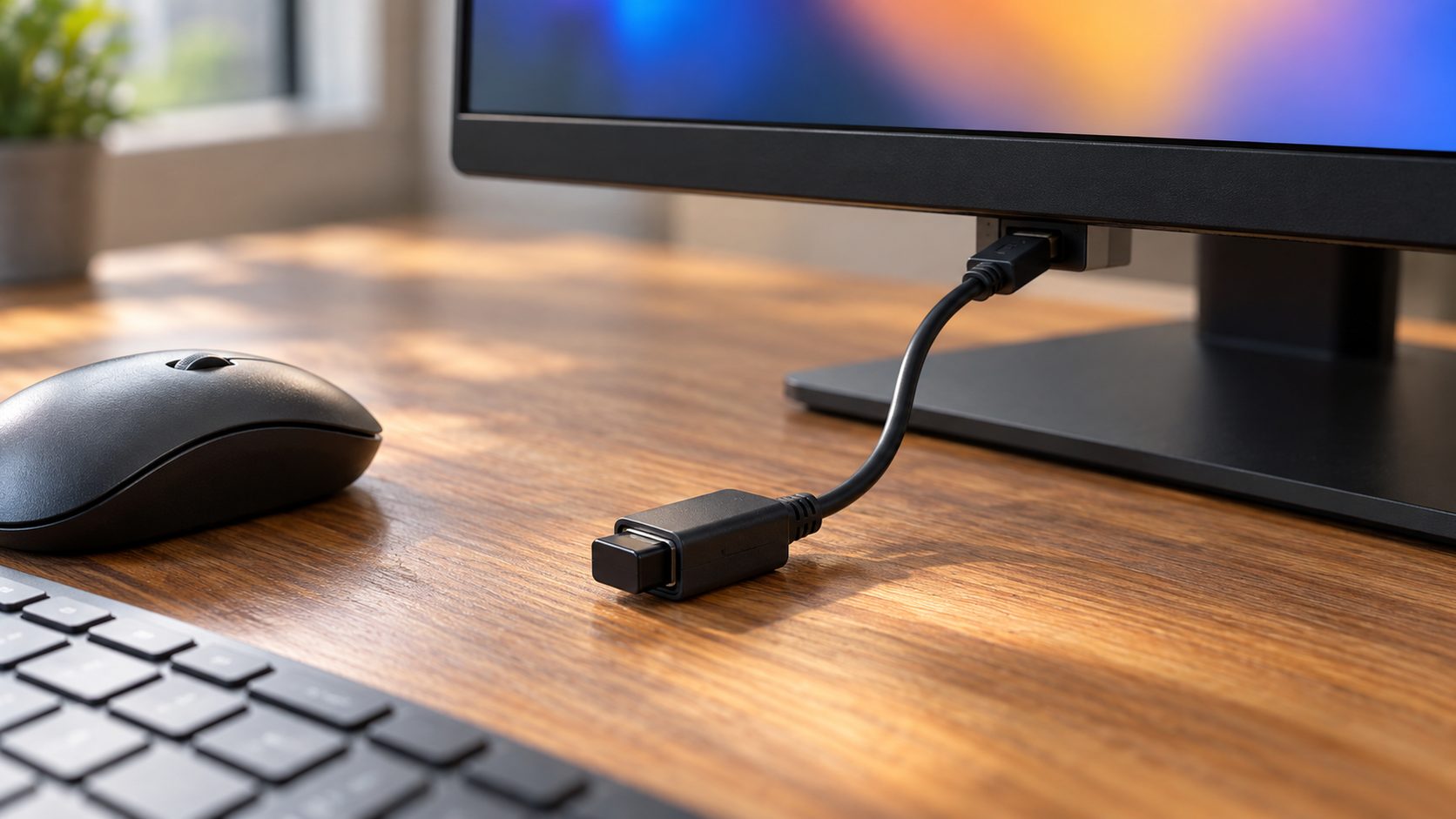
A lagging wireless keyboard may be fighting a USB 3.0 device; Dell suggests moving the receiver away from it and closer to the keyboard, on a USB extension cable if needed.
On a MacBook, a monitor not detecting keyboard input can be a blocked accessory. Apple says its Apple silicon laptops ask before a new accessory connects and won’t recognize one you denied. Replug the upstream cable and click Allow; the policy is Allow accessories to connect in System Settings > Privacy & Security.
“Monitor Not Detected. Ensure USB Cable Is Connected” on a Dell
Users report this message from Dell’s monitor firmware updater; Dell Display and Peripheral Manager (DDPM) shows a similar one. The software can’t reach the monitor over USB, which Dell’s firmware guide calls “almost always a cable issue.”
- Connect the monitor’s own upstream cable directly to the computer; Dell says a dock or hub may block communication.
- Turn DDC/CI on in the monitor’s menu, under Others or Menu Settings.
- On Windows, run the updater as administrator, and don’t unplug or power off anything until it finishes: Dell warns that an interrupted update can leave the monitor unrecoverable.
- Still failing? Try another computer, ideally a desktop. In DDPM, also refresh the device list.
Firmware can also fix a monitor not detecting keyboard or mouse input: on the Dell S2722DC and S2722QC, version M3B102 or later fixes a downstream-port problem.
Monitor Audio Jack or Speakers Not Detected? Sound Checks
Sound takes its own path. On the U2722DE, Dell says the line-out plays HDMI or DisplayPort audio and isn’t for headphones; on the U2721DE, it plays USB-C or DP audio. VGA and DVI links normally carry no sound.
Monitors with a built-in mic, such as Dell’s C2722DE, also use USB: with the USB cable connected, Windows lists a second playback device, Echo Cancelling Speakerphone; either can be the default. The mic and webcam need that USB link.
Many monitors have no speakers: Dell’s Gaming and Alienware models (except the AW5520QF) lack them yet still appear as a playback device, so connect a headset or speakers to the monitor’s headphone port.
In Windows 11, pick the device under Settings > System > Sound > Output; Microsoft warns that a speakerless monitor as the default means no audio. If the monitor isn’t listed, check Device Manager’s Sound, video and game controllers for the graphics card’s audio device, such as NVIDIA High Definition Audio, and reinstall the graphics driver if it’s missing.
Also check the monitor’s own menu for volume at 0 or speakers set to Off. On a Mac, choose it in System Settings > Sound > Output and use a Dell monitor’s buttons for volume. For consoles, see our monitor not detecting Xbox guide.
Monitor Not Detecting Keyboard: Common Questions
Why does my keyboard work in the PC but not the monitor?
The PC’s ports work on their own; the monitor’s need the upstream cable and the right input or KVM selection.
Why is my monitor not detecting keyboard input in the BIOS?
On the U2722DE, Dell says the hub works only while the monitor is on or in standby and may take a few seconds to resume, so a quick BIOS prompt can pass first. Use a PC port for BIOS work.
Does a monitor not detecting keyboard input mean the hub is broken?
Not by itself. If the hub stays dead with the monitor’s own cable, on every input, on a second PC and after a firmware update, contact the manufacturer’s support.
Recap: Upstream Cable, Input, USB-C Mode, Then Software
For a monitor not detecting keyboard input, check in this order: upstream cable and port, input or KVM selection, USB-C Prioritization, Windows or Mac settings, then firmware. Suspect the hub only after a second computer fails too.
For more display fixes, browse our computer guides.
Leave a comment