

iPhone Won’t Turn On or Off? Fixes for a Dead, Frozen or Stuck iPhone
Dead, frozen or stuck on the Apple logo? Work through Apple's order: the right force restart, an hour on a known-good charger, then recovery-mode Update before Restore.
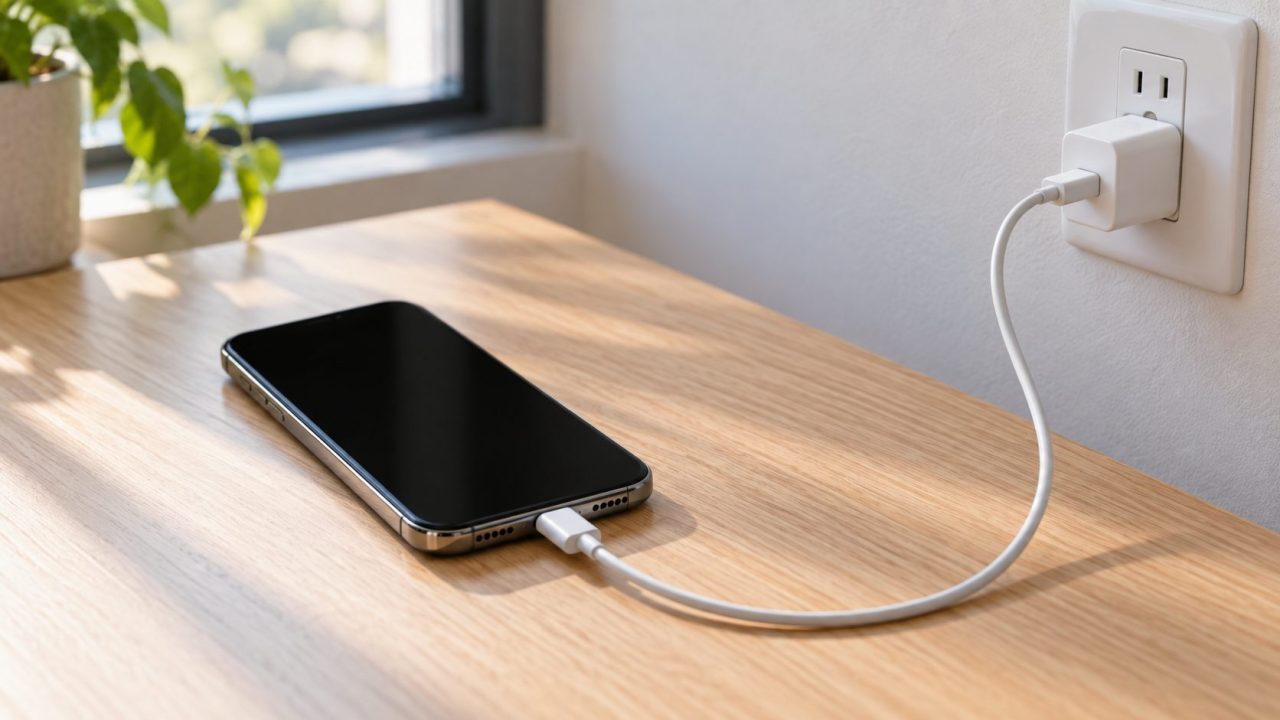
Look at the screen before you press anything. If your iPhone won’t turn on, a black display, an Apple logo that never clears and a phone that won’t shut down each need a different fix. Below is Apple’s order, safest step first, with the buttons for every model. Only the last step, a recovery-mode Restore, erases data.
If it got wet, unplug every cable and don’t charge it until it’s completely dry. Follow the drying steps first.
iPhone Won’t Turn On? What the Screen Is Telling You
An iPhone won’t turn on for a handful of reasons, and each one looks different. Pick the card that matches your screen.
Black and silent
No logo, no sound, no reaction to the charger. Start with a force restart.
Low-battery image
The battery is too drained to start. It needs time on a charger.
Logo that never clears
With a progress bar, wait. Without one, or in a loop, use recovery mode.
Frozen or won’t shut off
Lit but unresponsive, or no power-off slider. See shutting down a stuck iPhone.
Call it from another phone. If your iPhone won’t turn on but rings or vibrates, it’s running and the display is the likely fault. A backup from a computer usually needs the phone unlocked and the Trust prompt confirmed on screen, which a dark display blocks. If Finder or Apple Devices says it’s in recovery mode, jump to the recovery section.
Force Restart Buttons for iPhone 8 and Later, 7 and 6s
When your iPhone won’t turn on or is frozen, a force restart is Apple’s first step, and it erases nothing. Use the row for your model:
| Model | Force restart |
|---|---|
| iPhone 8 and later, incl. SE (2nd gen and later) | Quickly press and release Volume Up, then Volume Down; hold the side button until the Apple logo |
| iPhone 7, 7 Plus | Hold side and Volume Down together until the Apple logo |
| iPhone 6s and earlier, incl. SE (1st gen) | Hold Home and side (or top) together until the logo, about 10 seconds |
Apple says the first two rows can take longer than 10 seconds, so don’t let go early. Apple’s won’t-turn-on page skips the iPhone 8 and SE (2nd generation and later): they have a Home button but use the first row.
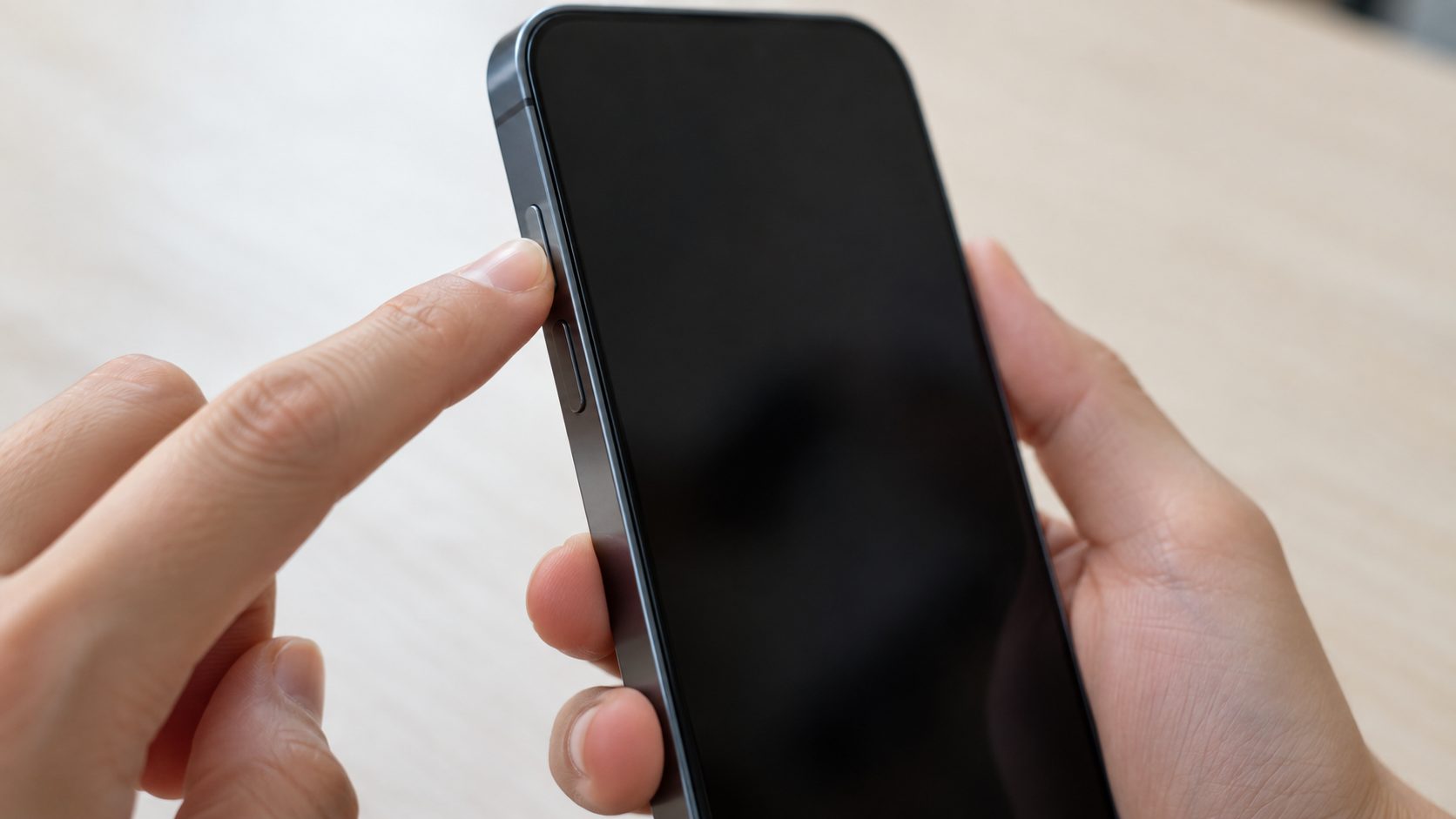
Why the volume presses must be quick
On iPhone 8 and later, holding side and volume together opens the power-off slider and an Emergency SOS countdown; hold through it and the phone calls emergency services. Called by mistake? Apple says don’t hang up; tell the responder you don’t need help.
iPhone won’t force restart?
Recheck your row: iPhone 8 and later use tap, tap, hold; older models hold two buttons at once. Ignore the power-off slider if it appears and keep holding until the Apple logo. If the iPhone won’t turn on even then, charge it for an hour and retry. A stuck button may need service, since recovery mode relies on it too.
iPhone Won’t Turn On After Dying? Charge It the Way Apple Says
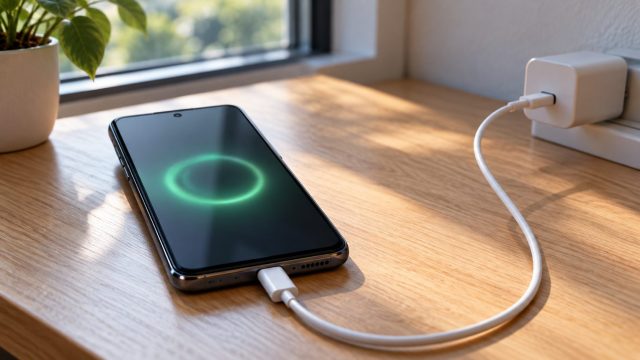
If your iPhone won’t turn on after a force restart, Apple says to charge it for an hour and try again. A fully drained phone can stay blank for up to 2 minutes, then show a low-battery image that means up to 10 more minutes before it’s usable.
During that hour, rule out the charger:
- Use a wall outlet. A computer that’s turned off can drain the phone, and a keyboard needs a high-power USB port.
- Check the cable and adapter for damage, or borrow a set that works, and seat the plug firmly.
- Gently clear lint from the Lightning or USB-C port, using nothing metal.
- Charge for 30 minutes. Still won’t power on, or only the battery image? Force restart, then charge 30 more.
If your iPhone won’t turn on from a cable but a Qi wireless charger wakes it (iPhone 8 and later), suspect the port or cable. Charging but stuck at 80%? See our guide to a phone that stops charging at 80%.
Too cold or too hot?
Temperature can be why an iPhone won’t turn on or charge. Apple rates iPhone for 32 to 95 °F (0 to 35 °C): cold can shut it off and stop charging, heat can black out the display, and “Charging On Hold” means it’s too hot or cold. Let it reach room temperature first.
Stuck on the Apple Logo, Including After an Update
The logo means the phone is getting power and trying to start. If your iPhone won’t turn on after an update and sits on the logo, look for a progress bar.
Progress bar: normal after an update or restore. Apple says it can crawl, seem frozen, or finish and start over; keep it on power and wait. If it never finishes, force restart, and if the logo and bar persist, it may need service.
No progress bar: if the phone won’t boot past the Apple logo for several minutes, shows Connect to computer, or keeps landing in Recovery Assistant, Apple’s answer is recovery mode.
Recovery Mode: Update First, Restore Only as a Last Resort
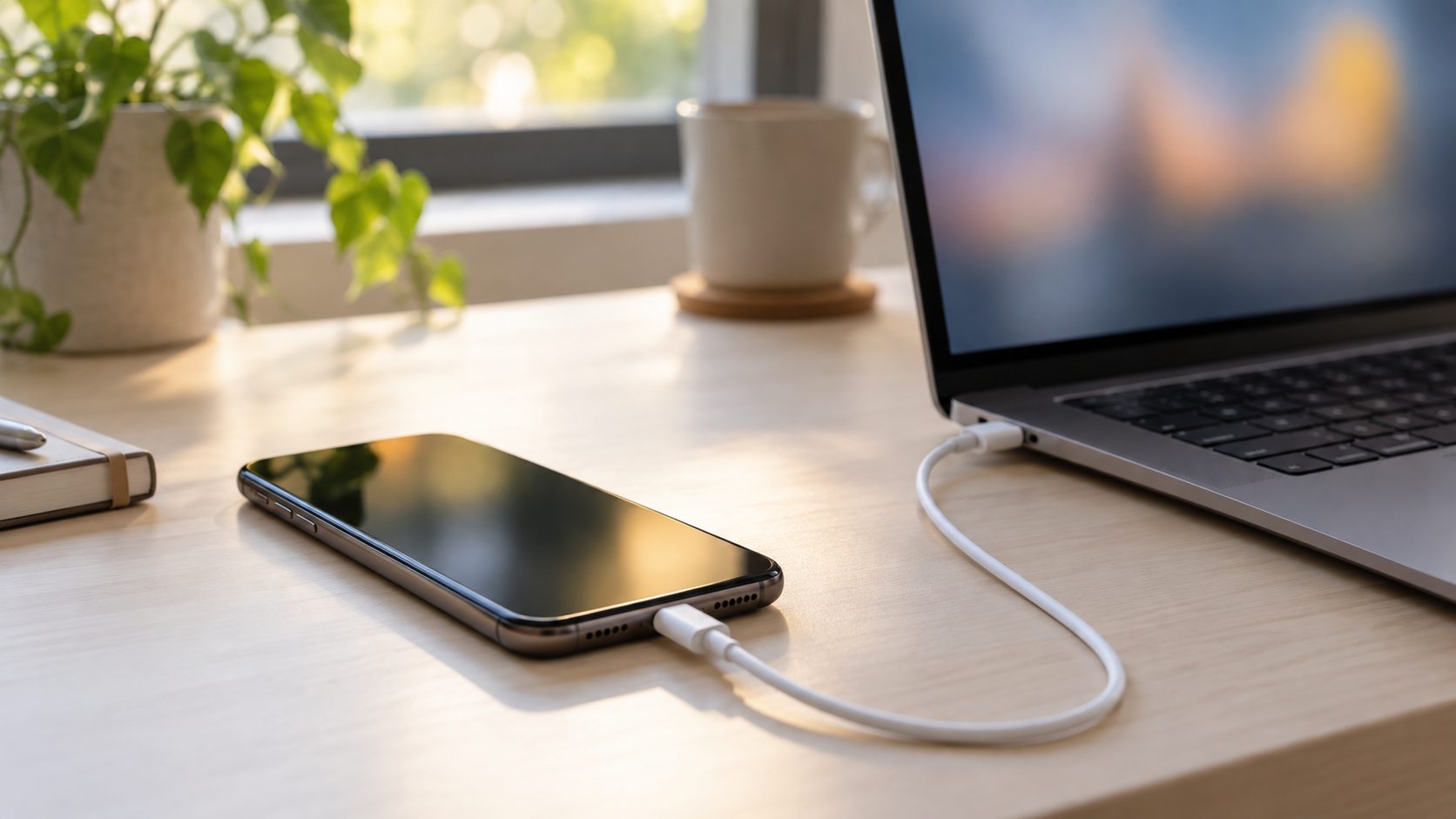
When an iPhone won’t turn on normally, recovery mode lets a computer reinstall iOS. Use a USB cable and Finder on an up-to-date Mac or the Apple Devices app on Windows (iTunes on macOS Mojave or earlier, or on PCs that can’t run Apple Devices); Apple’s recovery mode article has the full steps.
Restore wipes everything that isn’t in a backup. If Find My was on, Activation Lock will ask for your Apple Account password during setup.
Enter recovery mode
Connect the phone and open Finder or Apple Devices. Press the force-restart buttons from the table, but keep holding past the logo until Connect to computer appears.
Choose Update
It tries to reinstall iOS without erasing your data, and installs the latest iOS available for that iPhone. Apple says to try it first.
Dropped out? Repeat
If the download takes over 15 minutes, the phone may leave recovery mode. Let it finish, re-enter recovery mode and choose Update again.
Restore as a last resort
It erases all your data. Then restore an iCloud backup during setup, or a computer backup in Finder or Apple Devices.
iPhone Won’t Turn Off or Shut Down
On Face ID models, holding the power (side) button alone calls Siri by default, not the power-off slider. Use the route that fits:
- Face ID models. Hold the side button and either volume button until the sliders appear, then let go and drag Power Off.
- Home button models. Hold the side (or top) button, then drag the slider.
- Any model. Settings > General > Shut Down, no buttons needed.
- iOS 18 and later. In Control Center, touch and hold the power icon at the top right, then drag the slider.
- Broken side button. AssistiveTouch (Settings > Accessibility > Touch > AssistiveTouch) adds an on-screen button; tap it, then Device > More > Restart. To shut down, use Settings.
- Frozen screen. If the slider won’t move, use the force restart from the table above.
iPhone won’t wake up?
Press the side button, raise the phone or tap the screen. Raise to Wake can be off in Settings > Display & Brightness, and tap to wake works only on Face ID models (toggle it in Settings > Accessibility > Touch). Black but ringing? Suspect the display.
Wet, Damaged or Still Dead: Drying and Repairs
Charging a wet phone can corrode the connector pins and cause permanent damage. If your iPhone won’t turn on after getting wet, follow Apple’s advice:
- Unplug everything, tap it against your hand with the connector down, and let it dry with some airflow; a fan blowing cool air into the port may help.
- No heat, no compressed air, no cotton swabs or paper towels in the port, and no rice: Apple says rice particles can damage it.
- Wait at least 5 hours before wired charging or connecting an accessory, per Apple’s liquid-exposure guidance. On iPhone XS, XR and later, a liquid-detection alert can block charging; full drying can take up to 24 hours.
Liquid damage isn’t covered by Apple’s warranty, though consumer law may still give you rights.
If your iPhone won’t turn on after all of this and recovery mode never connects, take it to a Genius Bar or an Apple Authorized Service Provider, or mail it in. Apple sets its final fee after inspection; authorized providers set their own prices.
Quick Answers: Data, Charging Time, No Computer
If my iPhone won’t turn on, will a force restart or Update erase it?
Neither should. A force restart erases nothing, and a recovery-mode Update is designed to keep your data. Only Restore wipes the phone, which is why Apple says to try Update first.
My iPhone won’t turn on after dying. How long should it charge?
Expect up to 2 minutes of blank screen, then up to 10 on the low-battery image. If nothing shows, give it an hour, with a force restart at the 30-minute mark.
My iPhone won’t turn on and I have no computer. What now?
The force restart, charger checks and drying need no computer. For recovery mode, borrow a Mac or Windows PC, or visit a Genius Bar or an Apple Authorized Service Provider.
The Order That Protects Your Data
When an iPhone won’t turn on, go from cheapest to riskiest: the right force restart, a check for liquid, heat or cold, an hour on a known-good wall charger, patience with any progress bar, recovery mode with Update, and Restore only after Update fails.
Fixing an Android phone? Our Android phone won’t turn on guide covers brand-specific buttons, and more fixes are in our mobile guides.

Leave a comment