

Android Phone Won’t Turn On or Boot? A Symptom-by-Symptom Rescue Guide
Dead, black screen or stuck on the logo? Match the symptom, then work through charging, brand-specific force restarts and data-safe fixes before any reset.
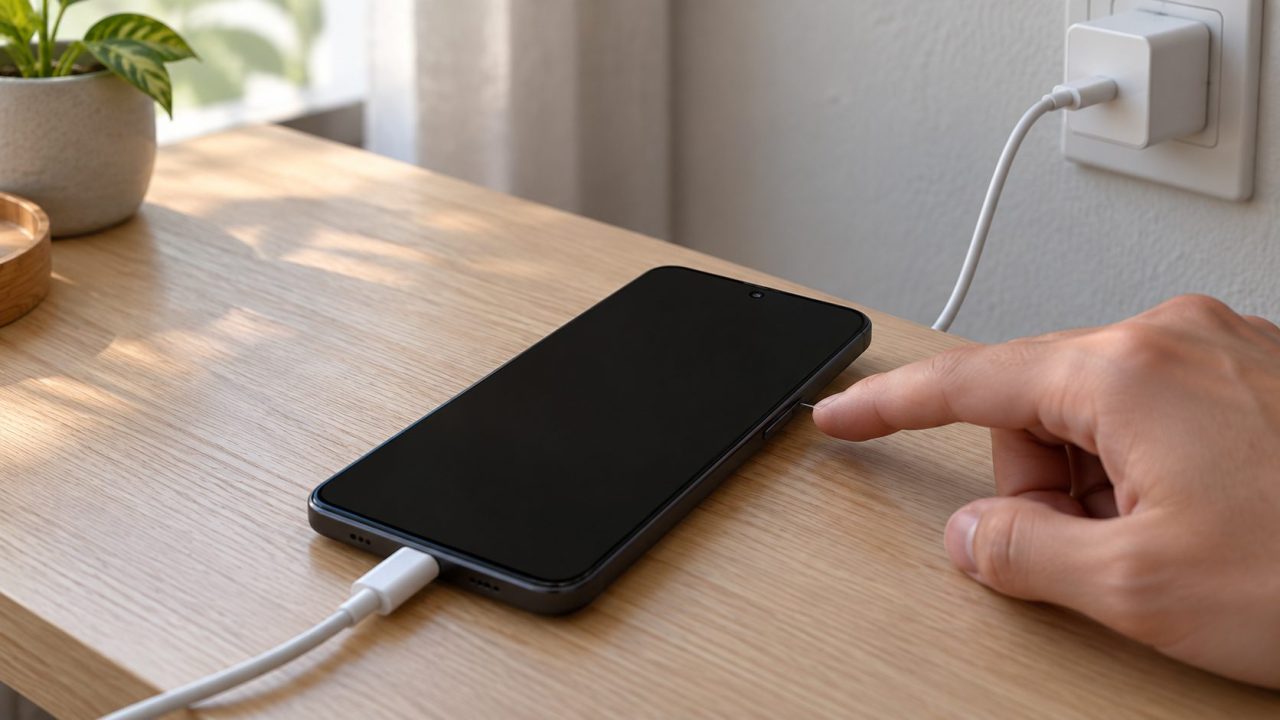
When an Android phone won’t turn on, it’s usually one of three things: a battery too drained to show any sign of life, frozen software, or a dead display on a running phone. Harmless checks come first; anything that can erase your data comes last.
No response, a buzz with a black screen, or a logo that never finishes: each one feels like your Android phone won’t turn on, but each needs a different fix.
Android Phone Won’t Turn On? Start With the Symptom
Most of the time, an Android phone won’t turn on because the battery is completely drained or the software has frozen. Try your brand’s force restart once right away; it’s free. If nothing happens, charge it for 30 minutes on a known-good wall charger and try again. If it then vibrates or rings with a black screen, suspect the display.
| What you see | Likely cause |
|---|---|
| Won’t power on, no charging icon | Drained battery or charger |
| Still dead after charging | Frozen software |
| Vibrates or lights up, black screen | Display fault |
| Stuck on the logo, looping, or on Fastboot or a robot | Startup or update problem |
| Turns on, then shuts off or keeps restarting | An app, a case, a setting or hardware |
A swollen battery can be why an Android phone won’t turn on. If the back bulges, the phone looks thicker, or it’s hot or bent, stop using it: unplug it, don’t press or pry at it, and take it to a repair center. If it got wet, don’t charge it until it’s fully dry.
Android Phone Won’t Turn On or Charge? Give It 30 Minutes
Plug it into a wall charger, cable and outlet you know work, check the port for lint, and wait a minute. Then read the signs:
- Battery icon: it’s off and charging; turn it on.
- Red light: fully discharged. Flashing red: too little power to start. Either way, charge for at least 30 minutes.
- Nothing: keep charging, since a drained Galaxy may show no icon and a nearly empty Pixel needs several minutes. Or the screen is dead; see the call test below.
These signs vary by phone. Still dark after 30 minutes? Swap the cable and charger, or try Google’s computer method: plug into a computer’s USB port for 10 to 15 minutes, unplug, reconnect within 10 seconds and look for a battery icon within a minute (Google’s charging guide).
Charges, but always stalls at one level? See why a phone stops charging at 80%.
Force Restart: The Right Button Combo for Your Brand
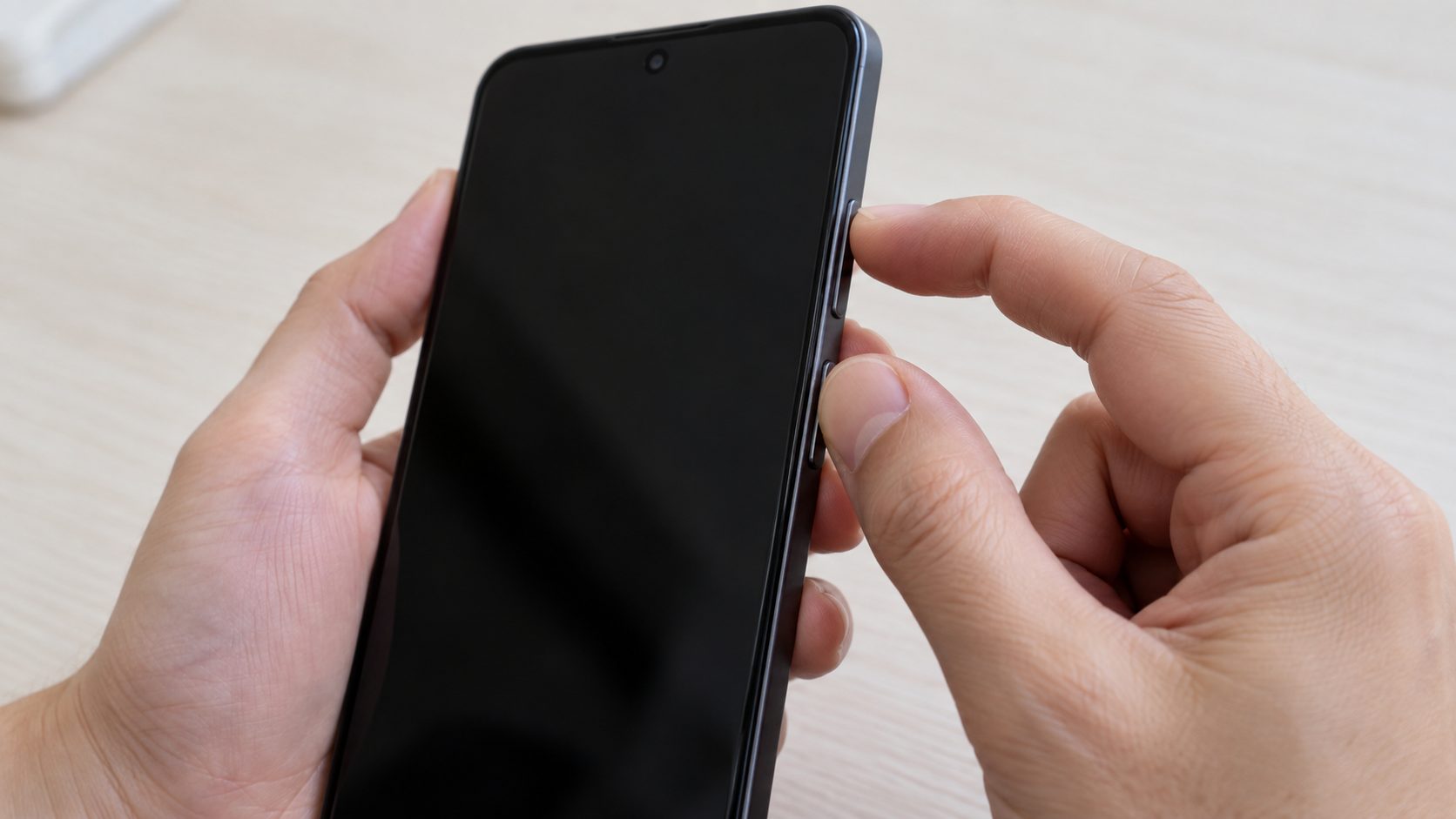
A frozen phone can look exactly like a dead one. When an Android phone won’t turn on after charging, force restart it; this erases nothing. Keep it plugged in and remove a bulky case, which Samsung says can get in the way.
| Phone | Hold | Let go at |
|---|---|---|
| Samsung Galaxy | Side + Volume Down, 7+ seconds | Samsung logo and vibration |
| Google Pixel | Power only, up to 60 seconds | The G logo |
| Xiaomi, Redmi, POCO | Power, 10+ seconds | The restart |
| Other brands | Power, 5 to 7 seconds, then up to about 35; or, plugged in, Volume Down + Power for 20+ seconds (Google’s generic steps) | The restart; combos vary, so check your maker’s site |
Press Samsung’s two buttons at the same moment, or you’ll get the volume bar or power menu (Samsung’s force restart guide). On a Pixel 6 or later, Power + Volume Up only opens the power menu.
It Vibrates or Lights Up, but the Screen Stays Black
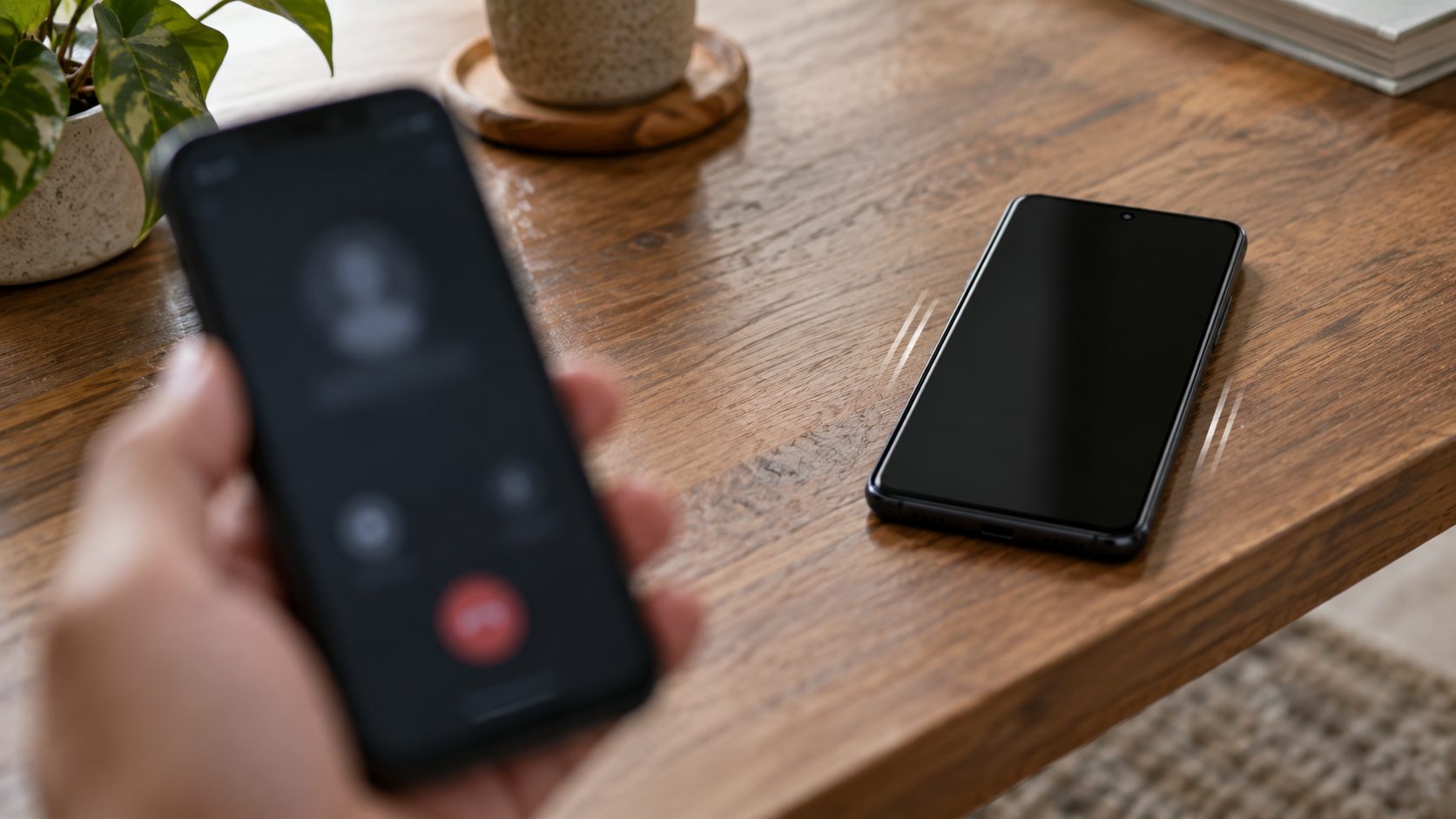
A buzz, ringtone or blinking notification light usually means the phone is running and only the screen is dark, even if it looks like your Android phone won’t turn on. Google’s test: force restart it, wait about 2 minutes, then call it or ring it with Find Hub.
If it rings but stays black, check the screen under a bright light, since very low brightness can hide a working display. Still nothing? The display is likely faulty, and Google says to contact an authorized repair center.
Screen back, but everything enlarged? See why your phone is zoomed in.
Won’t Boot Past the Logo? Boot Loops, Fastboot and Robot Screens
Sometimes an Android phone won’t turn on all the way: it powers up, then freezes on a logo, loops or lands on a technical screen. Most of these screens have a safe exit:
- Robot with “Start”: the bootloader (Fastboot) screen. Press Volume Down until Power off shows, select it with Power, charge for 30 minutes, then restart.
- “Fastboot” on a Xiaomi: see the FAQ below.
- “Downloading…” on a Samsung: Download mode. Hold Side + Volume Down for 7 seconds.
- Robot with “No command”: a normal step into recovery. Hold Power, tap Volume Up, then release both.
- Android Recovery menu: pick Reboot system now with the volume keys and confirm with Power (Side on a Galaxy).
Fixes in Data-Safety Order
Stop once it starts normally. None of these is a factory reset, though uninstalling an app deletes its data.
Force restart
Two or three tries with your brand’s combo.
Remove SD card and case
And any battery pack that could press a button.
Safe mode
Hold Volume Down as it starts: from the logo on a Galaxy, through the boot animation on a Pixel. Remove recent apps one by one.
Wipe cache partition
Only where offered. Galaxy: power off, connect to a computer by USB, hold Volume Up + Side (older models add Bixby or Home) until the logo shows, then pick Wipe cache partition, Yes, Reboot system now.
Maker’s repair tool
Pixel 4a or later: Google’s Update & Software Repair tool, run from a computer; its update option may keep your data. Other brands: ask the maker.
No Wipe cache partition in recovery? That’s normal on Pixels and many newer phones, including some recently updated Galaxies; skip step 4.
If it’s stable in safe mode, which runs no third-party apps, an app is the likely culprit; restart to leave. Safe mode may reset some widgets or themes, and Pixels turn on Airplane mode. A Galaxy that restarts at set times may just have auto restart on under Settings > Device care.
Steps 1 to 5 didn’t help? Wipe data/factory reset (on some Galaxies, Delete all user data) is what’s left. It erases everything; only data backed up to your Google Account comes back. Factory Reset Protection then asks for the old screen lock or a Google Account synced to the phone; without it, Google says, you can’t use the device at all.
Know that account’s password (wait 24 hours after changing it), charge to 70% or more and have Wi-Fi or mobile data ready; there’s no safe shortcut around this lock. Pixel 6 or later: from off, hold Volume Down + Power for up to 30 seconds, then pick Recovery Mode on the Fastboot screen (earlier Pixels: Volume Up + Power).
Android Phone Won’t Turn On After an Update
Don’t reset it yet: when an Android phone won’t turn on after an update, it may roll itself back. Android’s documentation says phones with A/B updates keep the old system and switch back if the new one fails to start several times.
So charge it, force restart two or three times, then work through the data-safe fixes above. Not every phone uses A/B updates, so a rollback isn’t guaranteed.
Skip guides that tell you to unlock the bootloader or flash firmware from third-party sites; use only your maker’s own repair tool.
When It’s Hardware: Battery, Screen, Water or a Stuck Button
If your Android phone won’t turn on after all of this, or the call test pointed to a dead screen, the fault is probably physical: the battery, the display, water damage or a button. Samsung notes that a Galaxy that keeps starting in Safe mode may have a faulty Volume Down key.
Take it to the manufacturer or an authorized repair center and describe what it did at each step. No one can promise your data back without a backup.
Frequently Asked Questions
Why won’t my phone turn on even though it’s plugged in?
A deeply drained battery can stay dark for several minutes, so an Android phone won’t turn on the moment you plug it in. Give it 30 minutes on a known-good charger before trying another cable.
My Android phone won’t turn on but vibrates. Is the screen broken?
Force restart it, wait 2 minutes and call it. If it rings but stays black even under a bright light, the display most likely needs repair.
Will a force restart or cache wipe delete my photos?
No. Both leave your data alone, which is why they come first when an Android phone won’t turn on. Only a factory reset erases it.
Should I factory reset if my Android phone won’t turn on?
Only as the last step. It erases everything, and Factory Reset Protection then asks for your old screen lock or Google Account, so try every data-safe fix first.
Why is my Xiaomi phone stuck in Fastboot?
Power + Volume Down opens Fastboot, so Volume Down was probably held at startup or is stuck. Xiaomi says it starts on its own if left a while; if not, hold Power for 10+ seconds, then visit an authorized service center.
Recap: Cheapest Checks First
The order to follow when an Android phone won’t turn on: a quick force restart, 30 minutes on a wall charger, another force restart, then the call test. If startup stalls, use the data-safe fixes before any reset, and stop if it’s swollen, hot or wet.
More fixes are in our mobile guides.

Leave a comment