

iPhone Won’t Back Up? iCloud, Computer and Photo Import Fixes
Decode the message and fix it: iCloud space versus iPhone space, the power, lock and Wi-Fi rule, stalled backups, Finder and Apple Devices errors, and photo imports.
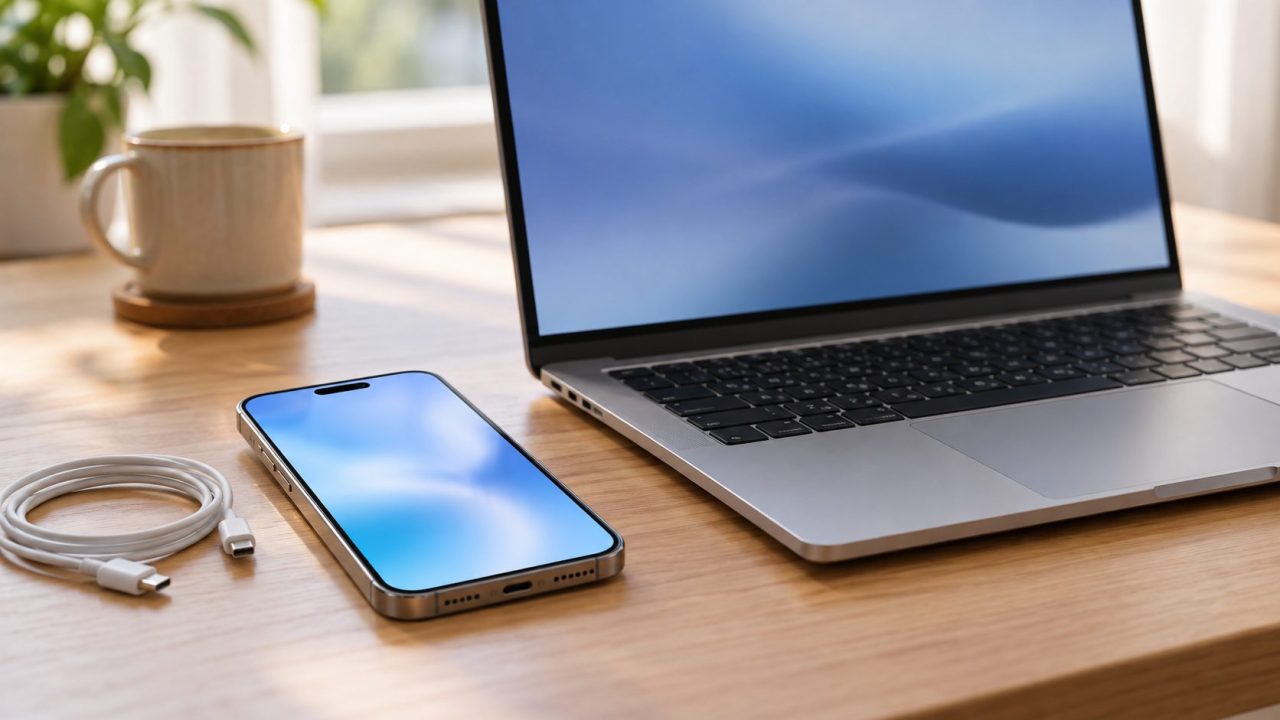
When your iPhone won’t back up, the message usually names the culprit: iCloud space, Wi-Fi, an oversized backup, or a computer that won’t talk to the phone. Find yours below, cheapest checks first; the last section covers photos that won’t import to a Mac or PC.
iPhone Won’t Back Up? Match the Message to the Cause
Your last backup time sits under Back Up Now in Settings > [your name] > iCloud > iCloud Backup. Match what you see to the reason your iPhone won’t back up:
| What you see | Usual cause |
|---|---|
| No error, but an old last backup | Power, Wi-Fi or lock condition not met |
| A “not enough storage” alert | iCloud account space, not iPhone space |
| “The last backup could not be completed” | Wi-Fi, a pending update or iCloud space |
| Backup stuck or crawling | Upload speed or an oversized backup |
| iCloud Backup grayed out | A restore in progress or a work profile |
| Finder, Apple Devices or iTunes alert | Updates, disk space, Trust or the cable |
| Photos won’t import | Locked phone, Trust, originals in iCloud |
Power, Wi-Fi and a Locked Screen: What iCloud Backup Needs
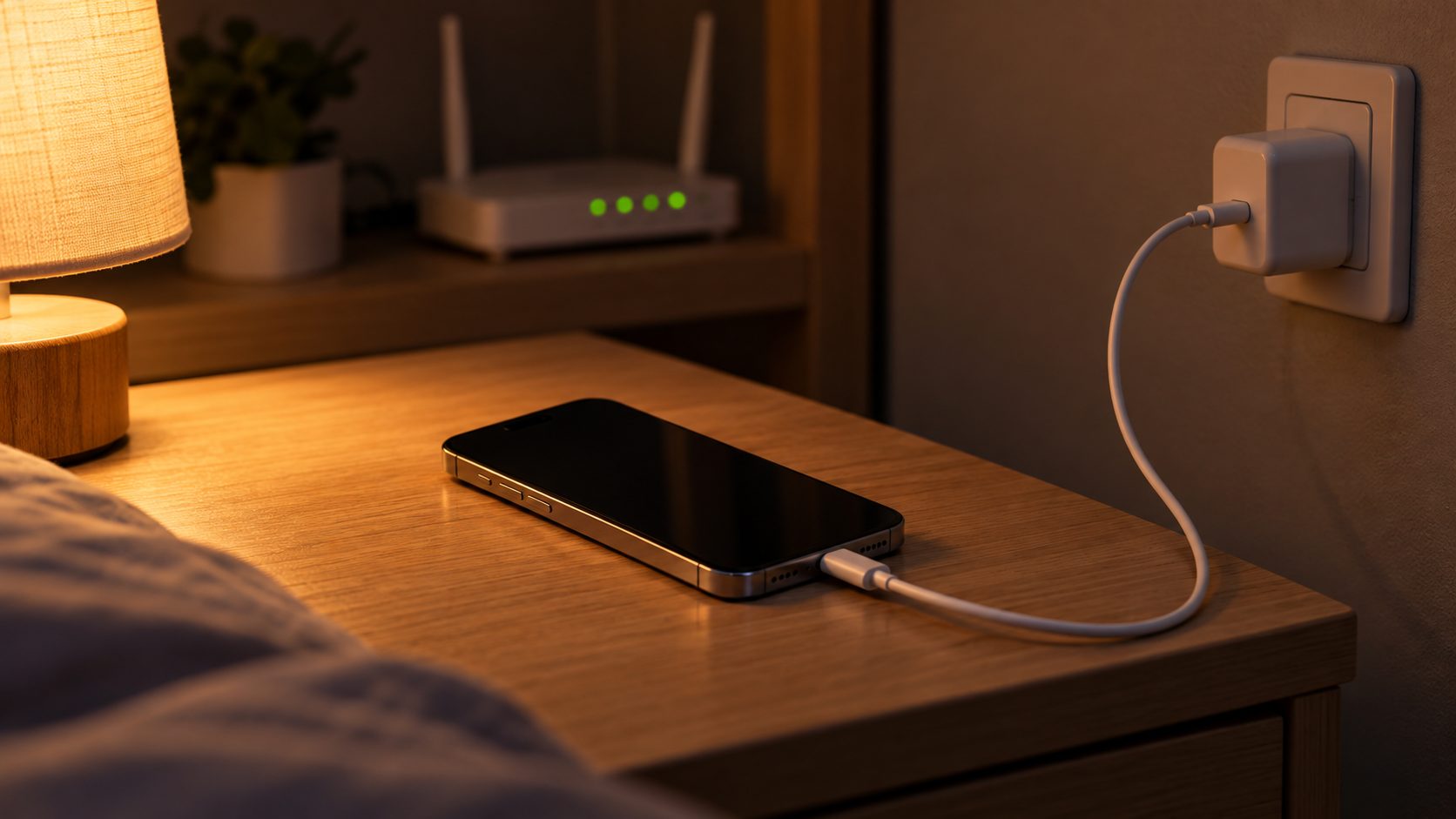
iCloud backs up automatically once a day, but only while the iPhone is connected to power, locked, and on Wi-Fi. A phone that charges only in the car can go weeks without one.
Check that Back Up This iPhone is on, then tap Back Up Now and stay on Wi-Fi until it ends. If that works but your iPhone won’t back up overnight, a condition is missing.
- Wi-Fi. Without it, your iPhone won’t back up to iCloud. Some carriers allow Back Up Over Cellular on 5G models, on the same screen.
- Power and lock. Plug in overnight and lock the screen.
- Restart. Restart the phone, then try Back Up Now again.
“Not Enough iCloud Storage” When Your iPhone Has Plenty of Space
iPhone storage is the phone’s own capacity; iCloud storage is space on your Apple Account, shared by every device’s backup and your other iCloud data. If that account is full, your iPhone won’t back up however much space the phone has, and every account starts with only 5 GB free.
Go to Settings > [your name] > iCloud > Storage (or Manage Account Storage) > Backups and tap this iPhone; on iOS 27 you can also tap iCloud Backup > This iPhone. Next Backup Size can take a few minutes to appear. If it’s larger than your free iCloud space, the iPhone won’t back up until you clear space or upgrade to iCloud+.
Upgrading phones? Use free temporary storage
If you’re buying a new iPhone or iPad and your old iPhone won’t back up for lack of iCloud space, go to Settings > General > Transfer or Reset iPhone > Prepare for New iPhone > Get Started. Apple lends temporary iCloud storage: 21 days to restore, plus 21 more with Keep My Backup Longer. Don’t erase the old phone until the new one is restored; the temporary backup is deleted seven days after the restore.
Shrink the Backup: Big Apps, the Photo Library and Old Devices
A backup skips anything that already syncs to iCloud, such as photos with iCloud Photos on and messages with Messages in iCloud on. With iCloud Photos off, the whole Photo Library goes in, which can make the backup huge.
On the same backup screen, switch off apps you don’t need backed up and tap Turn Off to confirm. That deletes the app’s backup data from iCloud; some apps can’t be switched off. If Photo Library is listed, save those photos to a computer before you turn it off.
When old devices’ backups fill the account, your iPhone won’t back up until you remove some. Tap the old device’s name on the Backups screen, then Turn Off and Delete from iCloud. This can’t be undone, and Apple says it also turns off iCloud Backup for that device.
Never delete the backup of the phone you’re fixing or of a device you still use. Just turning iCloud Backup off keeps the backup for 180 days.
“The Last Backup Could Not Be Completed” or a Backup That Never Ends
For this message, Apple’s guide for when you can’t back up to iCloud lists four steps: confirm Wi-Fi, install any update, try a different Wi-Fi network, and recheck iCloud storage. If your iPhone won’t back up at home but works on another network, restart your router and try again.
A crawling backup is limited by upload speed, not download speed, so check the upload figure in a speed test. Apple says to leave the iPhone on power and Wi-Fi for 24 hours. If it still hasn’t finished, save your important data elsewhere and repeat the steps.
iCloud Backup grayed out?
When your iPhone won’t back up and the switch is dimmed, a restore may still be running; the phone says it will back up when done. Otherwise, look in Settings > General > VPN & Device Management for a work or school profile restricting backups, and ask that organization’s IT team.
Last resorts, in this order
Use these only when your iPhone won’t back up on any network. Steps 2 to 4 wipe settings or sign you out, so read each first, and make a computer backup before you start.
- Turn off any VPN, then try Back Up Now. Apple doesn’t list this step.
- Reset Network Settings in Settings > General > Transfer or Reset iPhone > Reset. It erases saved Wi-Fi passwords and cellular, VPN and APN settings (work-profile VPNs stay) and renames the phone “iPhone”, so rename it in Settings > General > About to tell its backups apart.
- Reset All Settings, in the same menu. It resets network, location and privacy settings and removes Apple Pay cards, but deletes no data or media; it isn’t Erase All Content and Settings.
- Sign out and back in at Settings > [your name] > Sign Out. You’ll need your Apple Account password, Find My turns off while you’re signed out, and Stolen Device Protection may add a delay away from familiar places. When asked, keep a copy of your data on the iPhone.
iPhone Won’t Back Up to a Computer? Finder, Apple Devices and iTunes
A local backup sidesteps iCloud space and Wi-Fi, so it’s the best fallback when your iPhone won’t back up to iCloud. On a Mac with macOS Catalina or later, back up from the iPhone’s General tab in Finder; Mojave and earlier use iTunes. On Windows, use the Apple Devices app, or iTunes if the app isn’t available.
Encryption is optional but needed for Activity, Health and Keychain (saved passwords) data, and an encrypted backup can’t be recovered without its password. If the backup fails, try these fixes one at a time:
Unlock and Trust
Unlock the phone and tap Trust; since iOS 16, the Trust alert also appears when you back up.
Update and restart
Update the computer and Apple Devices or iTunes, reconnect by USB, then restart both devices.
Cable and port
The cable must support data, not just charging. Try another USB port and check the phone’s port for debris.
Security software
On Windows, update or briefly disable third-party security software if the backup never finishes, then turn it back on.
Another computer
Still failing? Back up on a different Mac or PC if you have one.
Apple’s computer backup troubleshooting page maps the alerts: “an error occurred” means update iOS, and “not enough disk space” means free space on the computer. For that, click Manage Backups on the General tab, check the device name, then right-click an old backup and choose Delete. Don’t move or rename backup files by hand.
Windows doesn’t detect the iPhone?
If your iPhone won’t back up because Windows never sees it, close iTunes or Apple Devices, unplug the phone, press Windows key + R, type services.msc and press Enter. Right-click Apple Mobile Device Service > Properties, set Startup type to Automatic, click Stop, then Start, restart the PC and reconnect. Apple wrote these steps for iTunes.
iPhone Won’t Import Photos to Your Mac or PC
Imports fail for the same connection reasons, plus one more: the full-size photos may not be on the phone. Keep the phone unlocked (Microsoft says a PC can’t find a locked device), tap Trust or Allow, and click Allow if your Mac asks about the accessory.
Tapped Don’t Trust? Unplug and reconnect, since the alert normally returns each time. If it still doesn’t appear, Settings > General > Transfer or Reset iPhone > Reset > Reset Location & Privacy brings it back, but also resets apps’ location and privacy permissions.
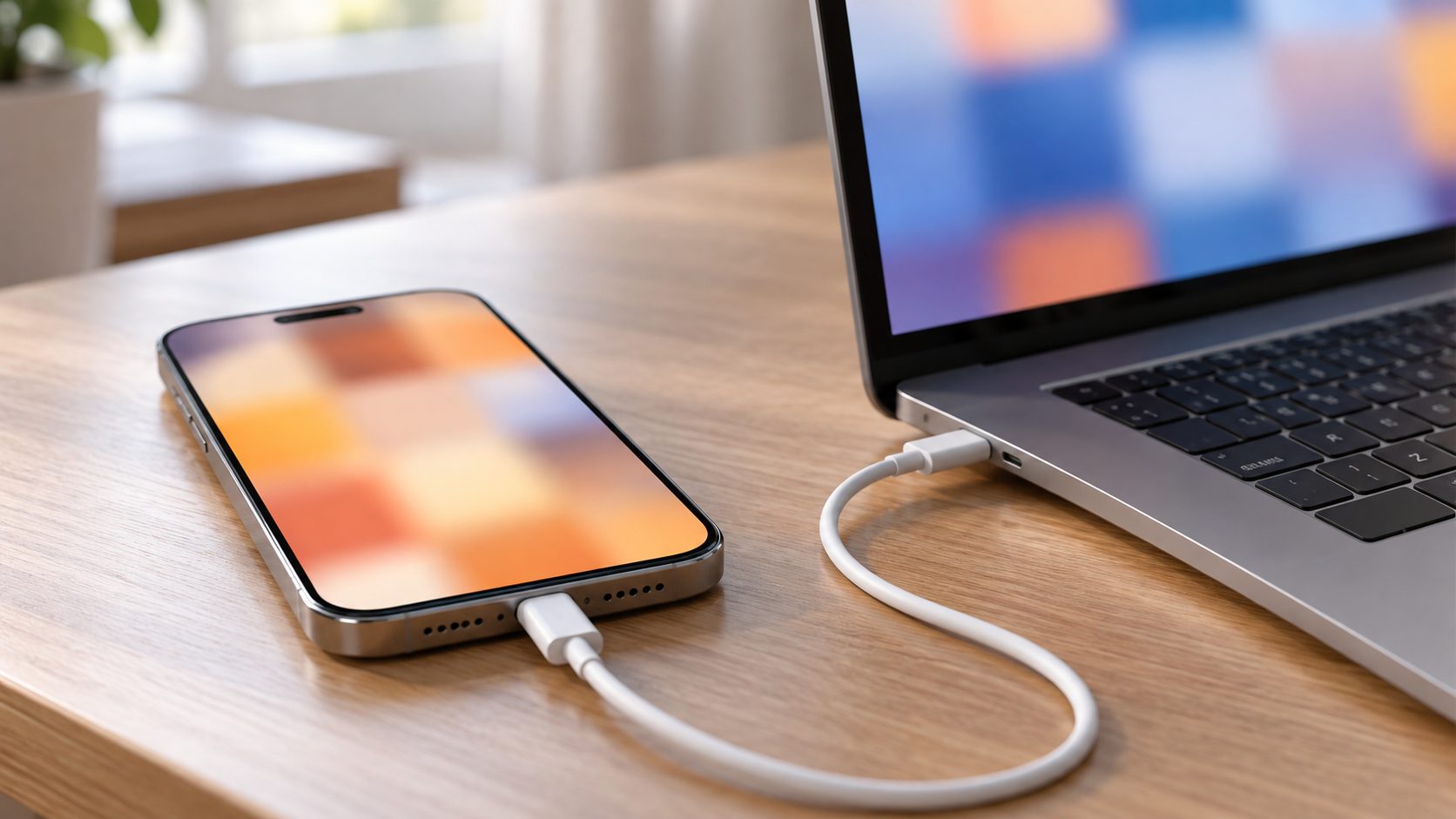
On a Mac, open Photos, click the iPhone in the sidebar, then Import Selected or Import All New Items. Image Capture is the fallback, and AirDrop suits a few files (here’s what to do if your iPhone won’t AirDrop to Mac). On Windows, install Apple Devices from the Microsoft Store, then import with the Photos app, as Apple’s photo import guide shows.
If photos copy over but won’t open on the PC, Apple suggests Settings > Camera > Formats > Most Compatible, which saves new shots as JPEG and H.264. Photos kept only in iCloud won’t come over the cable; Microsoft points to iCloud for Windows for those.
With Optimize Storage on in iCloud Photos, iCloud keeps the full-resolution originals and the phone keeps space-saving versions. An import can then miss photos or bring over small versions, so Apple says to download the originals first.
On iOS 27: Settings > [your name] > iCloud > Photos > iPhone Storage > Download and Keep Originals (iOS 26 and earlier skip the iPhone Storage step). The phone needs room for them, and Low Power Mode pauses iCloud Photos until you turn it off or charge the phone to 80%.
Frequently Asked Questions
Why won’t my iPhone back up when I have enough storage?
Backups use iCloud space, not iPhone space, so compare Next Backup Size with free iCloud storage. If it fits and your iPhone won’t back up anyway, recheck Wi-Fi, power and lock, then the grayed-out causes.
Why is my iPhone backup taking so long?
Backup size and upload speed decide it. Give it 24 hours on power and Wi-Fi before deciding your iPhone won’t back up at all.
Why won’t my iPhone back up to iTunes?
Apple now points Windows users to the Apple Devices app, with iTunes as the fallback; Macs with Catalina or later use Finder. In any of them, an iPhone won’t back up until you unlock it and tap Trust, and never over a charge-only cable.
If Your iPhone Won’t Back Up After All This
Work from cheapest to most drastic: power, Wi-Fi and lock, then Next Backup Size against free iCloud space, then another network and updates, then the resets, with a computer backup made first. If your iPhone won’t back up by either route, import your photos and contact Apple Support.
More phone fixes: see what to do when an iPhone won’t make calls, or browse our mobile guides.


Leave a comment