

How to Fix Laptop Graphics Card Problems: Wrong GPU or Not Detected
Game stuck on integrated graphics or the NVIDIA GPU missing from Device Manager? Check Task Manager, the maker's GPU mode and Code 43 before blaming the hardware.
When a game stutters or the NVIDIA chip vanishes from Device Manager, the laptop’s graphics card, or video card, is rarely dead. Usually the game runs on the integrated chip, a maker setting has switched the dedicated GPU off, or the driver has stopped. Here’s how to fix laptop graphics card problems in that order, free checks first.
This guide shows how to fix laptop graphics card issues on Windows 10 and 11 laptops that pair integrated graphics with an NVIDIA or AMD chip.
Which Laptop Graphics Problem Do You Have?
How to fix laptop graphics card trouble depends on the symptom. Find yours, then jump ahead.
| What you see | Likely cause | Go to |
|---|---|---|
| Game runs on the integrated GPU | Power-saving setting or battery | Check the GPU |
| Dedicated GPU missing from Device Manager | Maker’s Eco or iGPU-only mode | Maker GPU mode |
| Code 43 or “Microsoft Basic Display Adapter” | Driver problem or device failure | Code 43 |
| Artifacts or crashes, also on an external monitor | Heat or a failing chip | Hardware signs |
Plug In, Then Check Which GPU Your Game Really Uses
Connect the charger first. It’s free, and NVIDIA notes that a maker’s power plan can keep programs off the NVIDIA GPU. In Windows 11, also set Settings > System > Power & battery > Power mode to Balanced or Best performance while you test.
Read the GPU engine column in Task Manager
If you’re working out how to fix laptop graphics card performance, check this before changing any setting. Press Ctrl + Shift + Esc, right-click a column header on the Processes tab and turn on GPU engine. With the game running, an entry such as “GPU 1 – 3D” names the GPU rendering it. GPU 0 isn’t always the integrated chip; the Performance tab shows the name behind each number.
How to Fix Laptop Graphics Card Switching in Windows Settings
Windows has a per-app GPU switch for NVIDIA and AMD alike, covered on Microsoft’s Windows 11 graphics settings page:
- Open Settings > System > Display > Graphics.
- Under Custom options for apps, select the game, or use Browse to add its .exe.
- Choose Options, pick High performance and select Save. No Options button? Expand the game’s entry and pick High performance there.
- Close the game fully and start it again, since the GPU is chosen at launch.
On Windows 10, the page is Display > Graphics settings. Only one GPU listed? The choice needs Windows to see more than one, so check the maker’s GPU mode.
AMD removed its Switchable Graphics menu in Radeon Software Adrenalin 19.12.1, so AMD laptops use this page too. That’s how to fix laptop graphics card switching for one game; repeat it for any other game stuck on the integrated chip.
Set the Preferred GPU in NVIDIA Control Panel
NVIDIA Optimus laptops have a second per-program setting. NVIDIA’s Optimus help says a change applies only after you restart the program.
- Program Settings. In Manage 3D Settings > Program Settings, pick the game and set Preferred graphics processor to the high-performance NVIDIA option.
- One-off launches. Tick Desktop > Add “Run with graphics processor” to Context Menu to pick a GPU from a program’s right-click menu (on Windows 11, under Show more options).
- Grayed out? NVIDIA can lock it for some programs, and the driver may override it when a program needs a specific GPU, such as for CUDA.
- Still ignored? Microsoft says a Windows Graphics settings entry for the game wins over NVIDIA Control Panel, so set both to High performance or remove the Windows entry. A maker’s forced mode or power plan also outranks per-app choices, and programs on an external display driven by the NVIDIA GPU always use it.
Check Your Maker’s GPU Mode, MUX Switch and Advanced Optimus
Some maker GPU modes switch the dedicated GPU off entirely, so it vanishes from Device Manager. Before you reinstall drivers or look up how to fix laptop graphics card failure, check this one setting. Names vary by brand; some laptops keep it in the BIOS/UEFI.
ASUS GPU Mode
Armoury Crate offers Ultimate, Standard, Optimized and Eco on 2022 and newer dual-GPU models; Eco hides the dedicated GPU. From Ultimate (the MUX mode), switch to Standard before Eco or Optimized. Other ASUS models use MyASUS or ProArt Creator Hub.
Lenovo Vantage (Legion)
Legion manuals list Hybrid Mode, Hybrid-iGPU Only Mode and dGPU Mode; switching to dGPU Mode needs a restart.
Advanced Optimus
Lets the NVIDIA GPU drive the built-in screen. On ASUS, set Armoury Crate to Standard, then NVIDIA Control Panel > Manage Display Mode > Automatic Select. ASUS says switching can black out the screen for 3 to 5 seconds.
For a missing GPU, choose Standard or Hybrid, restart and check again. In Eco mode NVIDIA Control Panel won’t open either, since the GPU is off. If a black screen doesn’t clear by itself, press Windows logo key + Ctrl + Shift + B, which Microsoft says resets the graphics driver.
The ASUS GPU Mode FAQ warns that switching modes can trigger a BitLocker recovery screen or a failed Windows Hello PIN. Whatever the brand, have your recovery key (aka.ms/myrecoverykey) and password ready first.
How to Fix Laptop Graphics Card Not Detected or Code 43
Rule out the maker mode first. If the GPU is still missing or flagged, here’s how to fix laptop graphics card detection inside Windows: open Device Manager and expand Display adapters.
Show hidden devices
Choose View > Show hidden devices. A faded entry is known but absent, which fits an Eco or iGPU-only mode.
Enable it
A down-arrow icon means it’s disabled; right-click it and choose Enable device.
Read the error
In Properties, Code 43 reads “Windows has stopped this device because it has reported problems.” Driver or hardware can cause it.
Reinstall it
Right-click the GPU, choose Uninstall device and leave “Attempt to remove the driver” unticked. Restart, or use Action > Scan for hardware changes.
Seeing Microsoft Basic Display Adapter instead? The GPU has no working driver; ASUS notes this can follow a long spell in Eco mode. Either way, make one driver change, not five: after a bad update, use Properties > Driver > Roll Back Driver (admin rights needed); otherwise install the graphics driver from your laptop maker’s support page.
Signs the Graphics Chip Is Failing, and What Repair Really Means
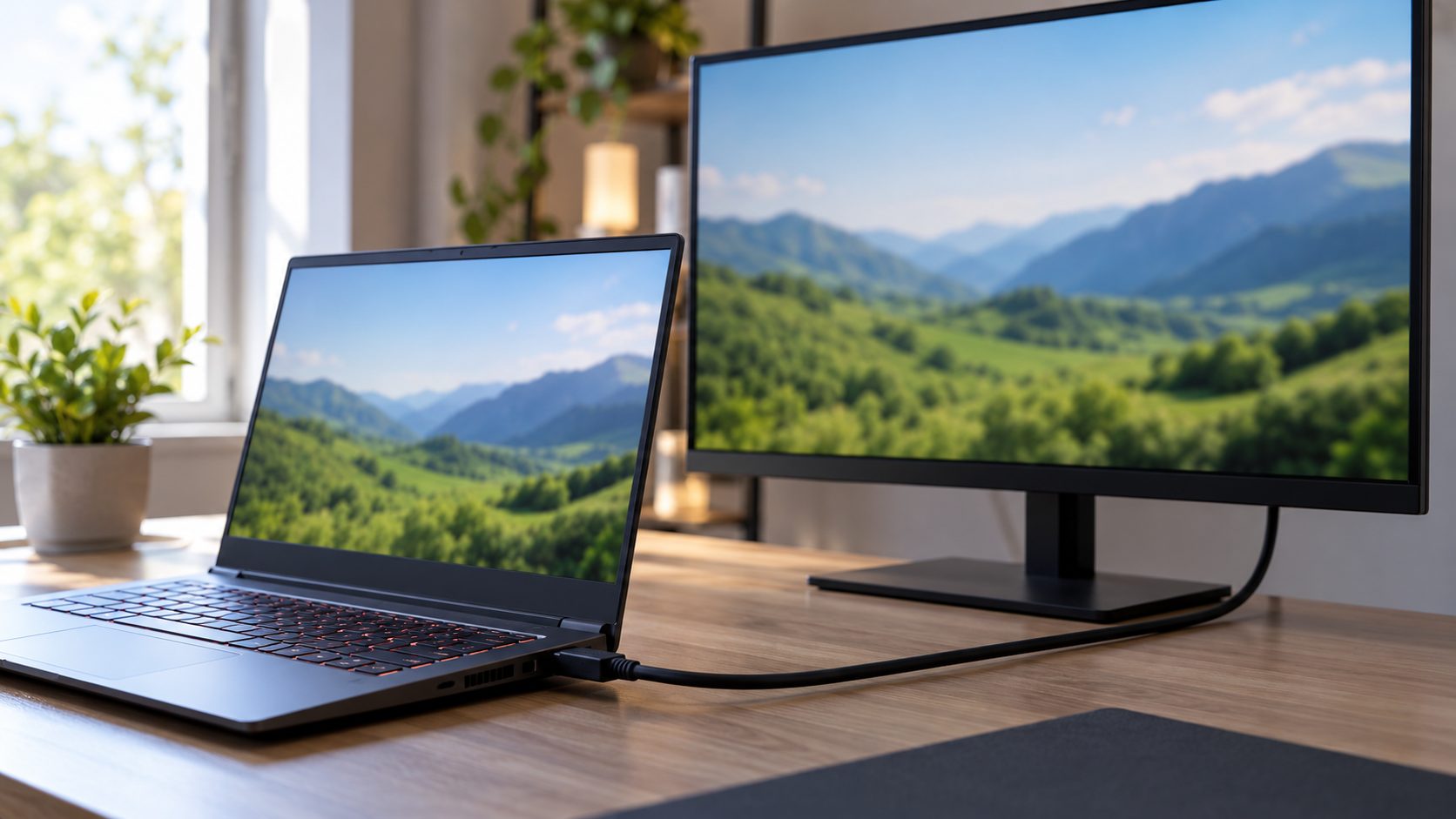
If every setting checks out, how to fix laptop graphics card problems comes down to one test that needs no tools: connect an external monitor and play the same game.
Colored blocks or stripes on both screens point to the GPU or its driver. Lines only on the built-in screen point to the panel or its cable, especially if they shift as you move the lid (see our laptop hinge guide). Blank USB-C monitor? Not every USB-C port carries video; see our laptop USB port guide.
Crashes only under load usually mean heat
Trouble that starts only after minutes of gaming usually means the laptop is slowing a hot chip to protect it; dust or blocked vents make it worse. Game on a hard, flat surface. Fan rattling? See our laptop vibrating guide.
How to fix laptop graphics card hardware faults
A dead soldered chip means a motherboard repair or replacement, so check the warranty and get a quote from the maker or a specialist shop first. After a spill, read our laptop water damage guide before powering on again.
Baking a board or heating the GPU with a heat gun risks burns, can damage nearby parts and the battery, and voids any warranty. Back up your files and leave board work to a repair shop.
Frequently Asked Questions
Why is my laptop using the wrong GPU, integrated instead of NVIDIA or AMD?
Usually Windows treats the app as light work, or a battery plan or maker mode keeps the dedicated GPU idle. Plug in, set High performance and relaunch. Still stuck? The maker-mode section explains how to fix laptop graphics card switching that Windows can’t override.
Is it bad to force every app to use the dedicated GPU?
It won’t damage anything, but it costs battery life and adds heat. Keep High performance for games and 3D tools.
Can you replace a laptop graphics card?
On almost all laptops, no, because the GPU is soldered on; only a few use a swappable graphics module. If you’re asking how to fix laptop graphics card failure on a dead chip, the answer is a board repair.
Recap: How to Fix Laptop Graphics Card Problems in Order
Plug in, confirm the GPU in Task Manager, set High performance and relaunch. GPU missing? Check the maker’s mode, then Device Manager and one driver step. Only then suspect hardware. That’s how to fix laptop graphics card trouble without paying for a repair you don’t need.
More fixes are in our computer guides.

Leave a comment