

How to Fix Phone Camera Problems: Black Screen, Crashes and Shaking
Black viewfinder, crashes or a rattling lens? Free the camera from other apps, check permissions and Screen Time, reset the app, then run the hardware tests.
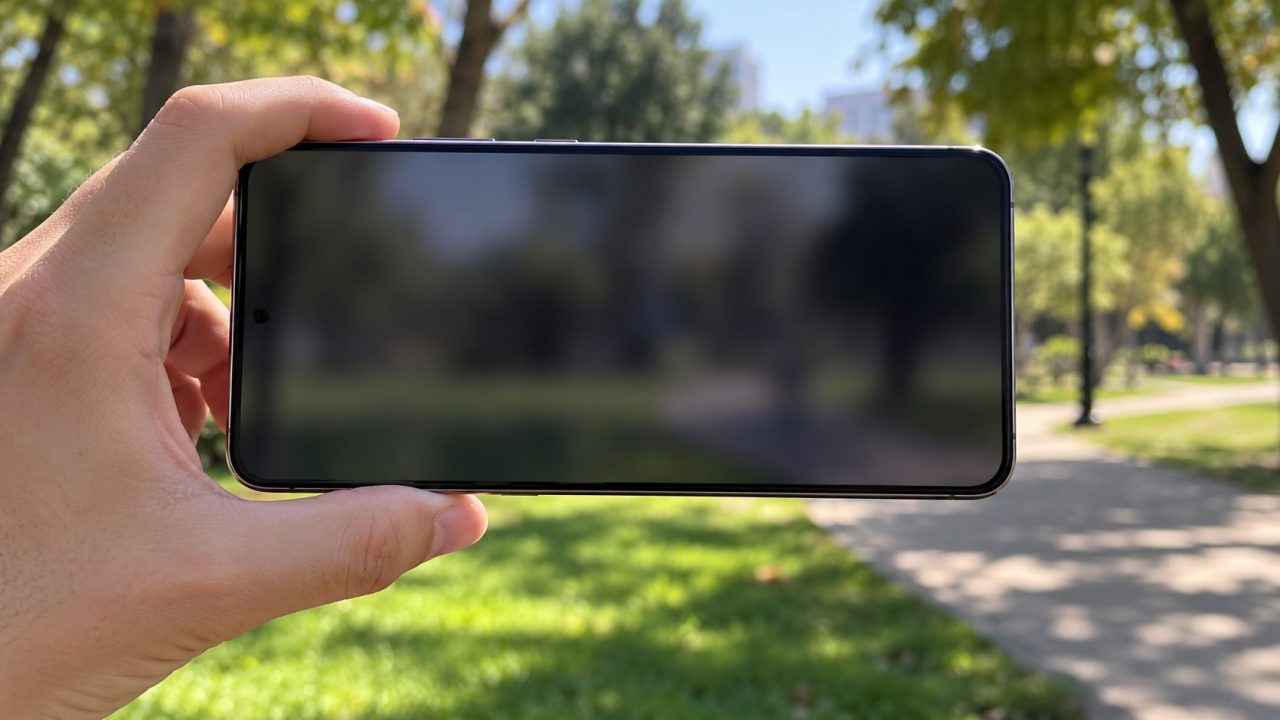
When the camera won’t open, shows a black screen or crashes, the camera hardware shouldn’t be your first suspect. Knowing how to fix phone camera failures means ruling out the ordinary causes: an app holding the camera, a blocked permission, a glitch or a covered lens.
This guide covers how to fix phone camera errors on iPhone and Android, cheapest checks first; blurry photos are a separate problem. Menu names vary by maker, so if a path doesn’t match, search Settings for “camera.”
How to Fix Phone Camera Problems: Start With These Checks
The two-minute version of how to fix phone camera trouble: end any video call, close apps that use the camera, take off the case or lens cover, then restart. Test after each step, as Google’s Pixel camera help advises.
Frozen screen? Force restart: on iPhone 8 and later, press and release Volume Up, then Volume Down, then hold the side button until the Apple logo appears. On a Pixel, Google says to hold Power for about 60 seconds. On a Samsung Galaxy, hold Side and Volume down for at least 7 seconds until it restarts; other brands differ.
Still failing? The table below sorts how to fix phone camera faults by symptom:
| What you see | Likely cause |
|---|---|
| Won’t open or closes | Another app has the camera |
| Black viewfinder | Access blocked or lens covered |
| “Something went wrong” or “Camera failed” | App or software fault |
| Fails only in Instagram or WhatsApp | That app’s permission or a bug |
| Camera icon gone (iPhone) | Screen Time restriction |
| Slow shutter, no flash | Heat or a case |
| Shaking or rattling | Pixel focus parts or iPhone stabilizer |
| One lens black | That camera module |
Find the App That’s Still Using the Camera
Start here for how to fix phone camera black screens: an app such as a video call left running may still hold the camera.
iPhone (iOS 14 and later): a green dot in the status bar means the camera is in use; orange means the microphone only. Control Center names the app that used the camera recently, as Apple’s hardware access guide explains.
Android 12 and later: swipe down and tap the green indicator at the top right to see which app has the camera, then tap again to manage its permissions.
Then close it: swipe it away in the iPhone app switcher, or tap Force stop in its App info on Android.
Camera Blocked? Check Permissions and Privacy Switches
A blocked camera looks like a broken one. On iPhone, go to Settings > Privacy & Security > Camera and turn on the app that fails; that’s how to fix phone camera permissions for one app.
Camera app missing on iPhone? Check Screen Time
Screen Time can turn off the built-in Camera, which hides it from the Home Screen without deleting it. On iOS 27, go to Settings > Screen Time > Content & Privacy Restrictions > Other Features and allow Camera. On iOS 18 to 26, the last step is Allowed Apps & Features; older versions say Allowed Apps.
Android phone camera won’t work? Check camera access
For one app, open Settings > Apps > [app] > Permissions > Camera and choose Allow only while using the app. If no app can use the camera, a device-wide switch is how to fix phone camera access: the camera access tile in Quick Settings (Android 12 and later) or Settings > Security & privacy > Privacy > Privacy controls > Camera access. Names differ on Samsung and other brands.
How to Fix Phone Camera Not Working: Reset the App and Update
Google’s Pixel steps for how to fix phone camera crashes run in this order: restart, clear the cache, update, then safe mode. On iPhone, quit and reopen the app, then update iOS.
Clear the cache (Android)
Hold the Camera icon > App info > Storage & cache > Clear cache. Test the camera.
Update
Pixel: Play Store > profile > Manage apps & devices, then the system update. iPhone: Settings > General > Software Update.
Clear storage (Android)
Same screen as step 1; some brands call it Clear data. It resets the Camera app’s own settings.
Rule out a conflicting app with safe mode (Android)
On a Pixel, screenshot your Home screen first: safe mode removes some widgets and turns on Airplane mode. Pixel 6 or later: press Power and Volume Up, touch and hold Power off, tap OK (on a Pixel 5a or earlier, hold Power alone first). Galaxy: open the power menu with Side and Volume down, touch and hold Power off, then tap Safe mode. Other brands differ.
If the camera works in safe mode, an app is the likely cause. Here’s how to fix phone camera conflicts: restart normally, then remove recent installs one at a time, restarting after each. If it still fails, an app probably isn’t to blame.
How to fix phone camera errors in Instagram, Snapchat or WhatsApp
If the Camera app works but one app fails, the fault is in that app: check its camera permission, update it, then clear its cache. Uninstalling comes last and erases data saved in the app, so back up chats first.
Heat, Full Storage and Anything Covering the Lens
Sometimes the answer to how to fix phone camera glitches is to wait. Apple says an overheated iPhone might temporarily disable the flash or other camera features, for example after long use in direct sun. Google says heat slows the Pixel camera too.
Let the phone cool out of the sun with the case off. Google warns that some cases and accessories can block the lens, so remove any lens cover, wipe the lens and back glass with a soft, clean cloth and check for scratches near the lenses.
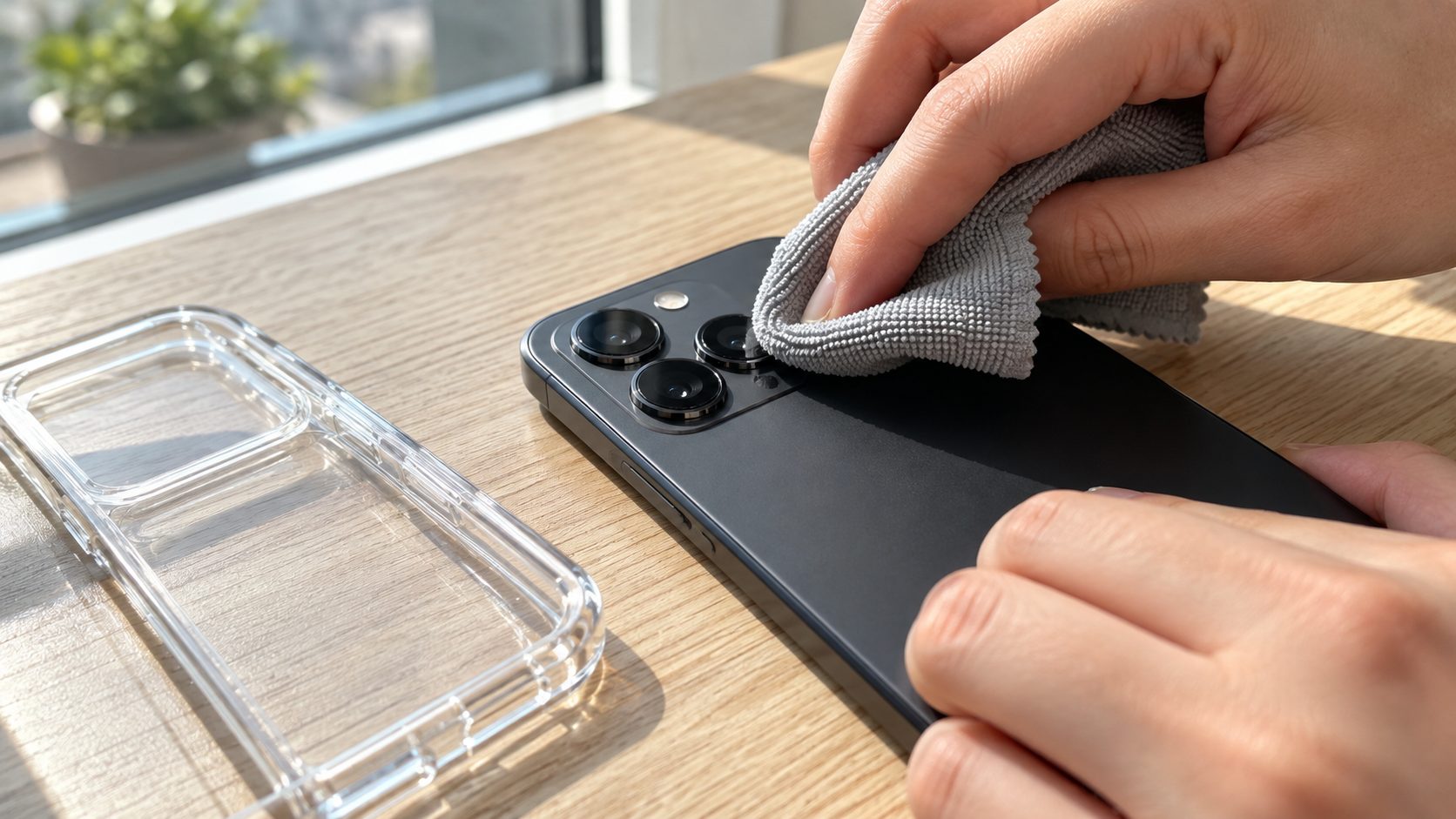
iPhone won’t take pictures, or the camera opens but won’t save? New photos need free space: check Settings > General > iPhone Storage, or Settings > Storage on a Pixel; Galaxy phones list it under Device care.
Two look-alikes aren’t camera faults. A rear light blinking with every text is a flash alert (see our phone flashing guide). A yellow viewfinder while photos look normal elsewhere points to a screen filter such as Night Shift; see why is my phone yellow.
Camera Shaking, Rattling or a Jittery Viewfinder
Before you work out how to fix phone camera shaking, check the brand, because a noise isn’t always a fault. Google says Pixel cameras have extra parts for fast focusing, so a slight rattle when you shake the phone is “normal and expected behavior.”
On iPhone, judge by the viewfinder rather than the sound. Its moving camera parts are optical image stabilization (OIS) and, on iPhone XS and later, closed-loop autofocus. Apple’s vibration guidance warns that long-term exposure to high-amplitude vibration can degrade both.
The iPhone XR has OIS. For a shaking viewfinder on an XR or any phone, restart, update and try a second camera app. If only one third-party app shakes, troubleshoot that app; shaking in every app points to the stabilizer.
Apple doesn’t recommend attaching an iPhone to motorcycles with high-power or high-volume engines. For mopeds and scooters, it recommends a vibration-dampening mount or gimbal and avoiding regular use for long periods.
Is the Camera Broken? Final Tests and Repair Options
If every step so far has failed, the answer to how to fix phone camera issues is probably a repair. Confirm it first:
- Every app fails. If other camera apps crash too, Google says it’s likely a hardware issue.
- Front and back. Switch cameras. On a Pixel, also hold the Camera icon and tap Take a selfie; an error there means start a repair.
- One lens at a time. Step through 0.5x, 1x and telephoto; one black lens while the others work suggests that module failed.
- Damage. After a drop or water exposure, suspect hardware first.
On iPhone, the last software step is Settings > General > Transfer or Reset iPhone > Reset > Reset All Settings. Apple says it deletes no data or media, but you’ll re-enter Wi-Fi passwords, redo location and privacy settings and re-add Apple Pay cards.
On Android, the last step is a factory reset, which erases the phone. Back up photos and chats and know your Google Account password first; the option’s location varies by maker. Test the camera before restoring apps or a backup; if it still fails, hardware is almost certainly the cause.
For iPhone, Apple offers the Genius Bar, Authorized Service Providers and mail-in repair. Pixel repairs start from Google’s repair page; other brands have their own service.
Frequently Asked Questions
Why is my phone camera not working or showing a black screen?
Usually another app has the camera, access is blocked or the lens is covered. If it stays black in every app after a restart, or on one lens only, suspect hardware.
Why won’t my phone take pictures when the camera opens?
Check storage and heat first: free up space and let the phone cool. If neither helps, clear the Camera app’s cache or update.
Is it worth learning how to fix phone camera hardware yourself?
Usually not. Swapping a camera module means opening a glued, sealed phone, so it isn’t a routine fix like the software steps above; use the maker’s repair service.
Will clearing camera data or resetting settings delete my photos?
No. Apple says Reset All Settings deletes no data or media, only settings such as saved Wi-Fi networks. On Android, clearing storage resets just the Camera app’s settings; photos normally sit in your gallery, but back up first if unsure.
Recap: Free the Camera, Then Test the Hardware
The order for how to fix phone camera problems: close whatever holds the camera, check permissions and Screen Time, restart, reset the app, update, then try safe mode. Only when every app fails, or one lens stays black, is it a repair job.
More phone fixes are in our mobile guides.
Leave a comment