

Ethernet Not Working on Your Laptop or PC? Fix the Port and Cable
Read the Windows status and port lights first, then fix the cable, a 100 Mbps cap, the driver and power-saving dropouts. A damaged jack comes last.
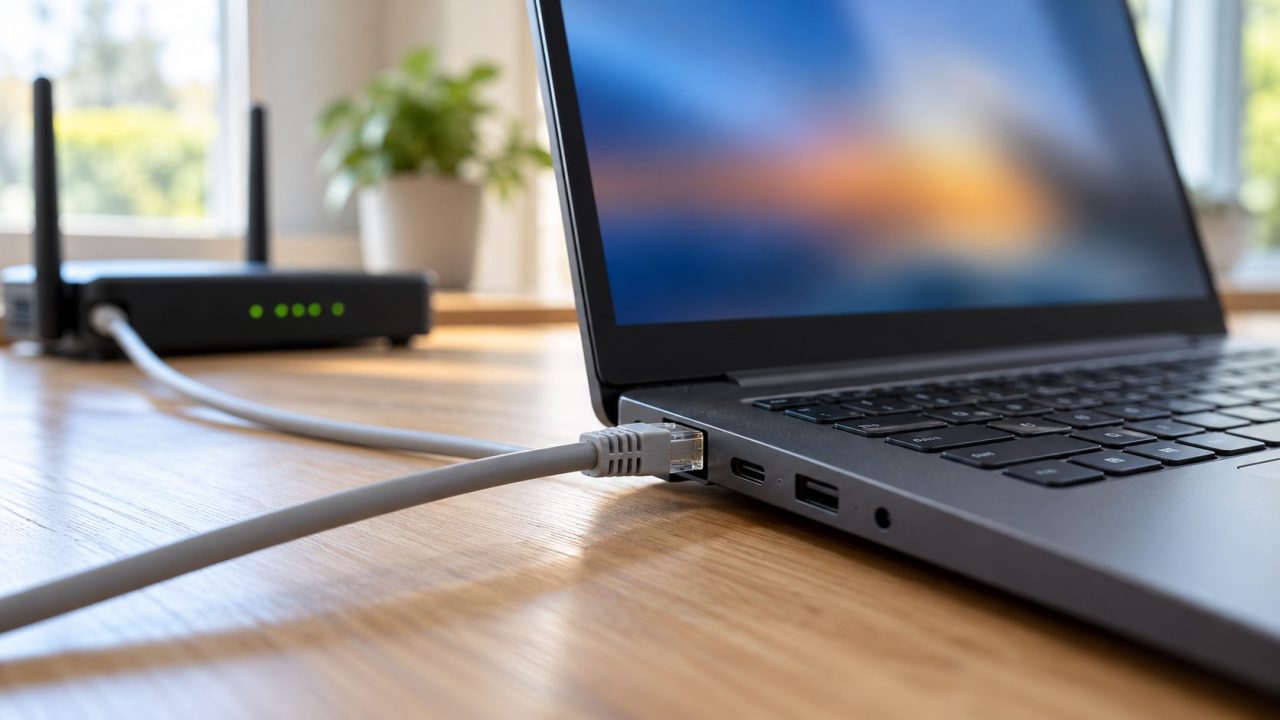
Knowing how to fix laptop Ethernet port problems starts with one question: is there a physical link at all? Windows and the port lights answer that in seconds and point you to the cable, driver, power saving or jack.
Steps are for Windows 11 and 10; menus vary by build and driver.
Network Cable Unplugged or No Internet? Read the Status First
Quick answer: how to fix laptop Ethernet port problems depends on what the adapter status says. Network cable unplugged means no electrical link. If the link is up but pages won’t load, the cause is usually the IP address, DNS, a VPN, the router or the ISP.
Press Win + R and run ncpa.cpl. The line under the Ethernet icon gives the status:
Network cable unplugged
No link. Start with the cable checks below.
Disabled
Right-click the adapter and choose Enable.
Unidentified network
Link up, but usually no address from the router: ipconfig shows 169.254.x.x. Run ipconfig /renew or restart the router.
A network name
Link fine. Double-click it: IPv4 Connectivity shows Internet or No Internet access.
If Settings > Network & internet in Windows 11 shows Connected but nothing loads, it isn’t a port fault; use the “Connected, no internet” row in our Windows 11 Wi-Fi guide.
What the port lights mean (orange isn’t always bad)
On most ports, off means no link, solid means a link and blinking means traffic. Color isn’t standard, which trips up many guides on how to fix laptop Ethernet port problems. On the NETGEAR routers that article covers, white or green means gigabit and amber means 100 or 10 Mbps.
Other hardware differs: on many motherboards the activity LED is amber, and some 2.5GbE ports use orange for 1 Gbps. Check your manual’s LAN LED table. No LEDs on the laptop? Watch its router port instead.
How to Fix Laptop Ethernet Port Problems That Start With the Cable
If you only learn one thing about how to fix laptop Ethernet port trouble, make it this: swap the cable before you blame the port. These checks follow Microsoft’s Ethernet steps:
- Reseat both ends until each latch clicks.
- Swap the cable for a known-good Cat5e or better one.
- Use a LAN port, not the router’s Internet (WAN) port that links to the modem, then try another LAN port.
- Skip the wall jack or switch and plug straight into the router once.
- Restart in order. Restart the laptop, then unplug the router and modem for about 30 seconds. Plug in the modem first, let its lights settle, then the router.
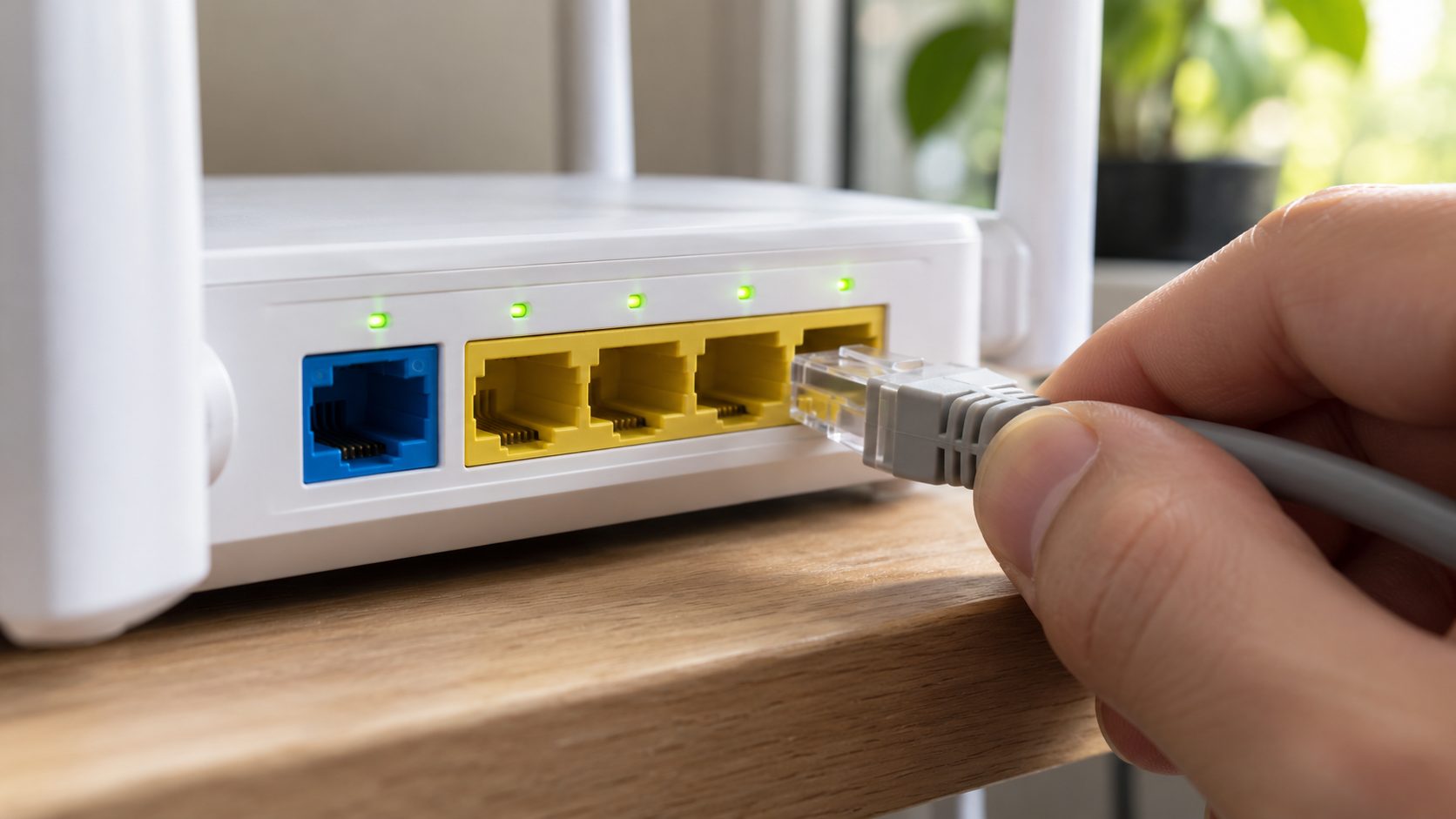
Still nothing? Try another computer on the same cable and port. If neither connects, Microsoft points to the router or ISP, not your laptop.
Ethernet Stuck at 100 Mbps? Check the Negotiated Link Speed
Check the negotiated speed, not a speed test: open ncpa.cpl, double-click the adapter and read Speed, or run Get-NetAdapter in PowerShell and check LinkSpeed.
If you’re wondering how to fix laptop Ethernet port speeds stuck at 100 Mbps, start with the cable. Gigabit Ethernet (1000BASE-T, IEEE 802.3ab) uses all four wire pairs; 100 Mbps uses only the pairs on pins 1-2 and 3-6. A damaged pair on pins 4-5 or 7-8 can leave a working link that never reaches gigabit. Other culprits: a 10/100-only switch, router or USB adapter, or a forced speed.
The adapter’s Advanced tab lists Speed & Duplex, with only the modes its hardware supports. The standard driver default is Auto Negotiation. Forcing a fixed speed is rarely how to fix laptop Ethernet port problems; Intel says it’s only needed with an older switch that can’t auto-negotiate, and the other end must match.
Ethernet Adapter Missing, Disabled or Broken After an Update
Press Win + X, choose Device Manager and expand Network adapters; the Ethernet entry should show no yellow warning.
Missing entirely? Don’t look up how to fix laptop Ethernet port hardware yet: the controller may be off in firmware. In BIOS or UEFI setup, set Onboard LAN (names vary) to Enabled; a BIOS update or reset can switch it off again.
Uninstalling can leave you offline, so save the latest Ethernet driver from your laptop or motherboard maker to a USB drive first.
Microsoft suggests a clean reinstall, especially when an update broke Ethernet:
- Right-click the adapter and choose Uninstall device.
- Tick Attempt to remove the driver for this device (older Windows 10 builds: Delete the driver software for this device).
- Restart. If Windows doesn’t reinstall it, install your saved copy.
Lights on but no network? Reset the stack
A lit LED shows only a carrier signal, Intel notes, so first confirm Speed & Duplex is on Auto. After that, how to fix laptop Ethernet port problems becomes a software job. On Windows 11, Microsoft starts with the Get Help app’s Network and Internet troubleshooter (Windows 10: Settings > Network & Internet > Status > Network troubleshooter).
If that fails, open Command Prompt with Run as administrator and run, in order:
netsh winsock resetnetsh int ip resetipconfig /releaseipconfig /renewipconfig /flushdns
Restart afterwards; the two netsh resets only take effect after a reboot.
Last resort: Settings > Network & internet > Advanced network settings > Network reset (Windows 10: Status > Network reset). It reinstalls every adapter with default settings. VPN clients or virtual switches may need reinstalling, and networks may be set to Public.
Why Your PC Keeps Disconnecting From Ethernet: Power Saving
If every wired device drops at once, suspect the router. If only this PC drops, here’s how to fix laptop Ethernet port dropouts caused by power saving, one change at a time:
- Power Management tab: untick Allow the computer to turn off this device to save power, if the tab exists.
- Energy-Efficient Ethernet: on by default under Microsoft’s driver standard. Intel’s guide says it idles the port between bursts and can add slight latency. Disable it as a test, along with look-alikes such as Green Ethernet, Advanced EEE or Power Saving Mode.
- USB adapters: turn off Selective Suspend in the adapter’s Advanced tab, or under USB settings in the power plan’s advanced options, if shown.
- Drivers: some 2.5GbE controllers needed driver, firmware or hardware revisions to stop dropouts; get the newest driver and BIOS from your laptop or motherboard maker.
Ultra Low Power and Reduce Link Speed During Standby differ: Intel ties them to an unplugged cable or standby, so they explain a slow, amber link while asleep. Re-enable anything that didn’t help; it saves battery. Still dropping? Try the wiggle test below.
No Built-In Port? USB-C Ethernet Adapters and Docks
Thin laptops often have no RJ45 port, and an adapter also keeps you online while you work out how to fix laptop Ethernet port damage. Choose a USB 3.x model rated for Gigabit or 2.5 Gbps; many USB 2.0 adapters top out at 10/100.
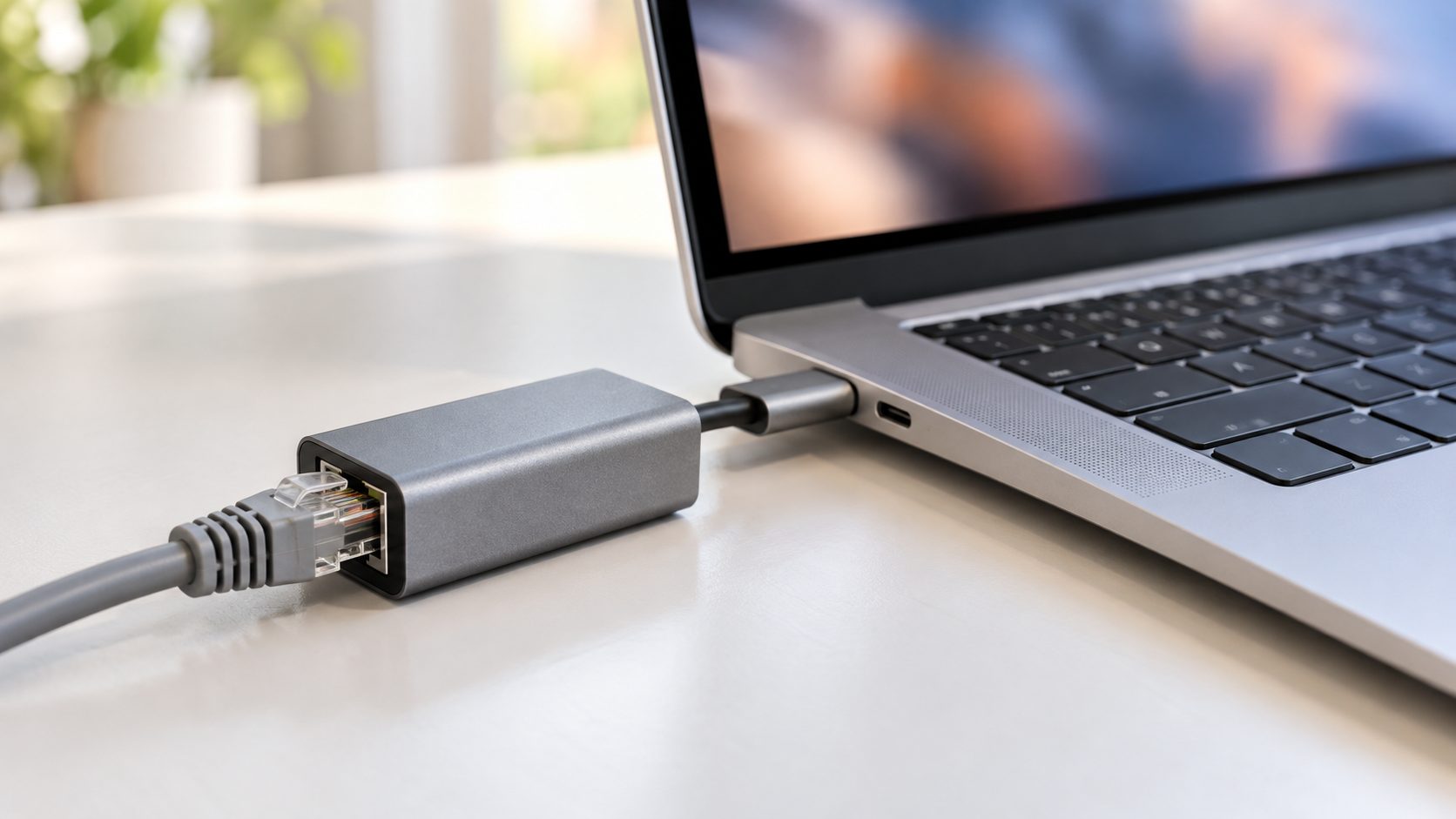
Adapter not connecting? Check its link LED, skip any hub and power-cycle any dock. Then install the driver from the adapter or chip maker (often Realtek or ASIX), and swap the cable and router port.
How to Fix Laptop Ethernet Port Damage, or When to Stop
With the laptop off and unplugged, shine a flashlight into the jack: contacts should be straight and evenly spaced, with no debris or snapped plug clip. If the port has a hinged drop-down flap, it must open fully and spring back, or the plug won’t lock in.
Then plug in a known-good cable and gently wiggle it. If the link light flickers or the connection drops, the jack or its solder joints are probably loose.
Press the clip fully and pull straight out; levering it with a screwdriver can tear the jack from its board. After a spill, follow our laptop water damage guide before powering on.
Here is how to fix laptop Ethernet port damage without overspending:
Warranty first
Use an authorized service center; opening it yourself can affect coverage.
Find the jack
Ask a shop where it sits. On a small daughterboard it’s a part swap; on the motherboard it needs soldering.
Compare prices
A USB 3.x Gigabit adapter often costs less than a board repair.
How to Fix Laptop Ethernet Port Issues: Common Questions
Why is my PC’s Ethernet port blinking orange?
Often it’s normal traffic on an amber activity LED. Orange while the PC is off or asleep is usually Wake-on-LAN keeping a low-speed standby link; enable ErP or Deep Sleep, or disable Wake-on-LAN, in the BIOS to stop it (names vary).
Why does Windows say “Network cable unplugged”?
There’s no electrical link. Swap the cable and router port, then check that Speed & Duplex is on Auto, test power saving and reinstall the driver.
Why does Wi-Fi work but Ethernet doesn’t?
They use separate adapters, so working Wi-Fi clears your ISP and the router’s wireless side, not its LAN ports. That narrows how to fix laptop Ethernet port problems to the cable, the LAN port and the Ethernet driver.
Should I pay a shop or learn how to fix laptop Ethernet port damage myself?
Do the cable, driver and wiggle checks yourself, but leave the jack to a shop. If it’s soldered to the motherboard, a USB adapter often costs less.
Recap: Link First, Then Driver, Then Hardware
Read the status and lights, swap the cable, confirm the link speed, then check the driver and power saving. That order is how to fix laptop Ethernet port problems without paying for a repair you don’t need.
More fixes are in our computer guides.


Leave a comment