

Monitor Not Detecting MacBook? Display Limit, Cable and macOS Fixes
An external display that stays dark on a MacBook usually comes down to the chip's display limit or a cable without video. Here's what to check, in order.
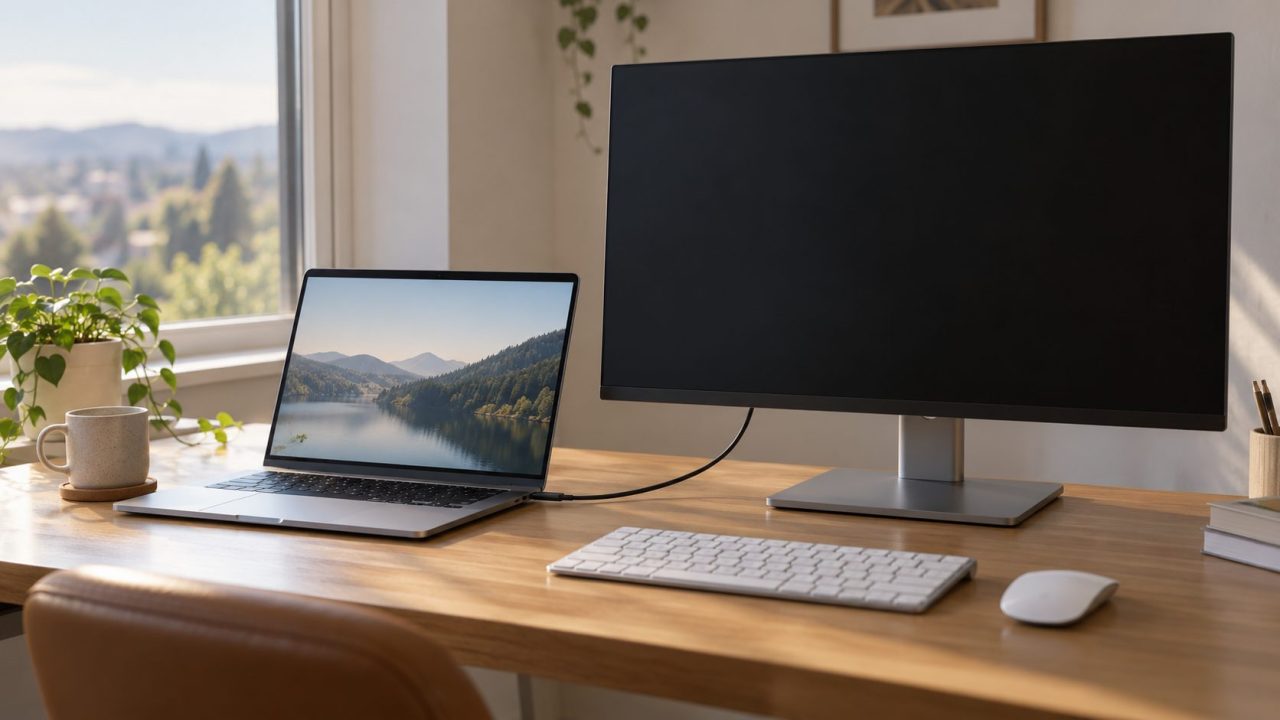
A monitor not detecting MacBook video is rarely a broken screen. More often the Mac is already at its chip’s external display limit, the USB-C cable can’t carry video, or macOS needs a nudge to look again. Check them in that order: the first two cost nothing.
The steps are for Apple silicon MacBook Air, Pro and Neo models; Intel differences are noted.
Monitor Not Detecting MacBook? Check Your Chip’s Display Limit First
Apple says an external display stays dark if it goes over the number of external displays your Mac can run at once, and that number varies by model. If the monitor not detecting MacBook video is your second or third screen, you’ve most likely hit the limit.
Find your chip under Apple menu > About This Mac. In System Settings, Help > [your Mac] Specifications lists exact figures under Display Support or Video Support. From Apple’s per-model pages (March 2026):
| MacBook and chip | External displays | Watch for |
|---|---|---|
| MacBook Neo | 1 | Up to 4K60, left port only (facing the Mac’s left side) |
| Air M1, M2; 13-inch Pro M1, M2 | 1 | Up to 6K60 |
| Air M3; Pro M3 | 1 lid open, 2 lid closed | macOS version, connection order |
| Air M4, M5 | 2 | 6K60 or 4K144 each with two |
| Pro M4, M5; M1 Pro to M4 Pro | 2 | Lid closed adds none on M4, M5 |
| Pro M5 Pro | 3 | Lid closed adds none |
| Pro M1 Max to M5 Max | 4 | M1 Max: the fourth is 4K60 on HDMI |
Counts also depend on each display’s resolution and refresh rate, and a hub or daisy chain never raises the maximum. So a second monitor not detecting MacBook Air M1 or M2 video is expected, not a fault. Intel models vary; check their tech specs.
M3 MacBook Air and Pro: The Second Screen Needs the Lid Closed
On a base M3 MacBook, a second monitor not detecting MacBook video with the lid open is normal. Two external screens work only with the lid closed, in the order shown on Apple’s M3 dual-display page. M3 Pro and M3 Max don’t need this.
Prepare the Mac
Connect power and an external keyboard and mouse or trackpad. You need macOS Sonoma 14.3 or later on MacBook Air, 14.6 or later on MacBook Pro.
Connect the primary display
With the lid open, plug in the first screen (up to 6K60 or 4K144).
Close the lid
Keep working through the external keyboard and mouse.
Connect the second display
Plug it in now (up to 5K60 or 4K100).
Opening the lid makes the second display go dark or disconnect; that’s by design. To reset which screen is primary, disconnect both and reconnect them in order.
Monitor Not Detecting MacBook Over USB-C or HDMI: Cable and Port
Reseat the cable at both ends and set the monitor to the right input. Then:
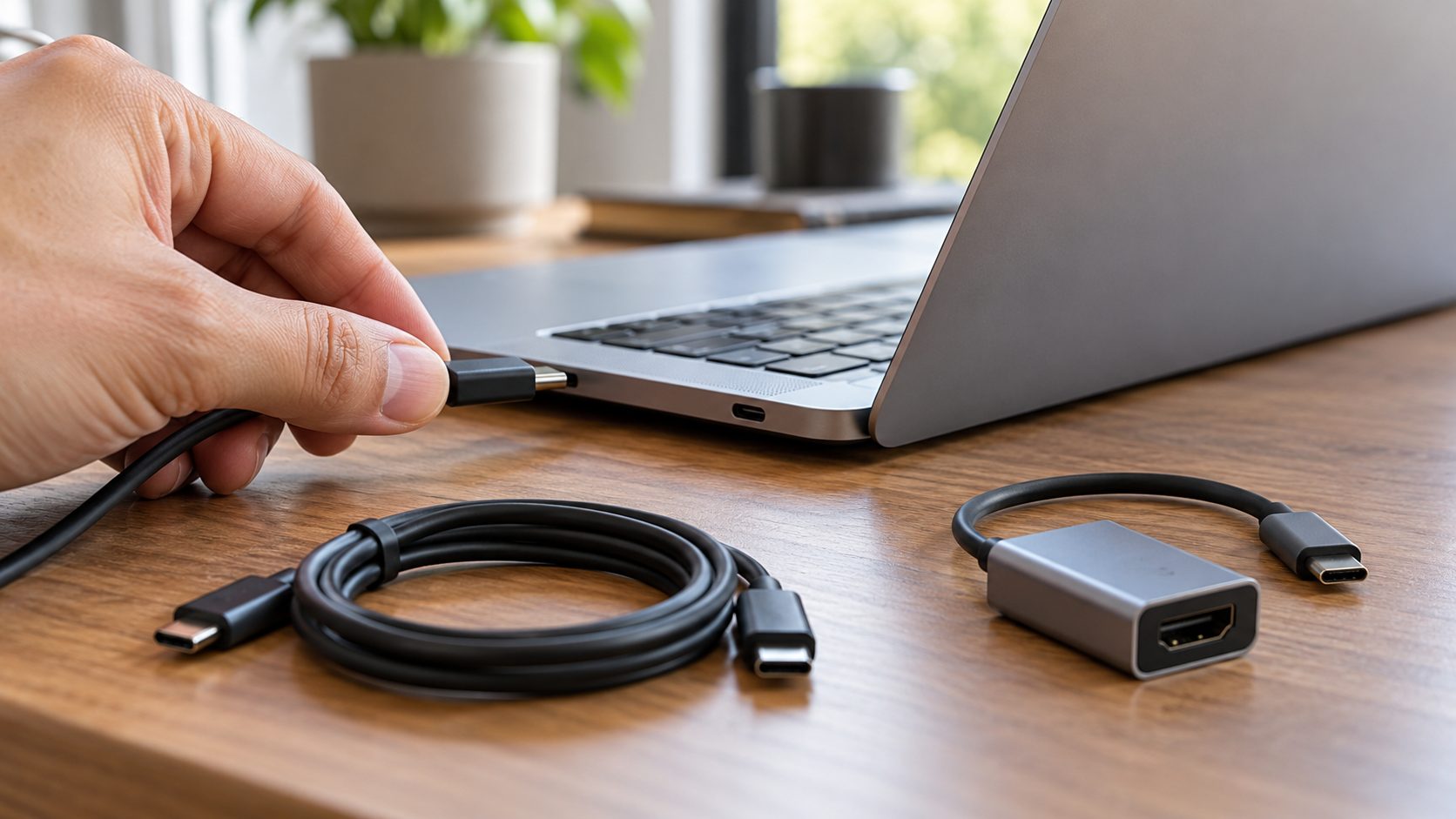
- Use a USB-C cable that carries video. Apple says a USB-C or Thunderbolt display adapter must support DisplayPort Alt Mode, Thunderbolt 3 or Thunderbolt 4; a direct USB-C cable needs the same. A charge-only cable carries no picture, which leaves you with a monitor not detecting MacBook video at all.
- Skip the hub for now. Connect the display directly to a port on the Mac.
- Use the right port. On MacBook Neo, only the left USB-C port as you face the Mac’s left side (nearer the back) carries video; the other is for USB 2 devices. The wrong port alone can explain a monitor not detecting MacBook Neo video.
- Know your HDMI port. On 14- and 16-inch MacBook Pro models from 2021 on, it handles at least 4K60. Models introduced in 2023 or later with an M4, M5, Pro or Max chip reach 8K60 or 4K240, but not through an adapter, and 8K needs an Ultra High Speed (48Gbps) HDMI cable. Other MacBooks need a USB-C to HDMI adapter.
- Swap one part at a time. Cable, then port, then adapter, so you know which one failed. With several screens, connect the highest-resolution one first.
Make macOS Look Again: Detect Displays and Allow the Accessory
Limit and cable check out, but you still have a monitor not detecting MacBook video? Make macOS scan again with Apple’s steps for a dark display:
- Open Apple menu > System Settings > Displays (System Preferences before macOS Ventura). Hold Option and click Detect Displays, which takes the Night Shift button’s place.
- Unplug the display from the Mac and from its power source, then reconnect.
- Close the lid for a few seconds and reopen it to sleep and wake the Mac.
- Restart. If that isn’t possible, hold the power button for about 10 seconds to turn the Mac off; unsaved work in open apps may be lost.
Apple silicon MacBooks can ask whether to allow a new display to connect. Click Don’t Allow and the screen stays dark, just like a monitor not detecting MacBook video. Unplug the display, unlock the Mac, reconnect it and click Allow; Apple says you’ll be asked again.
The setting is under System Settings > Privacy & Security > Accessories (“Allow accessories to connect”). Keep the default, “Ask for new accessories”, or “Automatically allow when unlocked”; “Always allow” approves every accessory without asking. For lid-closed use, allow the display, keyboard and mouse first.
Detected but Black or Mirrored: Fix the Display Setup
If the screen shows up in Displays settings, macOS has found it, even if it looks like a monitor not detecting MacBook video. The fix is in the setup:
Same picture on both
That’s mirroring. In System Settings > Displays, click the display’s name and choose Extended display from the Use as menu.
Listed, but dark
Apple says a cable that can’t handle the resolution and refresh rate can leave a display dark or force a lower mode. In System Settings > Displays, select it and pick a lower Refresh rate; our monitor not detecting 144Hz guide covers cable bandwidth.
Dock Only Mirrors, or You Need More Screens: DisplayLink
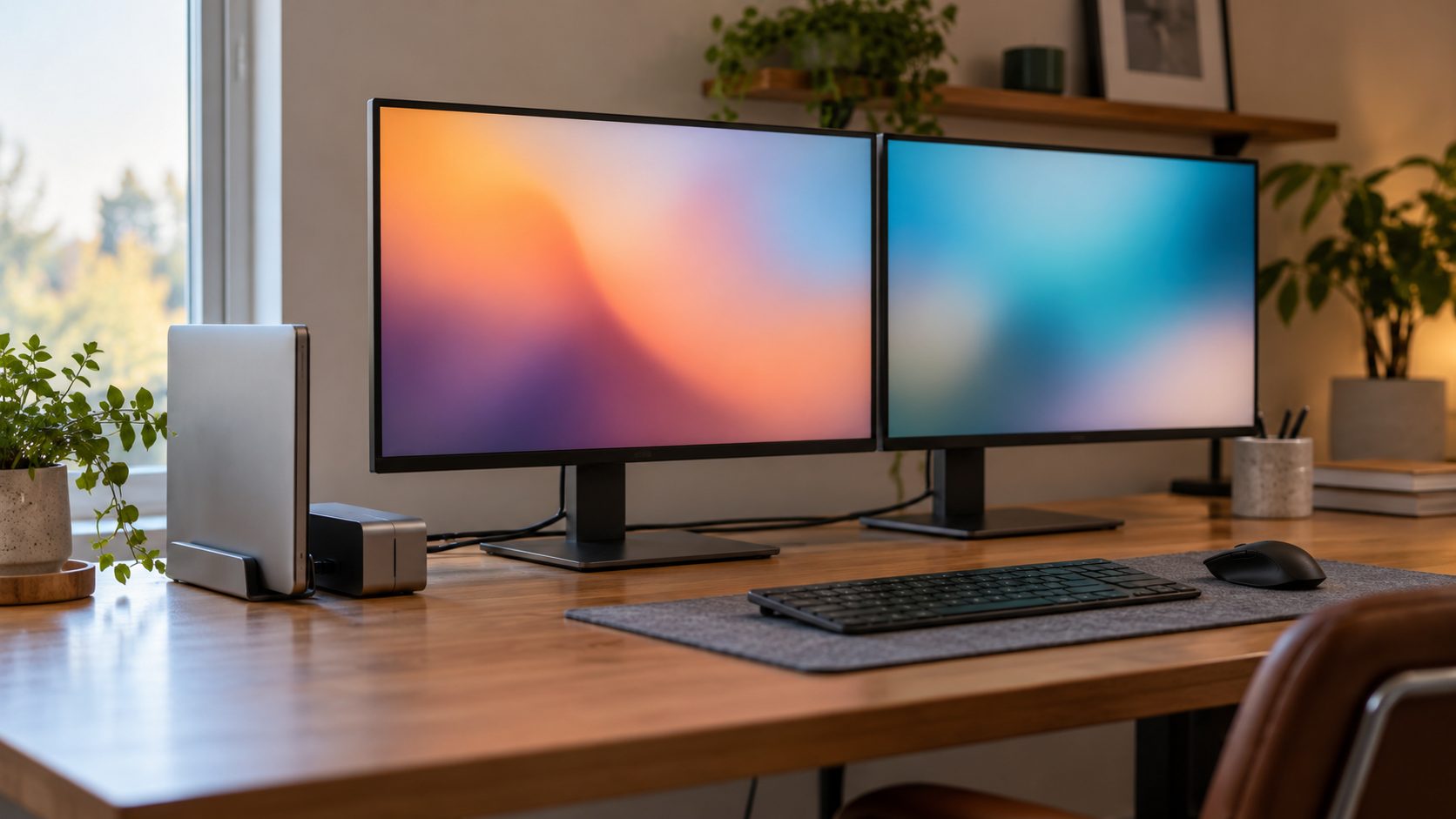
A dual-HDMI dock that only mirrors most likely splits one USB-C video signal using MST, and macOS can’t extend a desktop over MST hubs. A Thunderbolt dock is different: on chips that support two or more displays, it can carry two over one port, within your chip’s limit.
Apple’s fix for a dock that only mirrors: connect the display directly to the Mac, within your chip’s limit. If that limit is the reason for your monitor not detecting MacBook video, the usual wired way past it is a DisplayLink dock or adapter. It sends the picture over USB through software, bypassing the chip’s display outputs that set the limit. An iPad with Sidecar or an AirPlay-capable TV can also act as an extra screen.
- Get DisplayLink Manager from Synaptics’ official download page, not a mirror site. Release 17.0 (September 2026) lists macOS Sonoma 14 and later. Allow the dock if macOS asks (see the accessory note above).
- Open System Settings > Privacy & Security > Screen & System Audio Recording (Screen Recording on macOS Sonoma) and turn on DisplayLink Manager.
- Enter your password or use Touch ID, then click Quit & Reopen.
The trade-offs: with a DisplayLink screen connected, Netflix, Disney+ and other protected video may play black on every screen (unplug it, switch browsers or turn off hardware acceleration). macOS caps these virtual displays at four, and they stay blank at the startup login with FileVault on.
Still Not Detected: Updates, Safe Mode and Resets to Skip
Monitor not detecting MacBook video after all of that? Install macOS updates in System Settings > General > Software Update, plus any dock or monitor firmware updates the makers offer. Then test the monitor on another computer; on a Linux PC, see our monitor not detected in Ubuntu guide.
Safe mode helps rule out dock or display software. On Apple silicon, shut down, then hold the power button until “Loading startup options” appears. Select your startup disk, hold Shift and click Continue in Safe Mode.
On an Intel Mac, hold Shift right after you turn it on until the login window appears. If the monitor works in safe mode, remove recently added dock or display software.
Older guides for a monitor not detecting MacBook video still suggest an NVRAM or SMC reset. Apple says the NVRAM steps don’t apply to Apple silicon Macs, which have no SMC reset; a restart covers it. On an Intel MacBook, Apple’s NVRAM and SMC reset steps still apply.
Monitor Not Detecting MacBook: Quick Answers
Why does my MacBook Air only detect one external monitor?
M1 and M2 Airs support one. An M3 Air adds a second only with the lid closed (Sonoma 14.3 or later); M4 and M5 Airs run two with the lid open.
Why do both monitors show the same picture through my dock?
It most likely splits one signal with MST, and macOS only mirrors over MST. Connect directly within your chip’s limit, or go past it with DisplayLink, Sidecar or AirPlay.
Does any USB-C cable work for a monitor on a Mac?
No. It needs DisplayPort Alt Mode or Thunderbolt support. Rule out a charge-only cable first when you have a monitor not detecting MacBook video.
Recap: Limit, Cable, Detect, Then Software
Most of the time, a monitor not detecting MacBook video is fixed by the first two checks: the chip’s display limit, and a video-capable cable in the right port. Detect Displays, the accessory prompt and the Use as menu cover most of the rest.
More fixes are in our computer guides.


Leave a comment