

How to See My WiFi Password on Windows, Mac, iPhone and Android
Reveal a saved Wi-Fi password on Windows, Mac, iPhone or Android, find out why the option may be missing, and use the router when no device has it saved.
The fastest answer to how to see my wifi password is a device that has already joined the network. On current software, Windows, macOS, iOS and Android can each show a saved password again. If none of your devices has it, the router is the fallback.
Every method below only reveals a password your own device has already saved. Use them on networks you own or are allowed to use.
How to See My WiFi Password: Start With a Device That Already Joined
Find your device below; each row links to its steps for how to see my wifi password:
| Device | Where to look | Minimum version |
|---|---|---|
| Windows 11 | Network & internet > Properties | 22H2 (2023 update) or later |
| Windows 10 | Wireless Properties > Security | Windows 10 |
| Any Windows PC | netsh in a terminal | Windows 10 or 11, as admin |
| Mac | Passwords, System Settings or Keychain Access | Any; Passwords app needs Sequoia |
| iPhone, iPad | Settings > Wi-Fi > (i) | iOS 16, iPadOS 16.1 |
| Android | Wi-Fi network > Share | Android 10 |
How to See My WiFi Password on Windows 11 and 10
On a PC, how to see my wifi password depends on the Windows version; Microsoft’s Wi-Fi help page covers both. The PC must have joined the network; Windows 10 must be connected to it now.
Windows 11: select Show
Open Settings > Network & internet > Properties and select Show next to Wi-Fi network password (on older builds: Wi-Fi > [your network] properties > View Wi-Fi security key). For other saved networks, open Wi-Fi > Manage known networks, pick one and select Show.
Windows 10: Wireless Properties
Go to Settings > Network & Internet > Status > Network and Sharing Center and select your Wi-Fi name next to Connections. Choose Wireless Properties, open the Security tab and tick Show characters. The password is in the Network security key box.
Early Windows 11 build with no reveal button? This route still works for the network you’re on: press Win+R, type ncpa.cpl, double-click Wi-Fi, then choose Wireless Properties > Security > Show characters.
How to see my wifi password for every saved network (netsh)
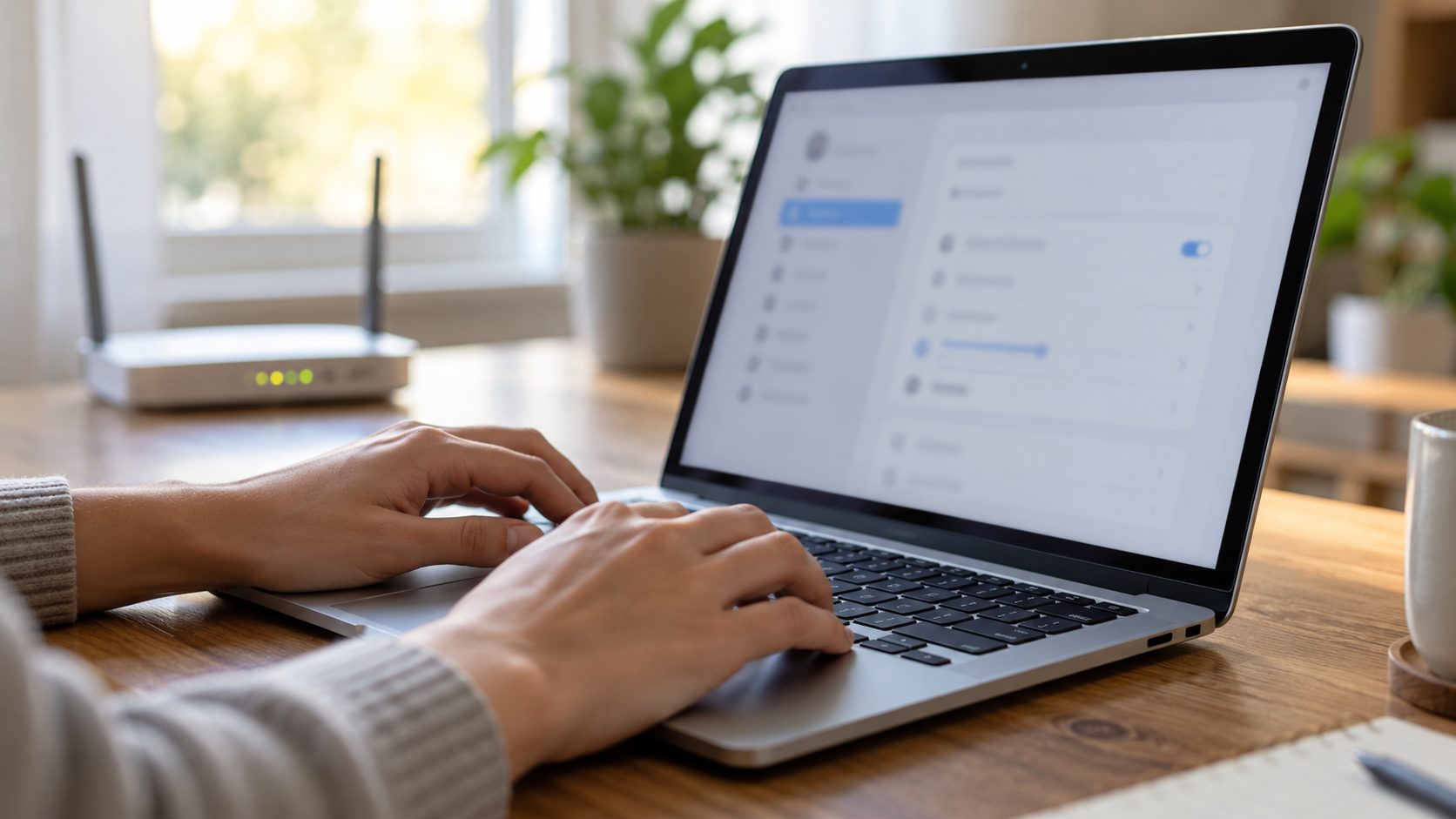
Right-click Start and choose Terminal (Admin), or Windows PowerShell (Admin) on Windows 10, then list the saved networks:netsh wlan show profiles
Then ask for one by its exact name:netsh wlan show profile name="HomeNet" key=clear
The password is on the Key Content line.
No Key Content line? The window probably isn’t running as administrator; netsh shows the key only to a local administrator. Security key: Absent means an open network, and work or school (802.1X) profiles have no shared key to show.
Create a folder such as C:\wifi-export, then run this in the same admin window:netsh wlan export profile key=clear folder=C:\wifi-export
Each network becomes an XML file with its password in plain text, so delete the folder with Shift+Delete (or empty the Recycle Bin) when you’re done.
How to See My WiFi Password on a Mac
On a Mac, how to see my wifi password depends on the macOS version. With iCloud Keychain syncing, a Mac can often show a network only your iPhone joined.
macOS Sequoia and later: open Passwords, click Wi-Fi in the sidebar and select the network. Hover over the dots next to Password to reveal it, or click them to copy.
macOS Ventura and Sonoma (and later): open System Settings > Network > Wi-Fi, scroll down and click Advanced. Click the More button (three dots) next to the network, choose Copy Password and paste it somewhere to read it.
Any macOS version: open Keychain Access from Spotlight, select the System keychain in the sidebar (iCloud for synced networks), choose Passwords and double-click the network. Tick Show password and enter what macOS asks for: an administrator name and password, or your Mac login password for an iCloud item.
How to See My WiFi Password on iPhone and iPad
Apple’s support article sets the floor at iOS 16 or iPadOS 16.1. Go to Settings > Wi-Fi, tap the Info button (i) next to your network, then tap Password and unlock with Face ID, Touch ID or your passcode.
For a network you joined earlier, tap Edit at the top right, authenticate, and tap the Info button next to a network with a lock icon. On iOS 18 and later, the Passwords app also lists them under Wi-Fi.
Between Apple devices, Share Password skips reading it out. Both people need an Apple Account and each other in Contacts, with Wi-Fi and Bluetooth on, Personal Hotspot off and your connected iPhone unlocked nearby.
How to See My WiFi Password on Android
On Android, the usual route for how to see my wifi password is Share, which turns a saved network into a QR code on Android 10 and later. Menus vary by maker.
Pixel and stock Android: open Settings > Network & internet > Internet (on Android 10 and 11: Wi-Fi), tap the gear next to your network, then Share, and verify it’s you. For a network you’re not on now, open Saved networks at the bottom of that page.
Most Galaxy phones: open Settings > Connections > Wi-Fi, tap the gear next to the network, then QR code. Networks you’re not near are under Manage networks in the three-dot menu (inside Advanced settings on some versions).
Pixels and many other phones print the password under the code. If yours shows only the code, scan it with another phone’s camera or a QR scanner app. As text, it reads likeWIFI:S:HomeNet;T:WPA;P:yourpassword;
and the part after P: is the password.
Phone still won’t join? See our guide to an Android phone that won’t connect to Wi-Fi.
Why Your Wi-Fi Password Is Not Showing on iPhone, Windows or Android
Followed the steps for how to see my wifi password and found no button or an empty field? Check these causes:
- Old software. Revealing it needs iOS 16, iPadOS 16.1 or Android 10; the Passwords app needs iOS 18 or macOS Sequoia. Early Windows 11 builds have no reveal button in Settings.
- Nothing saved. A device that forgot the network has nothing to show, and an open network (no lock icon on an iPhone) has no password.
- A managed network. Work or school networks set up by a profile or with per-user logins may hide the field.
- A desktop on Ethernet. A wired PC never saved one; check a phone or laptop.
How to See My WiFi Password When No Device Has It Saved
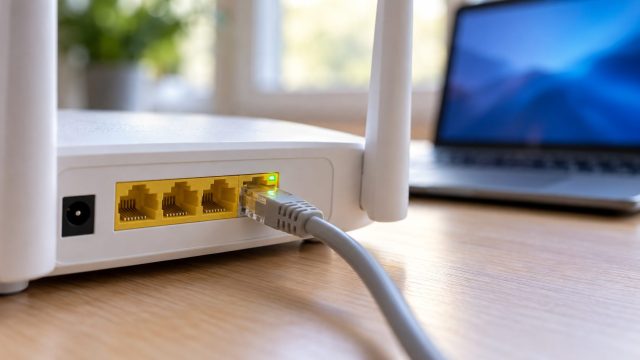
If it’s your network, the router can still answer how to see my wifi password. Steps 1-2 and the reset warning follow TP-Link’s router guide; most brands work the same way.
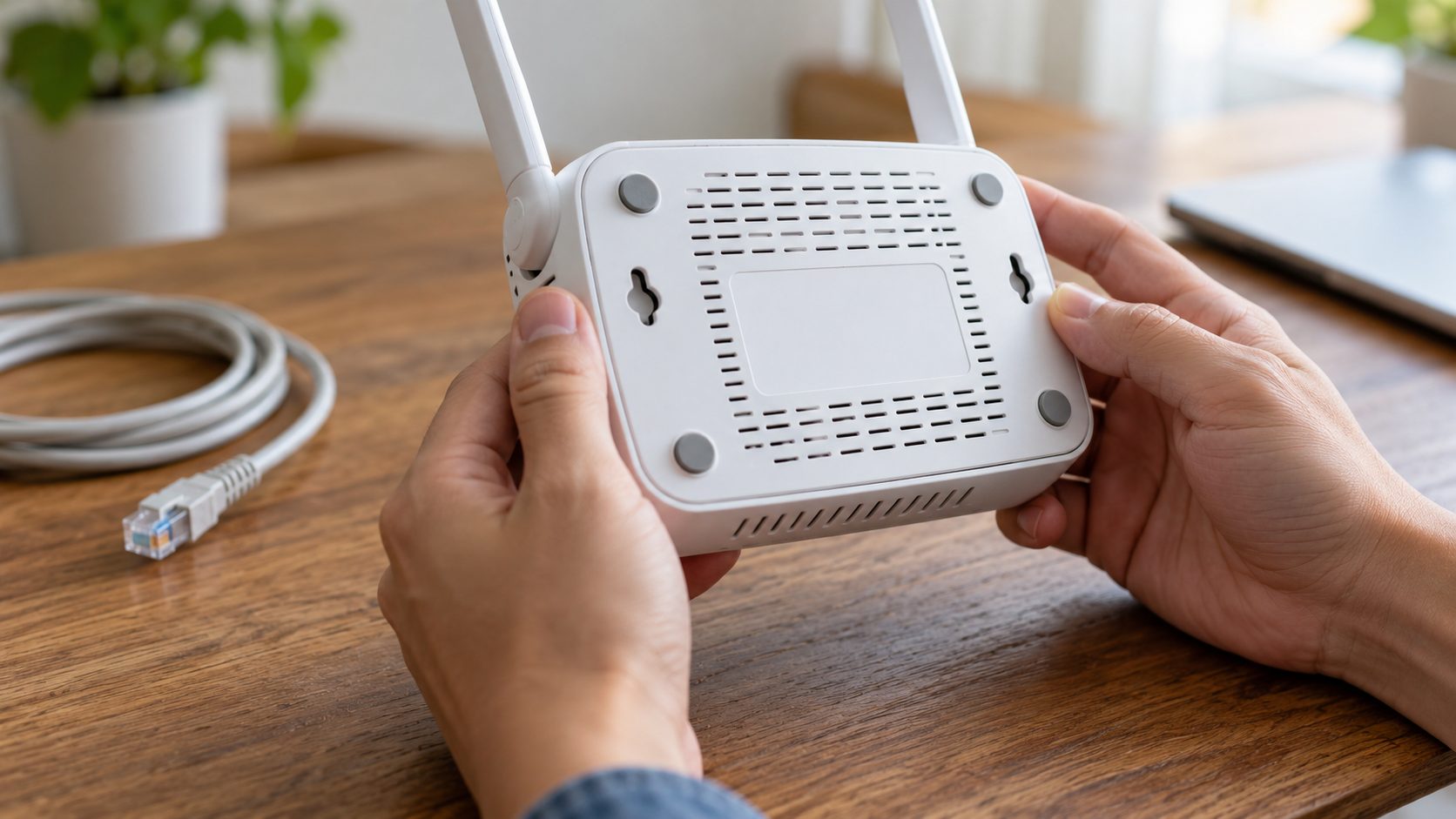
Read the label
The default network name (SSID) and password are printed on a label, usually on the bottom or back. They only work if nobody changed the password after setup.
Open the router’s web page
From a connected device, type the router’s address into a browser, such as 192.168.0.1, 192.168.1.1 or tplinkwifi.net (a phone’s Wi-Fi details list it as Router or Gateway). Log in and look under Wireless; menus vary by model. The router login is a separate password from the Wi-Fi one.
Check your provider’s app or mesh app
If your provider supplied the router or you use a mesh system, check its app. If the connection itself keeps dropping, see our guide to a router that keeps disconnecting.
A reset restores the label password but erases every setting, including your provider’s, so every device must reconnect. Some connections then need your provider account details to get online again.
Frequently Asked Questions
Can I see my Wi-Fi password on Windows without admin rights?
Not with netsh. If Settings won’t show it either, ask whoever manages the PC.
How do I know my Wi-Fi username and password?
Home Wi-Fi has no username, just the network name and one shared password (WPA2- or WPA3-Personal). A username prompt means the router’s admin login, a WPA2- or WPA3-Enterprise network at work or school, or a hotel or cafe sign-in page (a web login, not the Wi-Fi password).
Is the password on my router sticker still correct?
Only if nobody changed it after setup. Otherwise, read the current password in the router’s web page or your provider’s app.
Recap: Share the Password, Don’t Text It
The short version of how to see my wifi password: Show or netsh on Windows; Passwords, System Settings or Keychain Access on a Mac; the Info button on an iPhone; Share on Android; and the router when nothing has it. Share it by QR code or Apple’s Share Password rather than in a message.
If a PS5 still won’t connect after you type the password in, try our PS5 Wi-Fi fixes. More help is in our internet guides.

Leave a comment